
Track time
Time is tracked against a project and a task. Billable time is what becomes an invoice.
The week
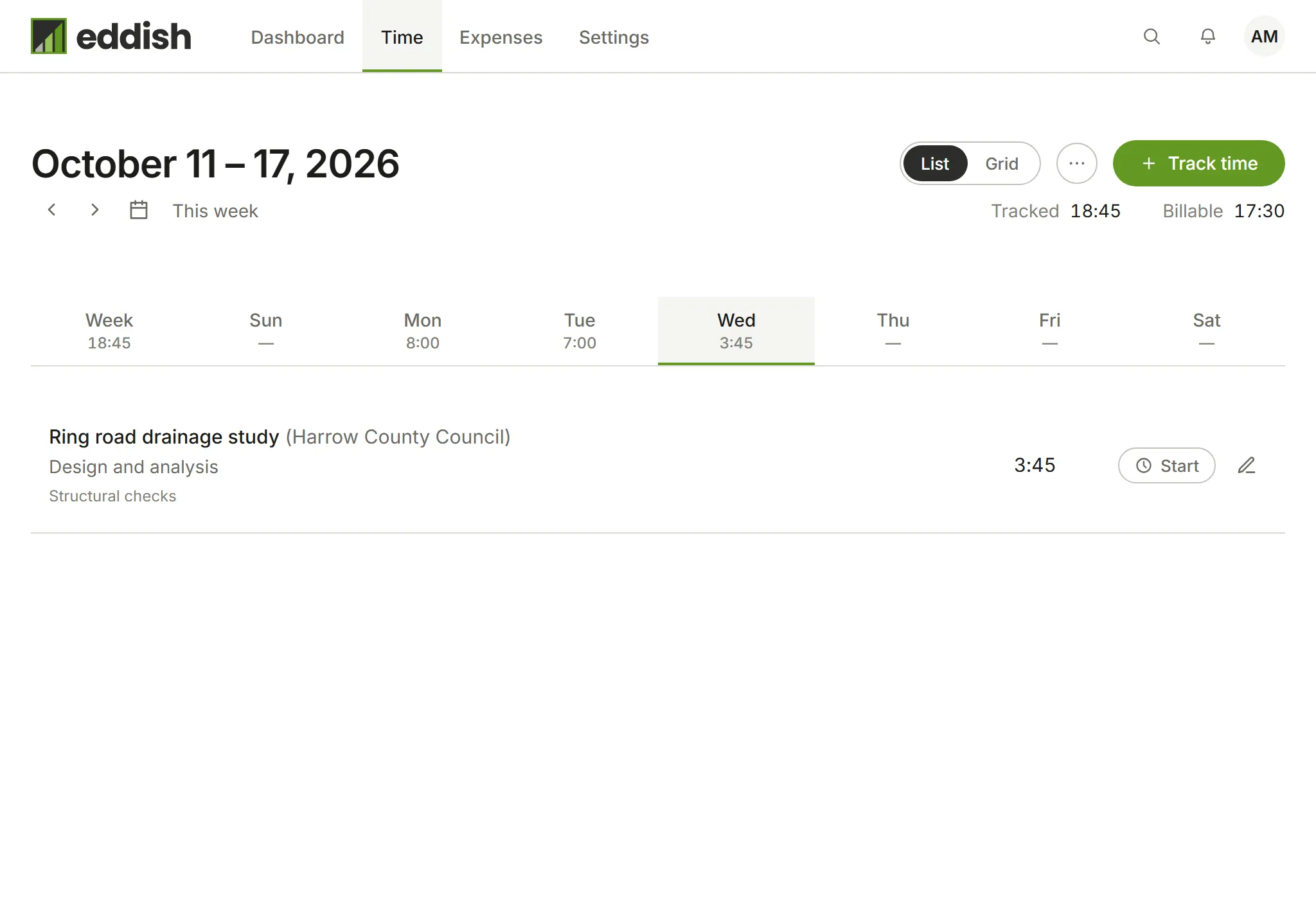
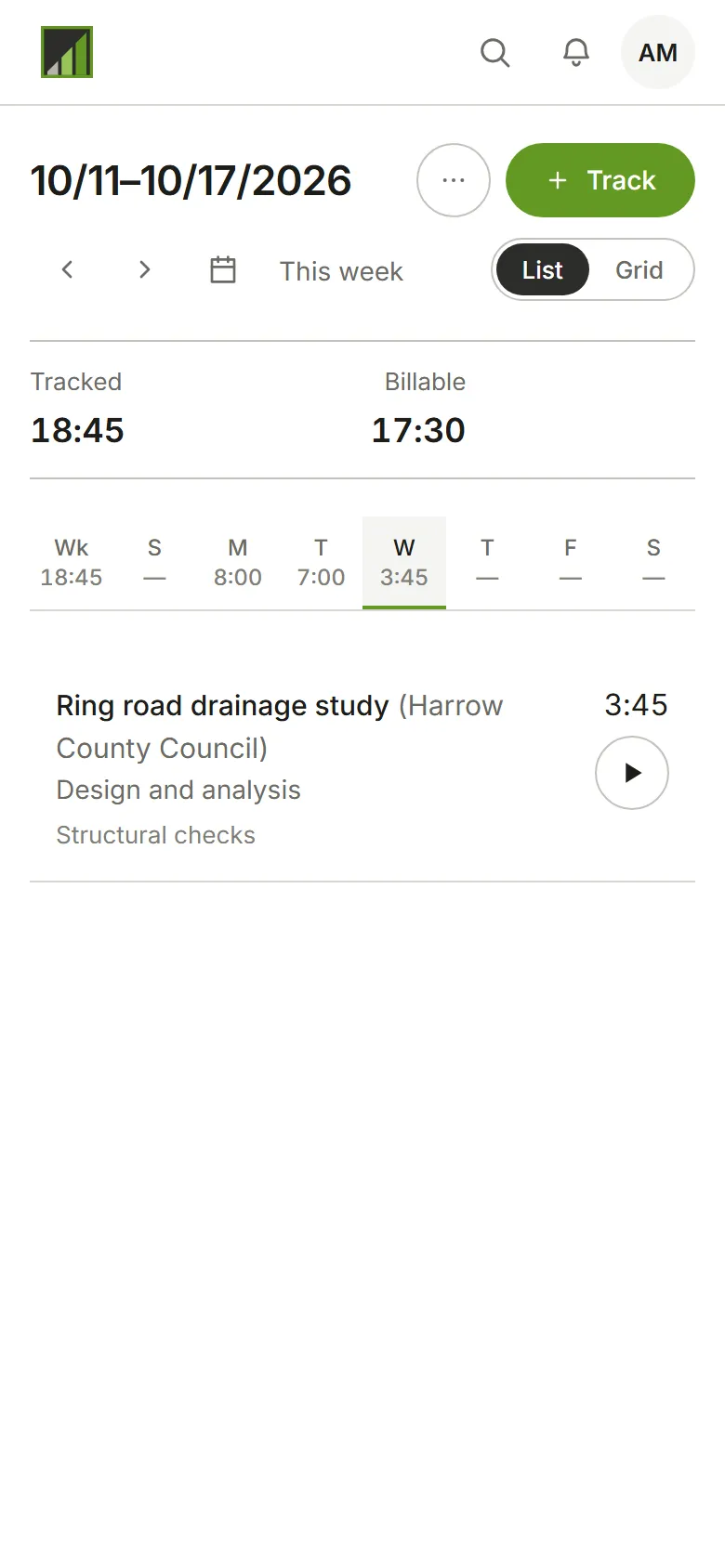
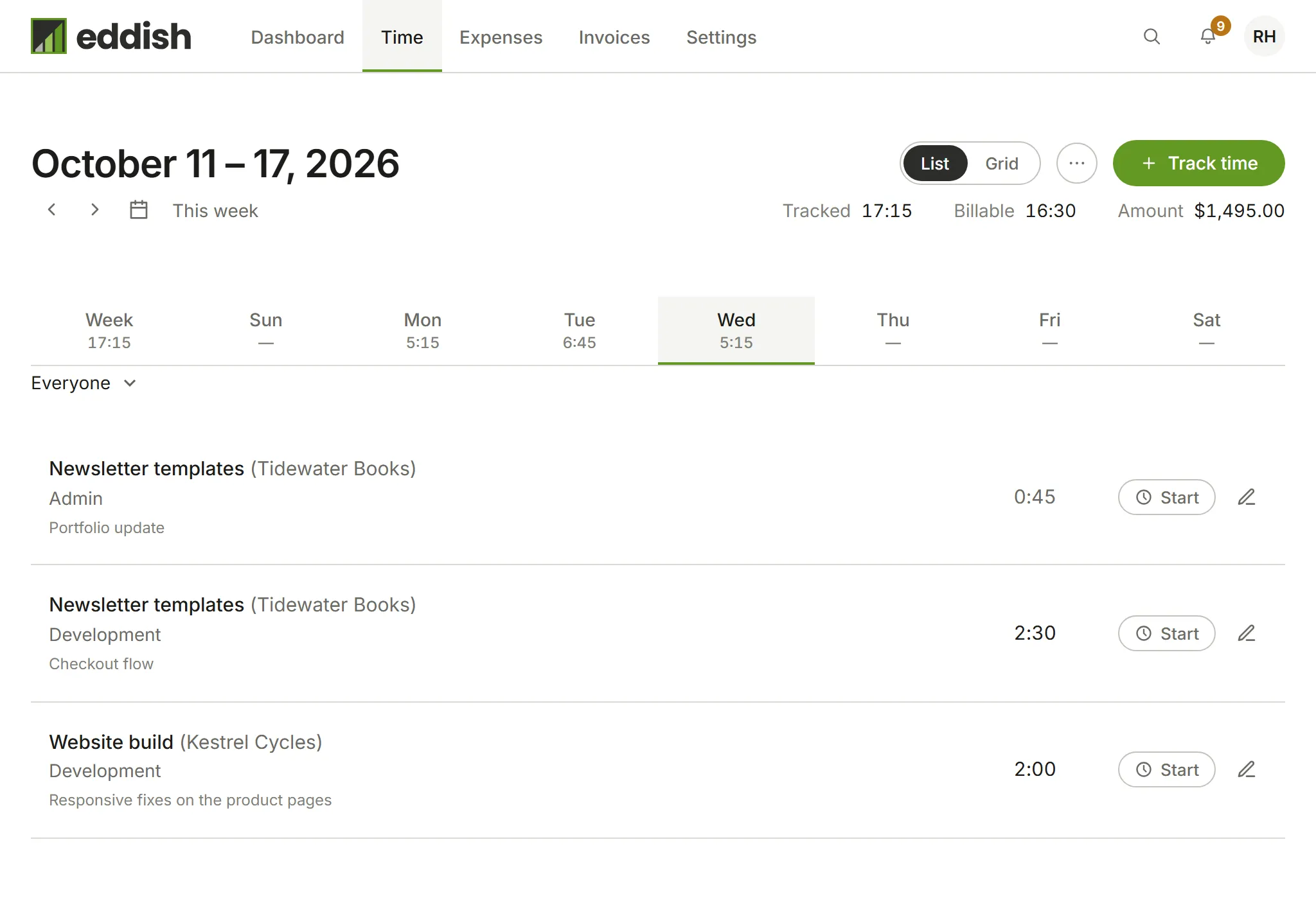
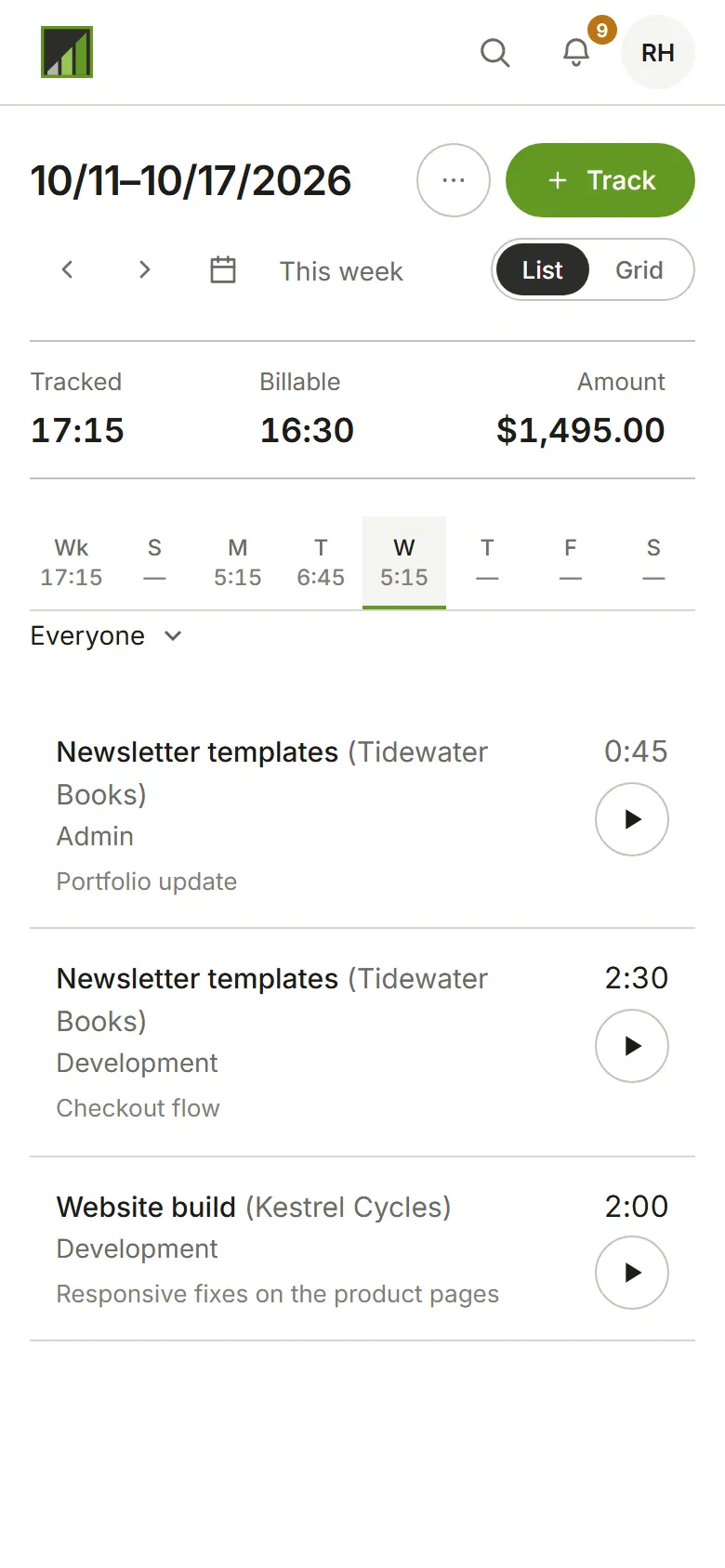
Section titled “The week”Open Time. You see one week, with a tab for each day and the hours tracked on it. Use the arrows to move a week, or the calendar to jump to a date. Tracked, Billable and Amount add up the week.
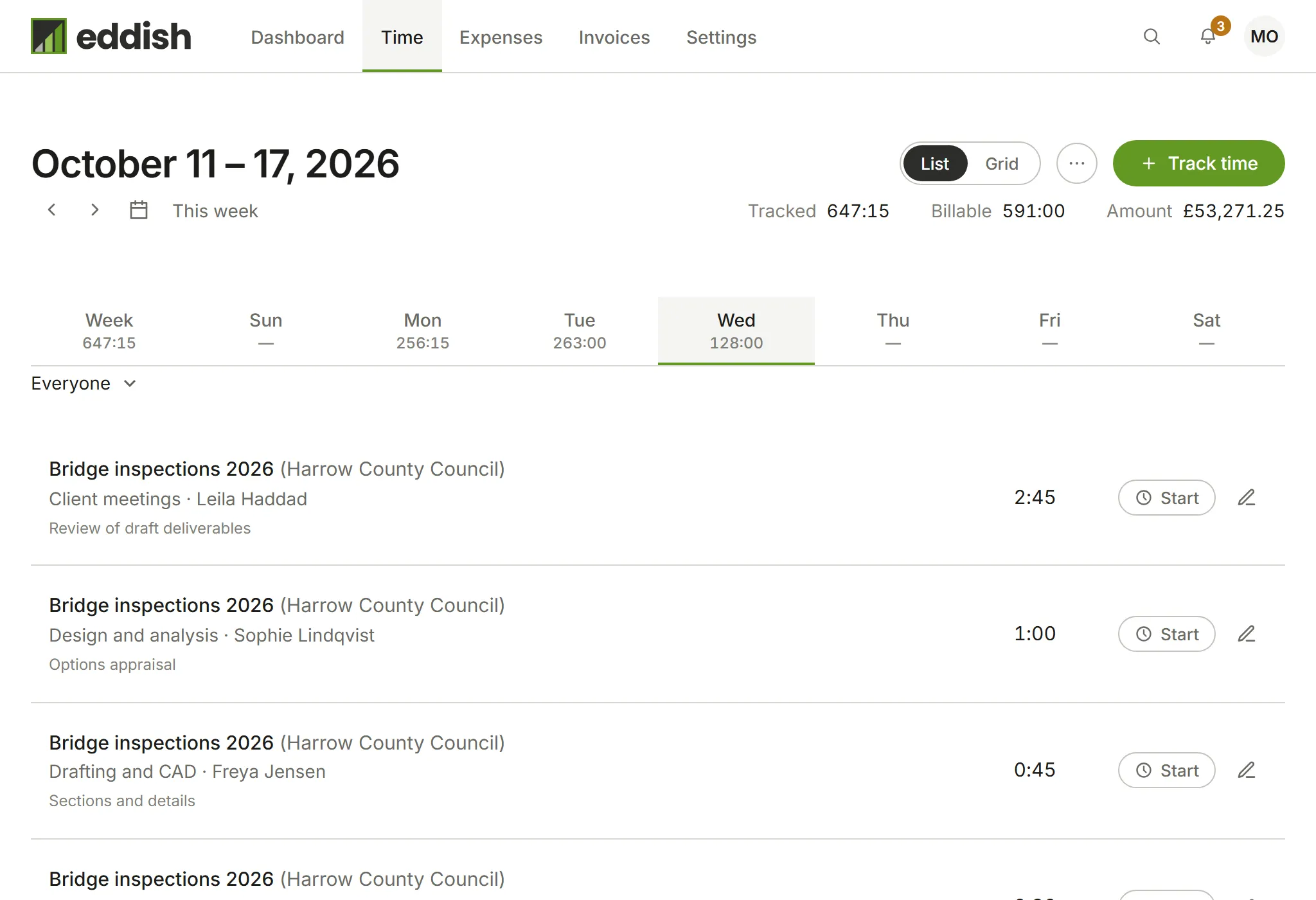
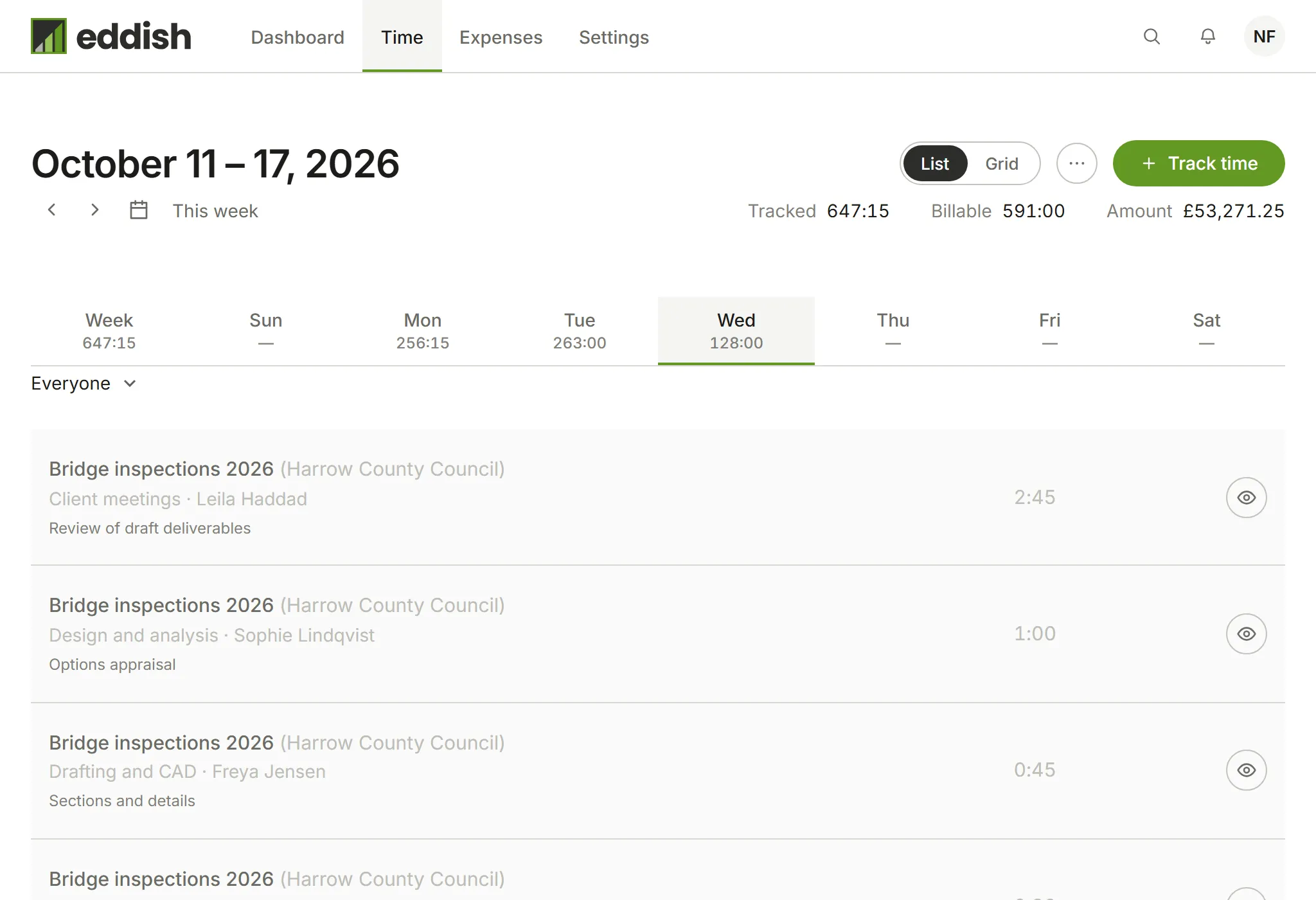
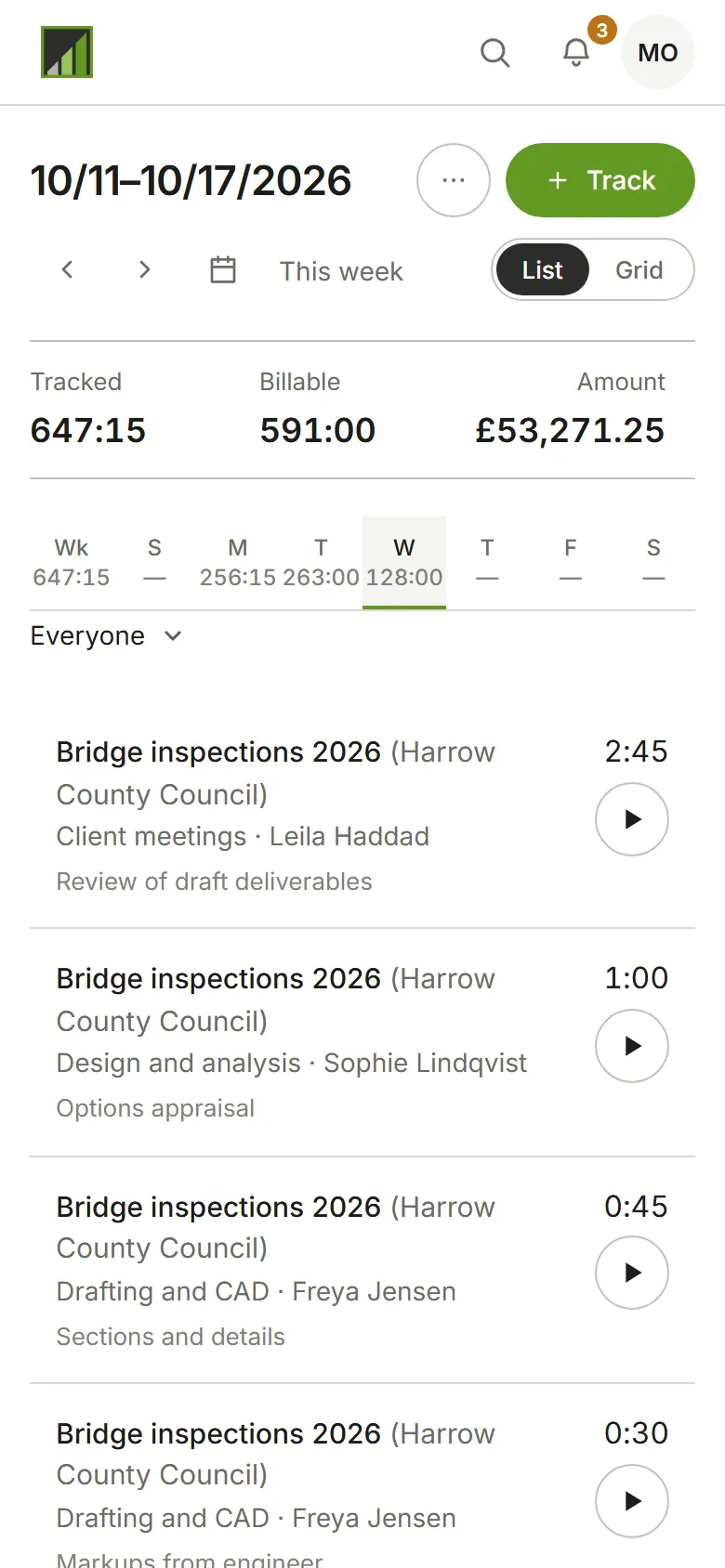
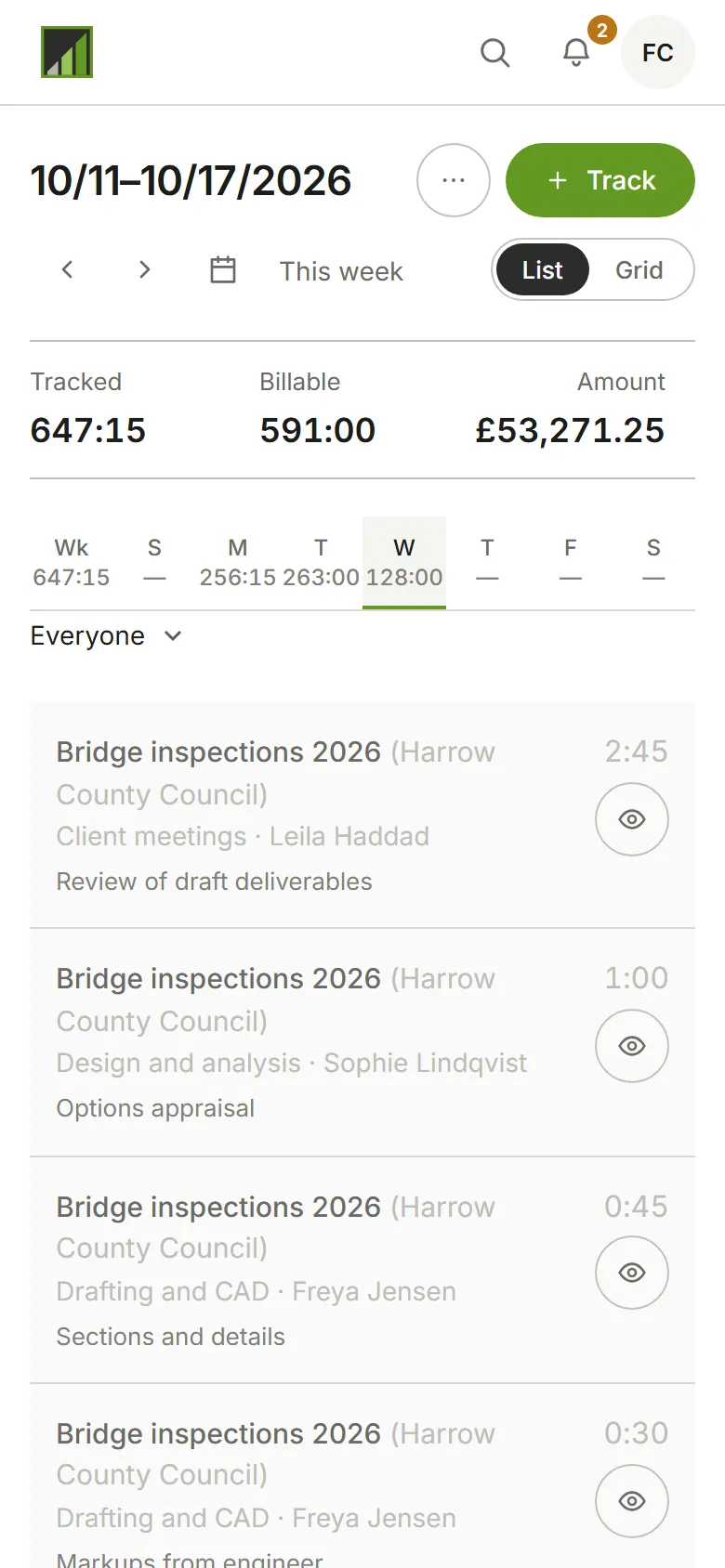
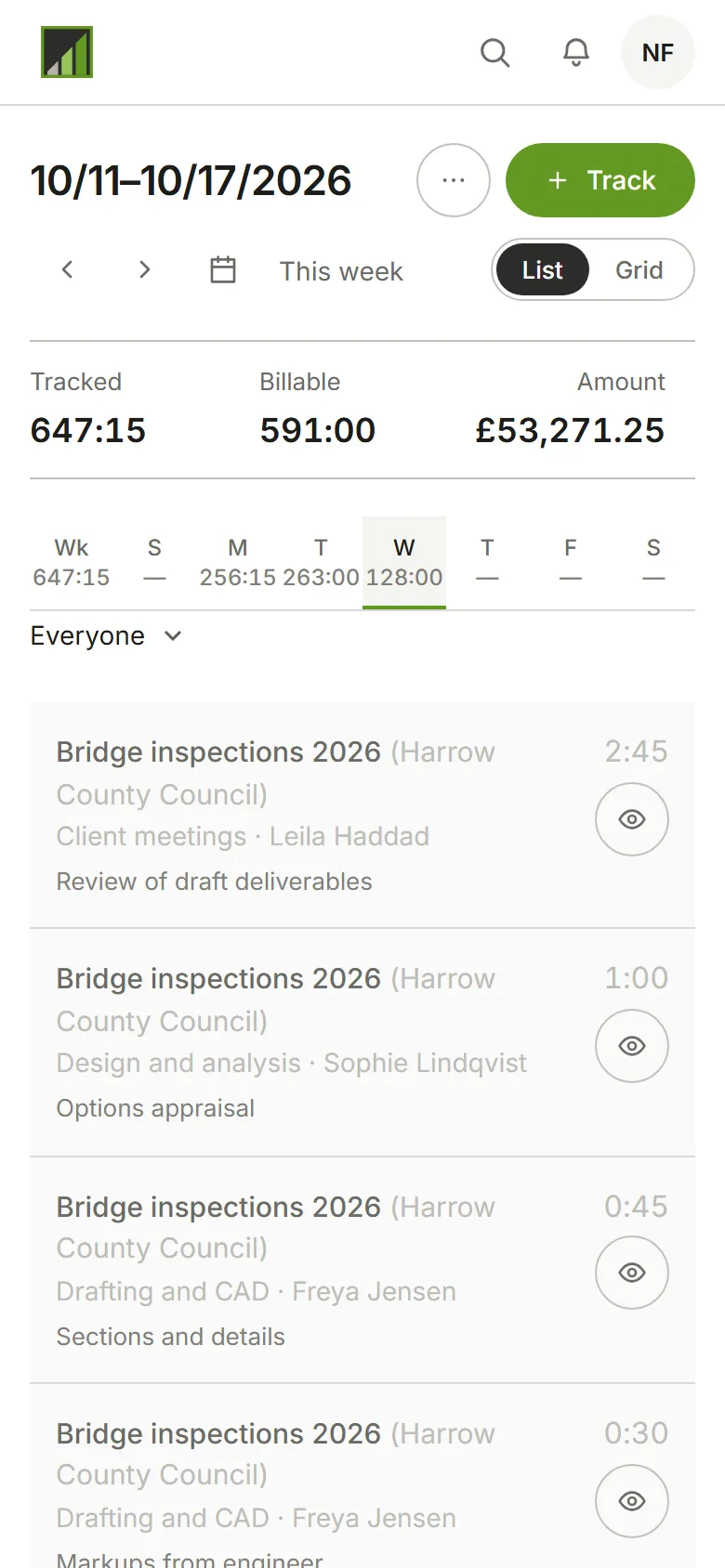
Person, under the week, chooses whose time you see: Everyone, or one person. As an Admin you can change anyone’s entries, and their amounts and rates are shown.
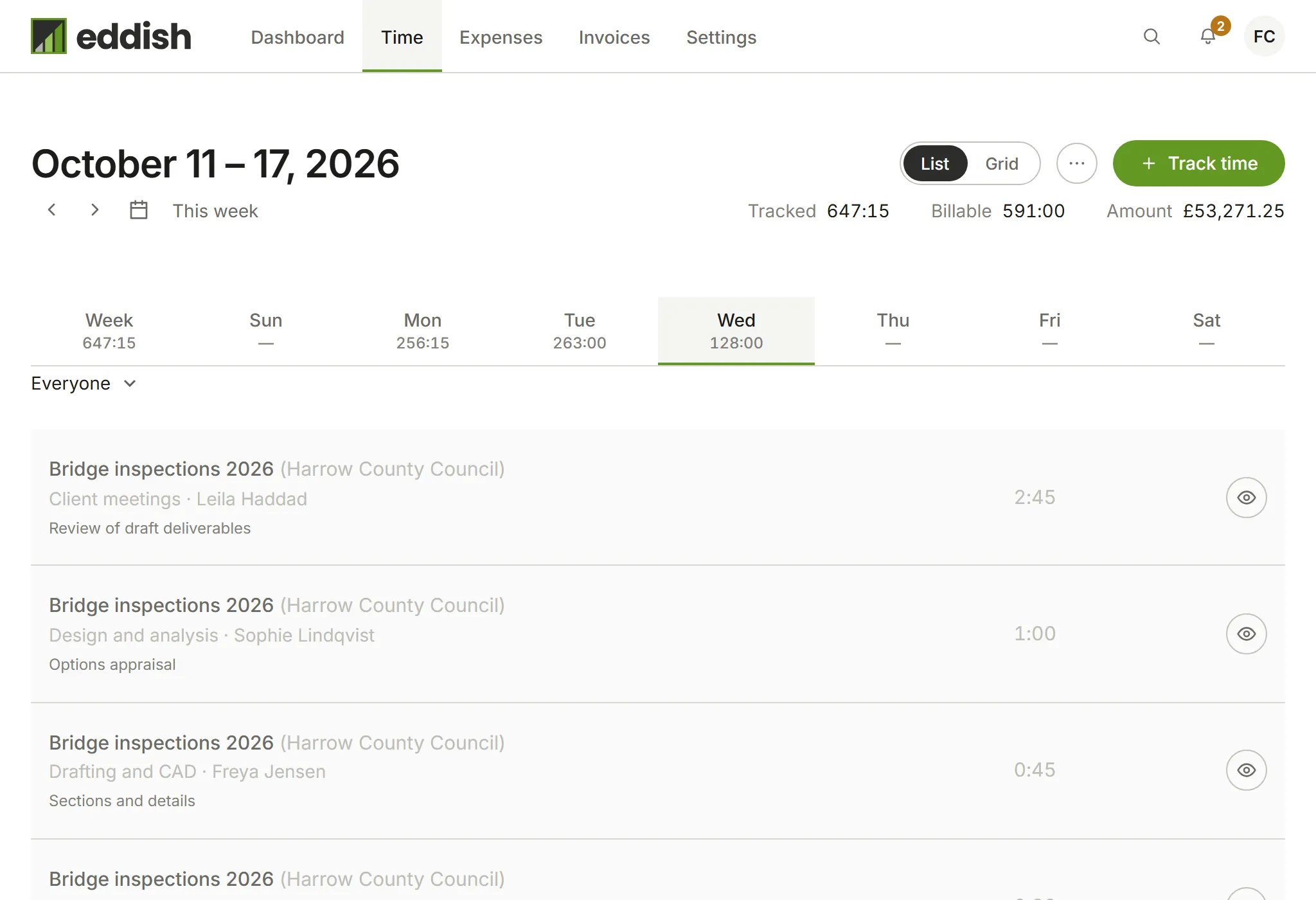
Person, under the week, chooses whose time you see: Everyone, or one person. Other people’s entries open read only, marked with an eye; only Admins change someone else’s time.
Amount shows only if an Admin lets your role see amounts, in Permissions.
You see your own time. Nobody else’s appears here.
If your account approves time, a bar above the days says where the week stands and has Submit week; once a week is submitted, its time can’t change. See Approve time and expenses.
Add time you’ve already done
Section titled “Add time you’ve already done”-
Choose Track time (on a phone, Track).
-
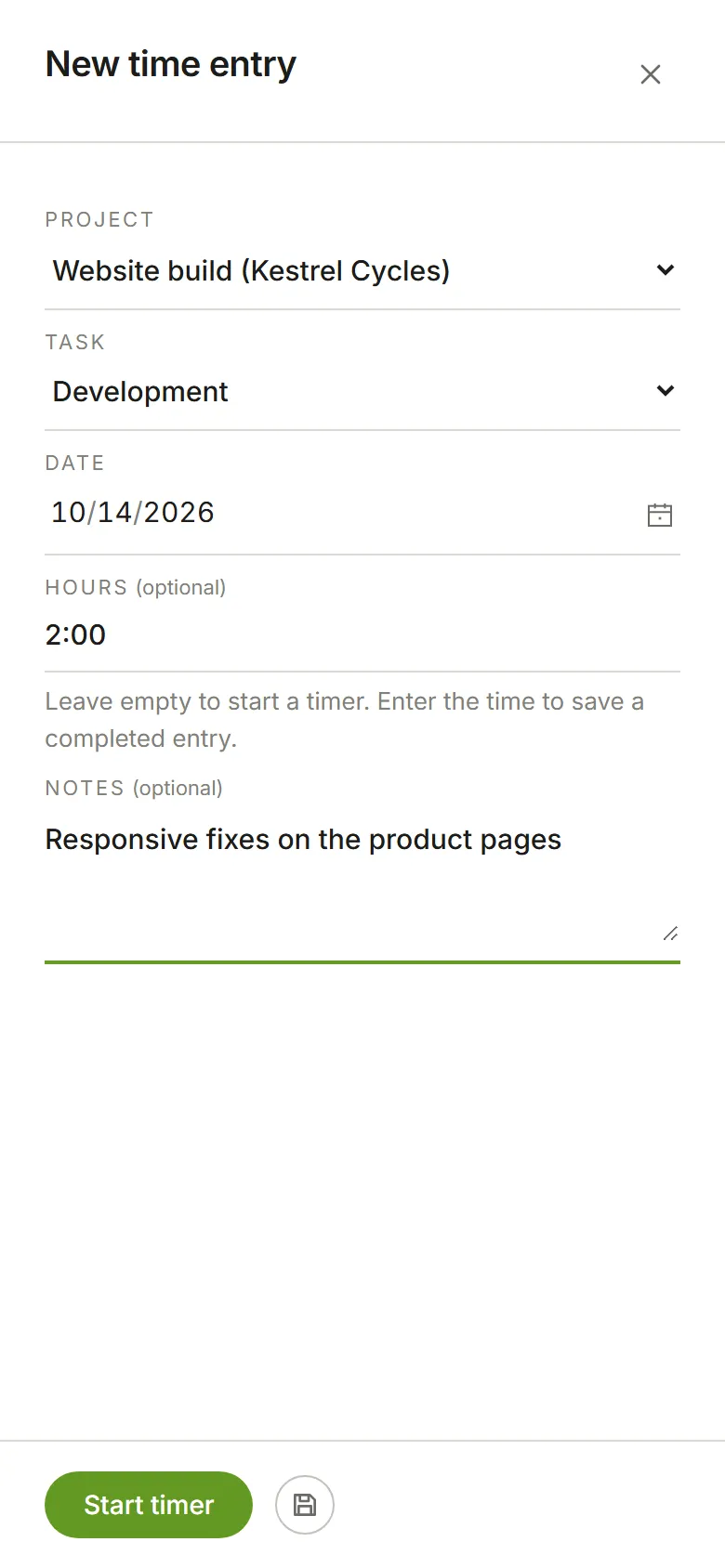
Pick the project and task, check the date, and enter the Hours, as
1:30or1.5. Add a note about the work; notes can appear on the invoice. Leave Hours empty only to start a timer.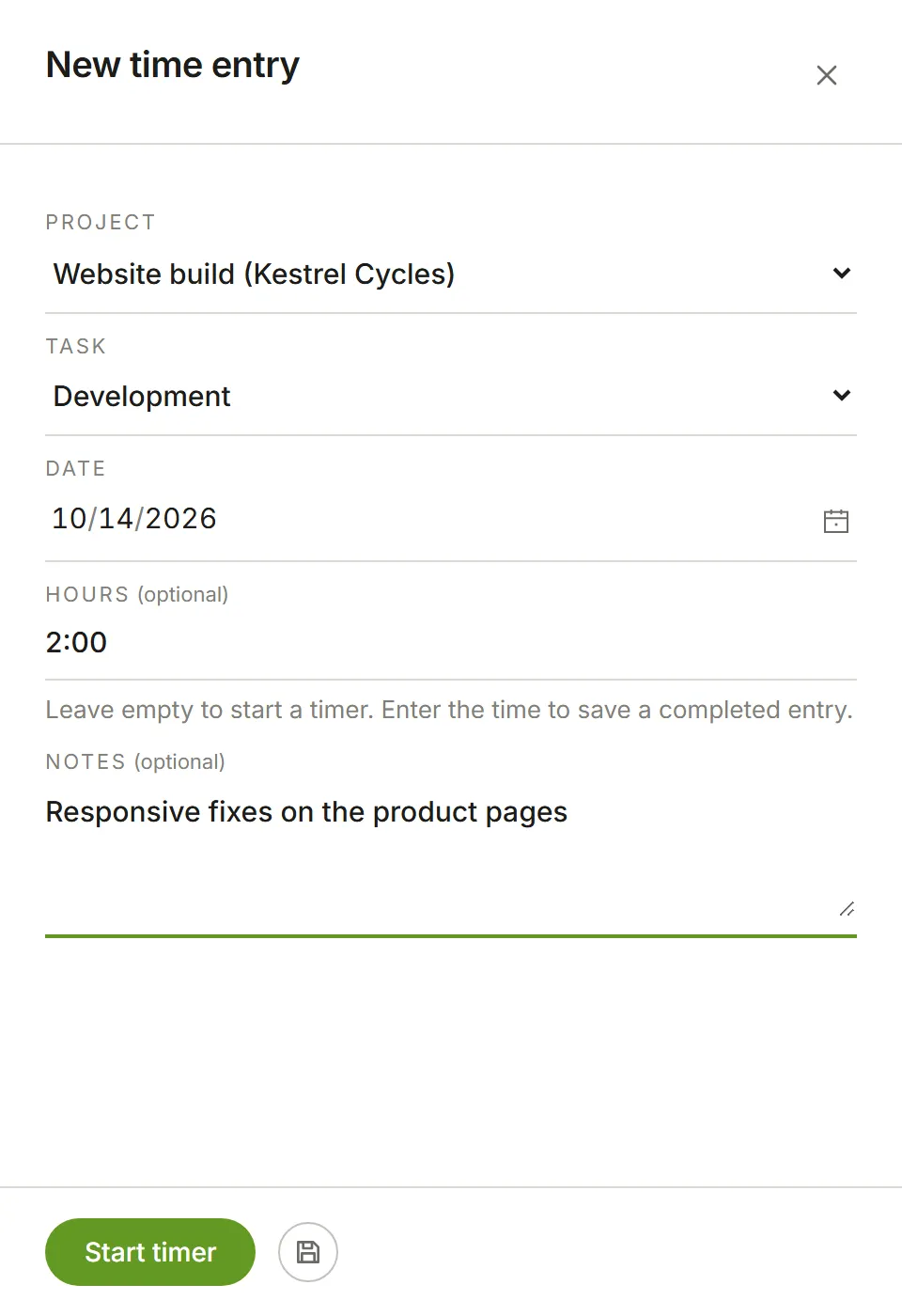
-
Choose the save button (the disk icon) beside Start timer.
Run a timer
Section titled “Run a timer”To time work as you do it, choose Track time, pick the project and task, and choose Start timer instead of saving. The timer runs until you stop it, even if you close the page, and the running entry is shown on the Time page and in the header. Choose Stop when you’re done.
A timer records the exact time it ran. Every start is its own entry: to carry on with something you tracked earlier, choose Start on its row, and the row shows the total of the day’s times for that task. Open the row to see each time on its own, change its hours, remove one, or choose Add time.
Time you enter in the list has hours only, no start and end. Start and end times come from the grid.
Fill in a day on the grid
Section titled “Fill in a day on the grid”List and Grid, beside the menu (on a phone, on the This week row), switch how a day is shown. The grid draws the whole day in 15-minute blocks, opening at 08:00 (or at the current time today), with the current quarter shaded. Its rows are the tasks you choose with Select tasks, which takes the place of Track time on the grid, plus any task with time that day. Until you choose, they’re the tasks you’ve tracked that week.
- On a computer, drag along a task’s row to fill in the time you worked. Drag over filled blocks to clear them.
- On a phone, tap where the work started, then where it ended. Tap the same block twice to fill just that one. Tapping filled blocks the same way clears them.
- With the keyboard, Tab into the grid and move with the arrow keys: left and right by 15 minutes, up and down between tasks, Home and End to the ends of a row. Press Enter or Space where the work started, move to where it ended, and press Enter or Space again. Starting on a filled block clears instead. Escape cancels.
- Start on a row starts a timer for that task now, and the running block grows as time passes. Stop ends it at the current block. On a phone, Start is in the panel a task’s name opens, and Stop is in the timer bar at the bottom of the screen.
- The pencil, or a task’s name on a phone, opens the day’s blocks for that task with their note.
Time in the future can’t be filled in, and nor can time on an invoice or in a week that’s been submitted; a line above the grid says which, and the blocks that are locked on their own, after now or on an invoice, say why when you point at them. The grid shows your own time; choose a person under the week to see theirs, read only.
A day with time entered in the list
Section titled “A day with time entered in the list”Time entered in the list has hours but no start and end, so the grid can’t draw it. A day with any such time is locked on the grid, and a line above it says so: edit that day in the list instead.
Edit or delete an entry
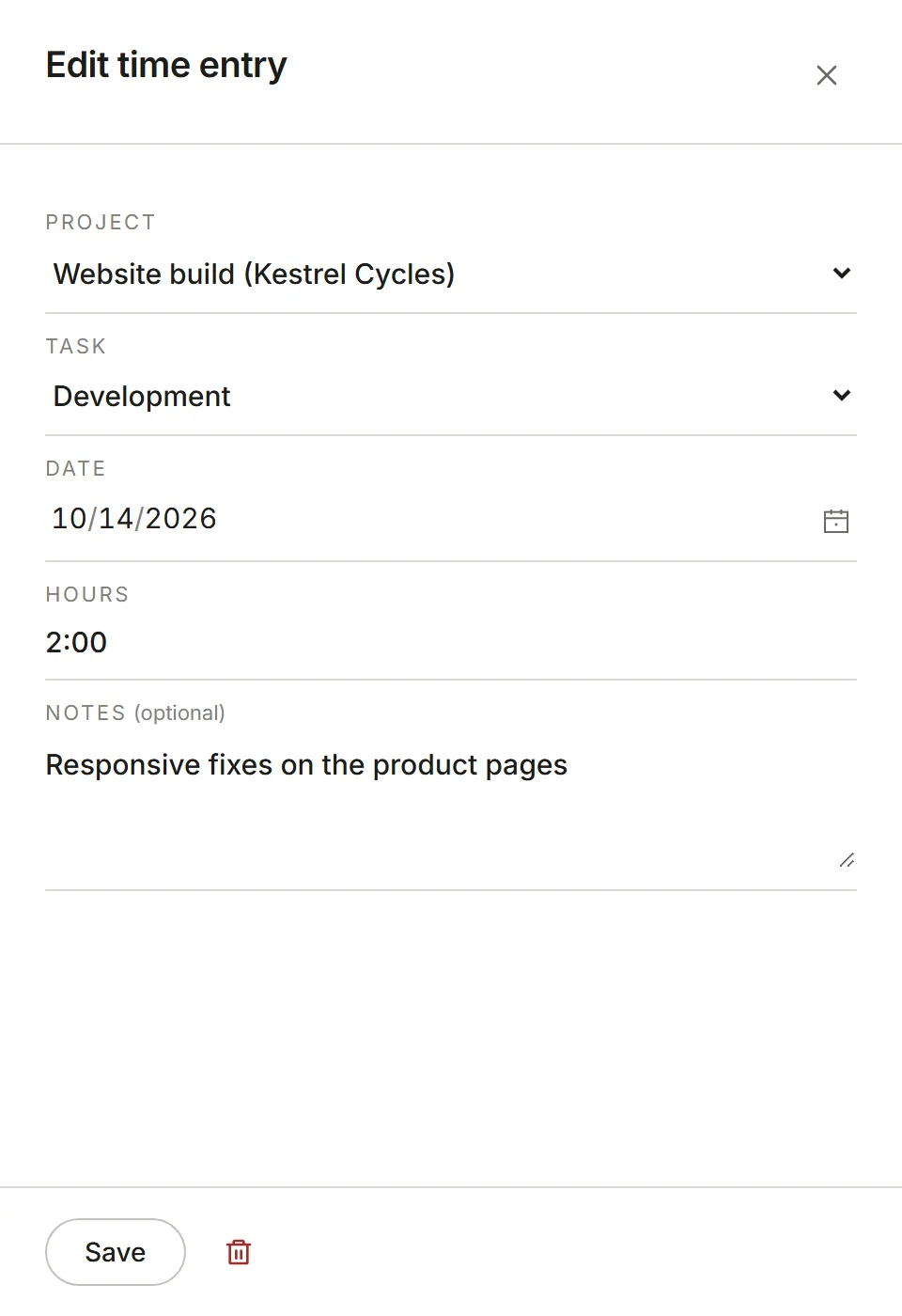
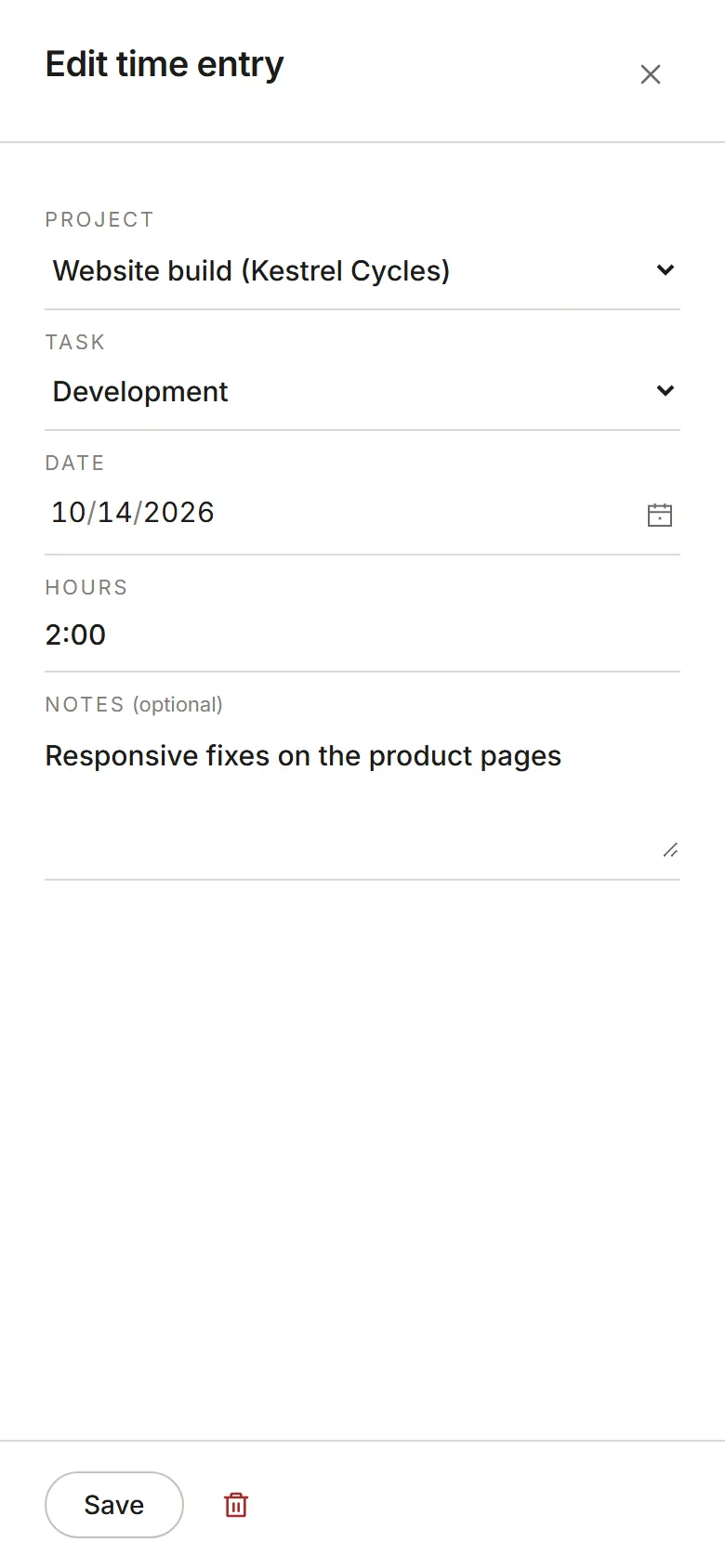
Section titled “Edit or delete an entry”Choose a row’s edit button, the pencil, to change anything about it, then choose Save. The project, task and date apply to every time on the row; each time has its own hours (or, for time from the grid, its start and end) and note. Delete entry removes the row’s times that aren’t on an invoice.