

Invite your team
People join your account in one of two ways: you invite them by email, or they ask to join using your account’s subdomain and you approve them. Either way, they sign in with their own email and password, and one person can belong to more than one account.
Owners, Admins and Members
Section titled “Owners, Admins and Members”Everyone in an account has one of three roles:
- Owner runs the account itself: its name, its security settings, its plans, Apps and billing. Only an Owner can make someone else an Owner, or change or remove an Owner. Whoever creates the account is its first Owner, and an account always keeps at least one.
- Admin looks after the people: invites them, approves join requests, withdraws invitations, moves people between Member and Admin, and removes Members and Admins. An Admin can’t change the account’s settings or billing, and can’t touch an Owner.
- Member uses the account’s Apps and can see who else is in it, but changes nothing about it.
Inviting, approving, changing roles and removing people are all Owner and Admin jobs.
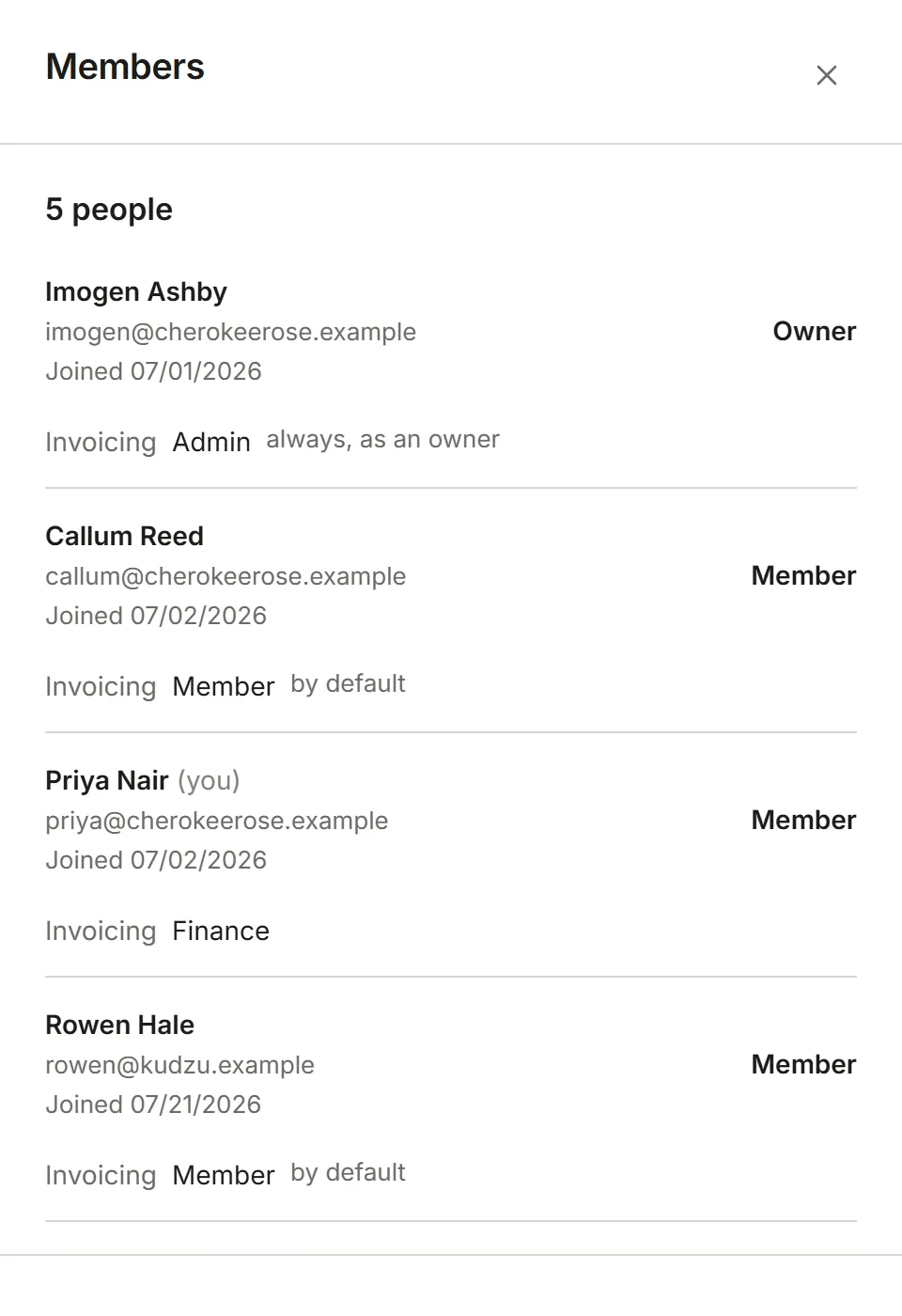
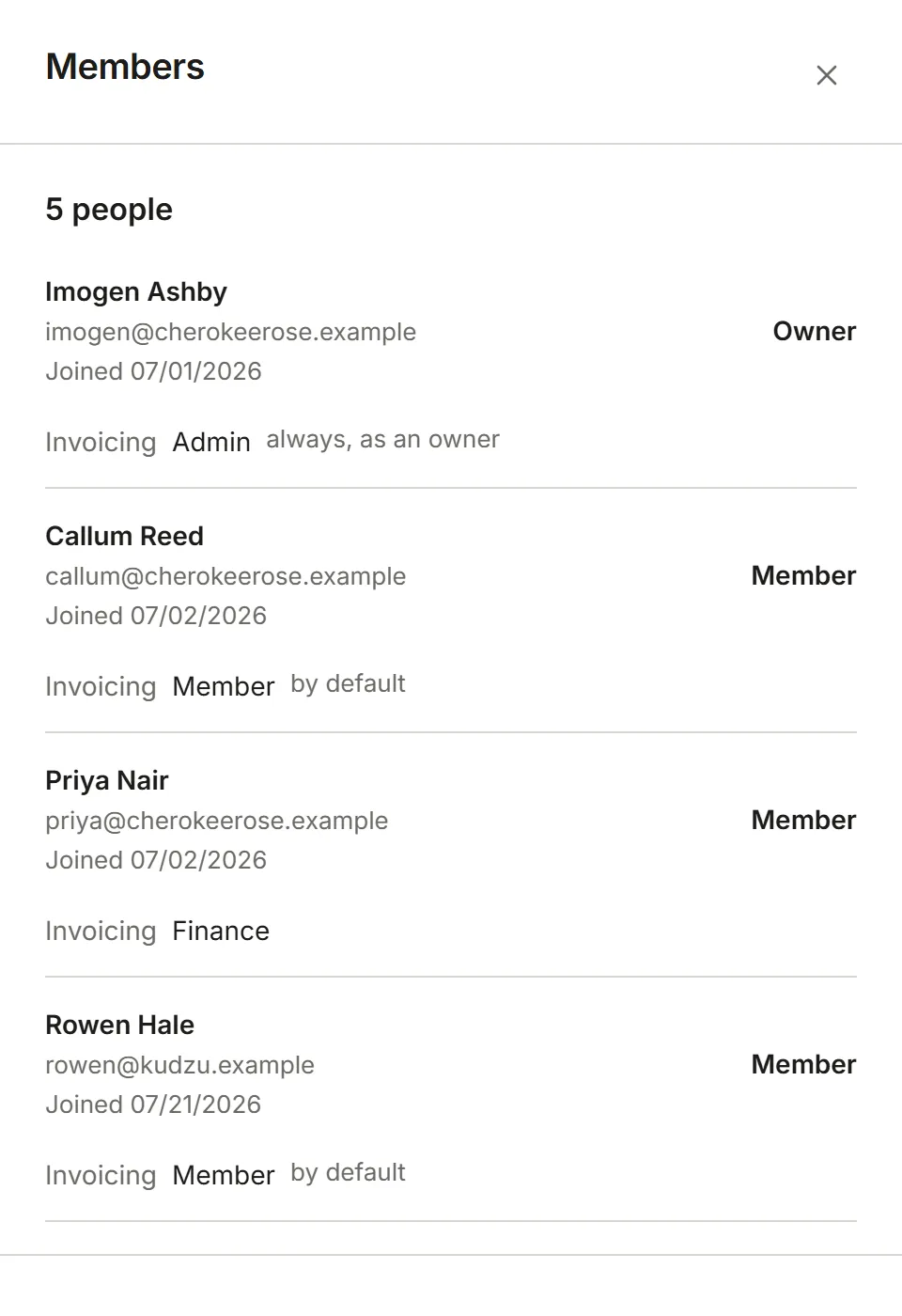
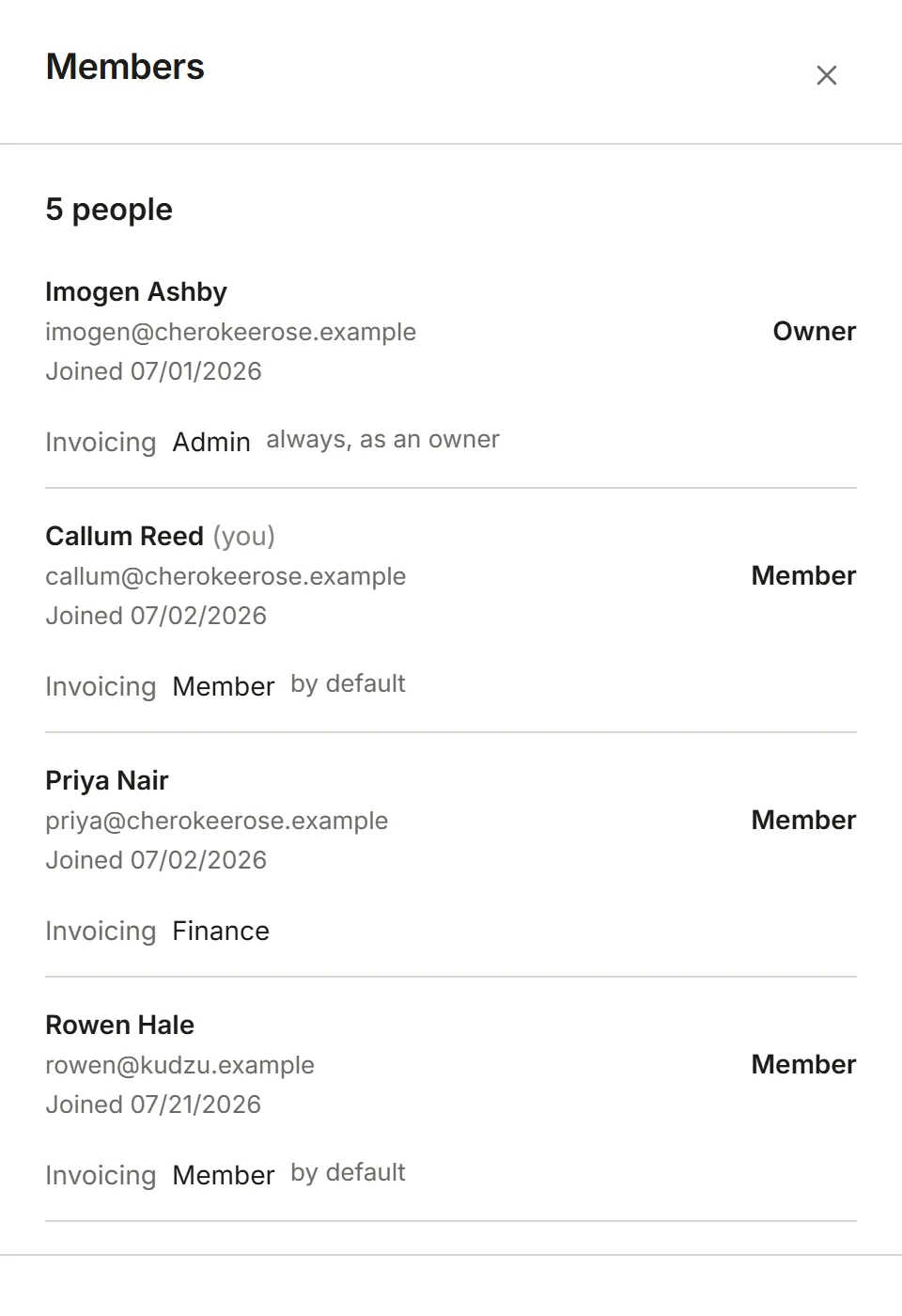
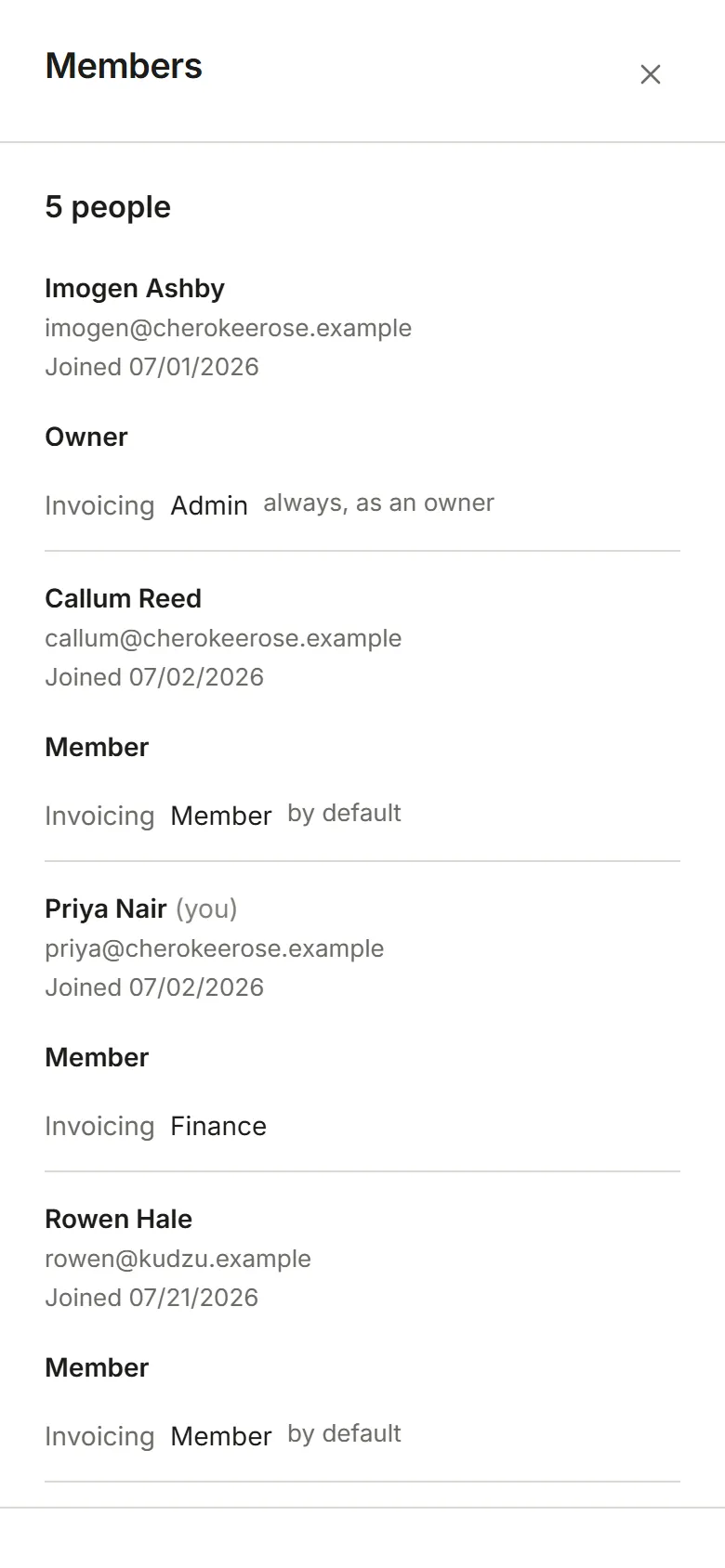
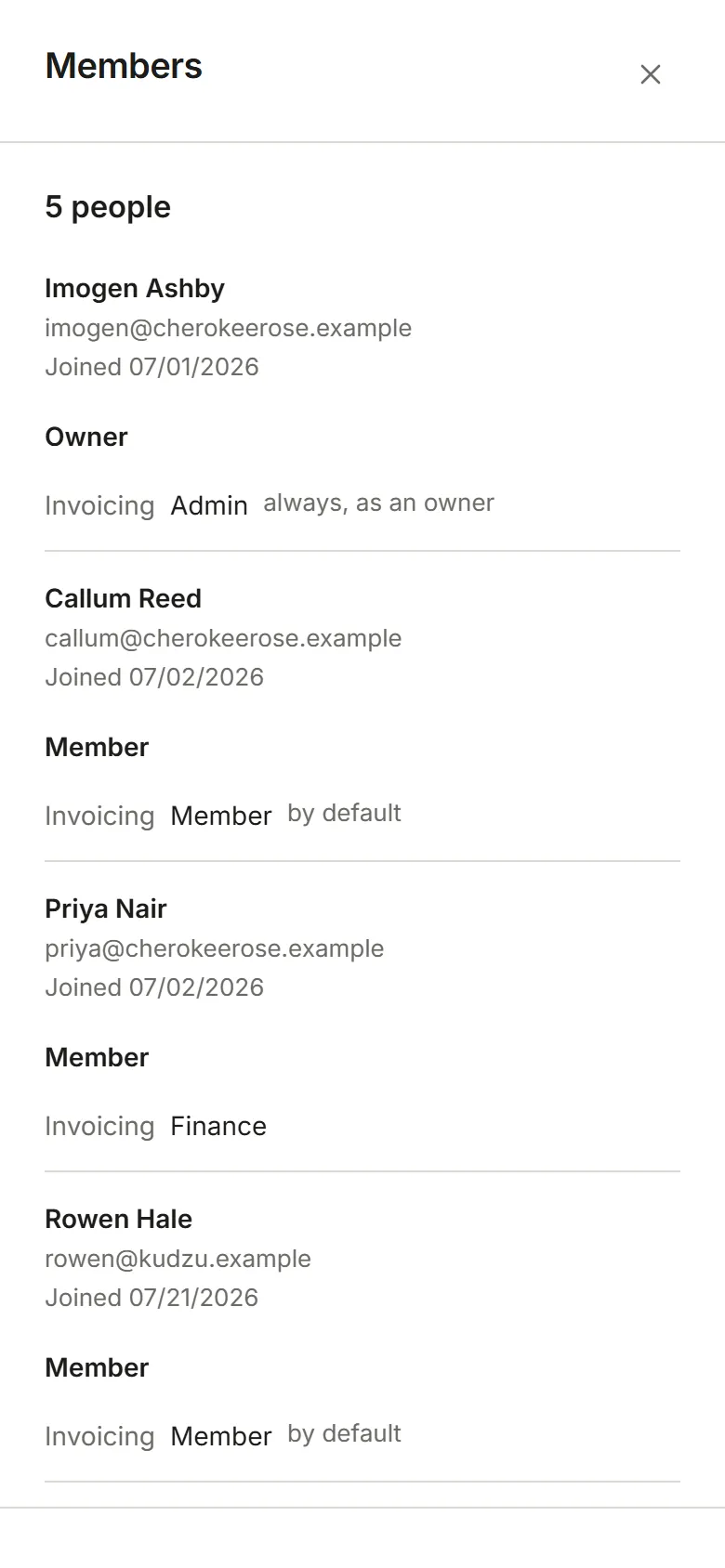
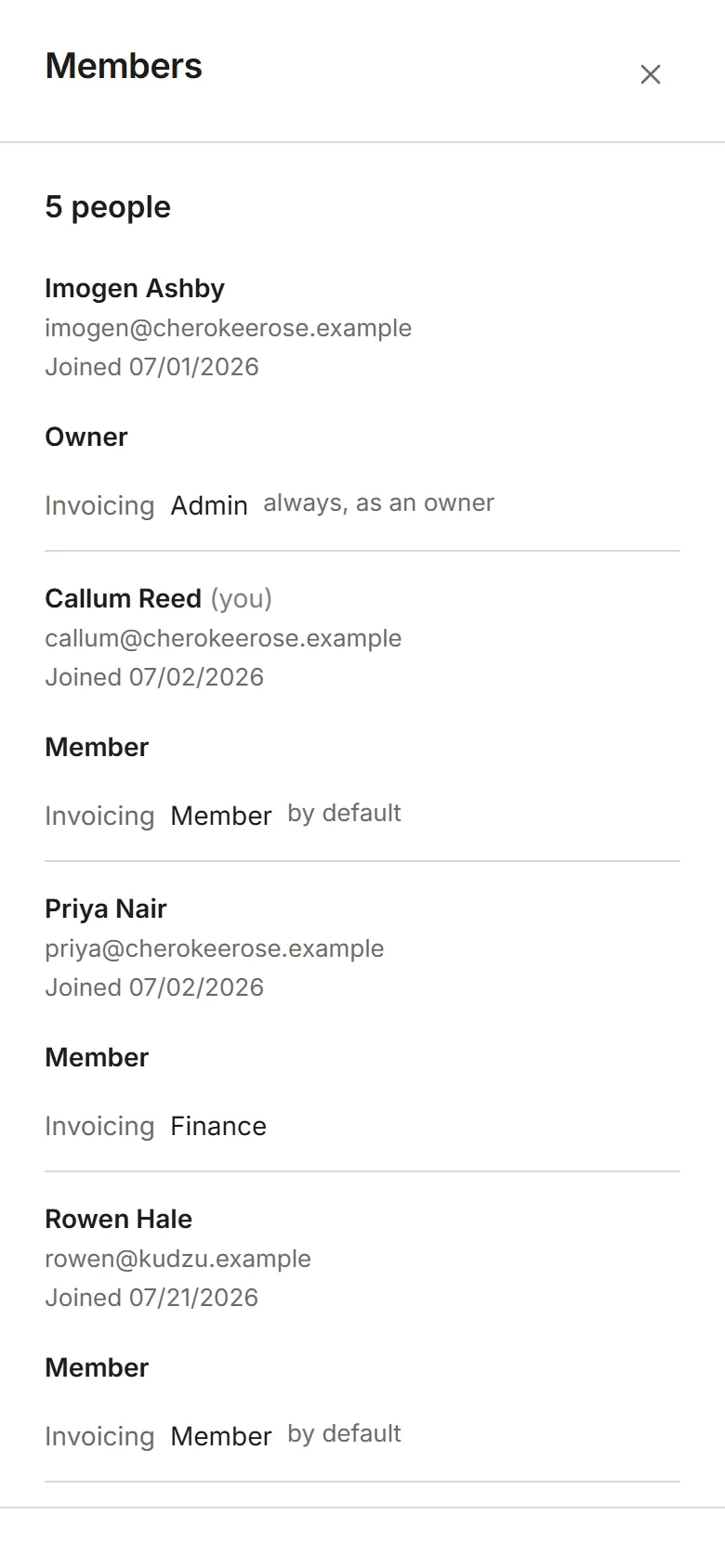
In the demo account these pages are pictured from, Finance, Approver and Member are all account Members. As a Member you can open Members and see who’s in the account, their roles and their apps, but there’s nothing to change:
Invite people by email
Section titled “Invite people by email”-
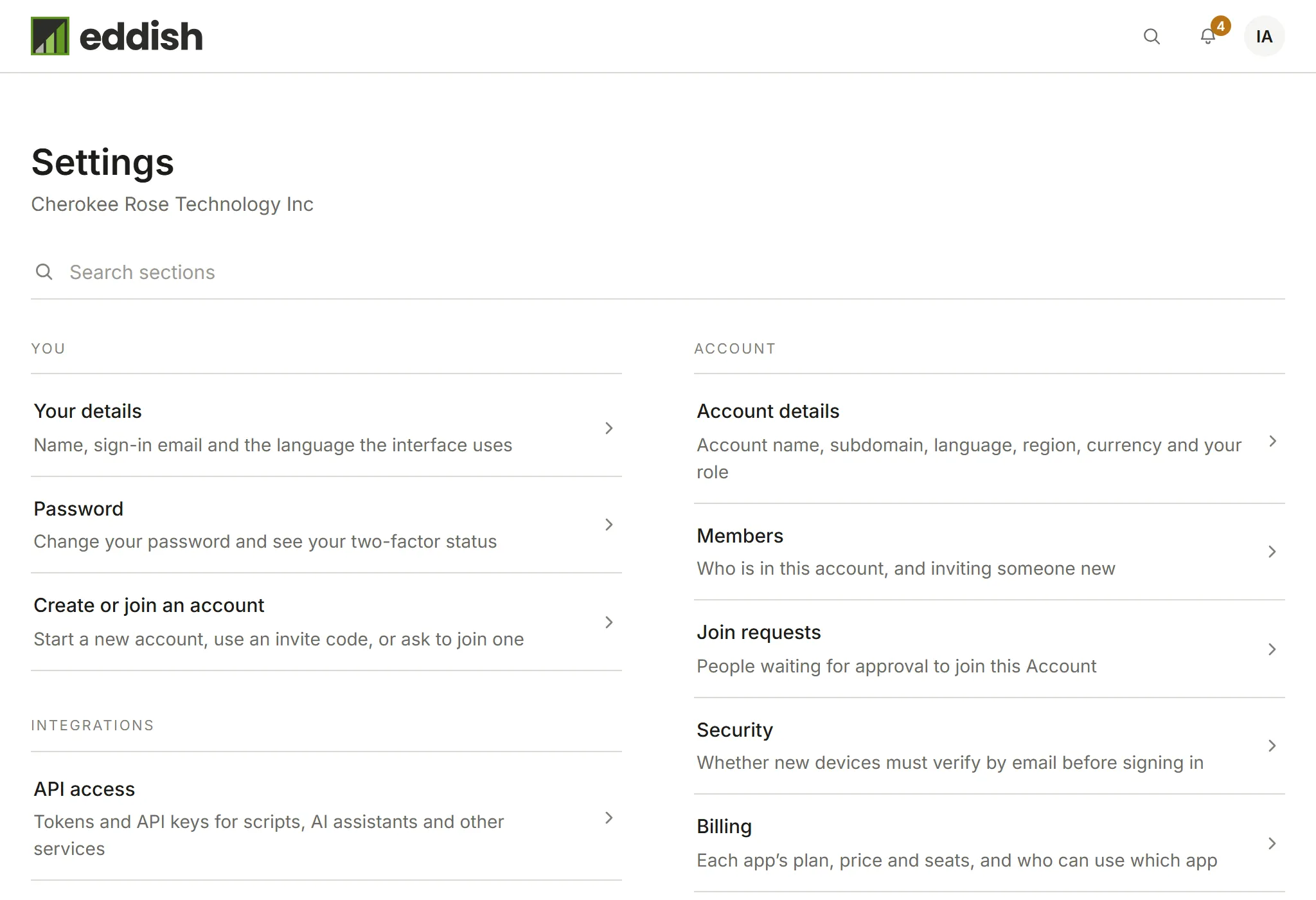
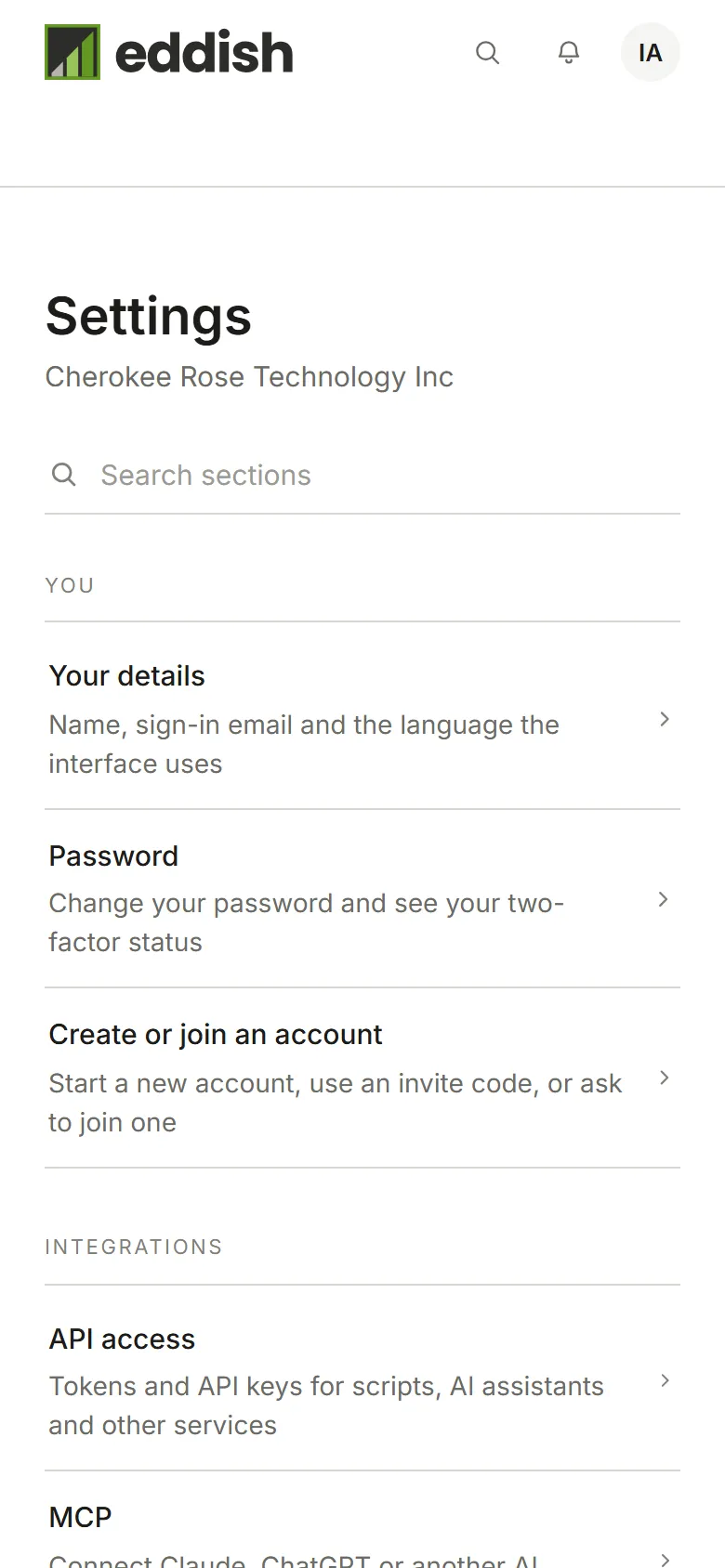
Choose Account Settings from your avatar menu, then Members.
-
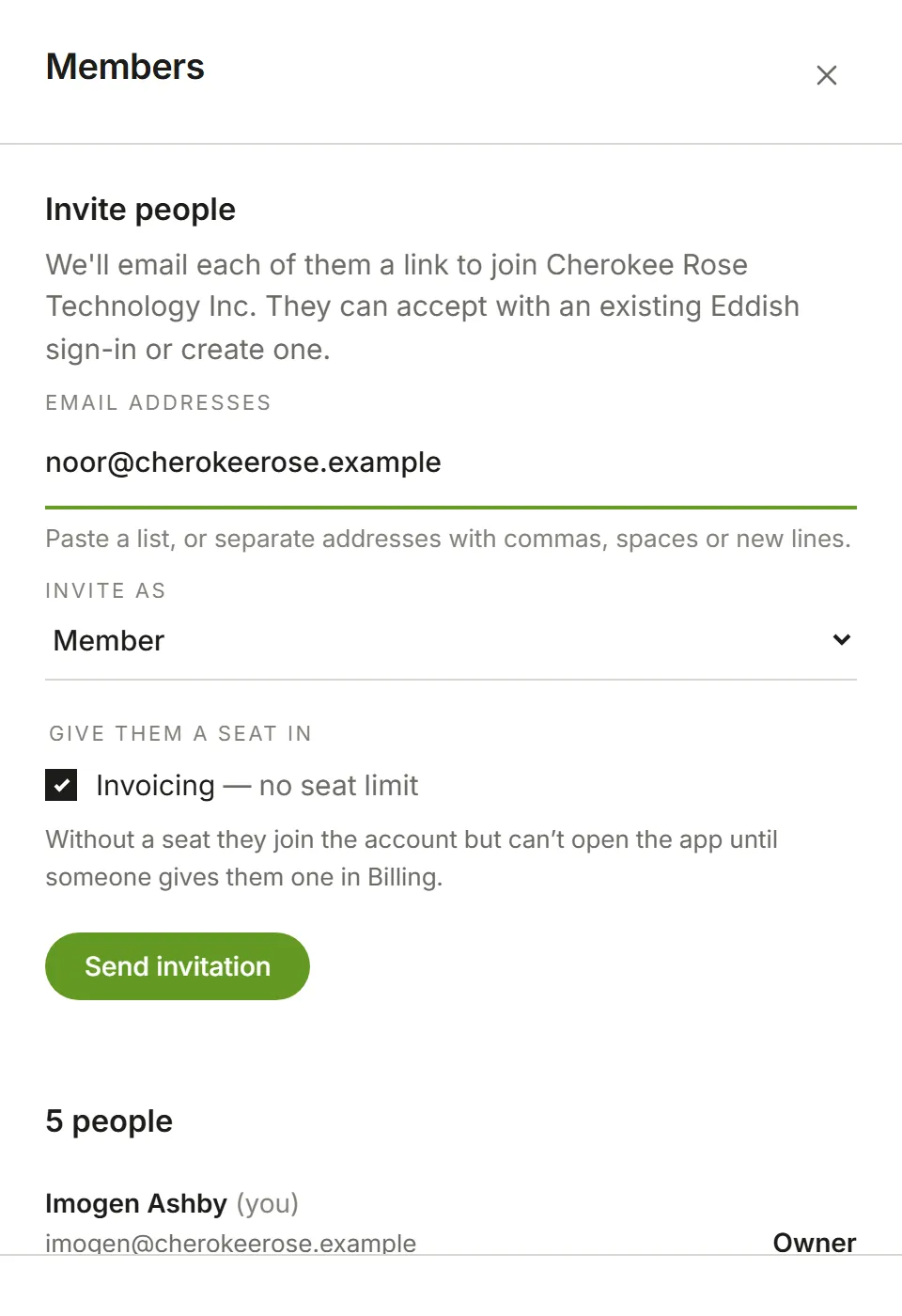
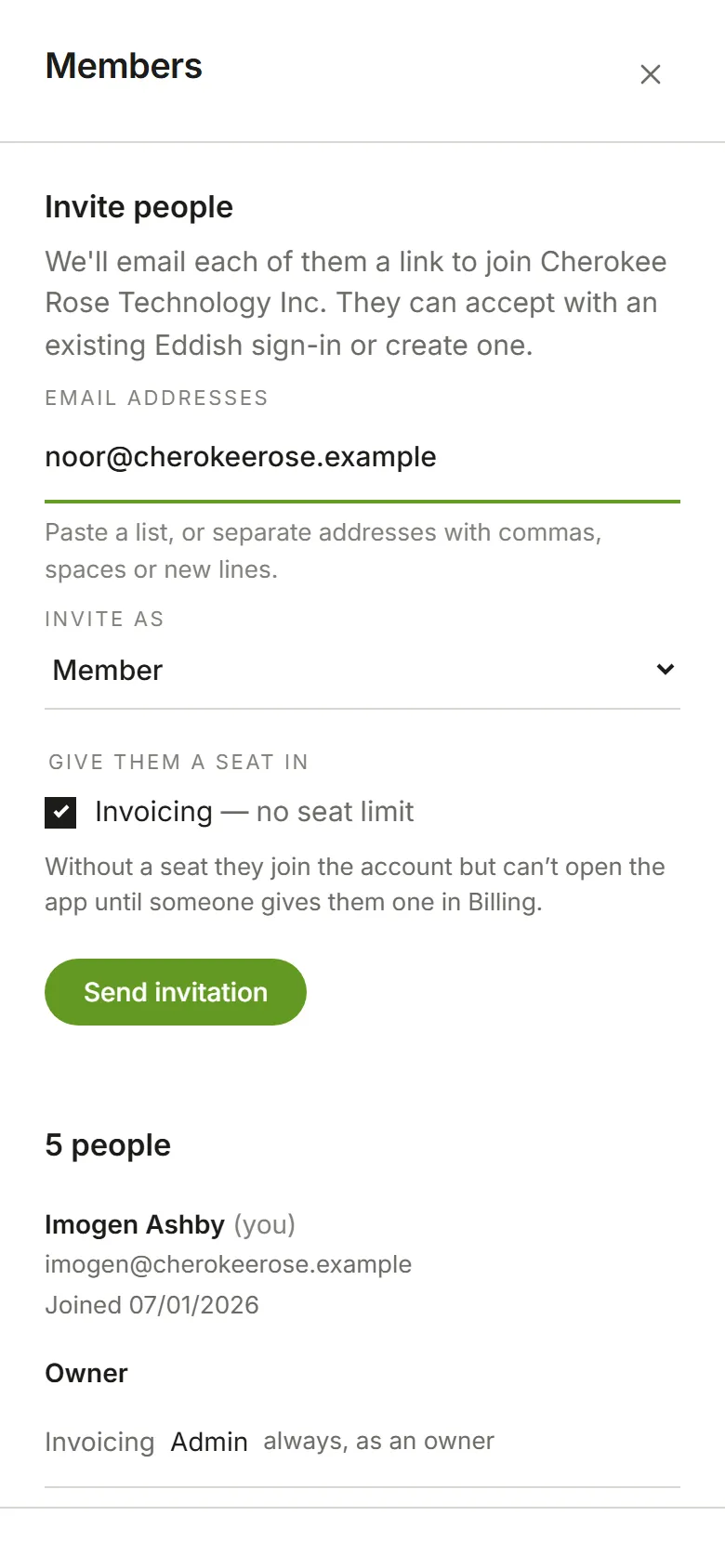
Choose Invite people at the top right of the Members page. In the panel that opens, enter one or more email addresses. You can paste a whole list: separate addresses with commas, spaces or new lines. Under Invite as, choose the role they’ll have when they join: Member unless you change it, or Admin. Only an Owner can invite another Owner.
-
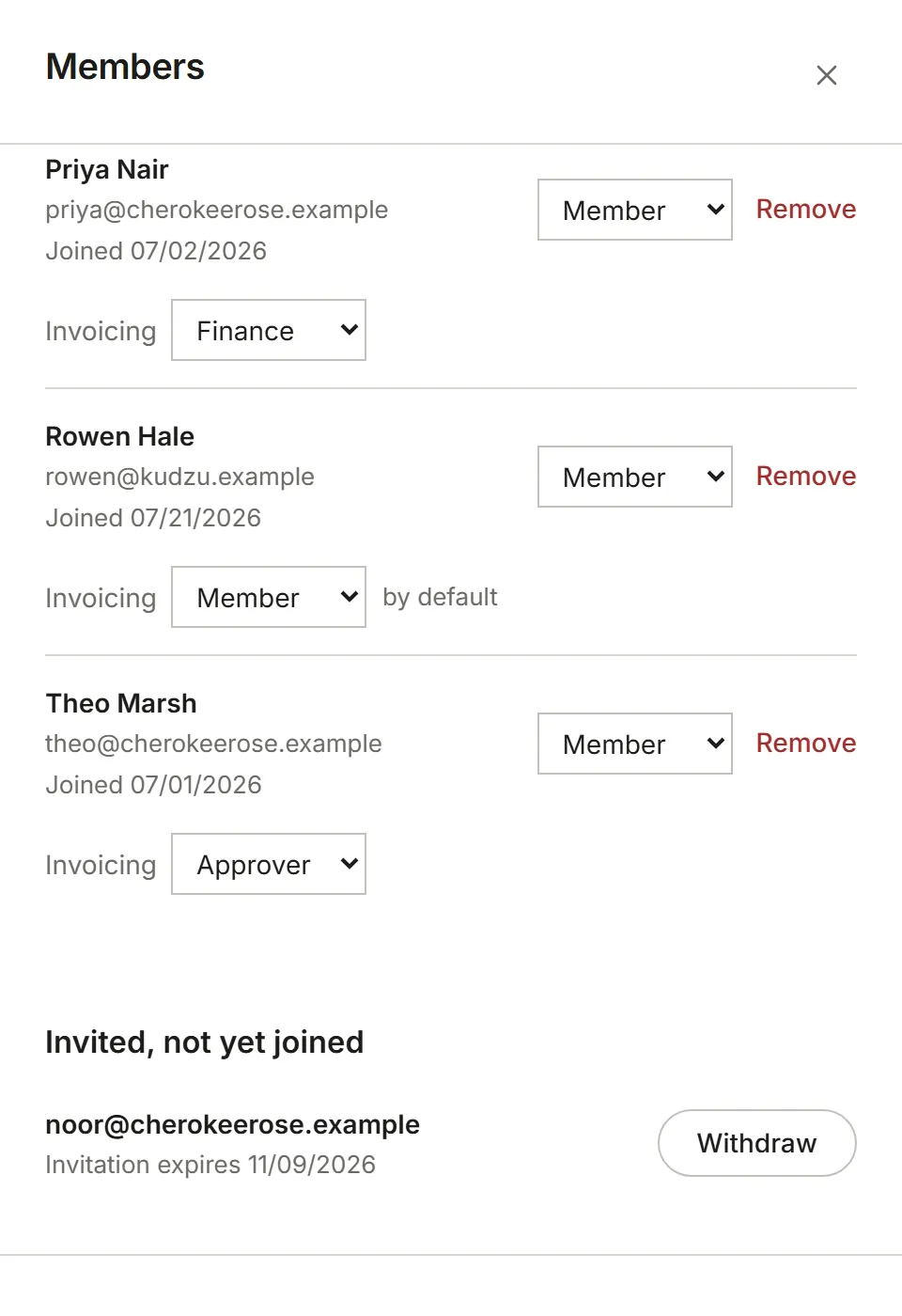
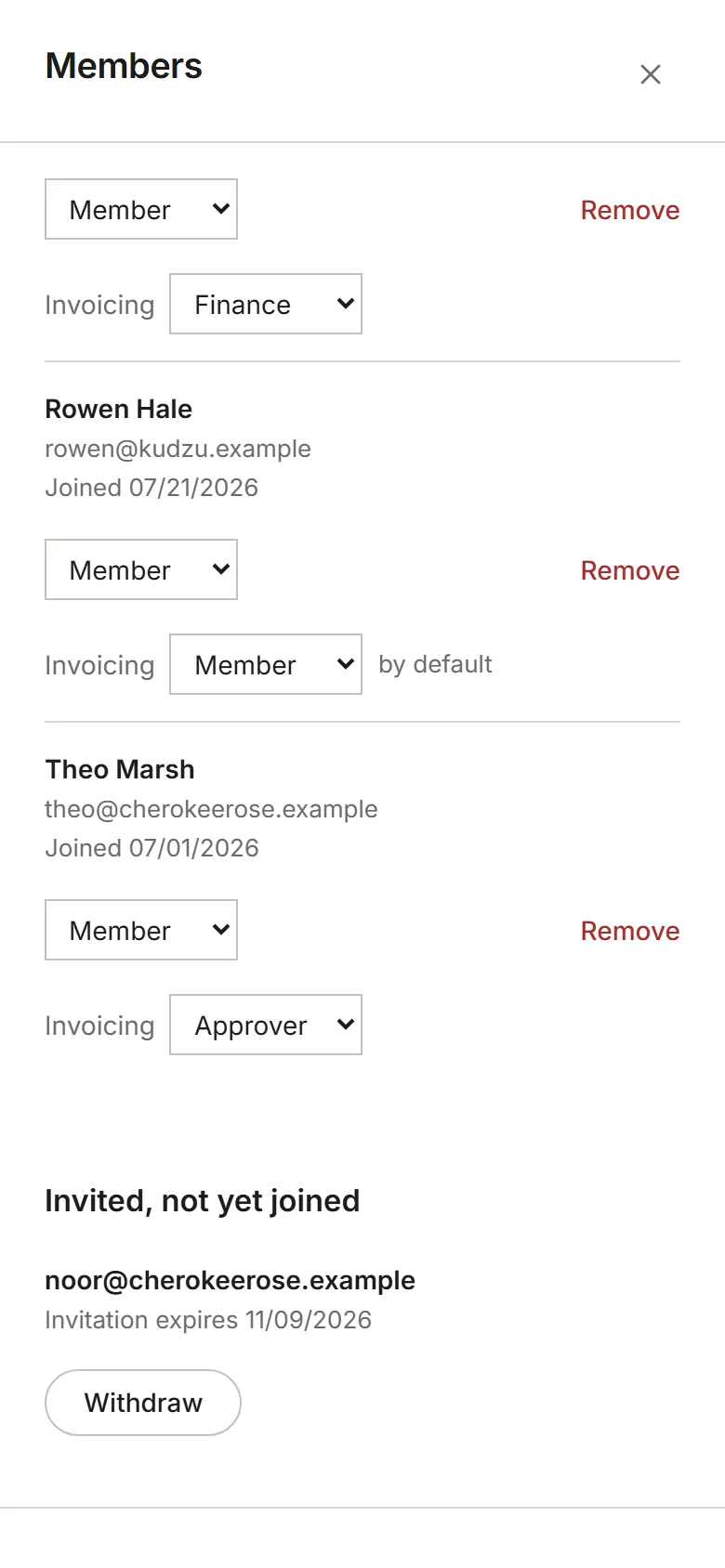
Choose Send invitation. Each person gets an email with a link to join, and appears under Invited, not yet joined until they accept.
What the person you invite sees
Section titled “What the person you invite sees”The link in the email opens a page naming your account and who invited them, with one button that fits the address you invited:
- Sign in to accept if they already use Eddish with a password. The sign-in page opens with their address filled in.
- Continue with Google to accept or Continue with Microsoft to accept if that’s how they sign in.
- Sign in with single sign-on to accept if their organization signs in through its own identity provider.
- Create an account to accept if they’re new to Eddish. Their address is already filled in, and there’s no confirmation code to type: the invitation reached that address, which is proof enough. They choose a password and their name, and they’re in.
Either way, they land inside your account. There’s no second Accept to choose.


The email also shows an invitation code, such as 7KQ2-M9XD. Someone who’s already signed in
can paste the code or the whole link under Create or join an account in Settings instead.
The code only works for the address it was sent to.
Once they join, they move from Invited, not yet joined into your list of members.
Find someone, change their role, or remove them
Section titled “Find someone, change their role, or remove them”The Members page lists everyone in the account, Owners first. Once the list is long, type part of a name or email address into Find a person to narrow it down.
To change someone’s role, pick Member, Admin or, if you’re an Owner, Owner next to their name. The change applies the next time their session refreshes, within a few minutes.
To take someone out of the account, choose Remove next to their name, then Remove again to confirm. They lose access to the account and its Apps; their past work, such as time they logged, keeps their name. To bring them back later, invite them again.
Seats in each app
Section titled “Seats in each app”Anyone can be invited; membership isn’t limited. What a plan limits is seats: a seat lets one person use one app, and the Free plan for Invoicing includes 1. Under Give them a seat in, tick the apps the invitation should give a seat in. Apps with a seat free are ticked to start with, and the invitation holds its seats until it’s accepted. Inviting someone with no seat ticked lets them into the account without using any app.
Withdrawing an invitation, or removing someone, frees their seats. Seats are given, taken and bought in Billing.
Roles in each app
Section titled “Roles in each app”An app can have roles of its own, which decide what someone may do inside it. Owners and Admins set them in Members: each person’s row shows a role for each app that has them. Invoicing has four:
- Admin: everything, including invoices, rates, the team and settings.
- Finance: invoices, payments and expenses. Sees everyone’s time and amounts without changing them.
- Approver: approves everyone’s time and expenses.
- Member: tracks their own time and expenses.
An account’s Owners are always Admin in every app. Anyone you haven’t chosen a role for follows their account role: an Admin is an app Admin, a Member a Member. What each Invoicing role sees is in Permissions.
People who ask to join
Section titled “People who ask to join”Someone who knows your subdomain can also ask to join while signing up. See Approve join requests.