

Payment methods
This isn’t in your Settings: only the account’s Owners open it.
Settings → Payment methods holds how your clients pay you. Your methods are printed under How to pay on your invoices, below the totals, both on the invoice page and on its PDF. Only an account’s Owners see this section.
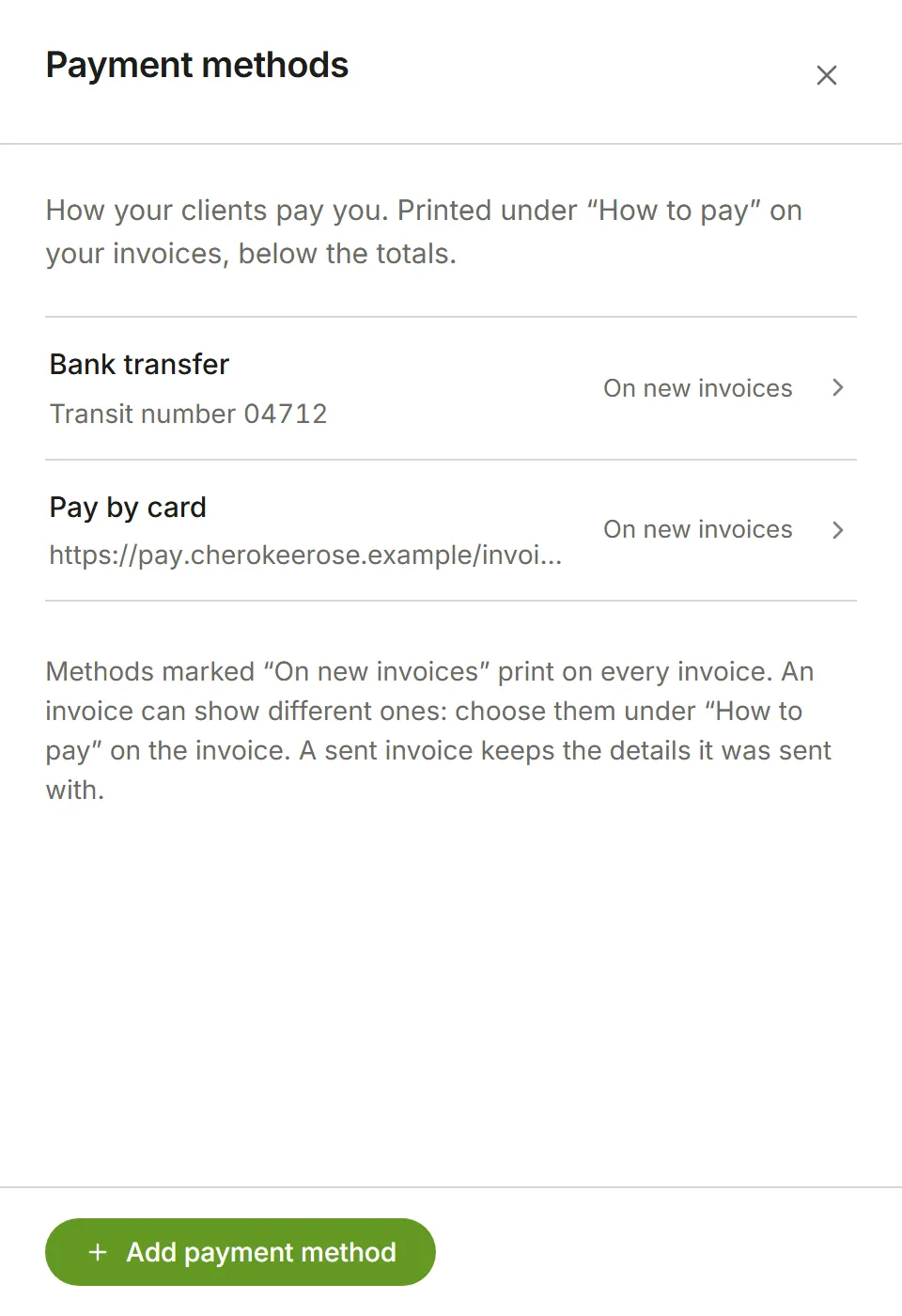
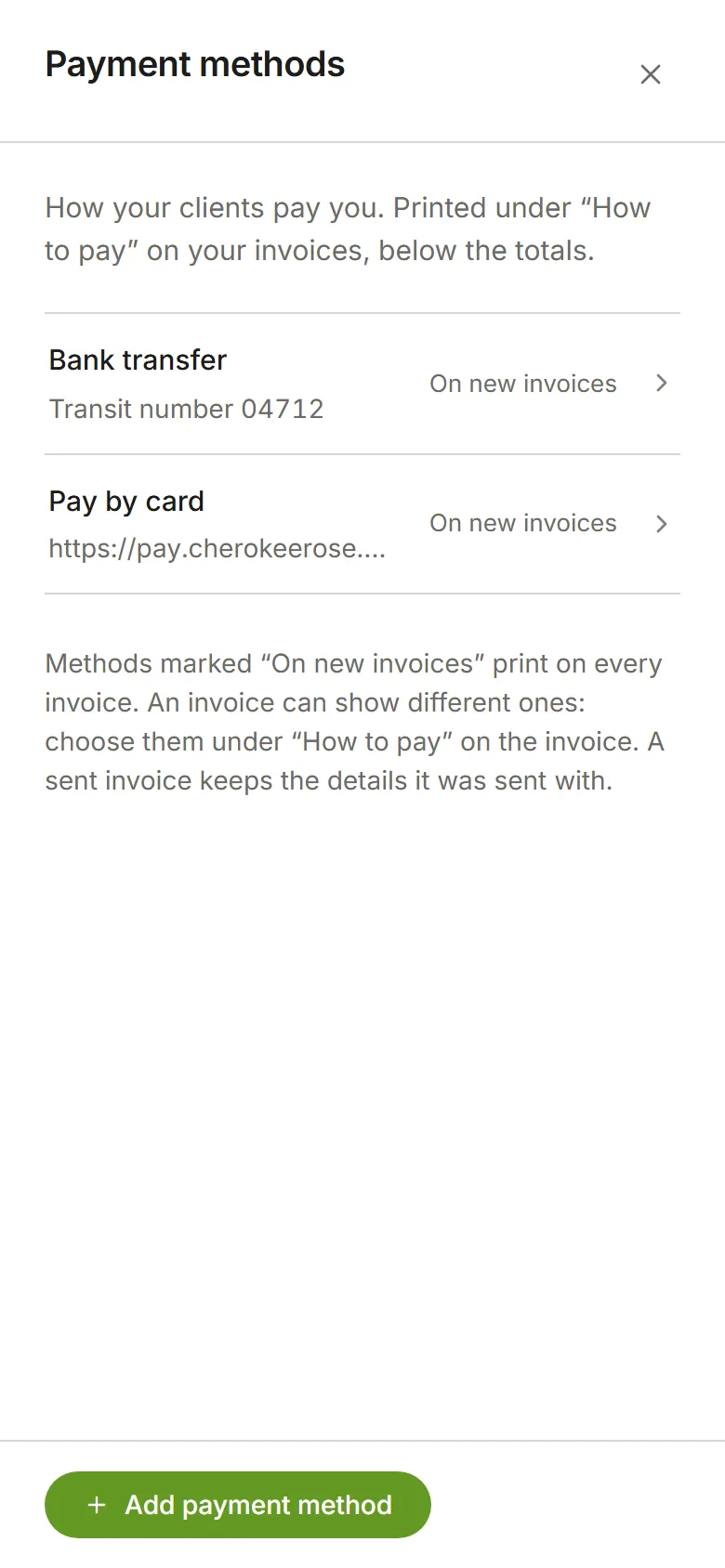
Add a payment method
Section titled “Add a payment method”Choose Add payment method, pick its kind, fill it in and choose Add payment method again.
- Bank transfer: the name the account is in, the bank, and the details your bank gives you to quote. A new transfer starts with the usual labels for the account’s currency: Sort code and Account number for pounds, IBAN and BIC for euros, Routing number and Account number for US dollars, Transit number, Institution number and Account number for Canadian dollars. Rename any line, add more, or switch to another country’s labels.
- Online payment link: a name, such as “Pay by card”, and the address of your Stripe, PayPal or
other payment page. It must start with
https://. It’s printed in full, and is a live link in the PDF. - Cheque: who cheques are payable to, and where to send them.
- Other: a name and your own instructions.
Any of them can have a Note, printed underneath, such as “Please quote the invoice number”.
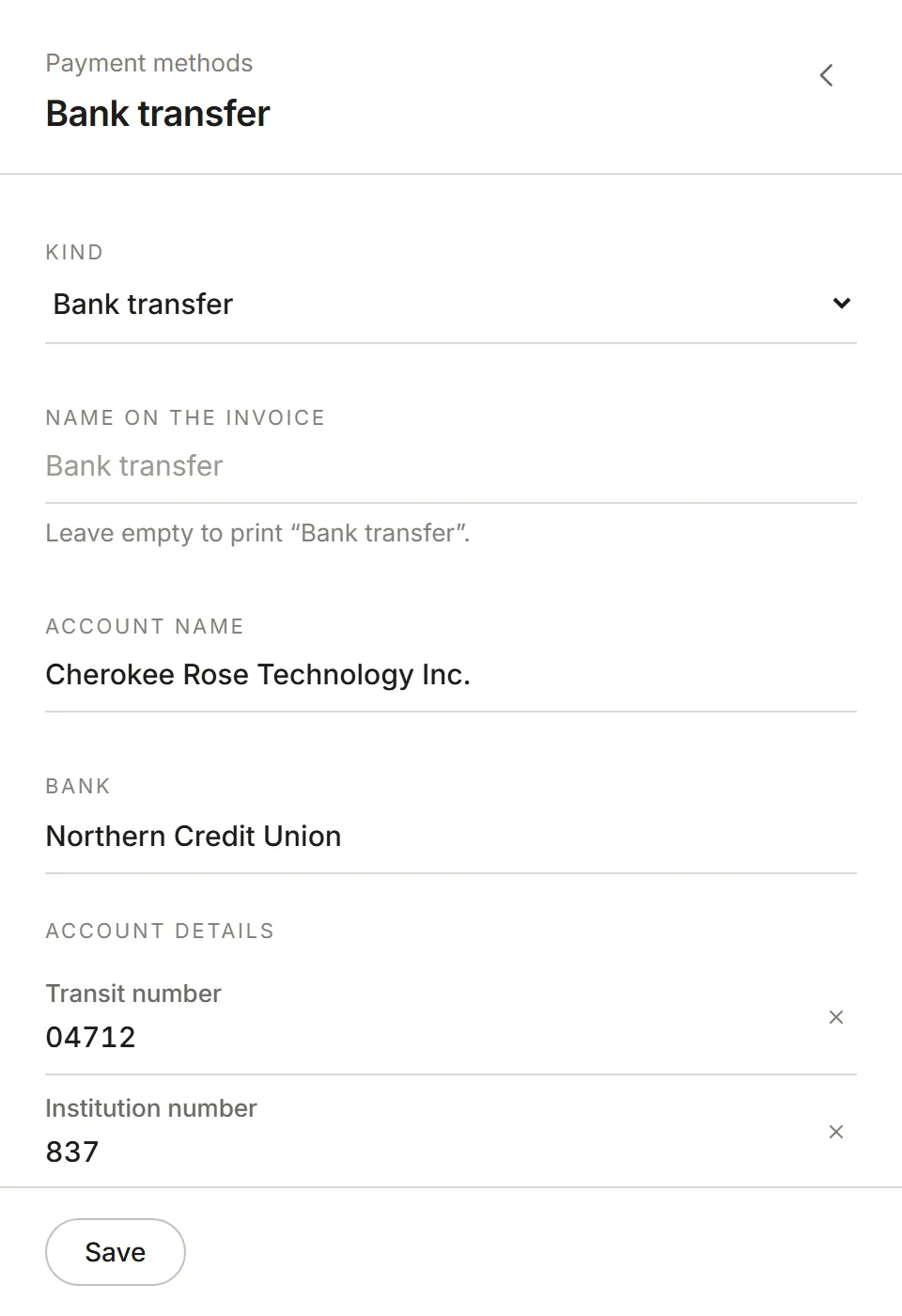
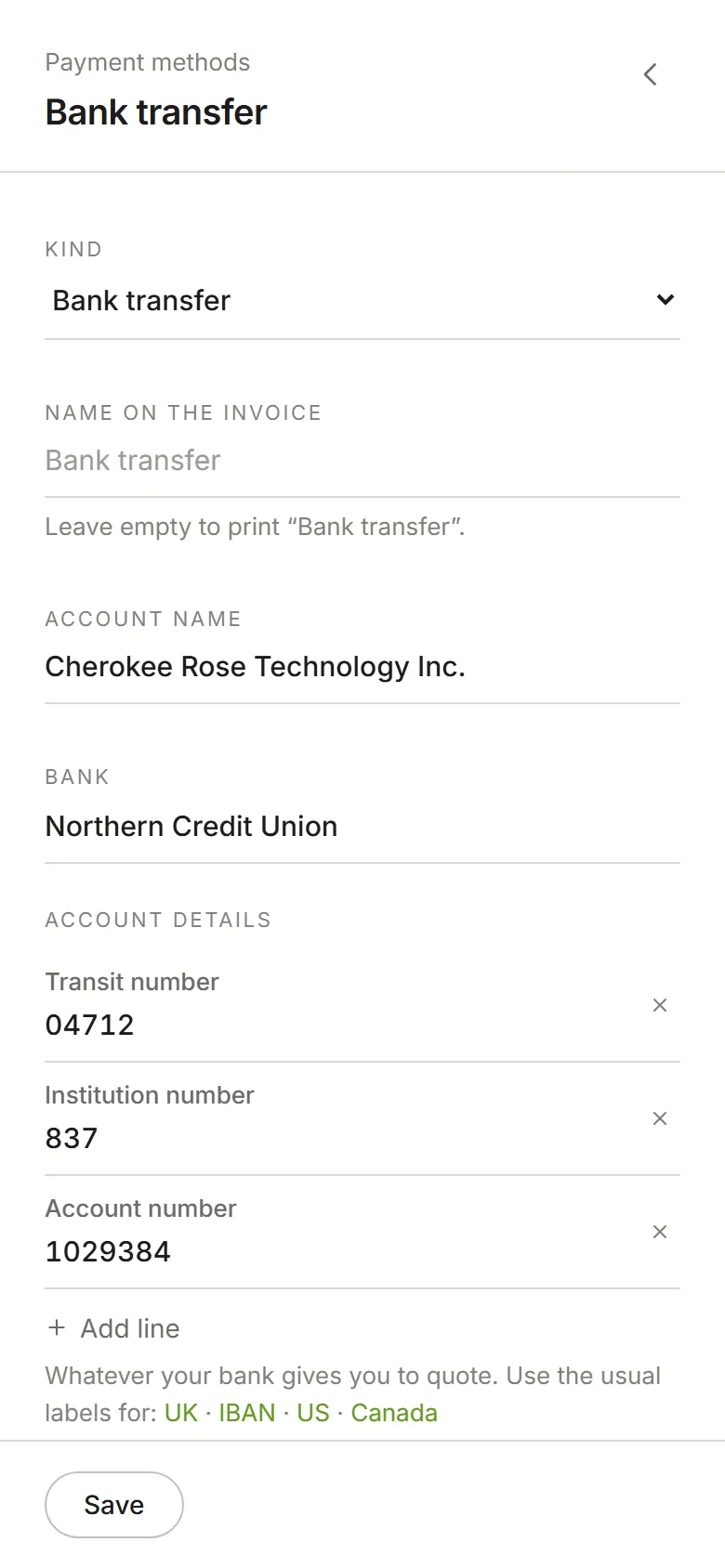
Which methods an invoice shows
Section titled “Which methods an invoice shows”Methods marked On new invoices print on every invoice. You can have more than one, for example a bank transfer and a card link.
To show different methods on one invoice, open it and choose Choose payment methods under How to pay. Tick the ones you want, choose Apply, then Save the invoice.
Changing or removing one
Section titled “Changing or removing one”Choose a method in the list to change it, or Remove payment method at the bottom of it. You can undo a removal for a few seconds.
Draft invoices pick up the change straight away. A sent invoice keeps the details it was sent with, so the PDF your client has never changes underneath them. Its page says “As sent”. To print your new details on it, move it back to draft, or choose its payment methods again on the invoice.
Your payment methods are included in Export your data.