

Billing
Choose Account Settings from your avatar menu, then Billing, which opens as a page of its own. An app’s license is your account’s plan for it. In an app such as Invoicing, Settings then Billing brings you to the same place, and so does the Change plan link you see when a plan’s limit is reached.
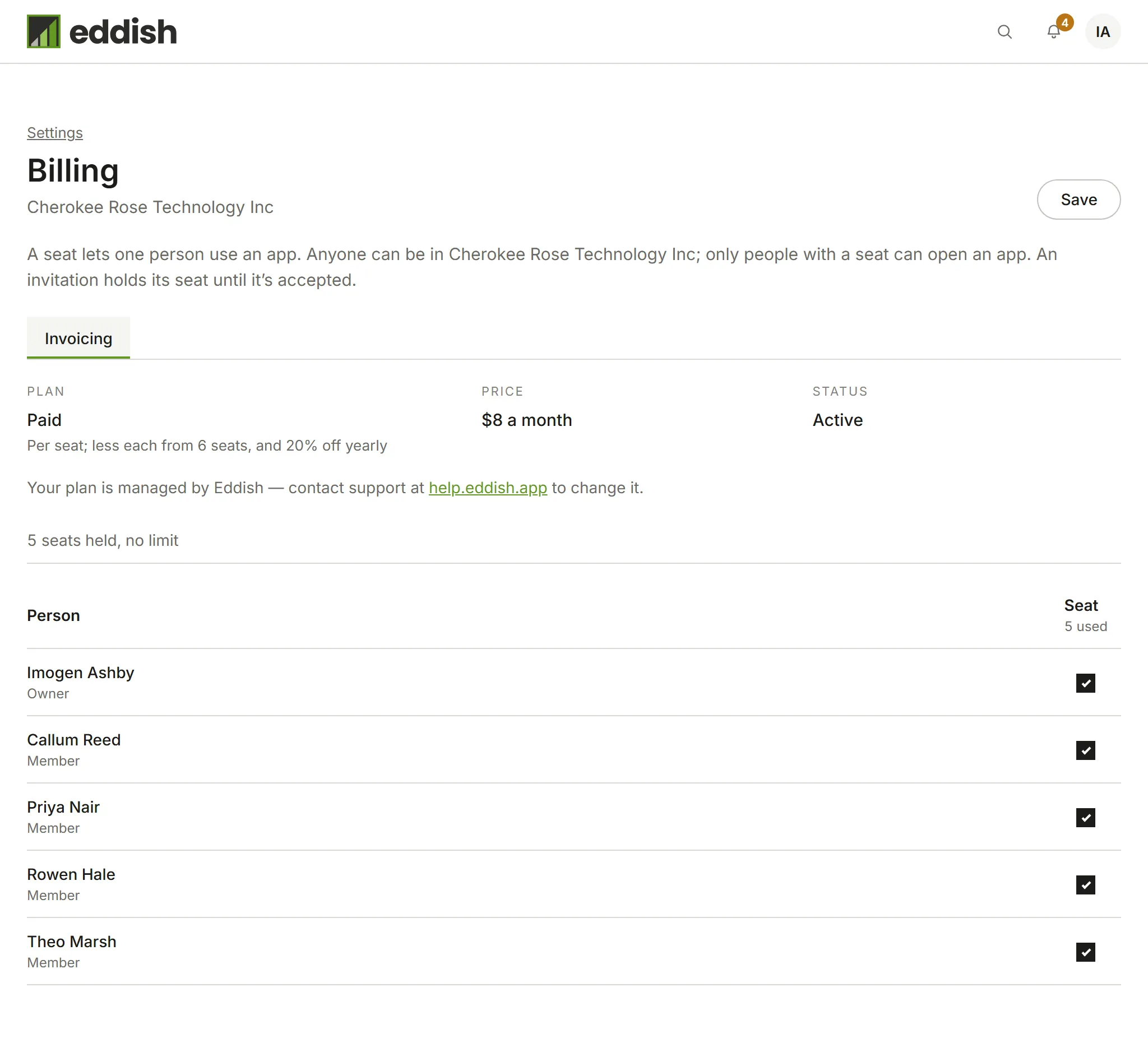
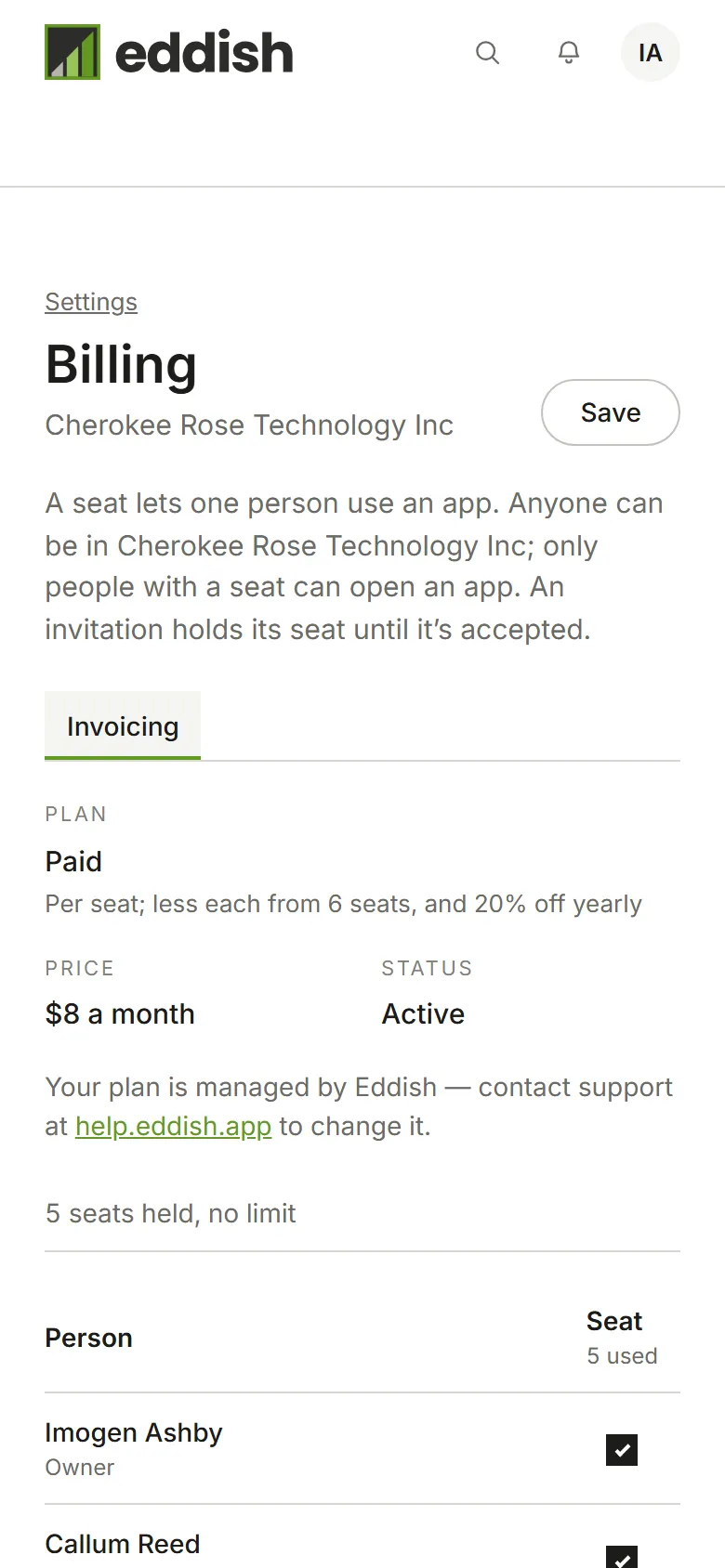
- The account’s Owner sees everything here: plans, prices, seats, and who has a seat.
- An Admin sees each app’s plan and gives or takes seats, but can’t change a plan or buy seats.
- A Member doesn’t see Billing.
Each app has a tab with its plan, its seats, and who has one.
A seat lets one person use one app. Anyone can be a member of your account, but only people with a seat in an app can open it; someone without one sees You don’t have a seat in Invoicing and who to ask. An invitation holds its seat until it’s accepted.
An app’s tab lists everyone in the account, and each invitation, with a tick box for a seat in that app. Tick or untick, then Save. The column heading counts the seats your ticks would use, such as 3 of 5 used, and a warning shows before you save more than the plan has. One save can take a seat from one person and give it to another, and covers changes on every app’s tab.
When you invite people, choose which apps their invitation gives them a seat in. Apps with a seat free are ticked to start with.
For the Owner, each app’s tab shows:
- Plan: its name and, where there is one, a short line about it.
- Price: Free, Free during the trial, or what the plan costs a month or a year. A price agreed with Eddish is shown instead of the plan’s, and says so.
- Status: Active, Free trial, ends 14 Dec 2026, or Payment past due. When a free trial ends, the app moves to its Free plan; nothing is deleted.
- Next charge: for a plan you pay for, what you’ll next be charged and when.
Choose Change plan under the app, pick a plan, then choose Change to that plan.
- Free and the free trial change straight away. The trial runs 60 days, with up to 20 seats, and can be taken once per app.
- Moving onto a plan with lower limits: if your account has more than the new plan includes, the app becomes read-only until you choose what to keep. See When you’re over your plan.
- Moving onto the paid plan from Free or a trial: choose Continue to payment and pay on our payment processor’s secure checkout (Paddle, which also handles sales tax). Eddish never sees your card.
- From the paid plan to Free: your plan runs to the end of the period you’ve already paid for, then moves to Free. Until then the screen says Your plan moves to Free on that date, with a button to keep your plan instead.
- A plan managed by Eddish, such as one agreed with us directly, says Your plan is managed by Eddish; contact support to change it.
Buying seats
Section titled “Buying seats”Invoicing’s paid plan is priced per seat, monthly or annually. The more seats, the lower the price of every seat:
| Seats | Discount | Monthly, per seat | Annually, per seat |
|---|---|---|---|
| 1–5 | — | $8.00 | $76.80 |
| 6–10 | 10% | $7.20 | $67.20 |
| 11–20 | 12.5% | $7.00 | $64.80 |
| 21–50 | 15% | $6.80 | $62.40 |
| 51–75 | 17.5% | $6.60 | $60.00 |
| 76 or more | 20% | $6.40 | $57.60 |
Annual billing takes a further 20% off, added to the volume discount. Every seat is charged at the price for the total: 6 seats are 6 × $7.20. For more than 500 seats, contact us.
Under Seats, choose Buy seats (from Free or the trial) or Change seats (once you pay for the app). Set the number of seats and monthly or annually; the price updates as you go. Where a few more seats would cost less in total, for example 51 seats costing less than 50, the screen offers Add 1 seat and save $3.40/mo; it’s your choice. Then choose Review change:
- From Free or the trial, the review shows what you’ll pay each month or year, and Continue to payment opens Paddle’s checkout for that many seats.
- Adding seats to a plan you already pay for shows what you’ll be charged today for the rest of the billing period, and what each bill will be after. Choose Confirm and pay to be charged. If the payment doesn’t go through, nothing changes, and Update payment details lets you give another card.
- Removing seats takes effect on your next bill, which is credited for the difference. You can’t go below the number of seats in use; take seats away from people first.
- Switching between monthly and annually is charged or credited straight away.
Only the Owner can buy seats or change the number.
A payment that didn’t go through
Section titled “A payment that didn’t go through”If a payment fails, Billing says The last payment for Invoicing didn’t go through, and Invoicing shows the same at the top of every screen. Everyone keeps using the app while Paddle tries again. The Owner can choose Update payment details to give another card. Seats can’t be added until the payment goes through. If it still hasn’t after Paddle’s retries, the subscription is cancelled and the app moves to its Free plan.
Adding an app, and after you pay
Section titled “Adding an app, and after you pay”To add an app your account doesn’t have yet, choose Add an app on the screen that lists your apps, pick the app, then pick a plan. Only the account’s Owner can add one.
Adding an app, or paying for one, ends on a page of its own for that app, such as Invoicing is ready, with an Open Invoicing button and a Billing link beside it. After paying, it first says Confirming your payment… for a few seconds while our payment processor confirms it.