

Approve time and expenses
When an Admin turns on approval in Settings → Approvals, time and expenses are submitted before they’re final. The Approvals page, called Submissions for a Member, is where they wait. The count beside it in the navigation is what’s waiting for you. On a phone the navigation opens from the Eddish mark at the top left, and a dot on the mark says something there has a count.
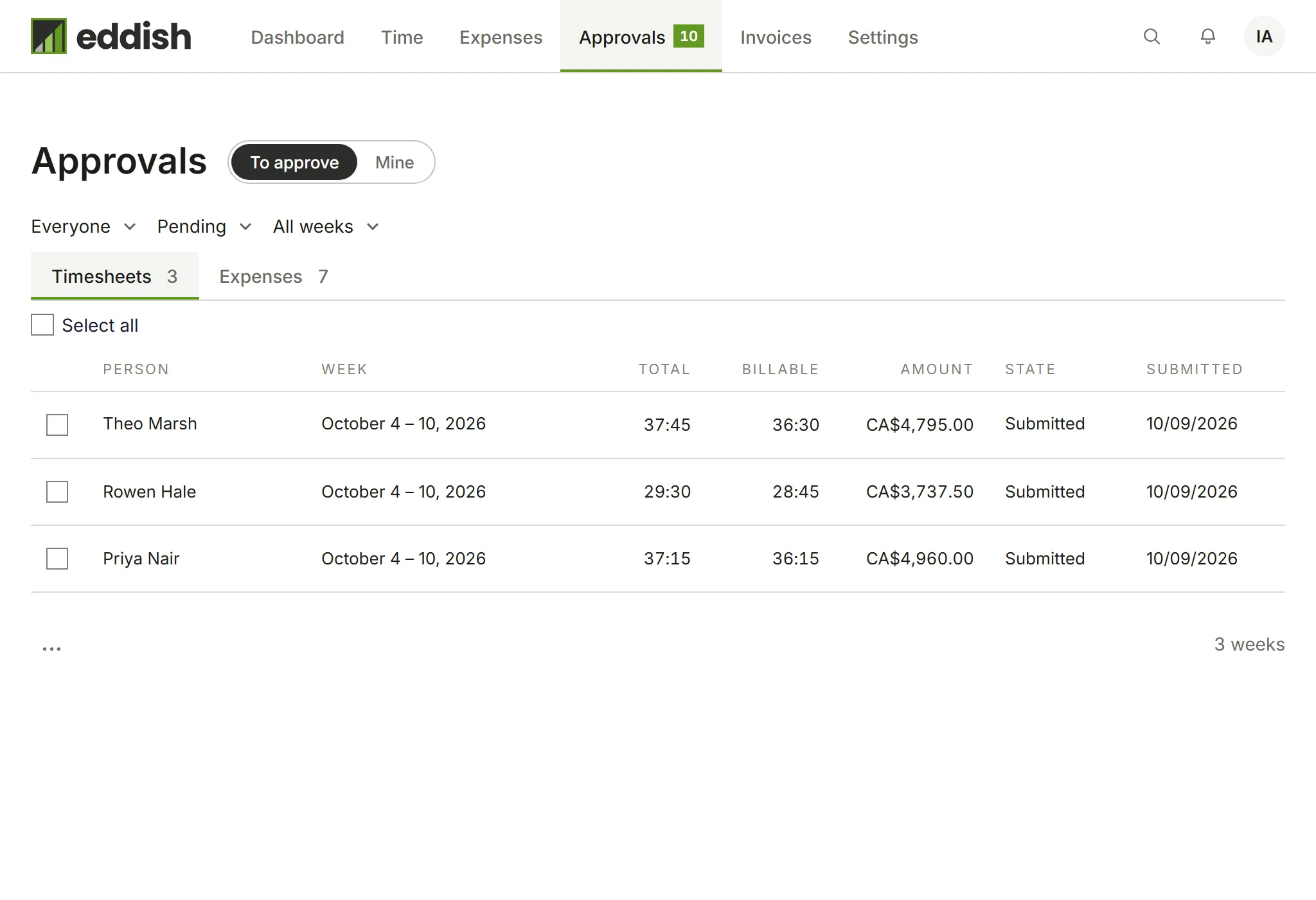
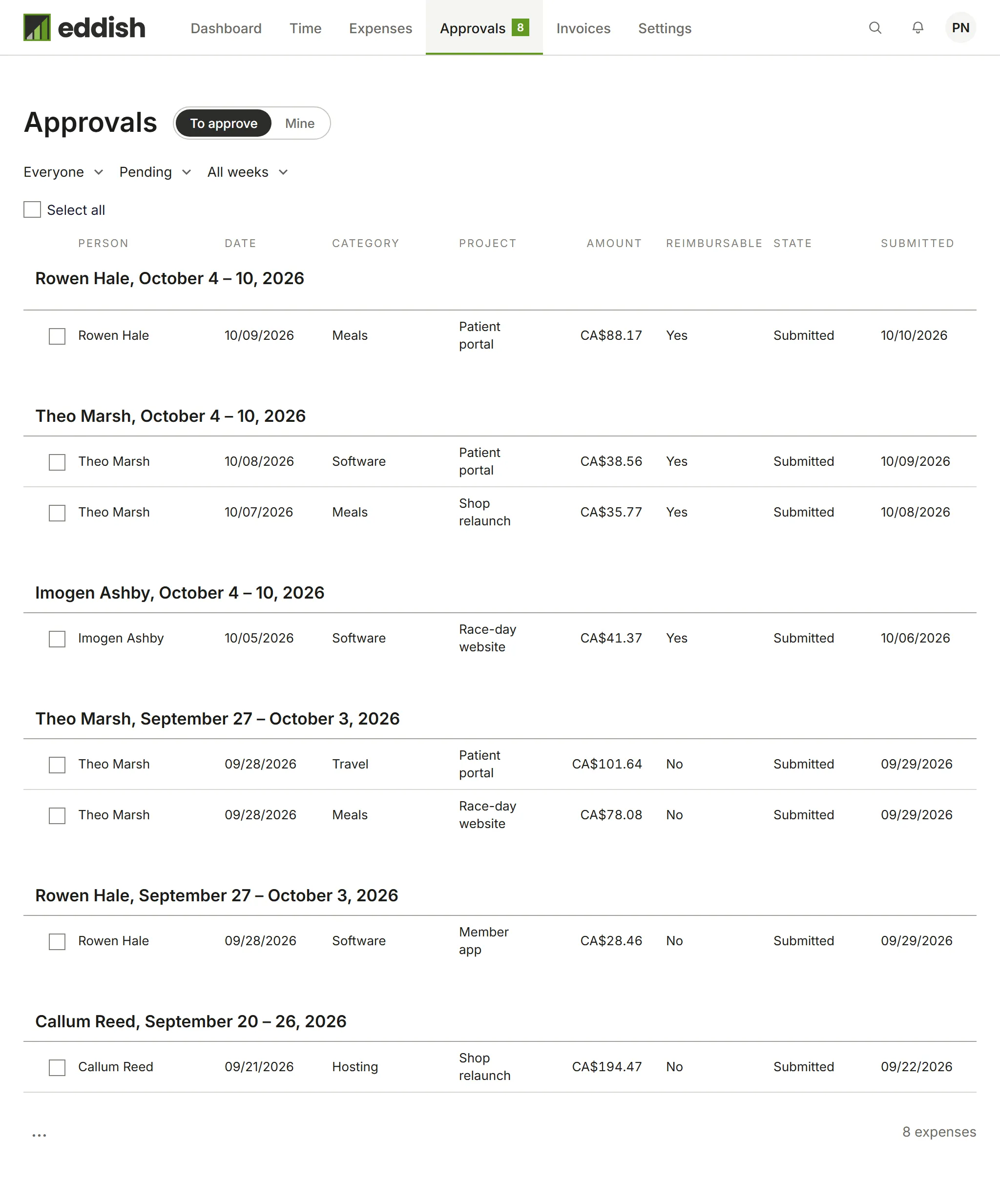
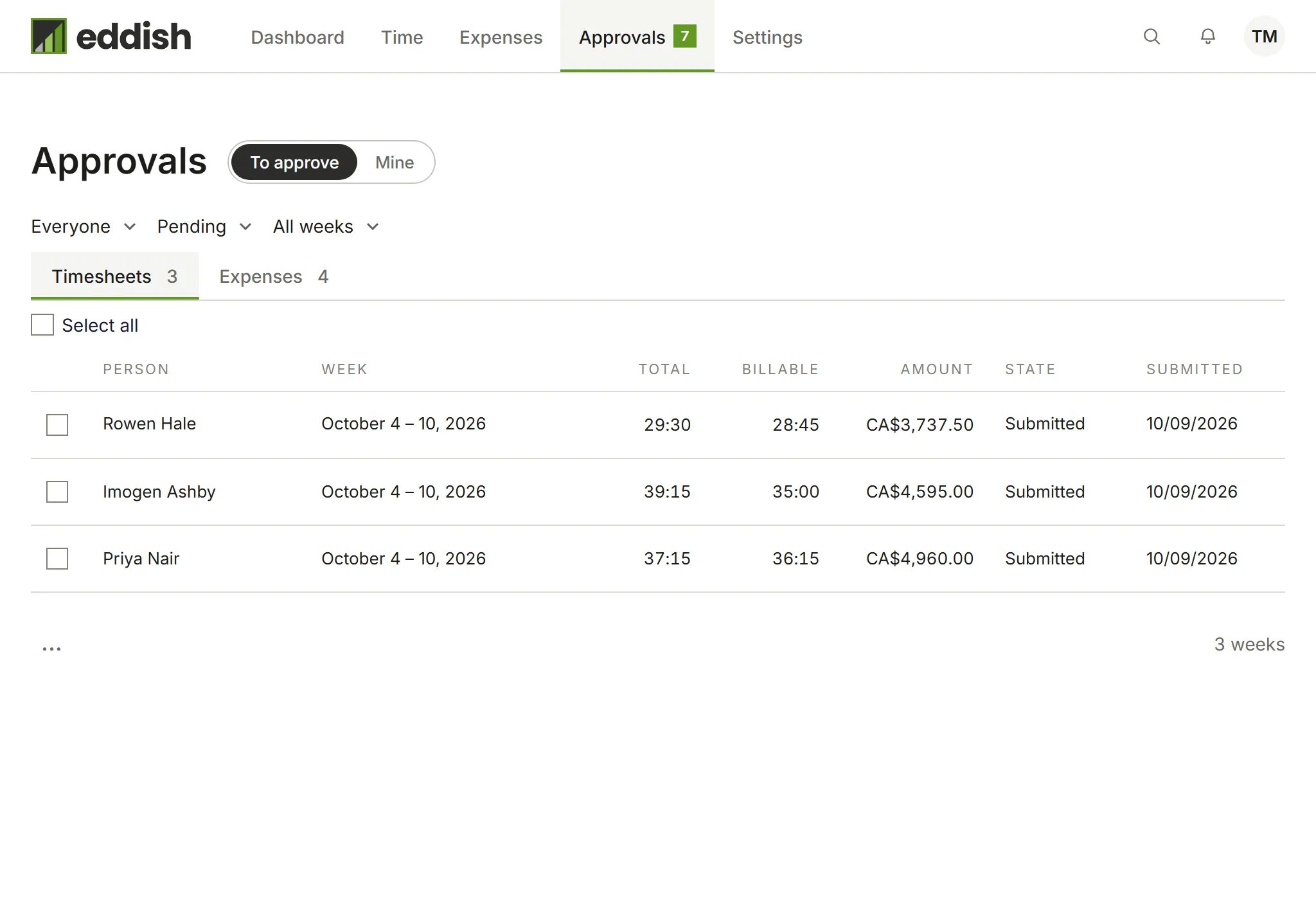
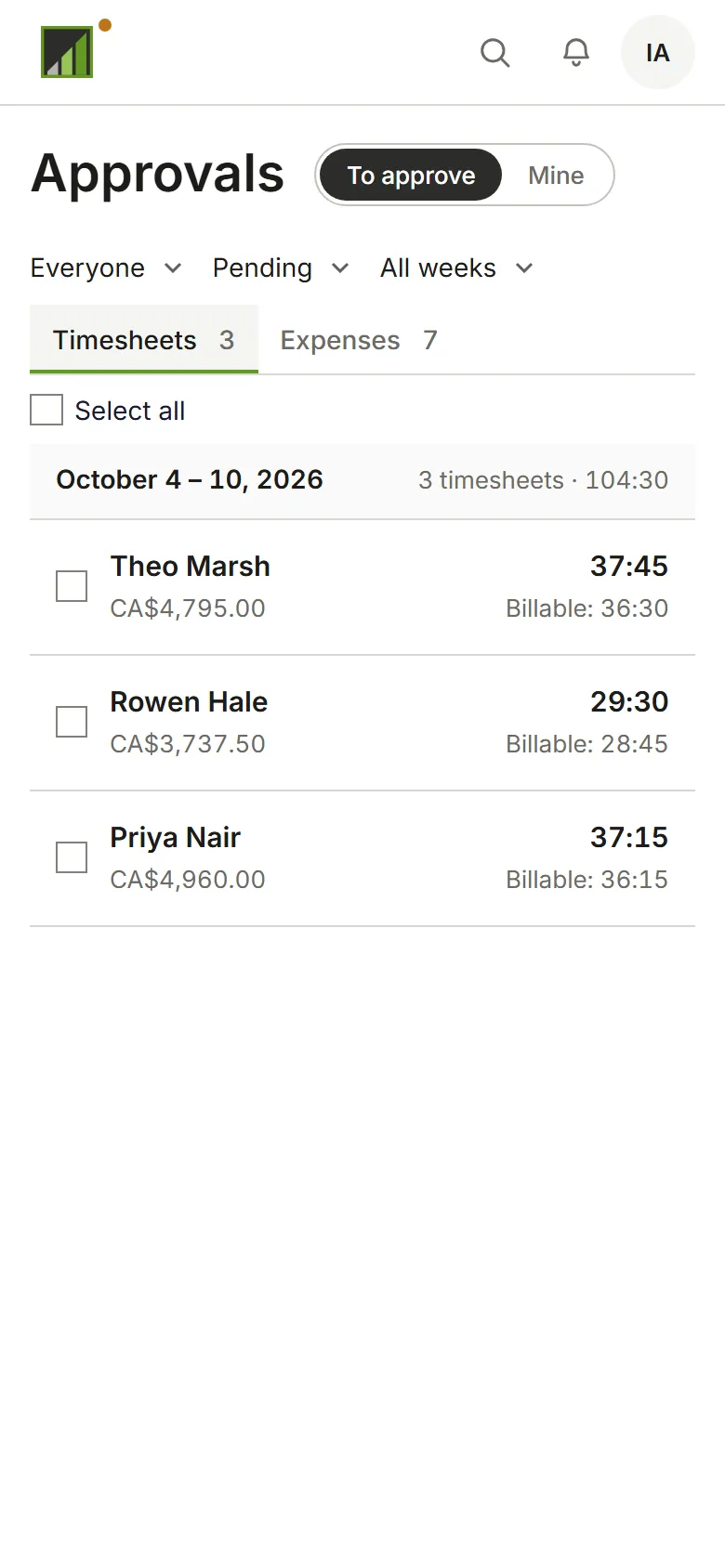
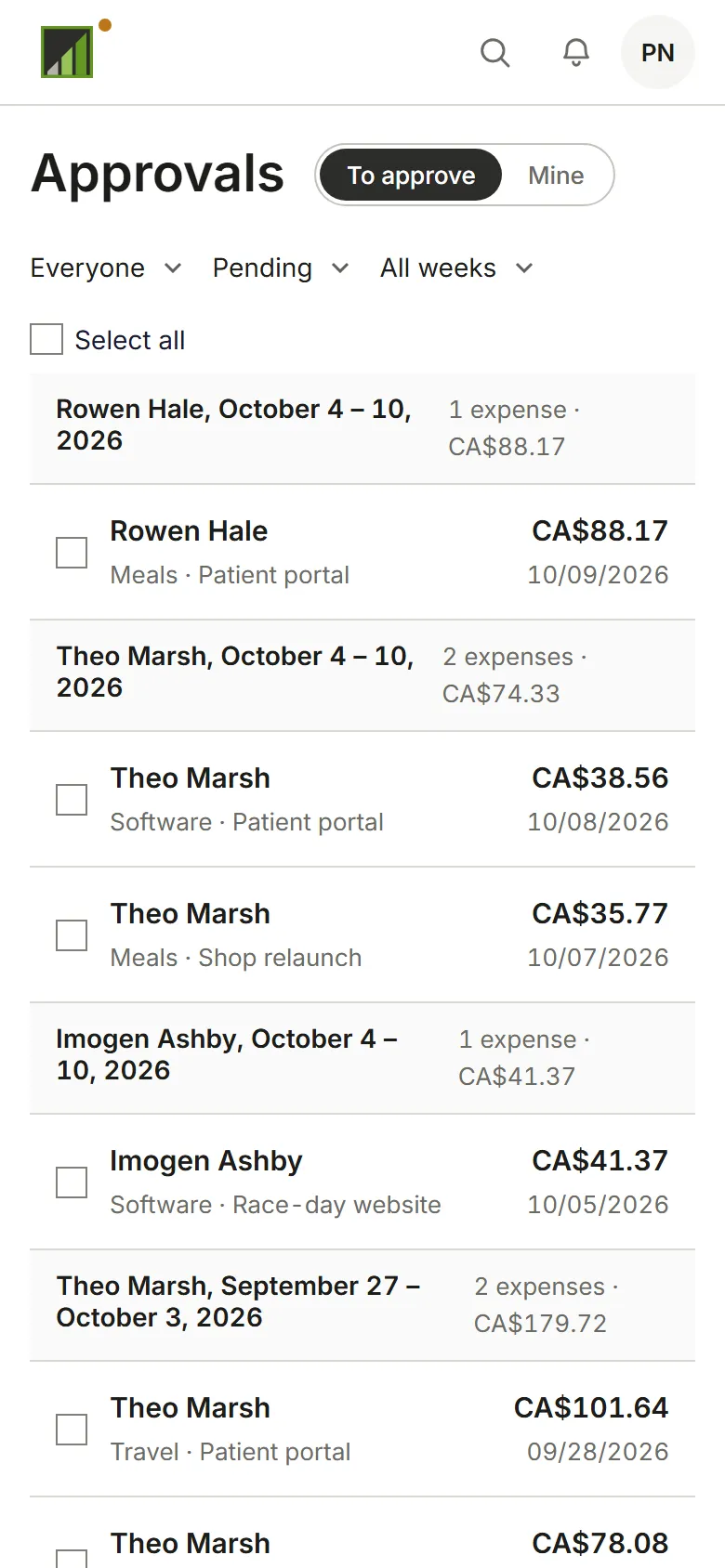
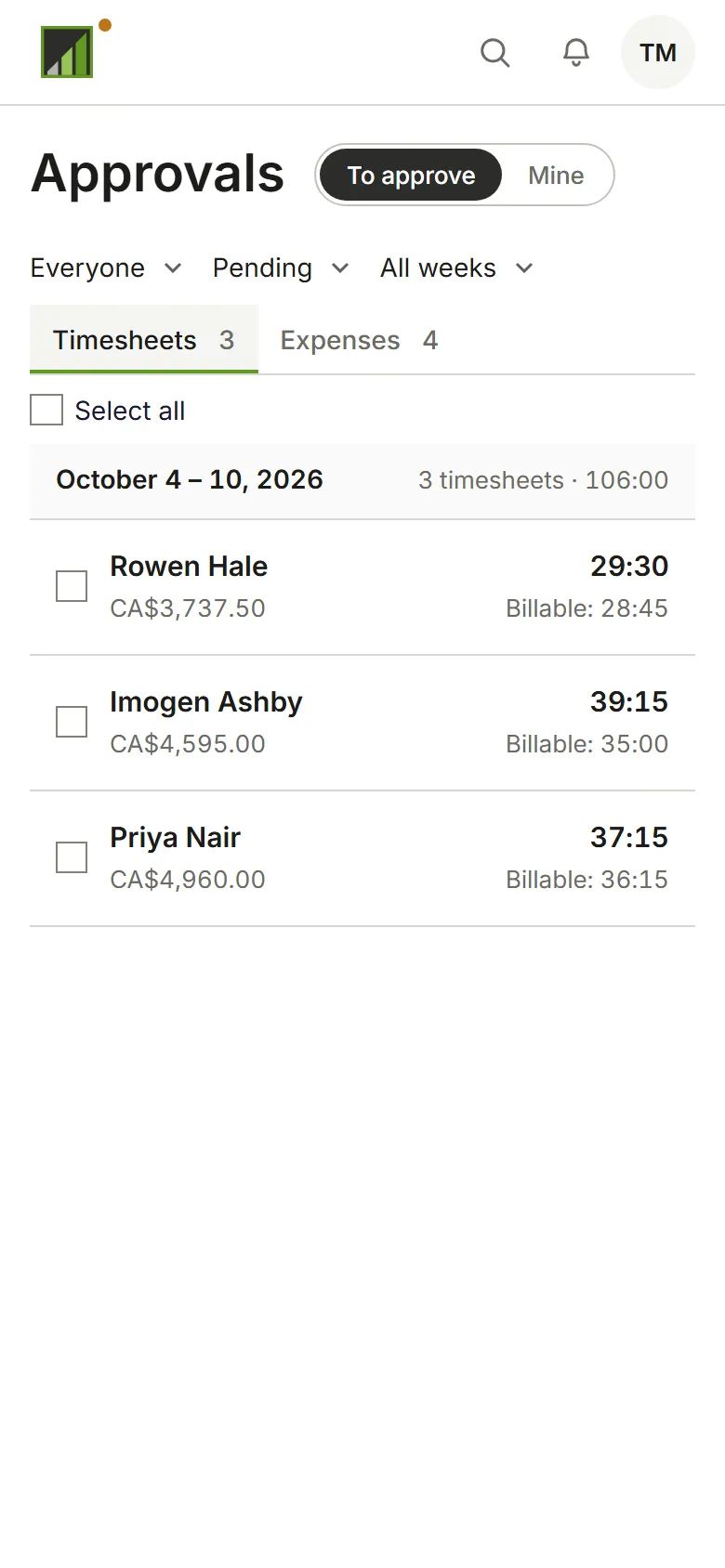
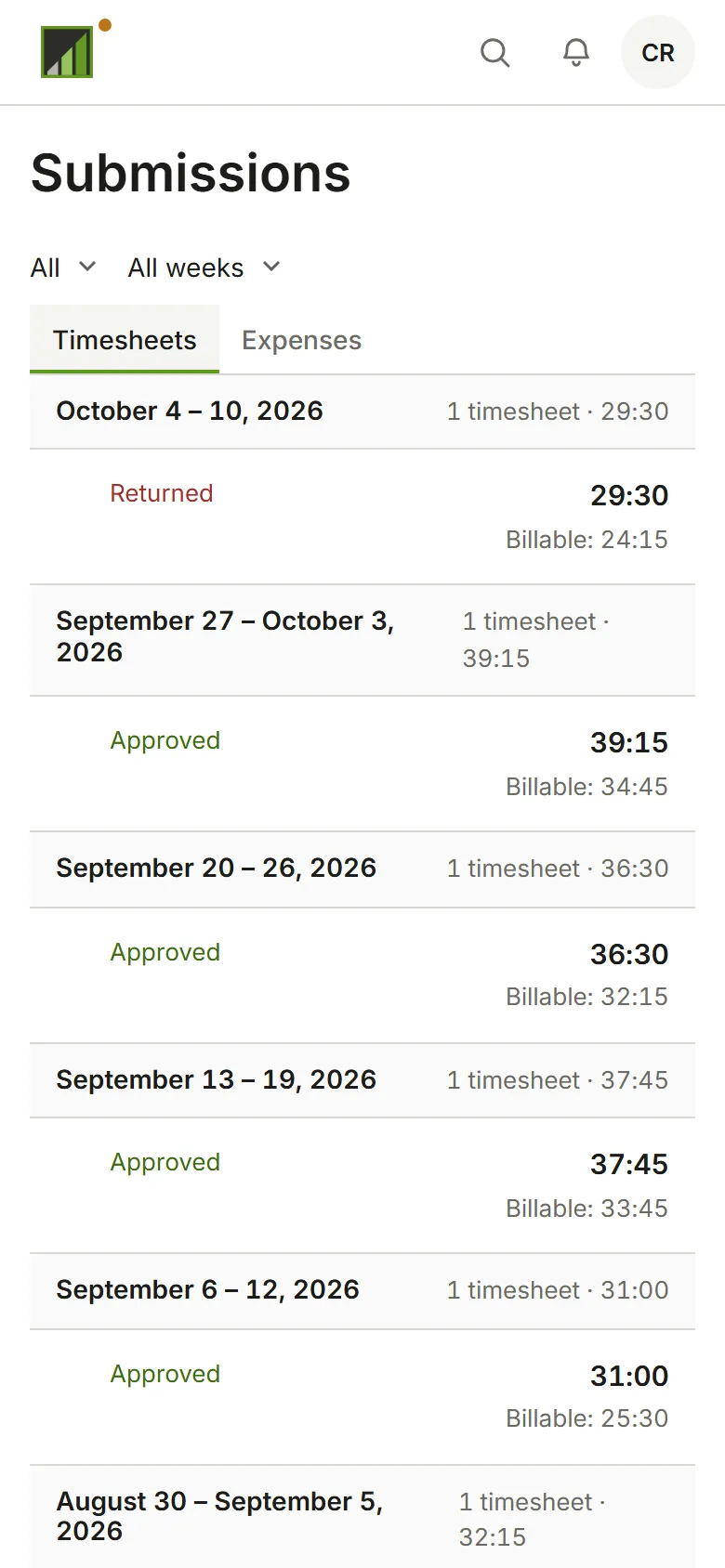
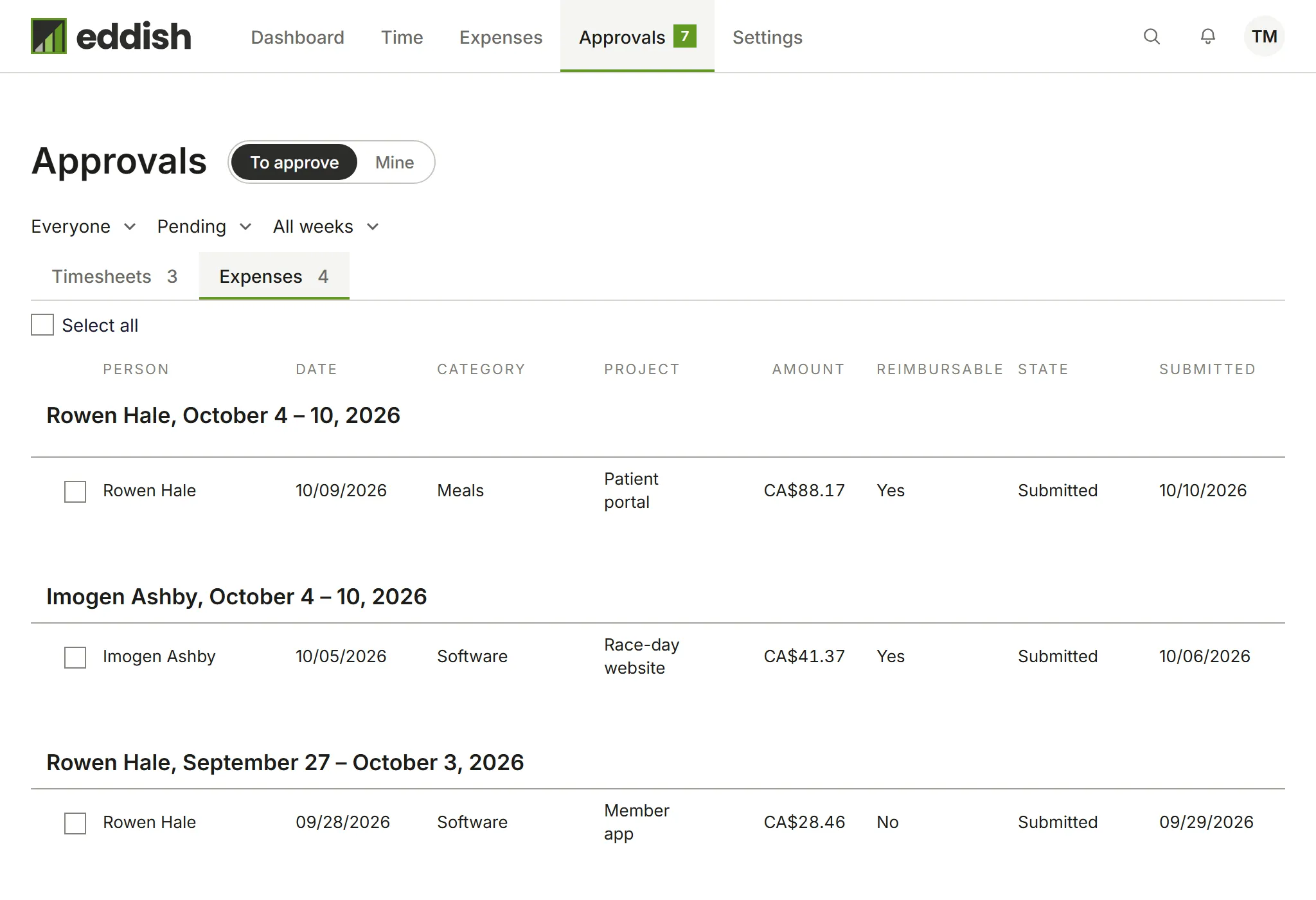
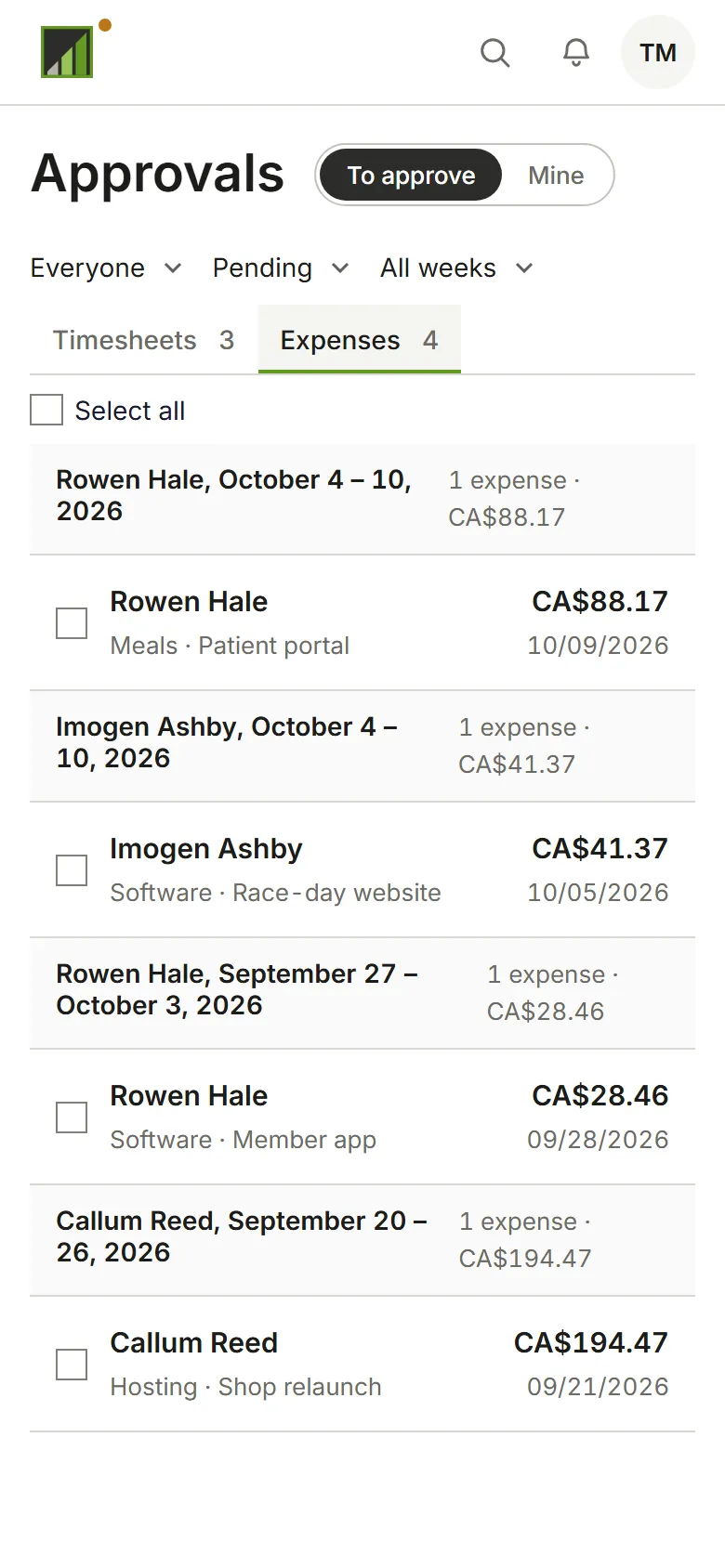
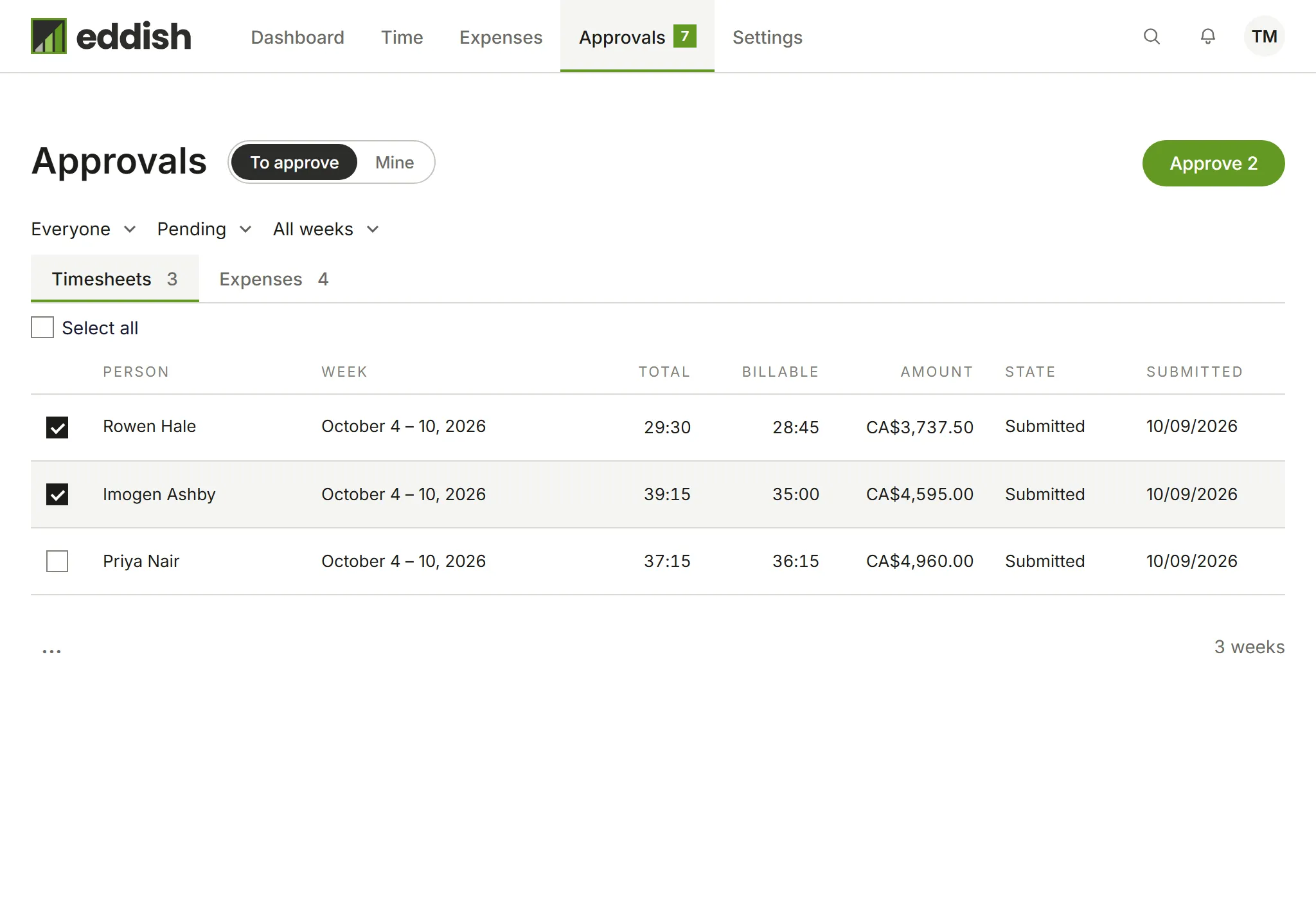
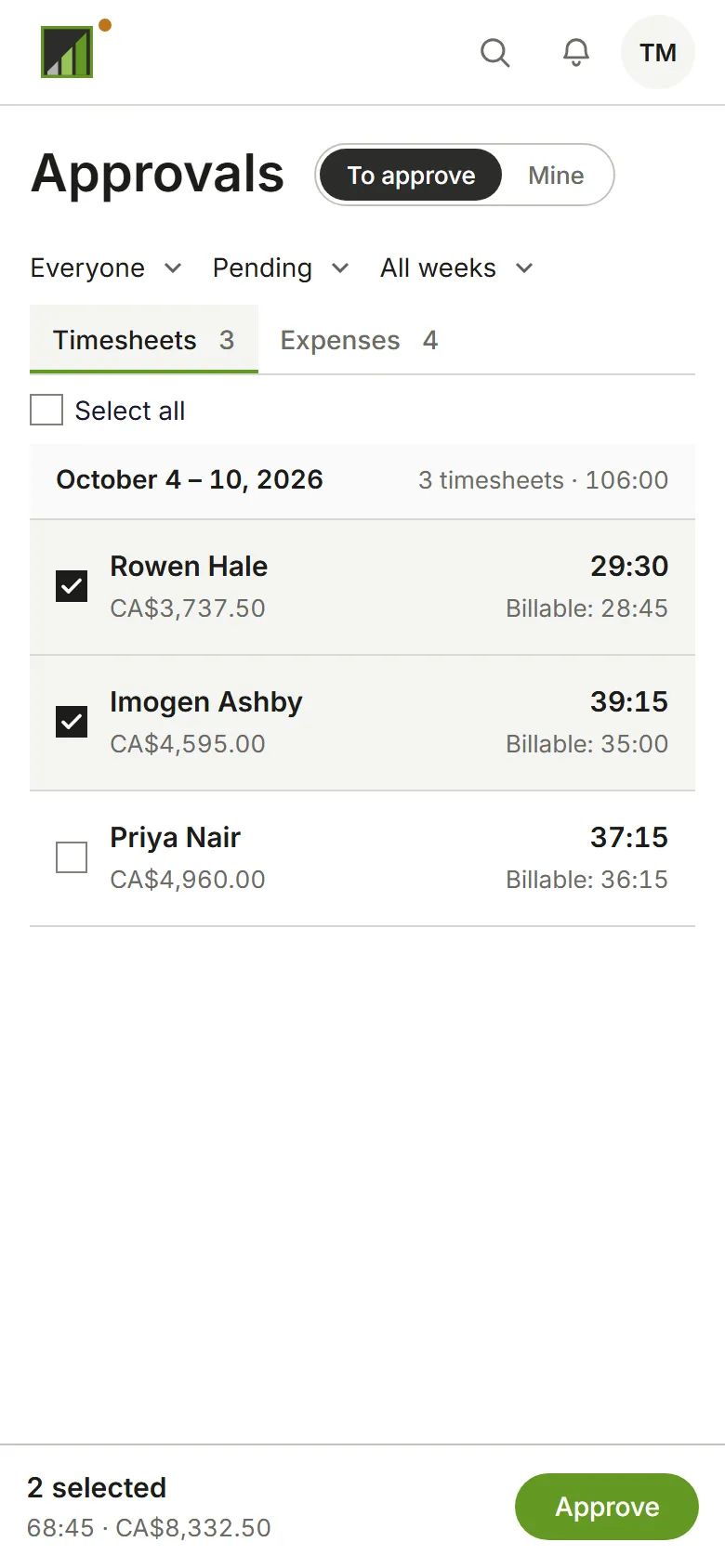
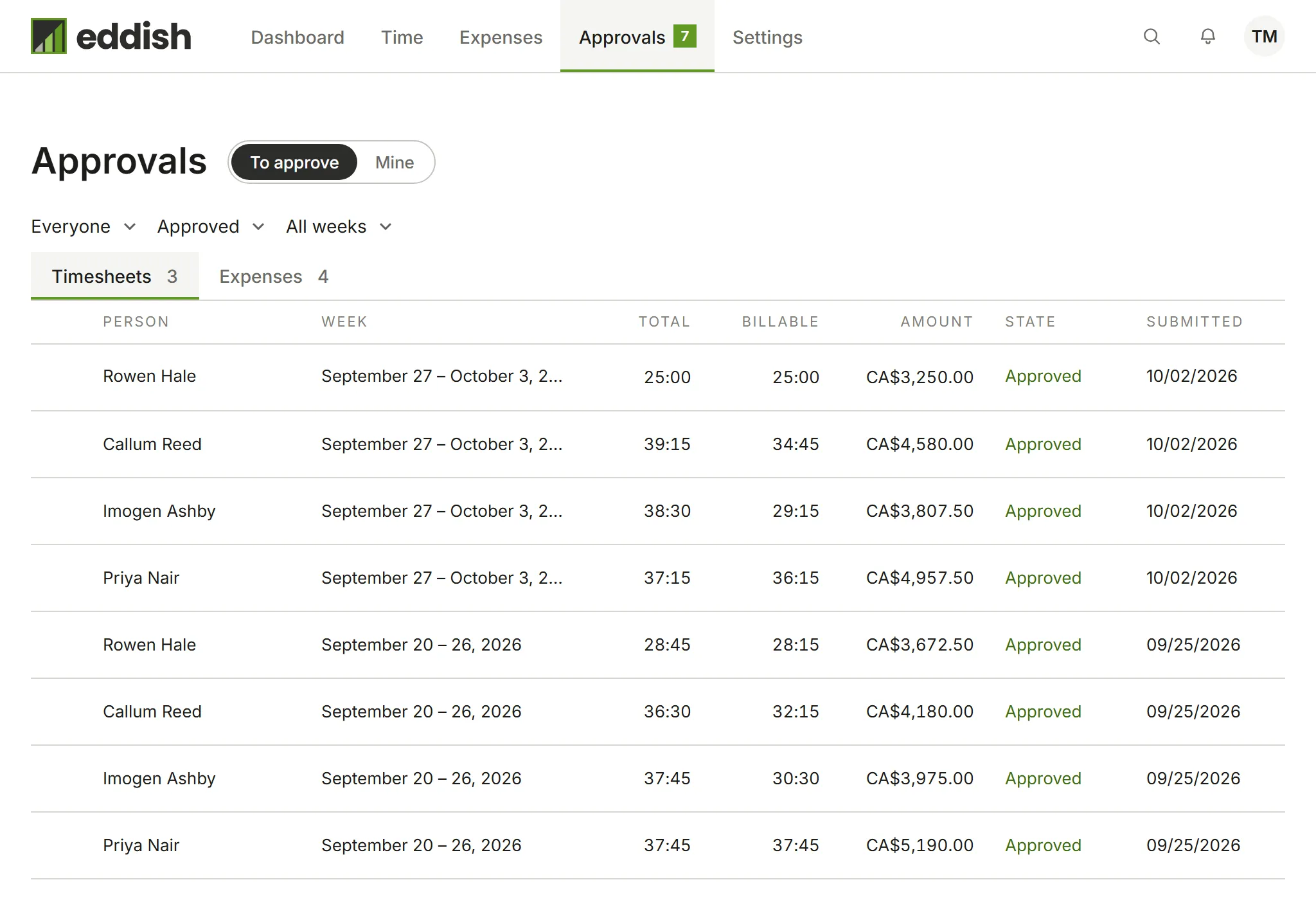
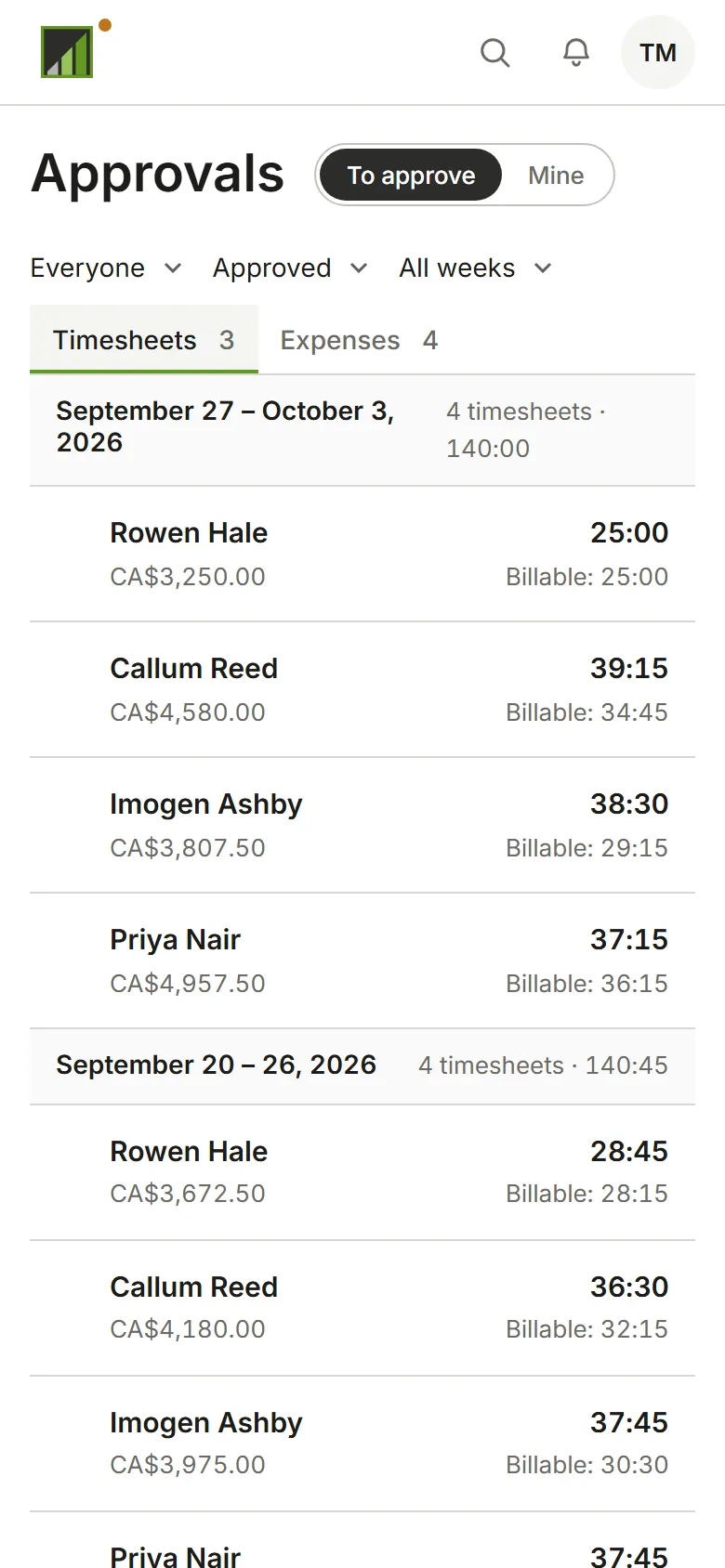
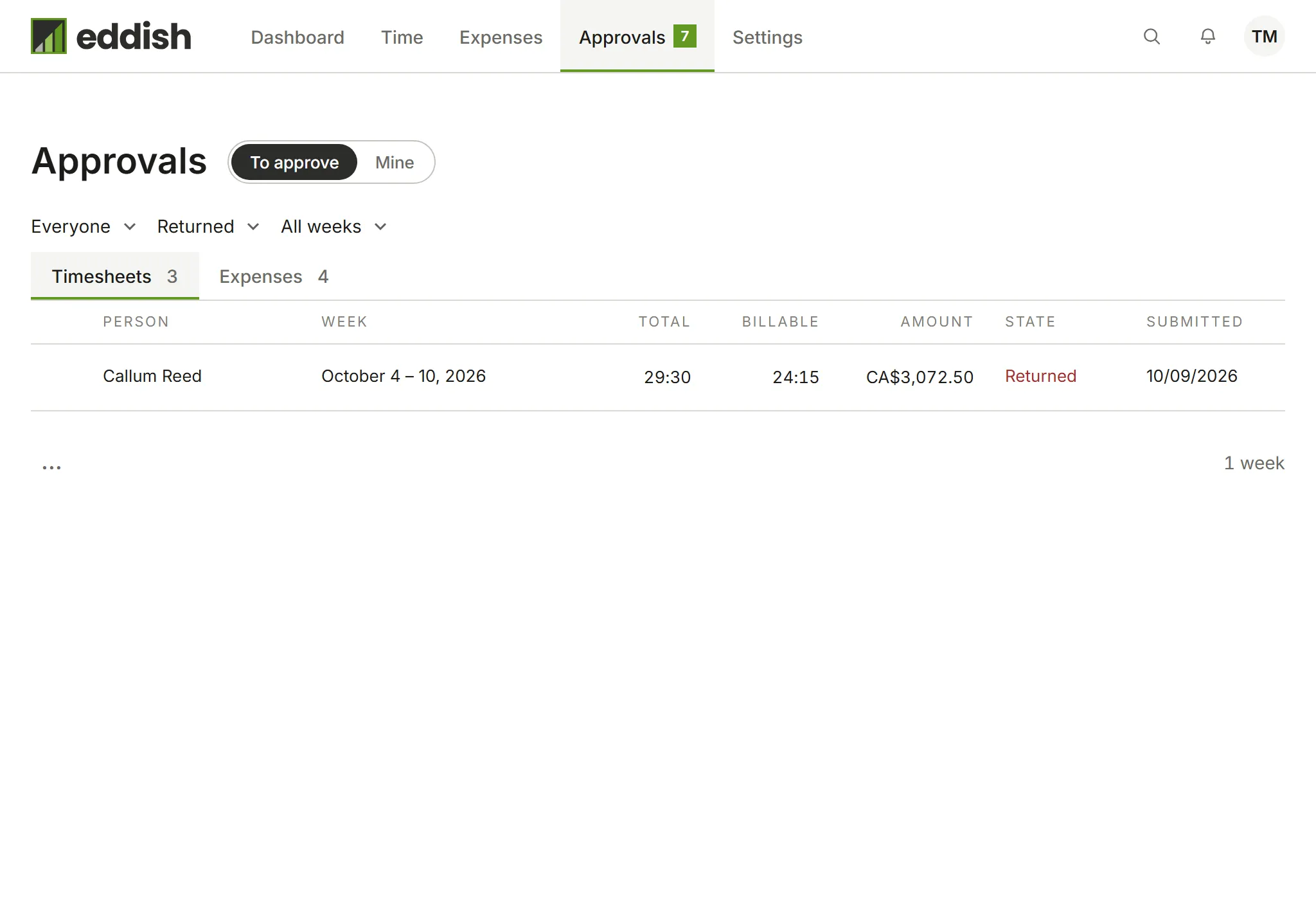

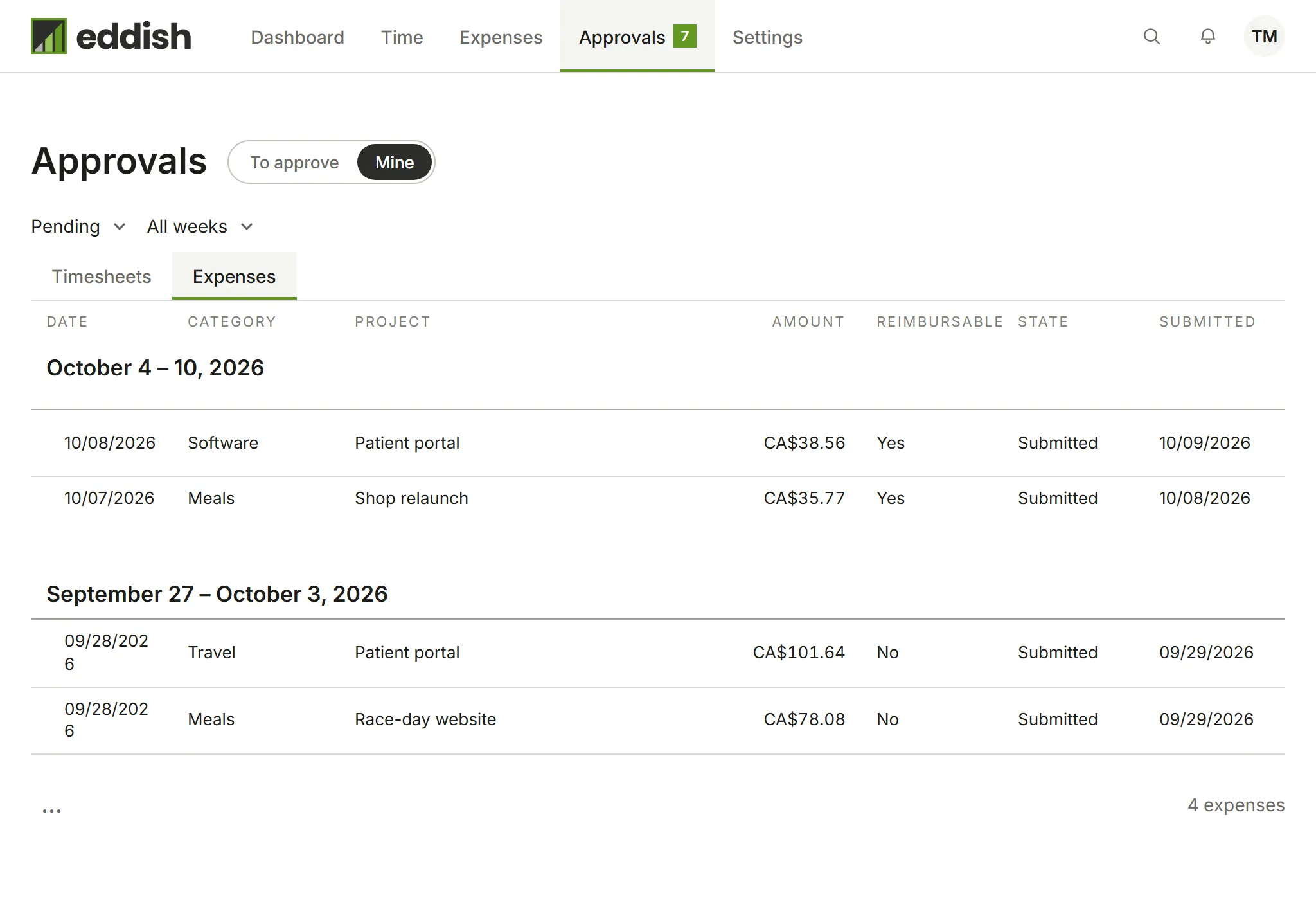
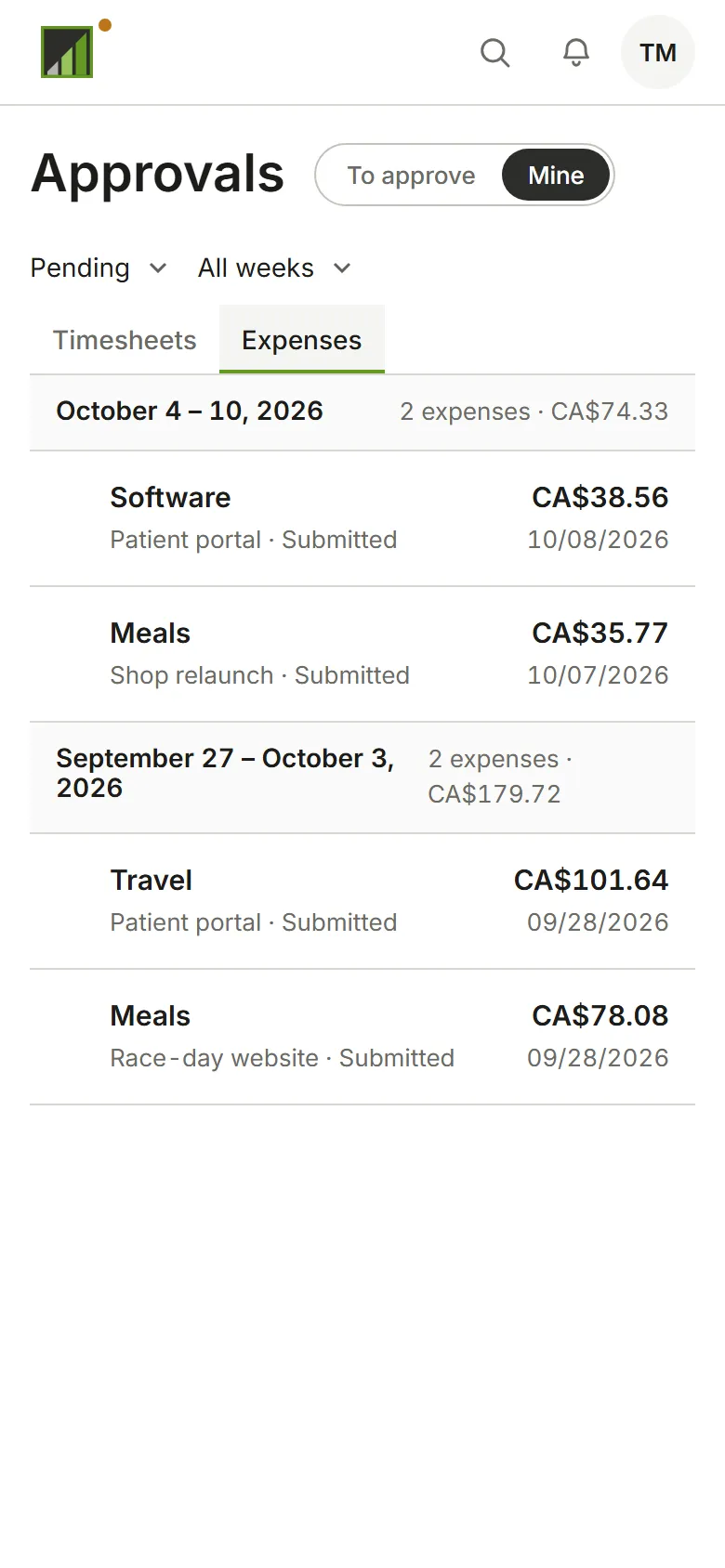
The switch beside the title chooses To approve, what you can approve, or Mine, your own submissions. Timesheets and Expenses are the two kinds; under To approve each tab shows how many are waiting. Filter by person, state (Pending to begin with, or Approved, Returned or All) and weeks.
Finance approves expenses, not time, so To approve lists expenses only, grouped by person and week. Mine lists your own submissions, timesheets included.
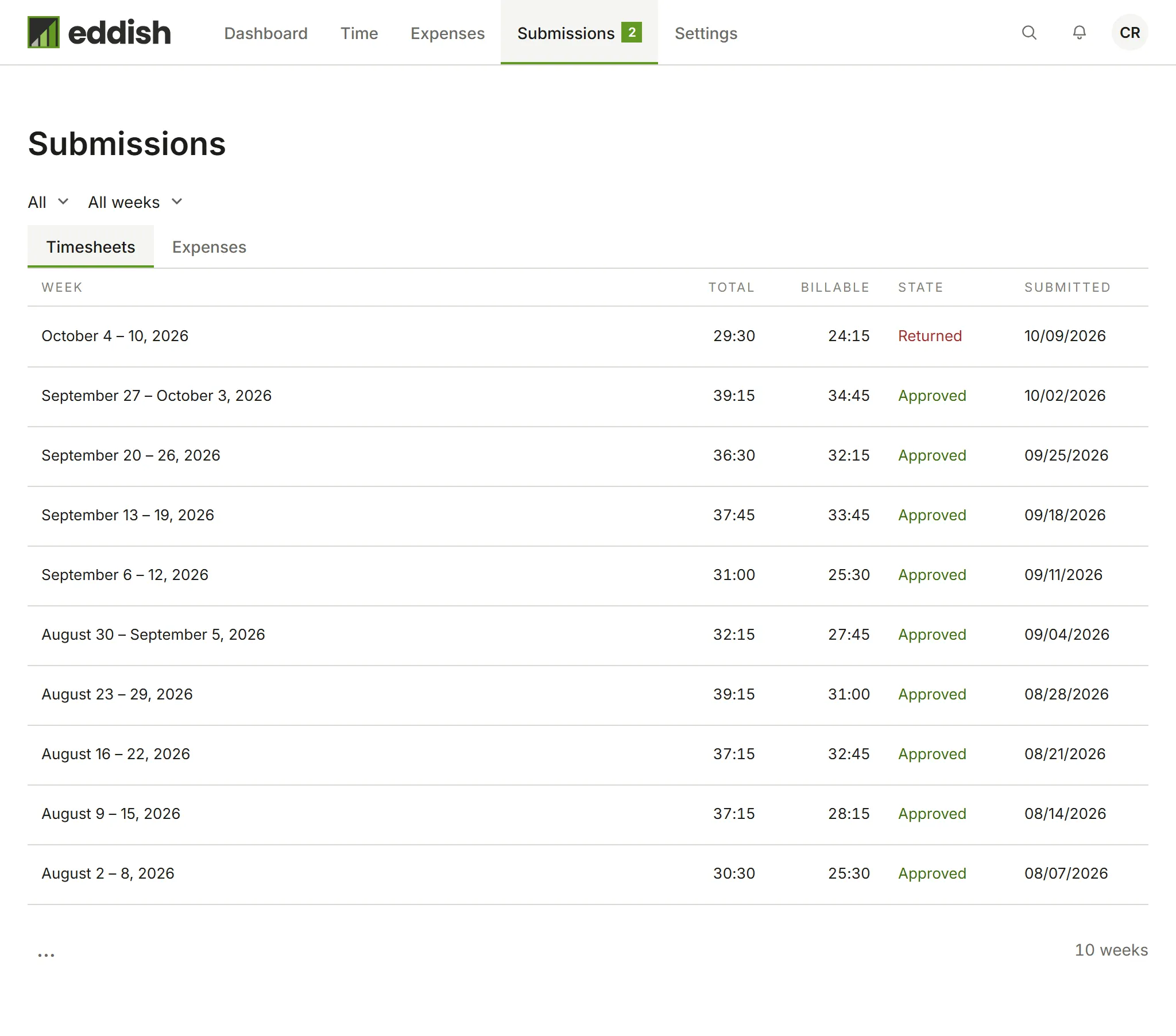
Submissions lists what you’ve submitted, what’s been approved, and what came back to you to fix.
Submit your week
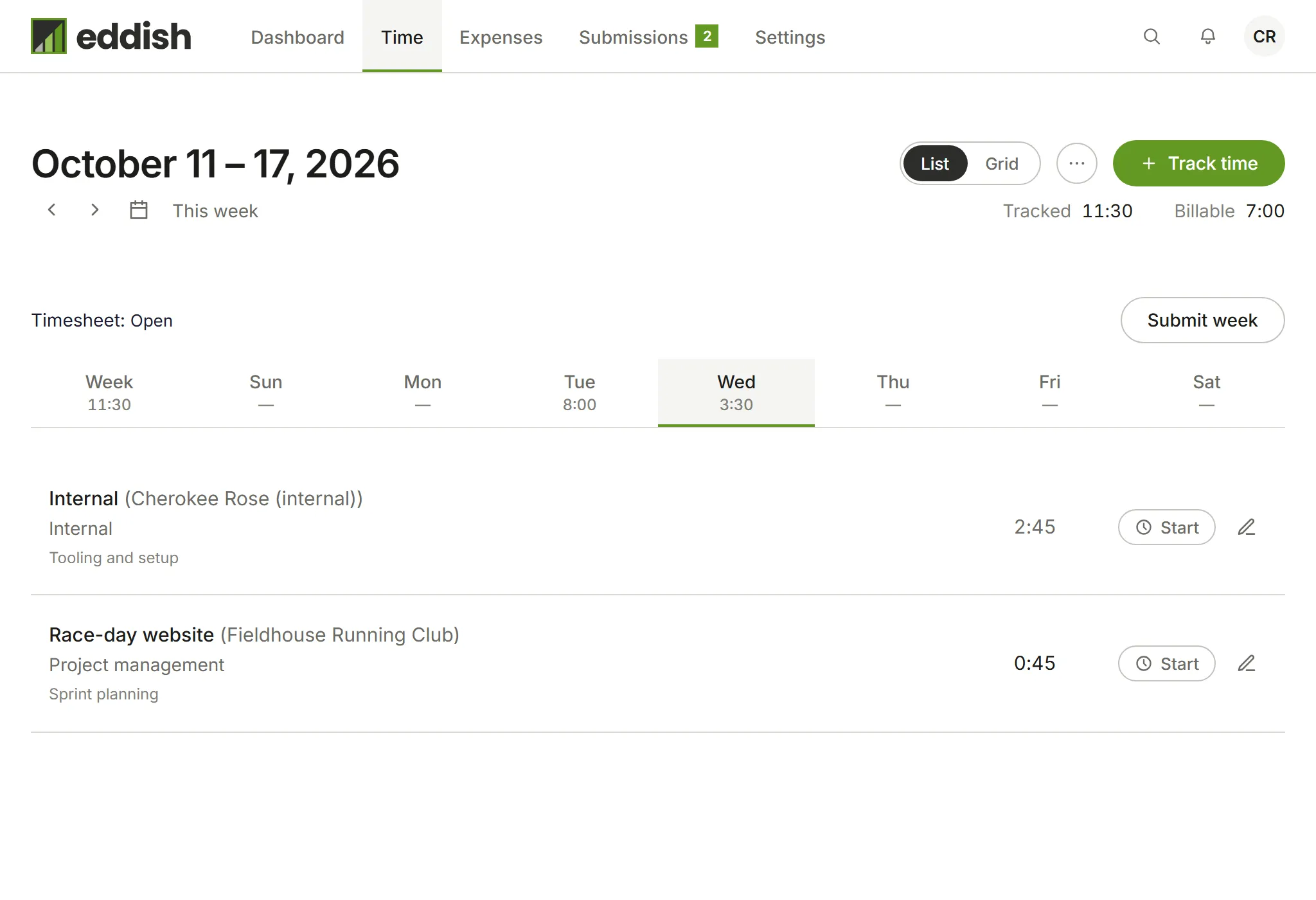
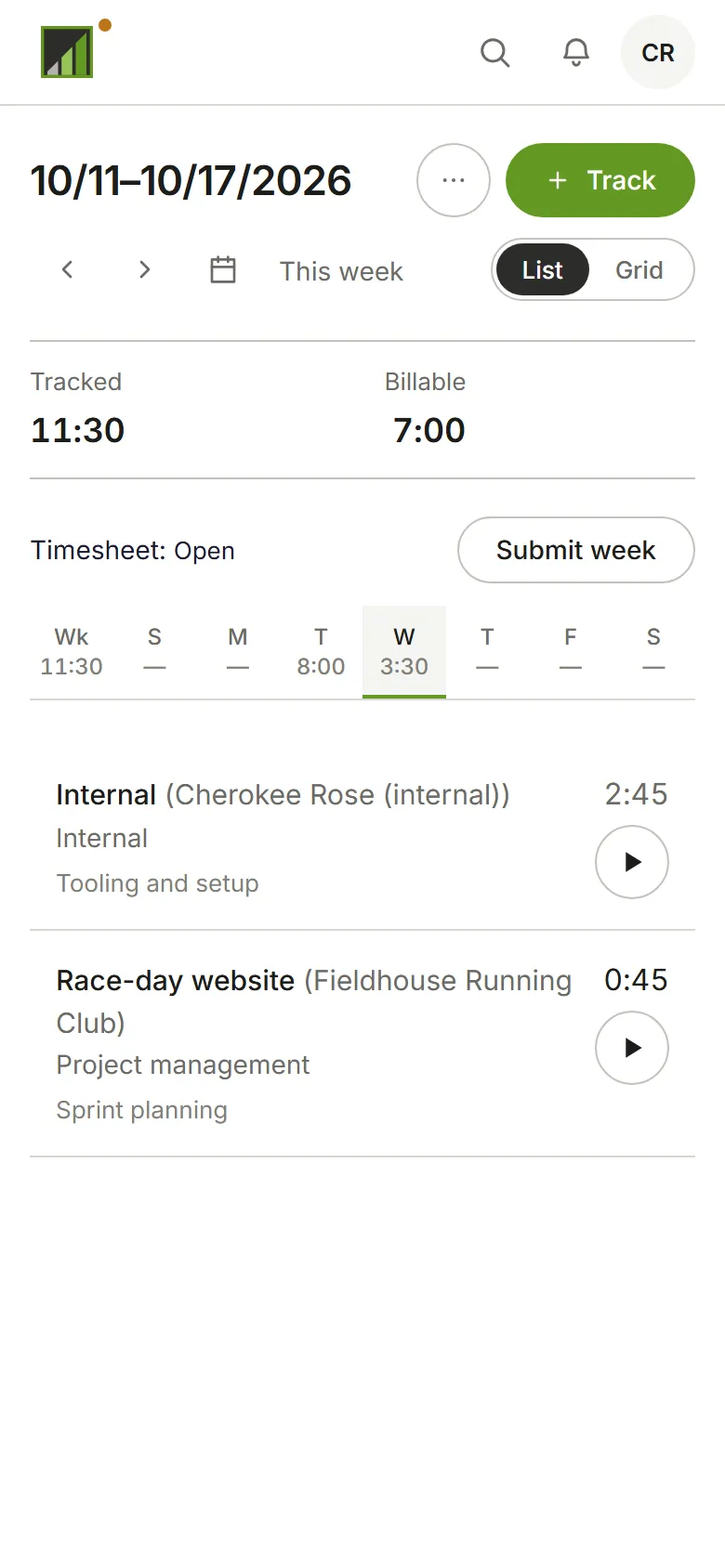
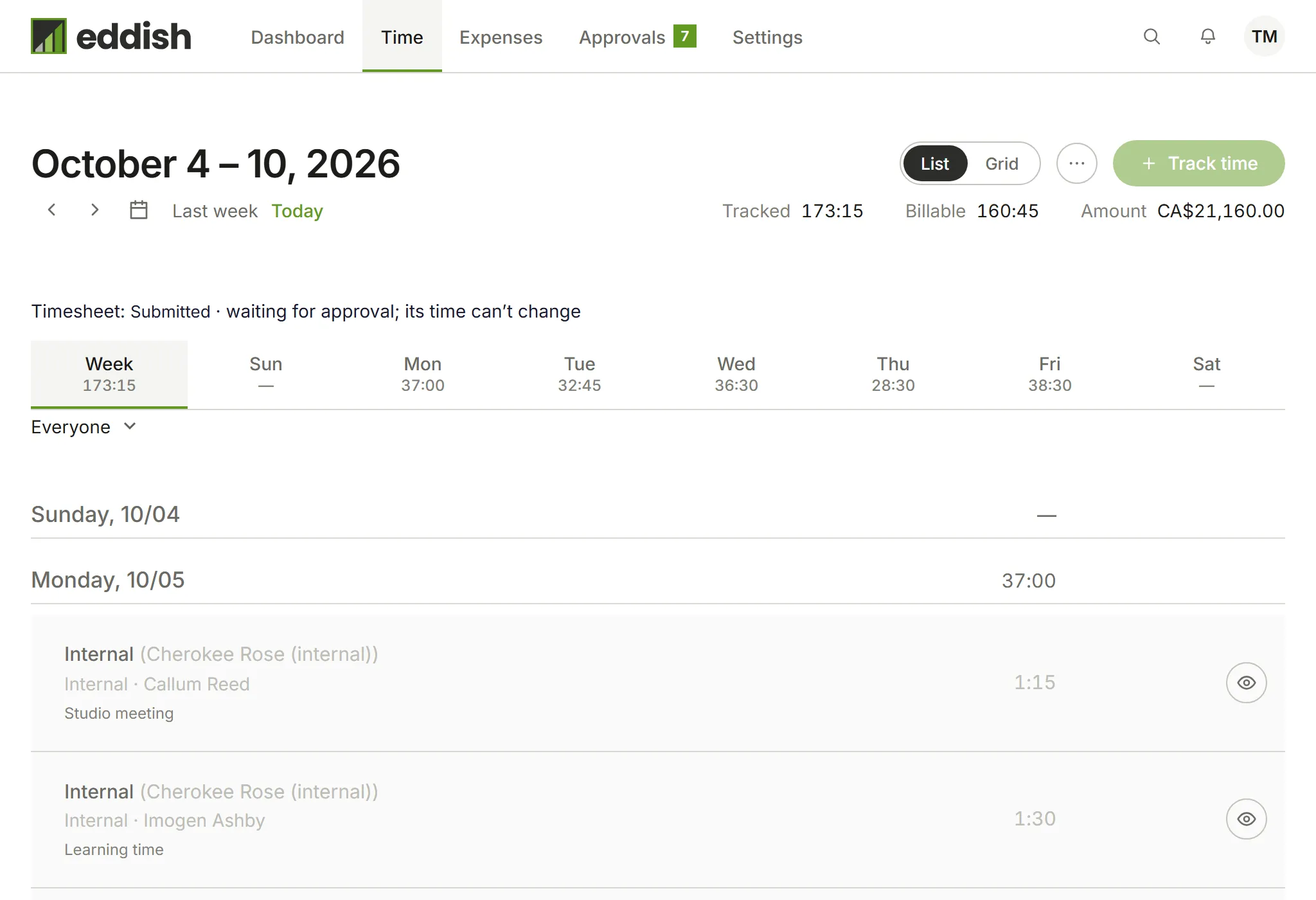
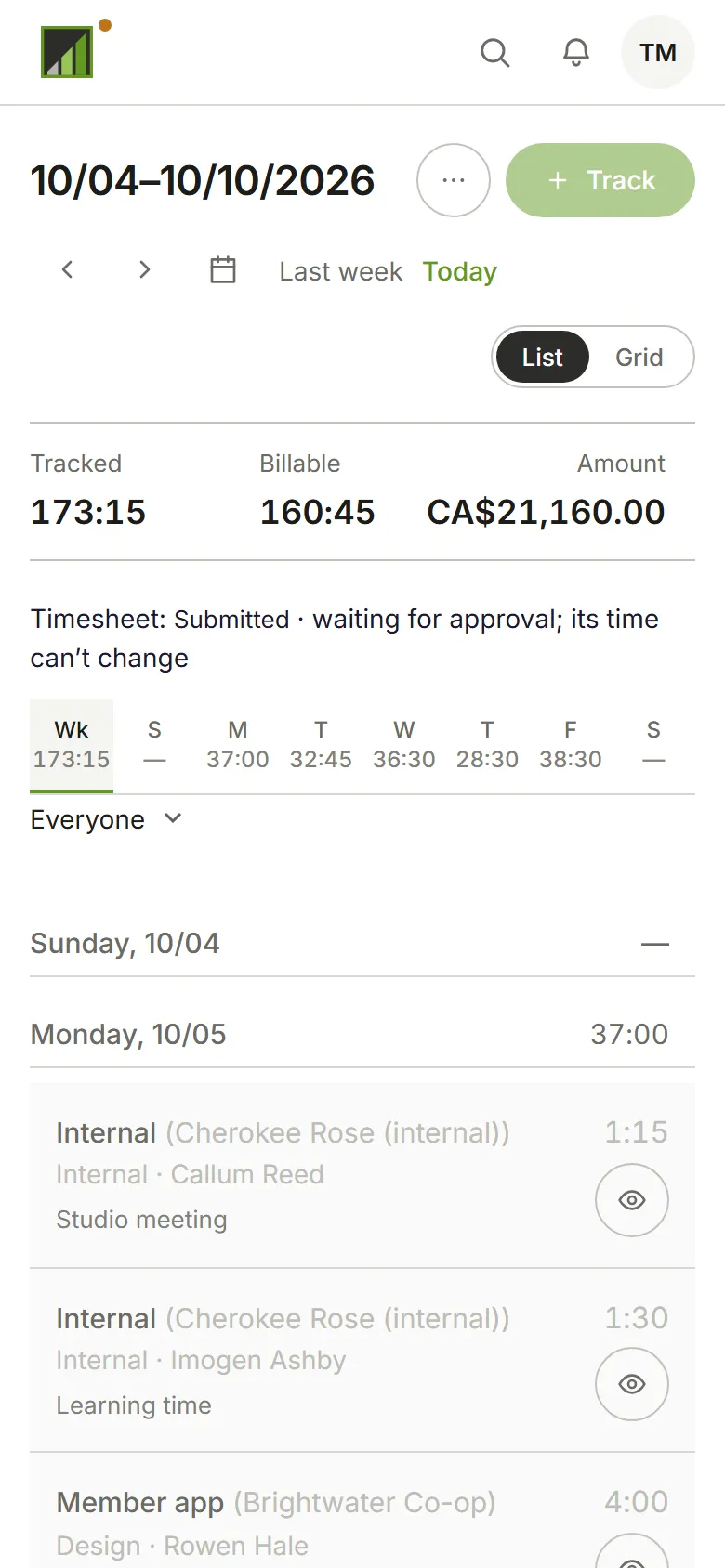
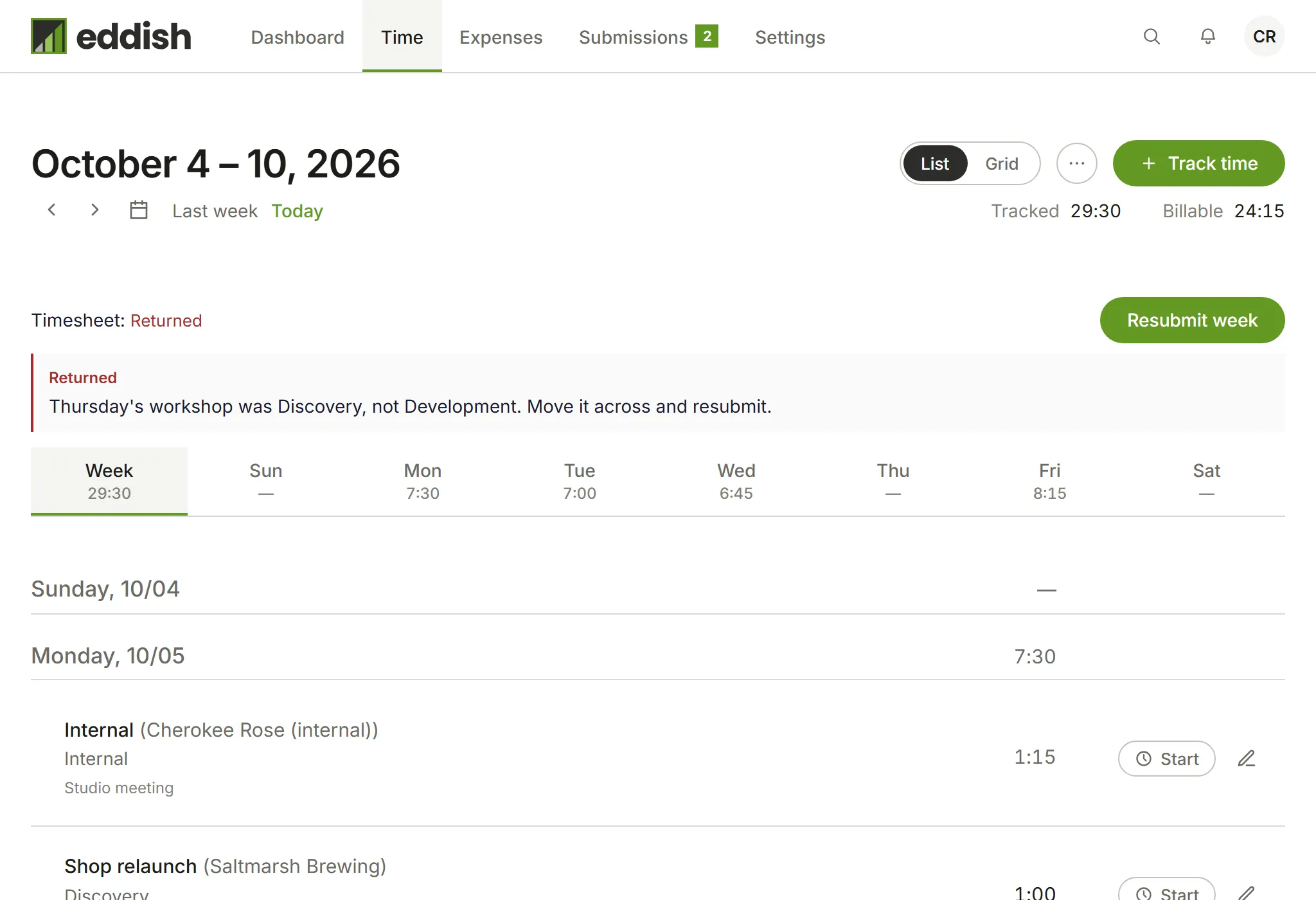
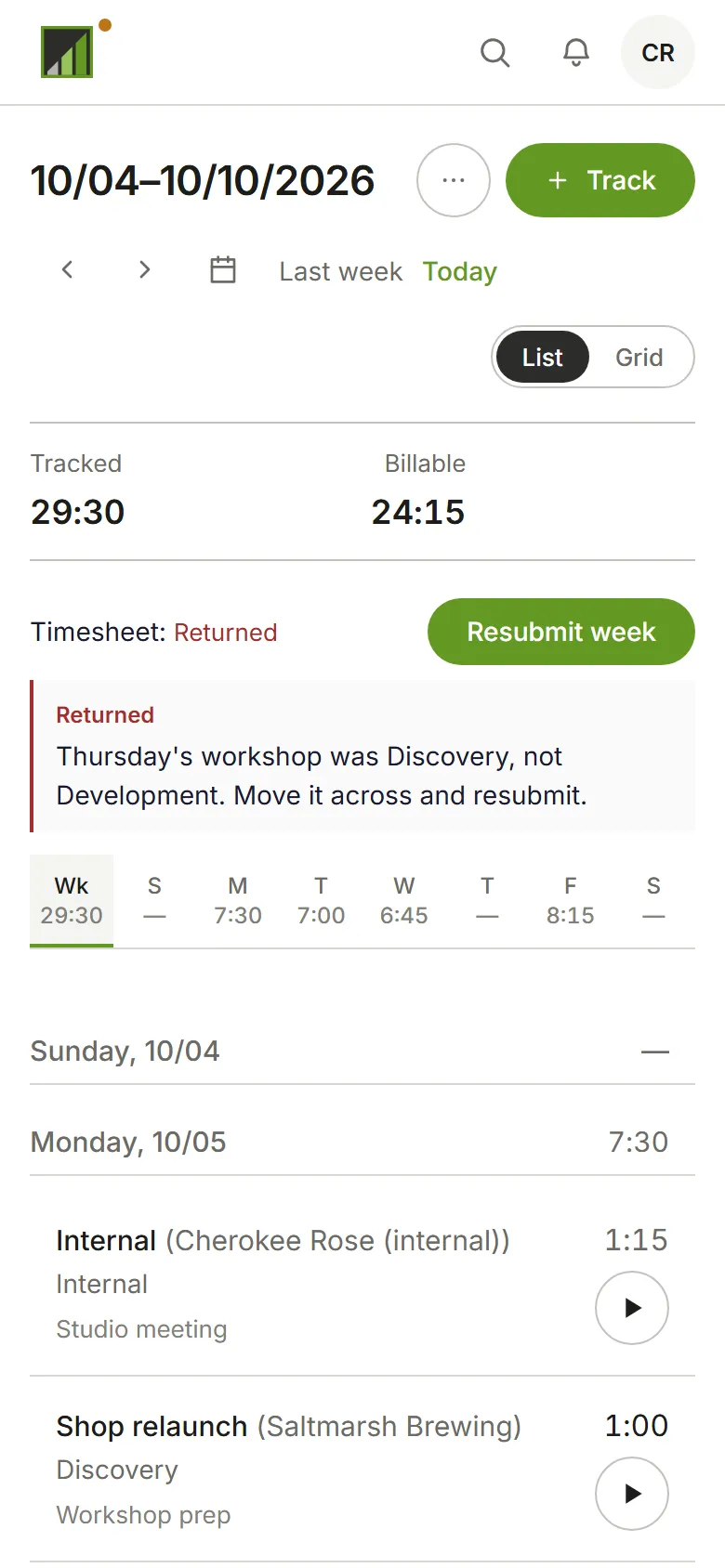
Section titled “Submit your week”On the Time page, the bar above the days says where this week stands. When it’s done, choose Submit week. A week with a timer running can’t be submitted; stop the timer first. Once submitted, the week’s time can’t change and nothing new can be added to it.
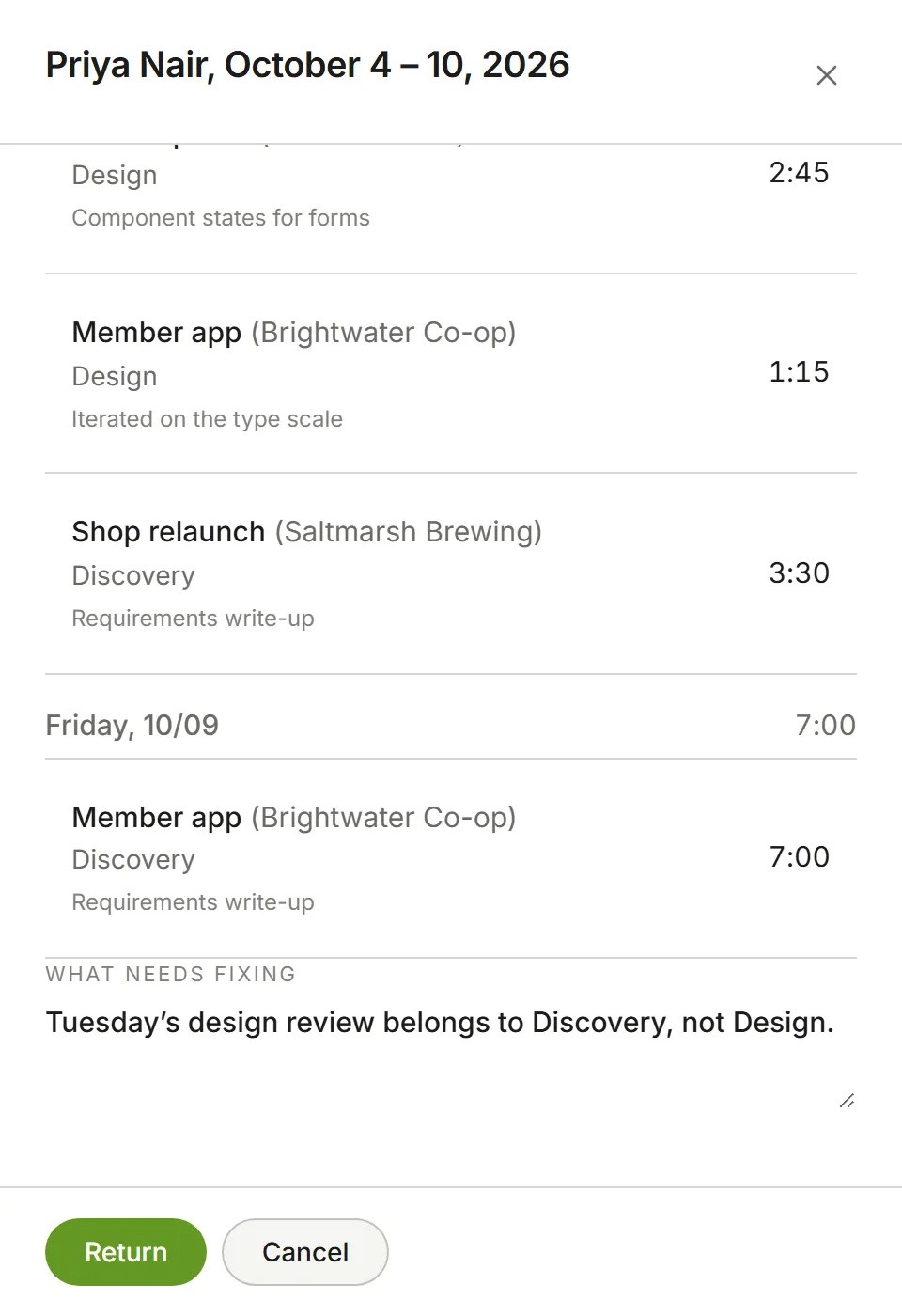
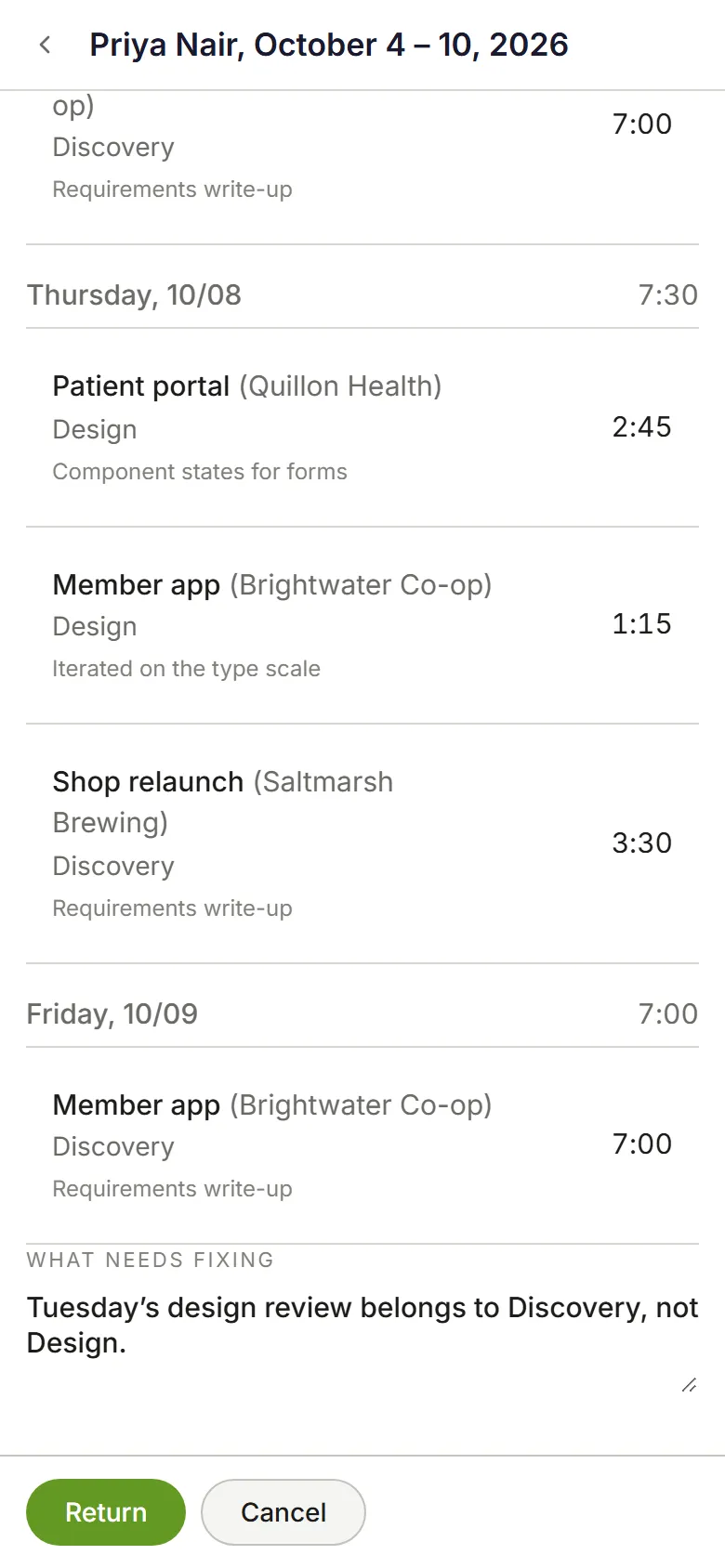
If it’s returned, the note says what to fix. Fix it, then choose Resubmit week.
Submit an expense
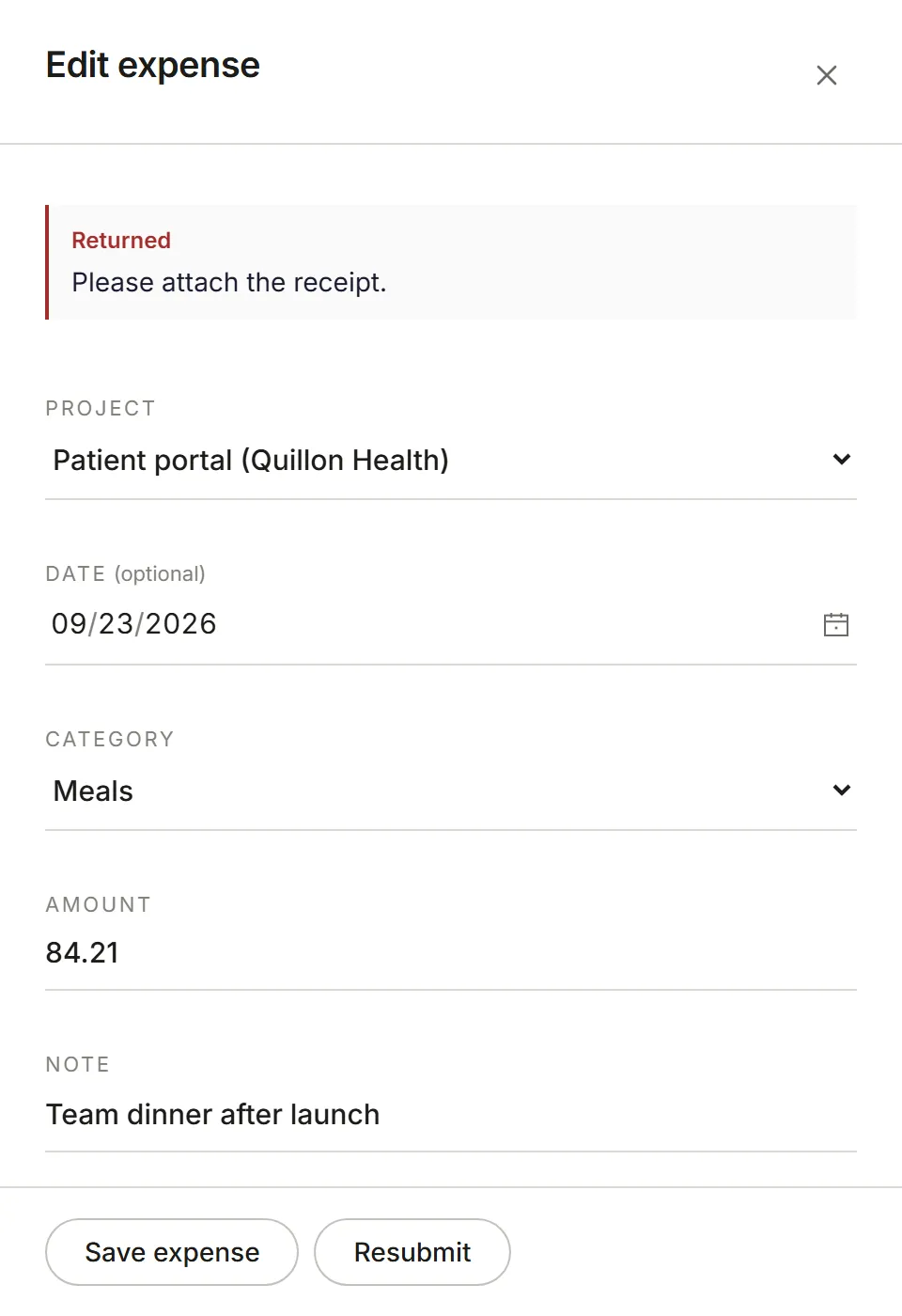
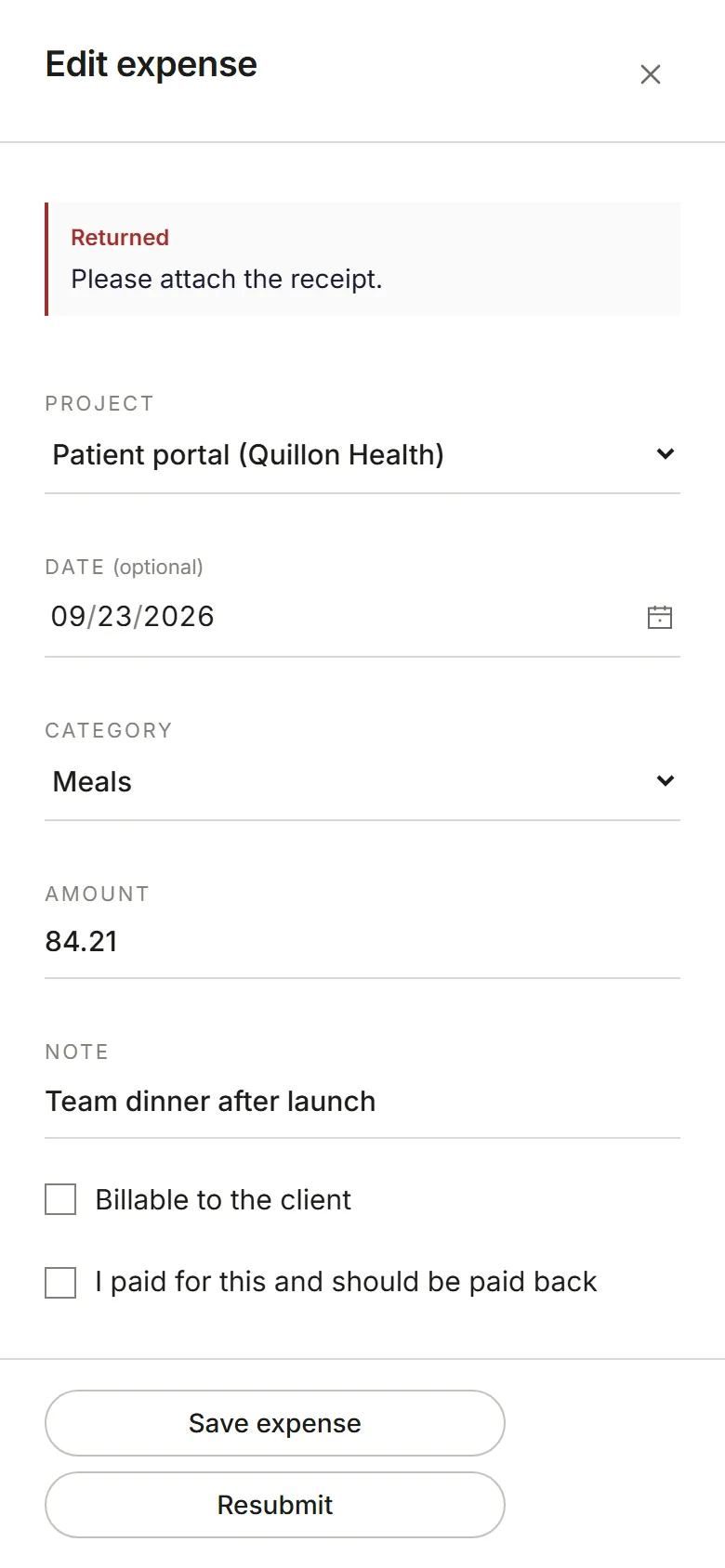
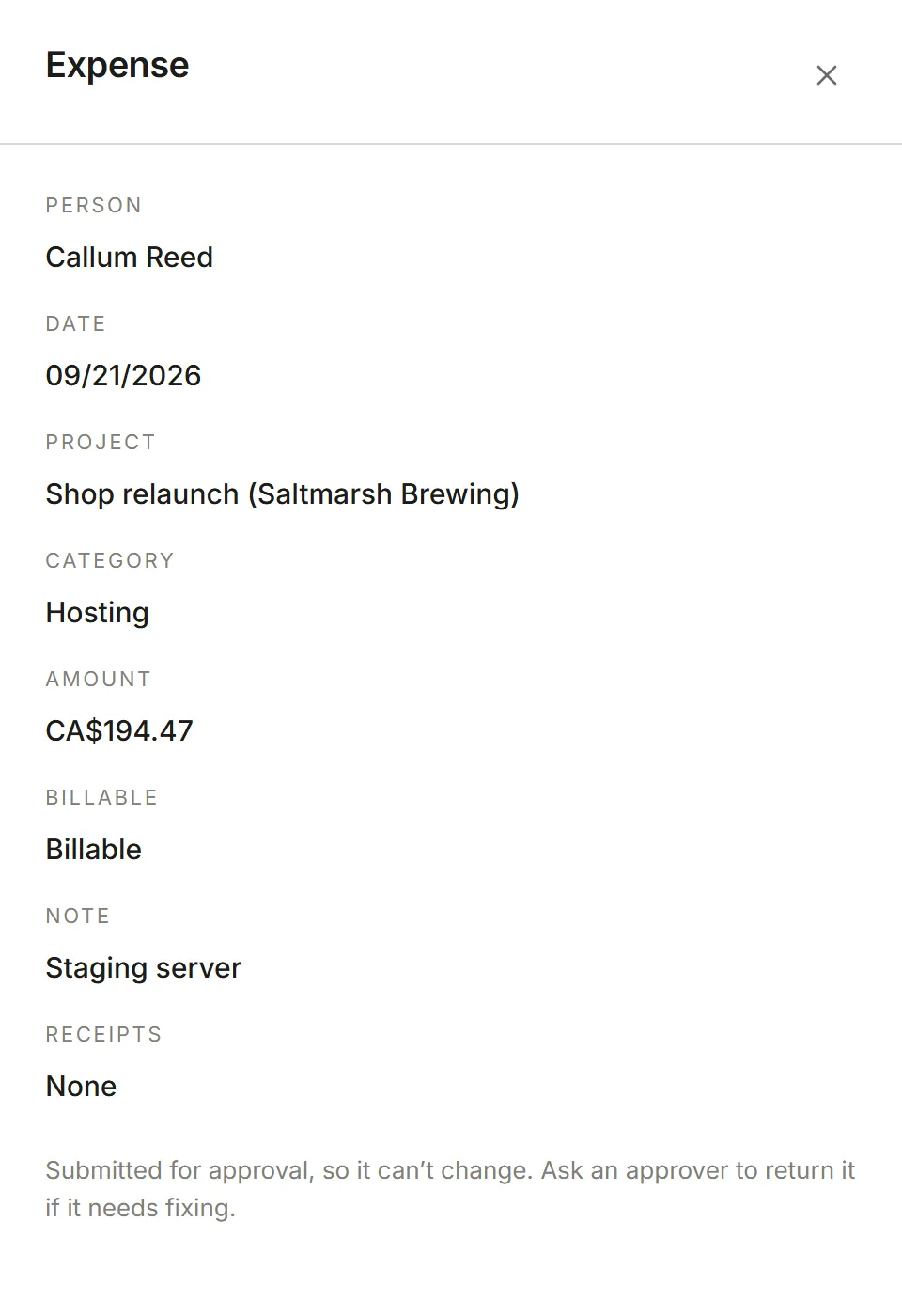
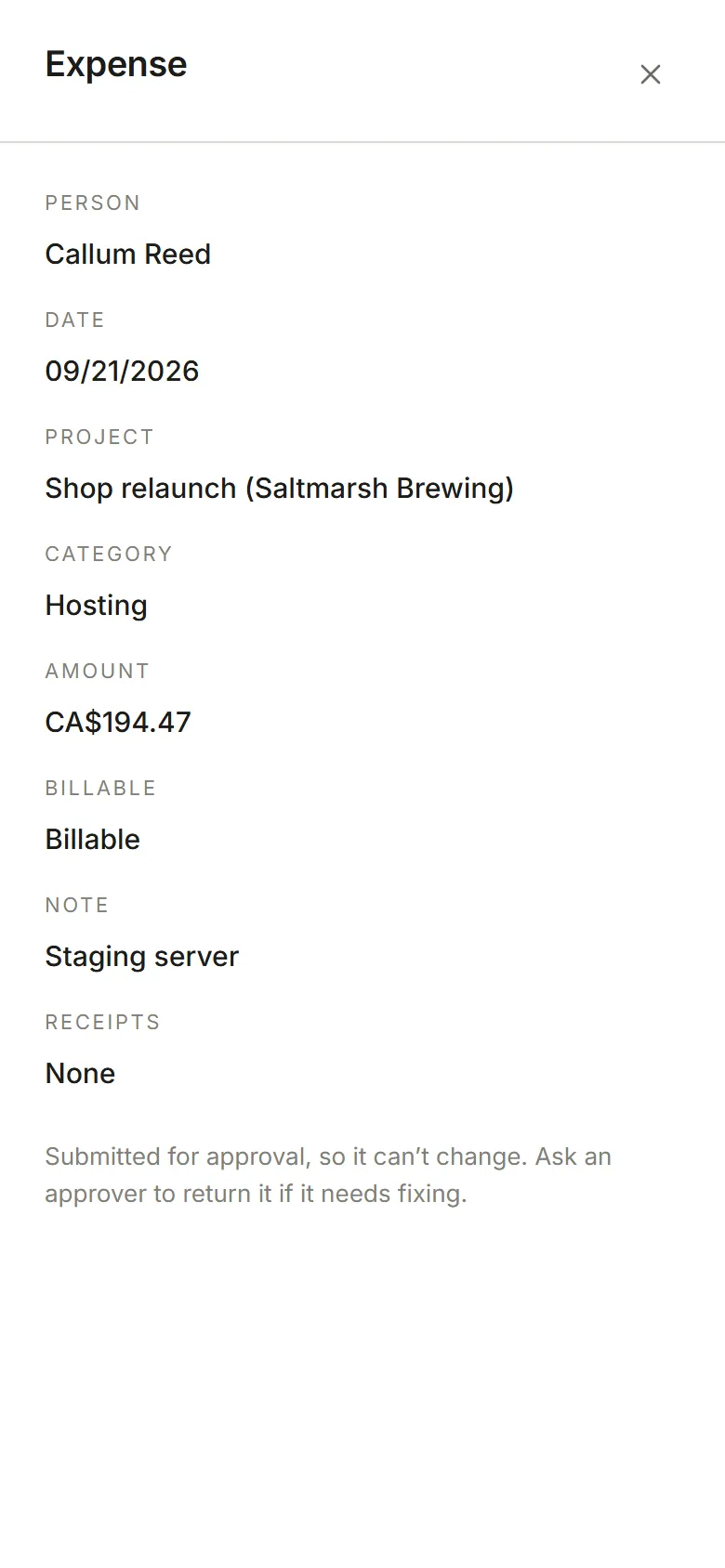
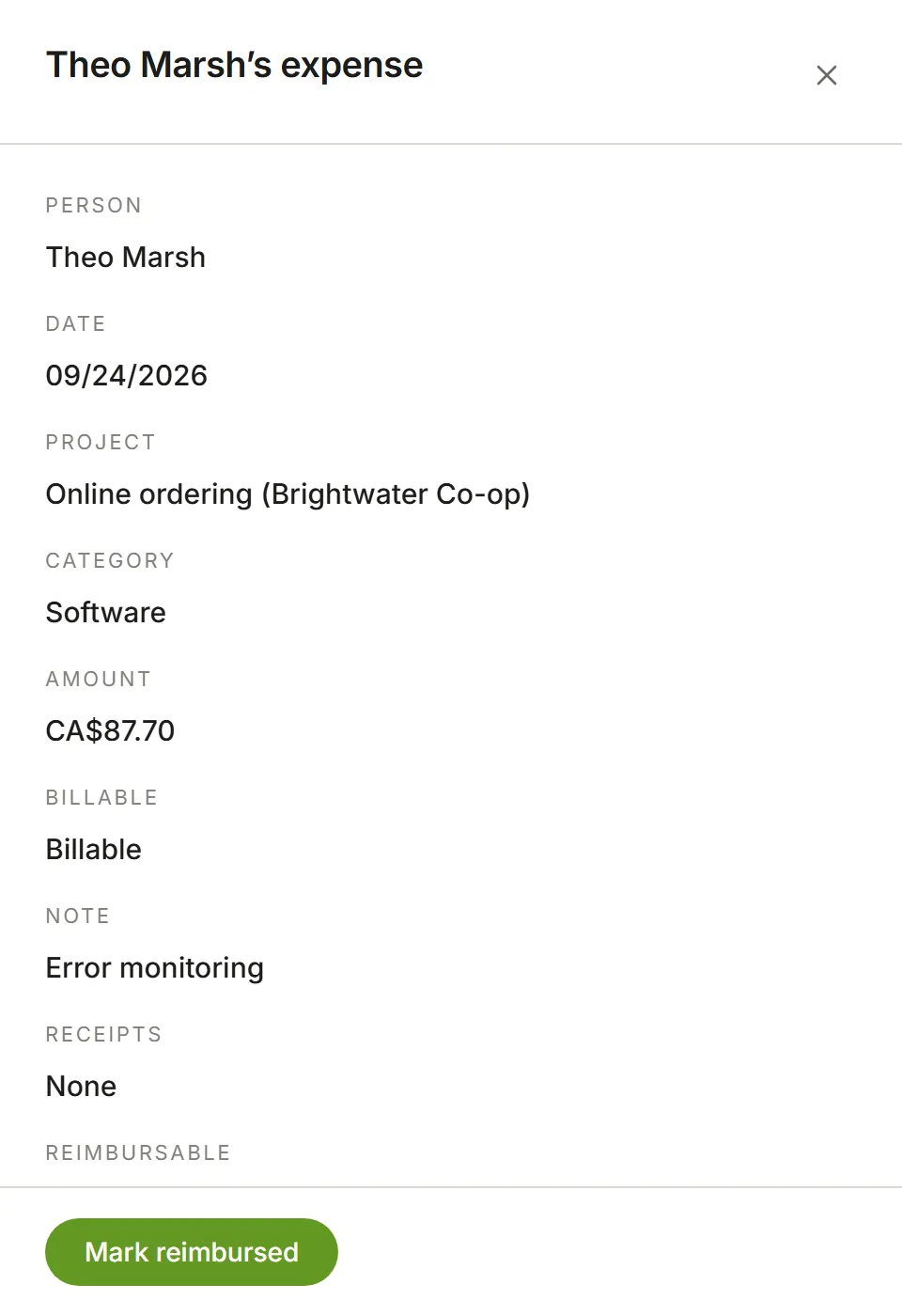
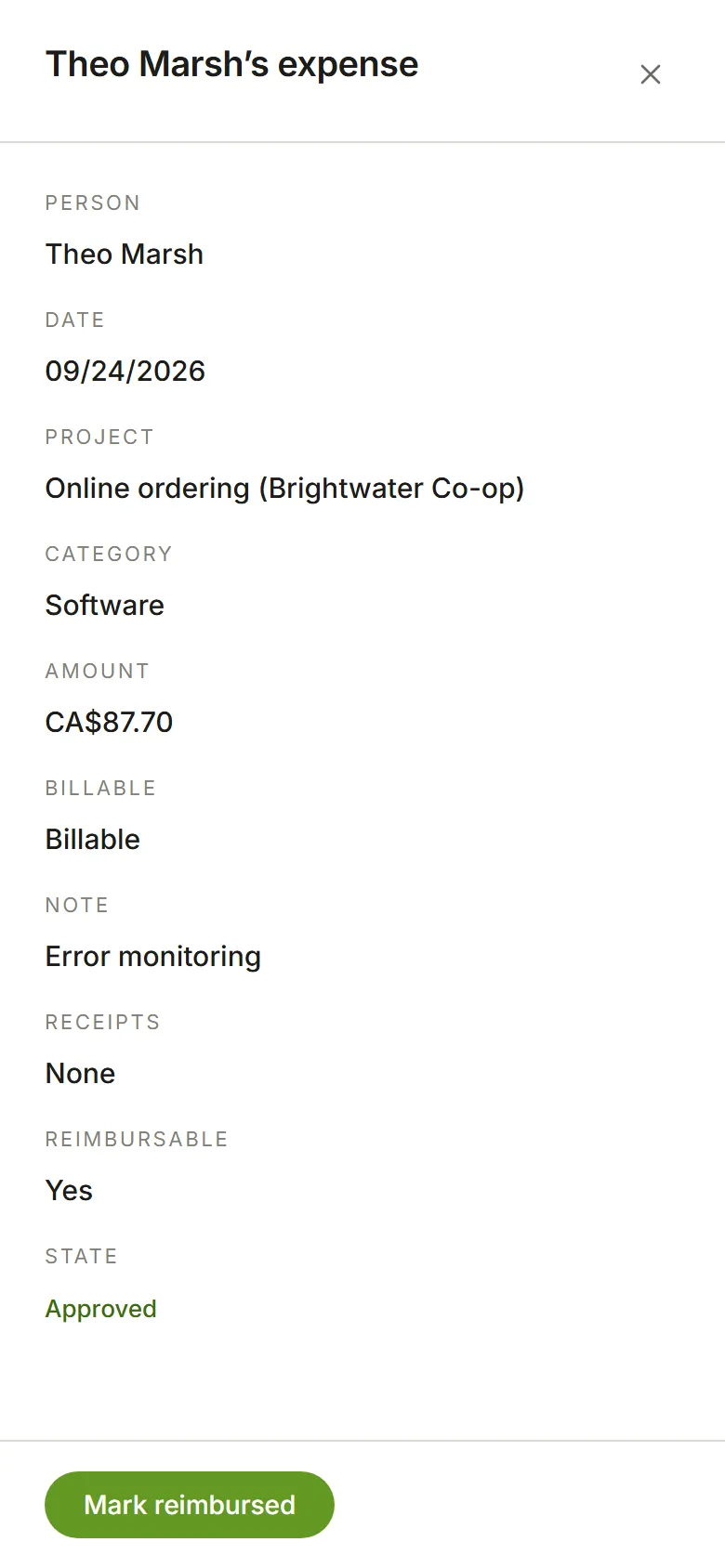
Section titled “Submit an expense”Open the expense on the Expenses page and choose Submit for approval. Tick I paid for this and should be paid back first if you’re owed the money. The State column shows where each expense stands. A submitted or approved expense opens read only; a returned one opens to be fixed and resubmitted.
Approve or return
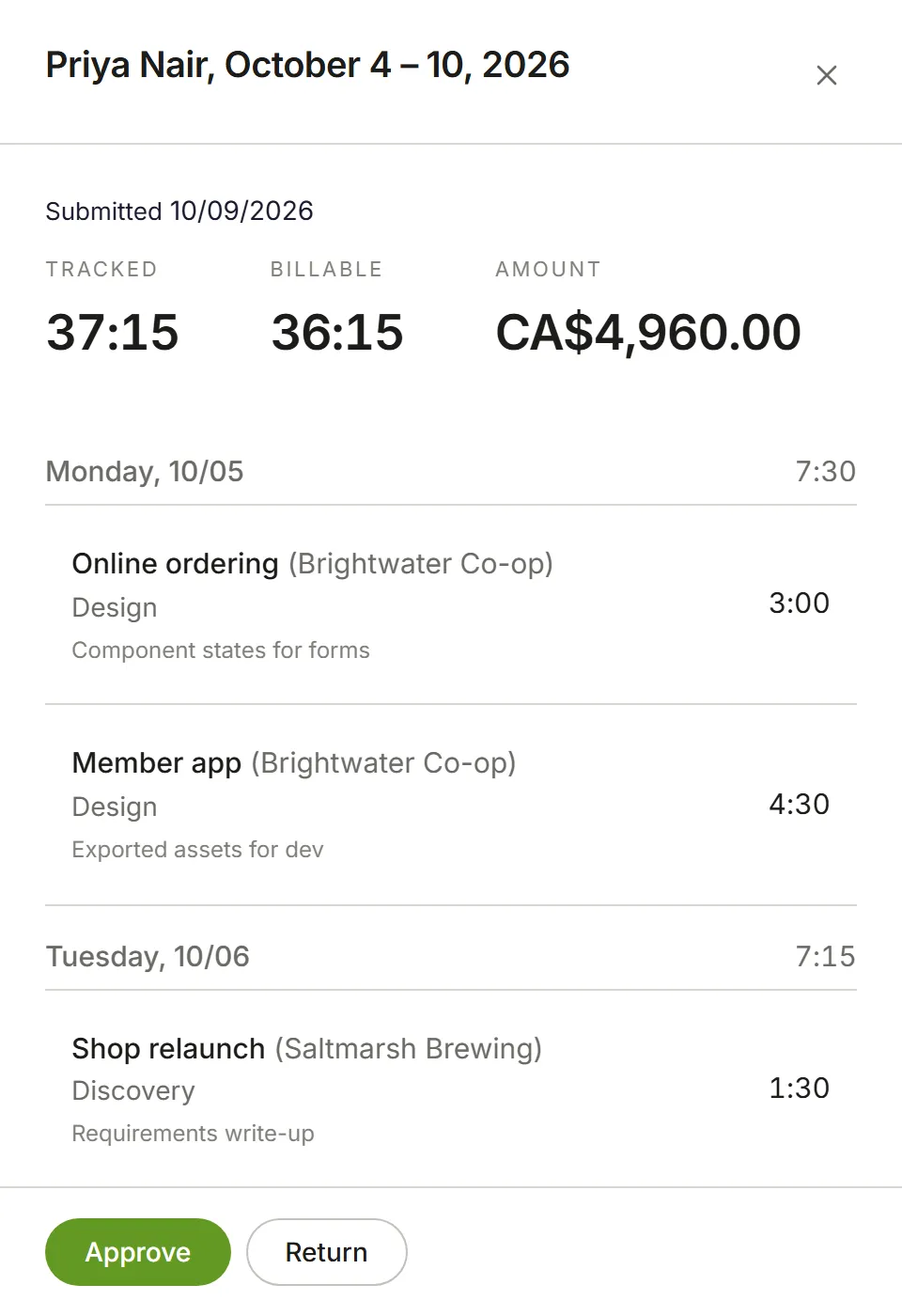
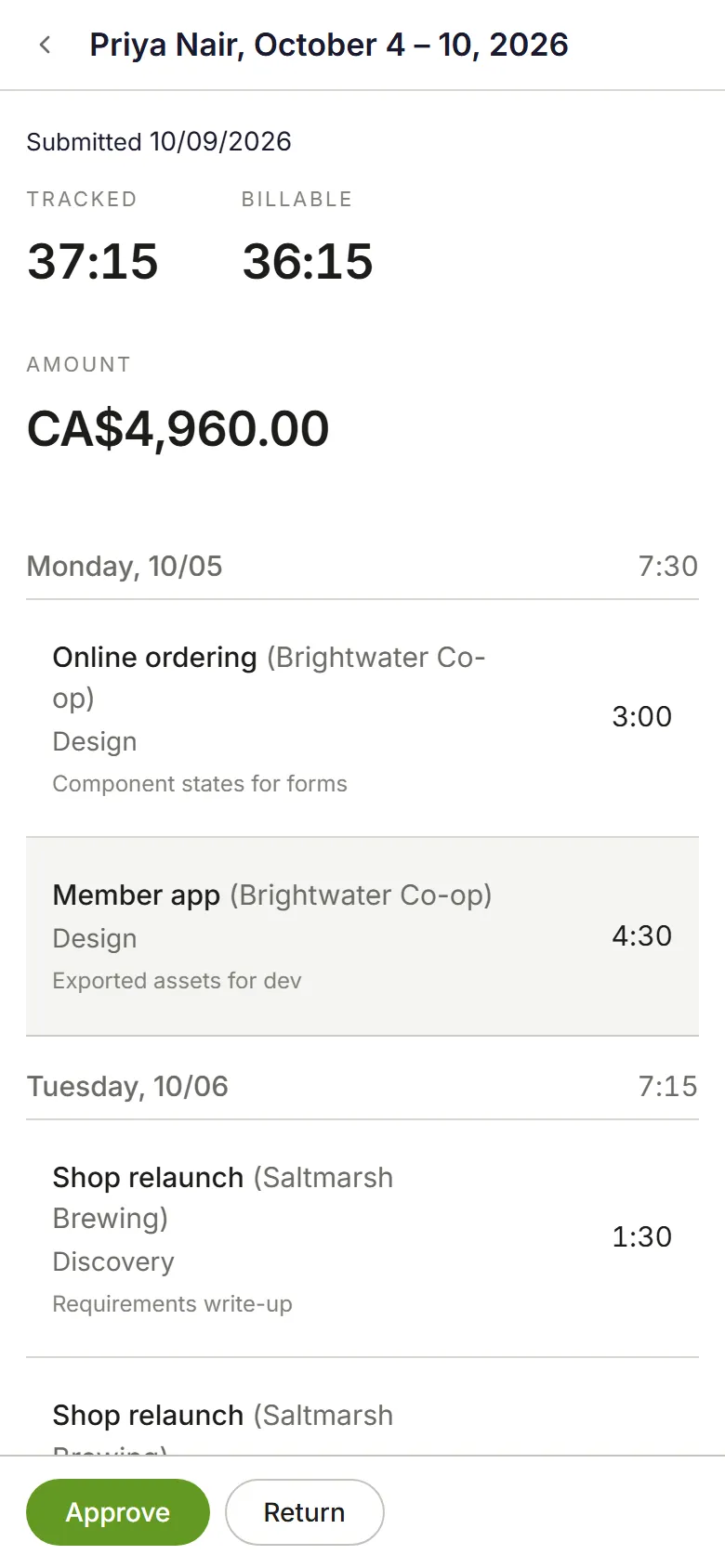
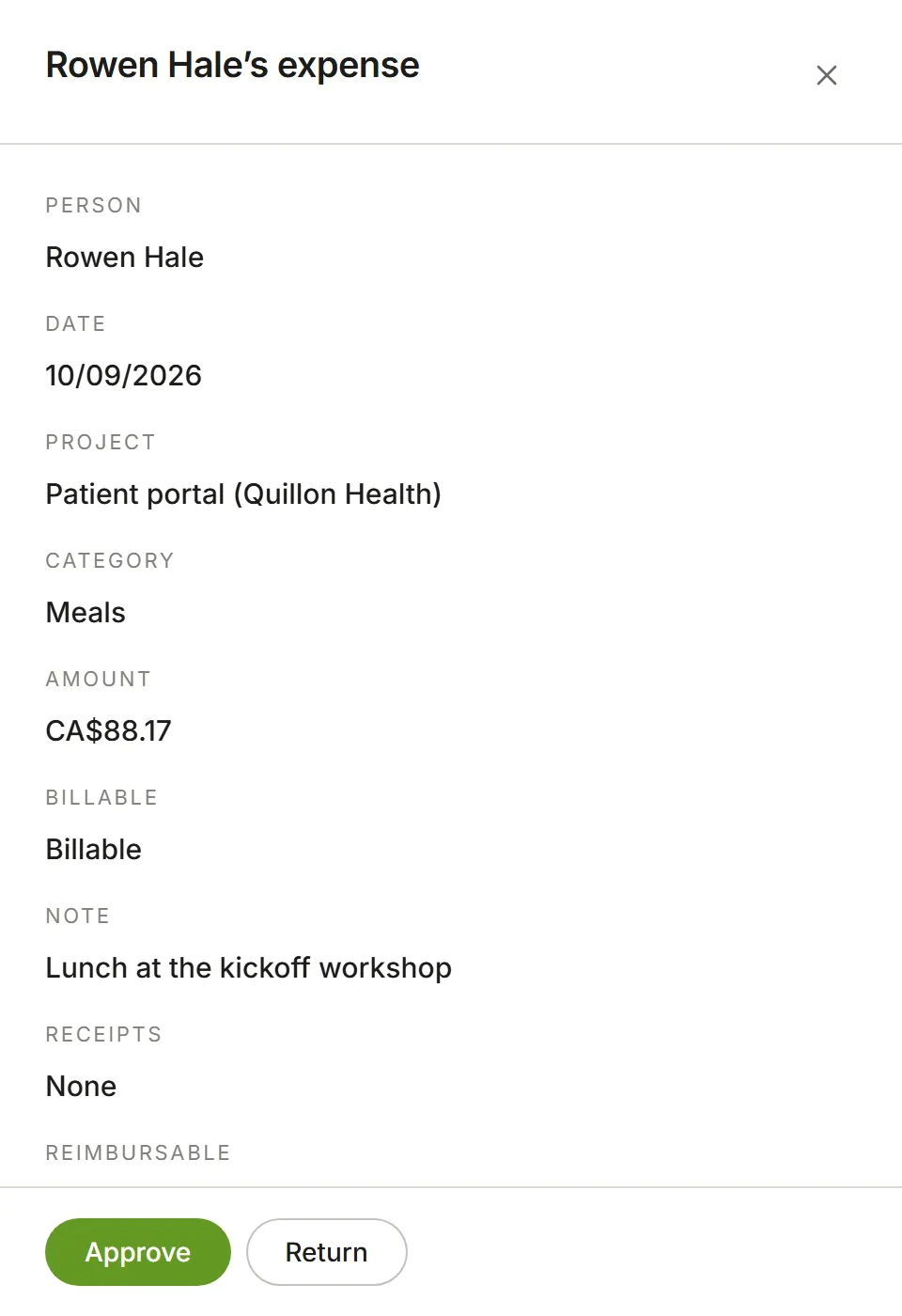
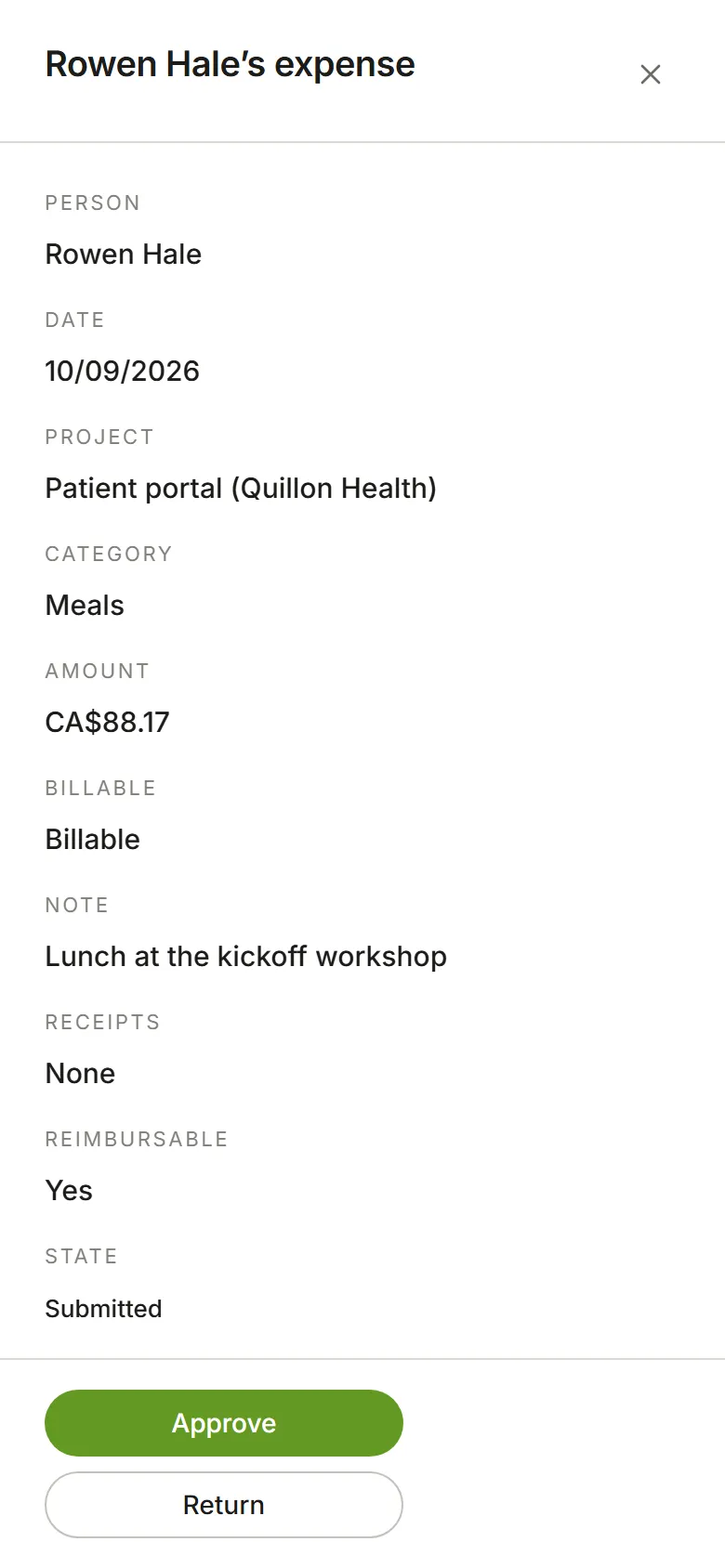
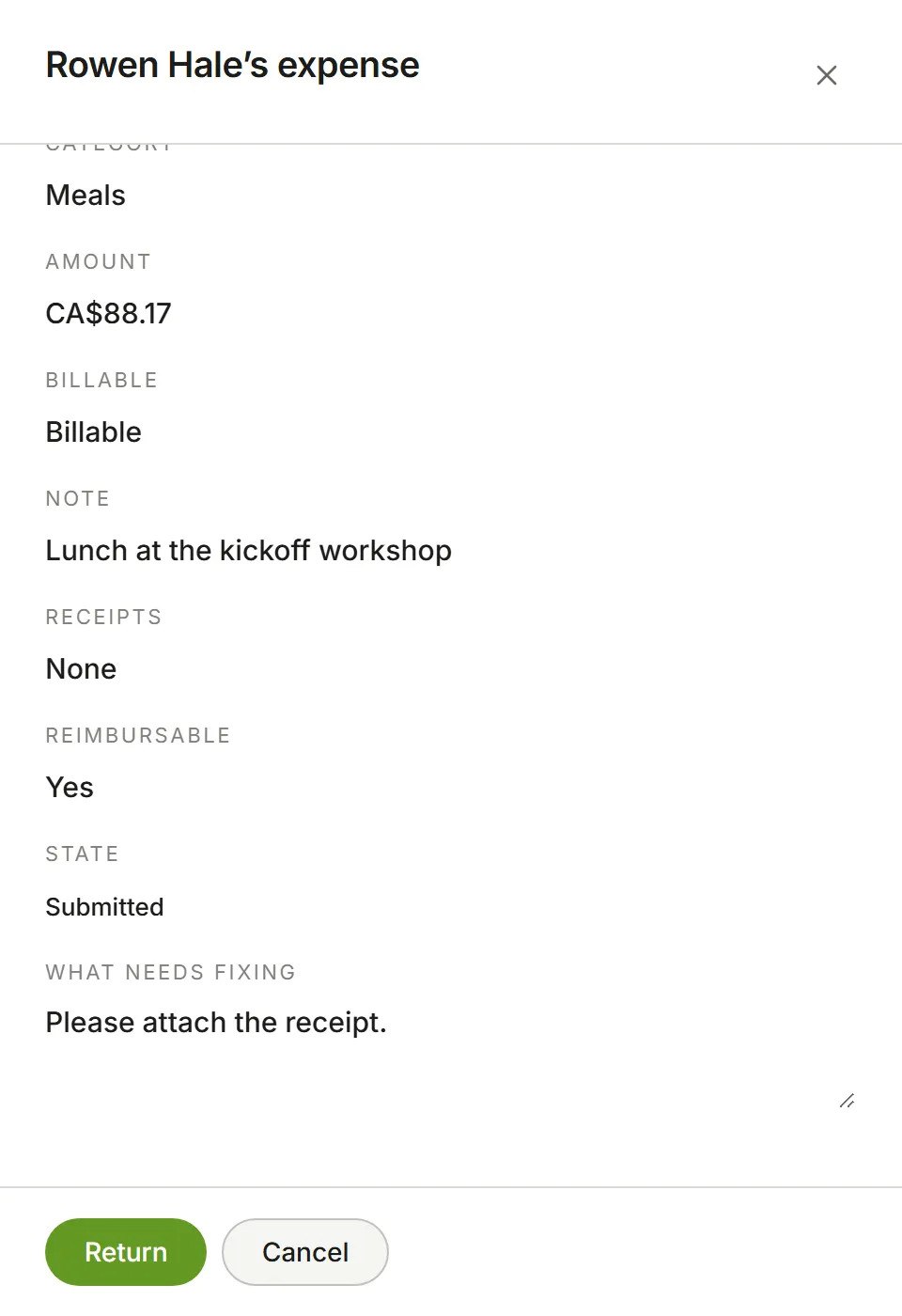
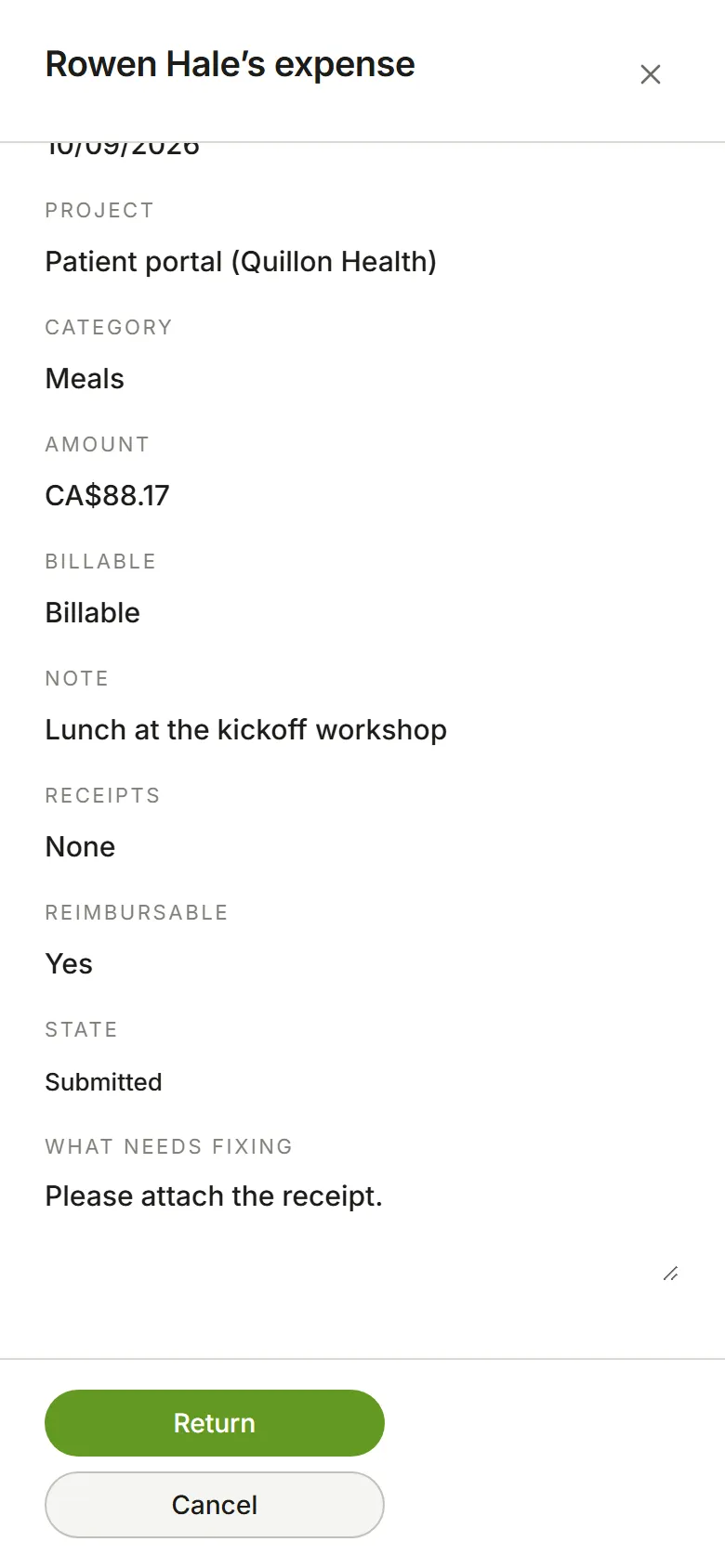
Section titled “Approve or return”Admins and Approvers approve timesheets; Admins, Approvers and Finance approve expenses. On Approvals, under To approve, choose a row to see it: the week’s totals, then its entries day by day with each day’s total. Then Approve, or Return with a note saying what needs fixing. Tick several and choose Approve to approve them at once; each return needs its own note, so there’s no Return for several at once.
On a phone, the list is grouped by week. Tick the ones to approve and a bar at the bottom shows how many, their total, and Approve. Tap a person to open their week full screen; the back arrow returns to the list.
Your own submissions go to someone else, unless the account lets approvers approve their own, or you’re the only one who can.