

API keys
An API key lets another service, such as a reporting tool or an automation like Zapier, read your account’s data in an app without anyone signing in. Each key belongs to one app, can do only what you choose, and works until it expires or you revoke it.
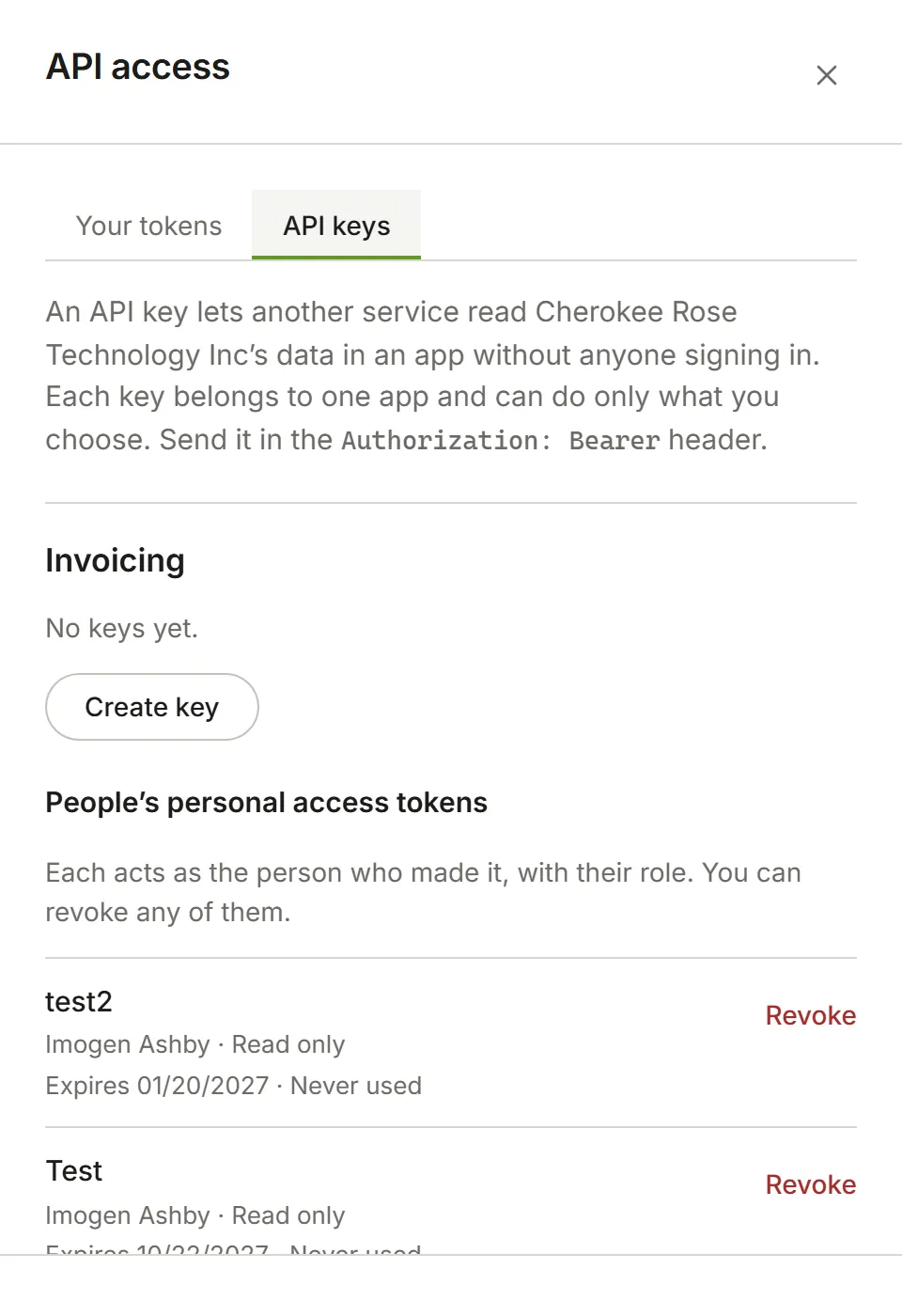
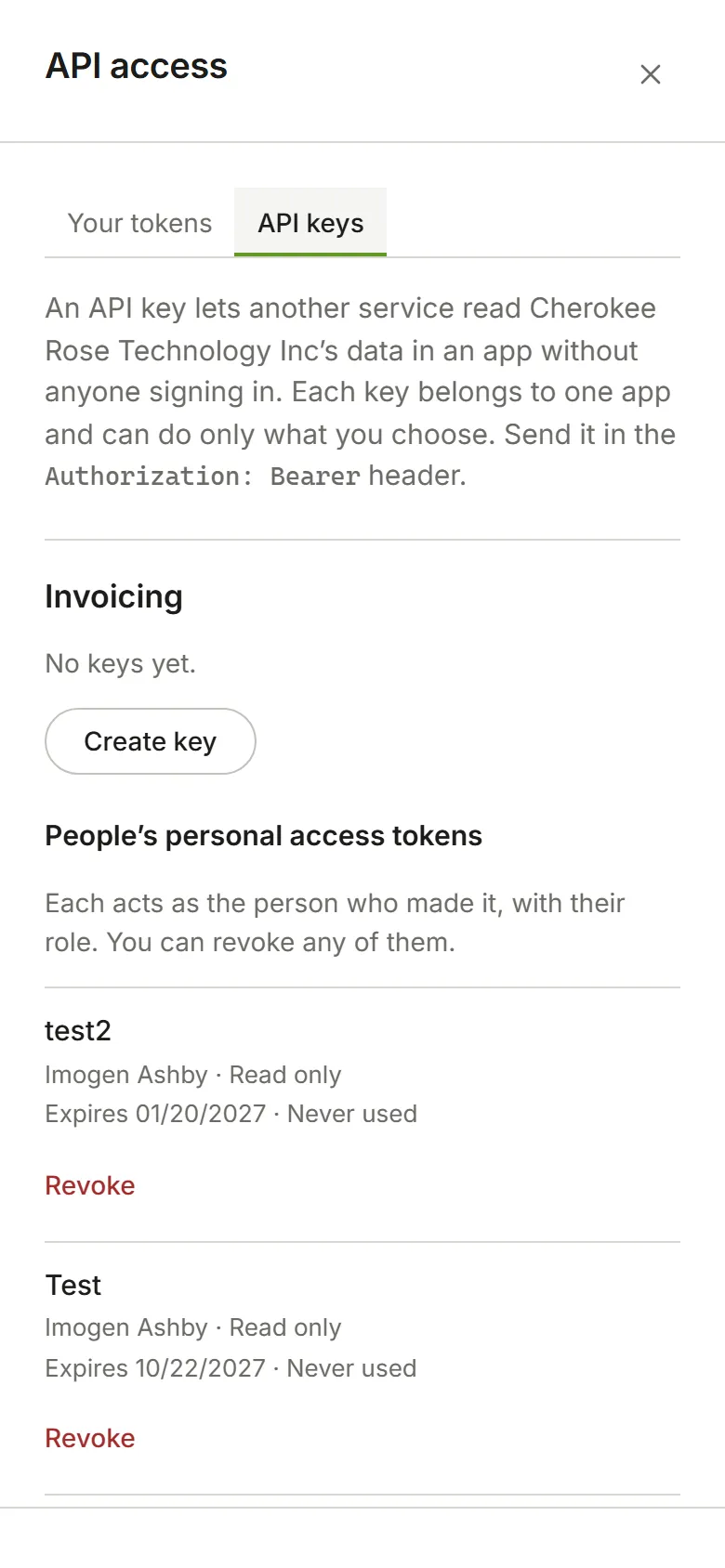
Choose Account Settings from your avatar menu, then API access, under Integrations, then the API keys tab. Only the account’s Owners and Admins see this tab. In an app such as Invoicing, Settings then API access brings you to the same place.
When you can’t create keys
Section titled “When you can’t create keys”Each app is listed with its keys. If you can’t create one, the screen says why:
- The app doesn’t offer an API yet. Nothing on your side changes this.
- Your plan doesn’t include API access. An Owner can move to a plan that does in Billing. Keys you already have stop working while your plan doesn’t include API access, and start again when it does.
Creating a key
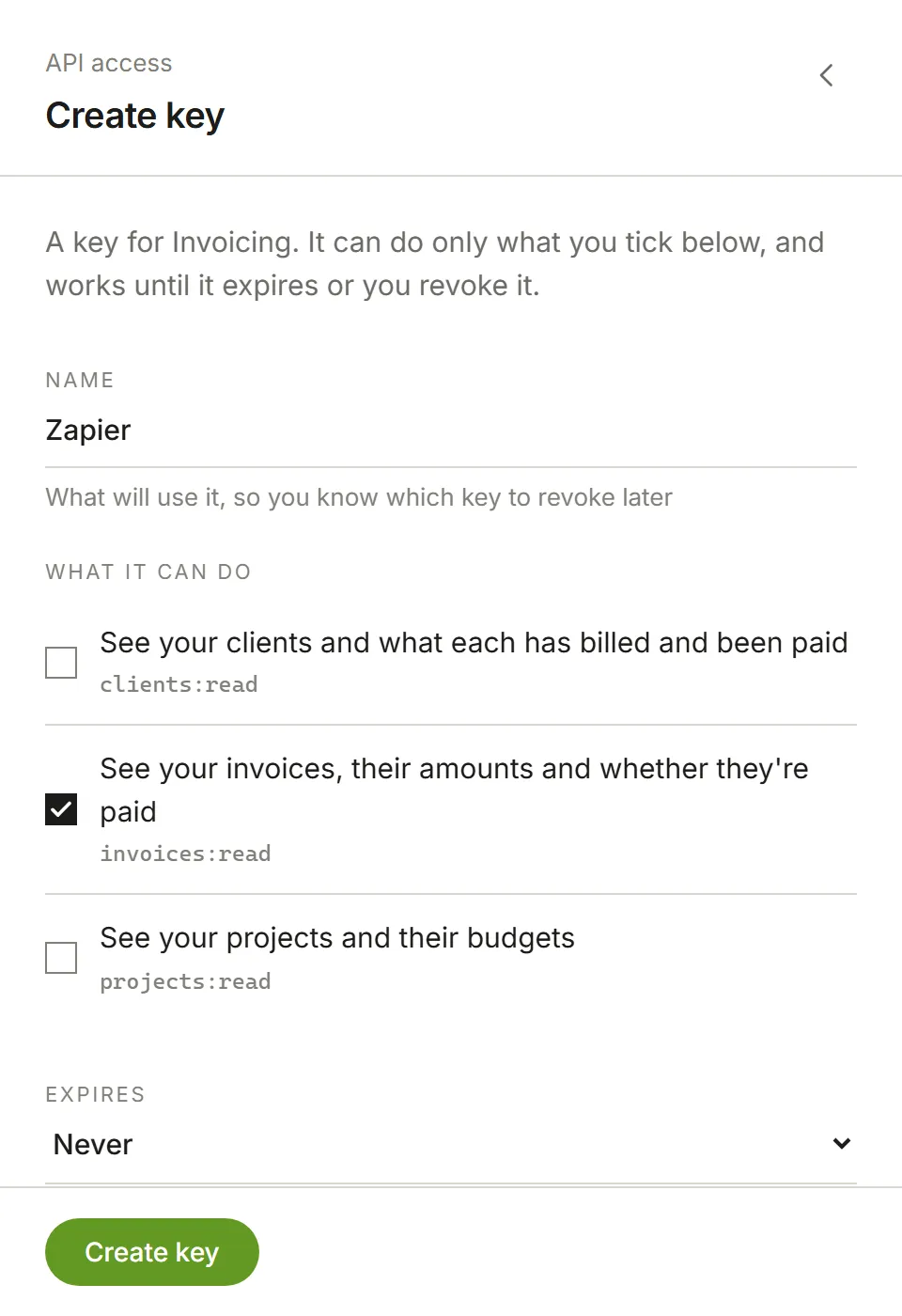
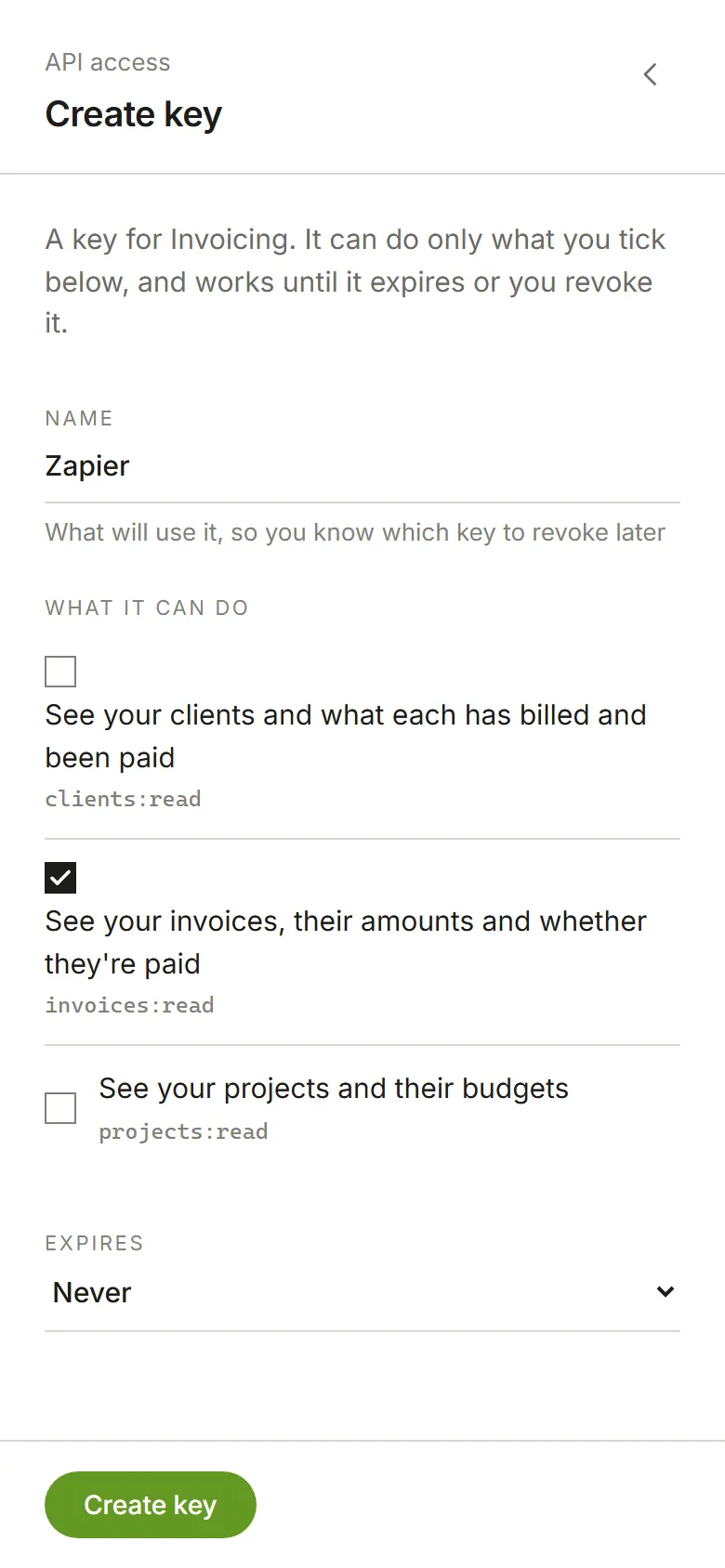
Section titled “Creating a key”- Under the app, choose Create key.
- Give it a name that says what will use it, such as Zapier, so you know which key to revoke later.
- Under What it can do, tick only what the service needs. For Invoicing:
- See your clients (
clients:read) - See your invoices (
invoices:read) - See your projects (
projects:read)
- See your clients (
- Choose when it expires: never, in 30 or 90 days, in a year, or on a date you pick. It stops working from the start of that day.
- Choose Create key.
The key is shown once. Copy it now: you won’t see it again. Eddish keeps only a fingerprint of the key, not the key itself, so nobody can show it to you later. If it’s lost, revoke it and create another.
Keep the key out of shared documents and code that others can read. Anyone who has it can do what it allows.
Using a key
Section titled “Using a key”Send the key with each request in the Authorization header:
GET /api/clientsAuthorization: Bearer <your key>Send the request to the app’s own address, the one you use to open the app.
- A key can read only the account it was created in.
- A request for something the key wasn’t given is refused with
403. - A key that is revoked, has expired or isn’t recognised is refused with
401. - Each key has a limit on how many requests it can make in a short time, set by your plan. A request over
the limit is refused with
429, and theRetry-Afterheader says how many seconds to wait.
Revoking a key
Section titled “Revoking a key”Choose Revoke beside the key, then Revoke again to confirm. It stops working straight away and can’t be turned back on. A revoked key stays in the list, marked Revoked with the date, so you can see what had access.
Each key shows who created it and when, when it expires, and when it was last used, to the day. A key that says Never used after you expected it to be in use may not be set up where you think it is.
People’s personal access tokens
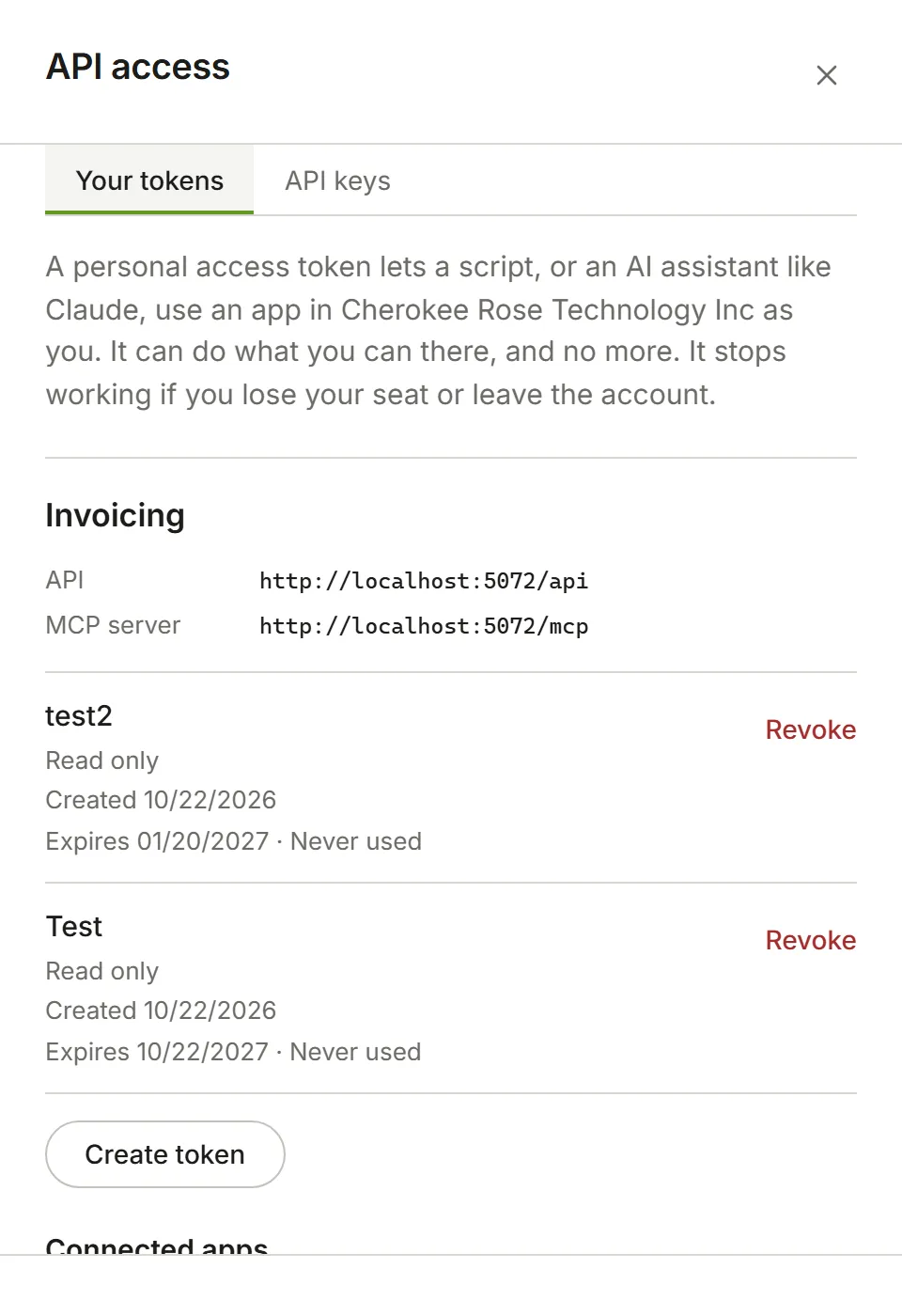
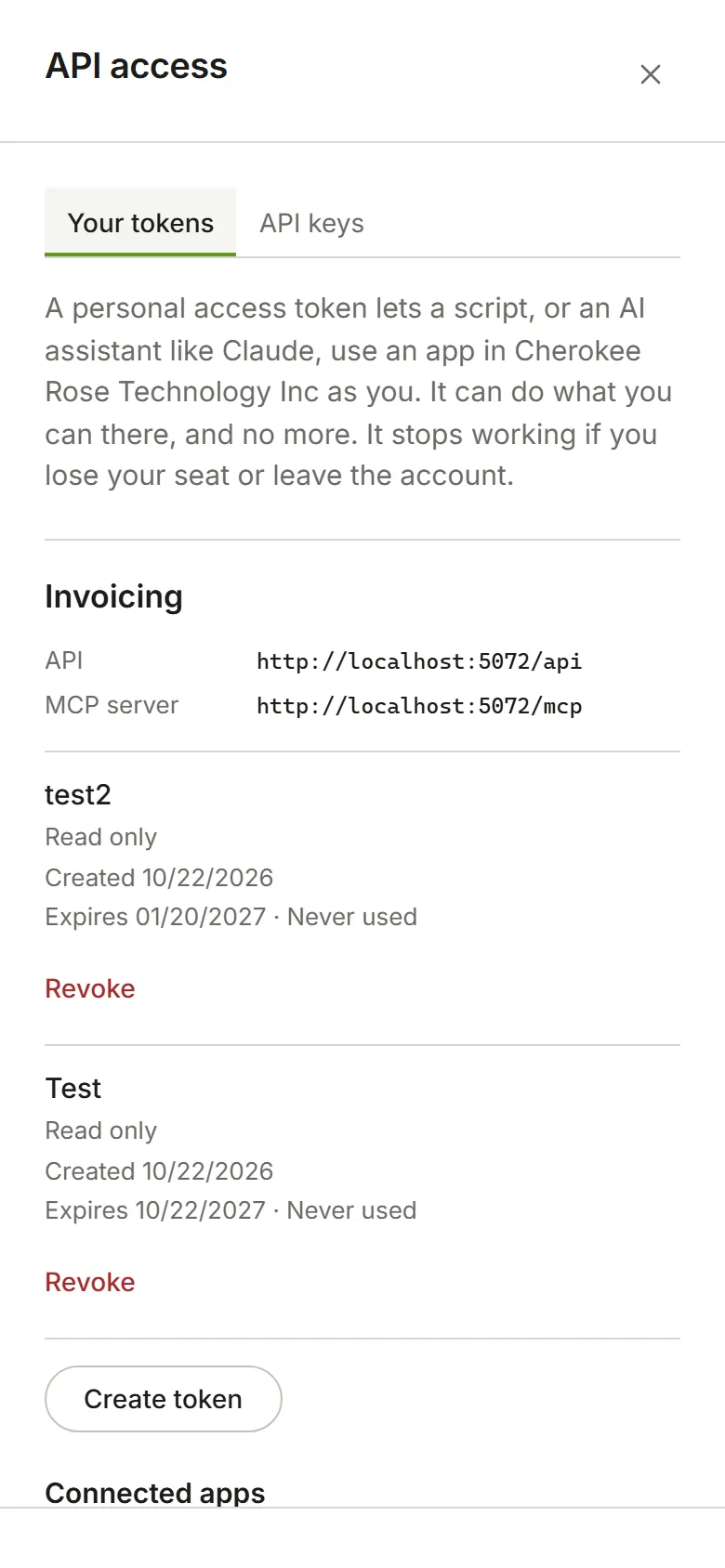
Section titled “People’s personal access tokens”Below each app’s keys, Owners and Admins see everyone’s personal access tokens for that app: whose each is, whether it can only read, when it expires and when it was last used. Choose Revoke beside one to stop it straight away. You never see the tokens themselves.
A personal access token acts as the person who made it, with their role, and reaches everything they can.
An API key acts for the account and reaches only what it is given. A key sent anywhere else is refused
with 403.