

Record expenses
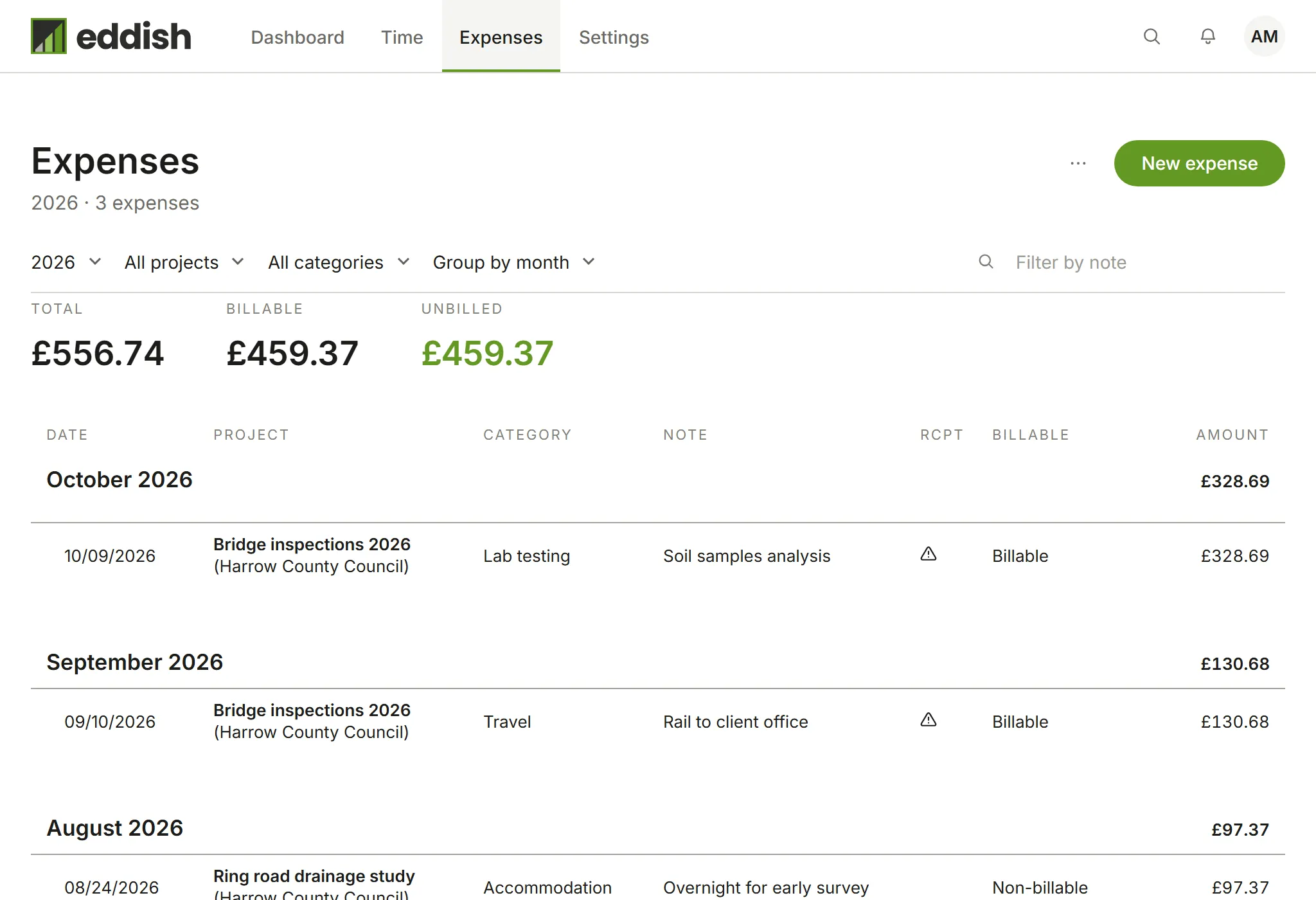
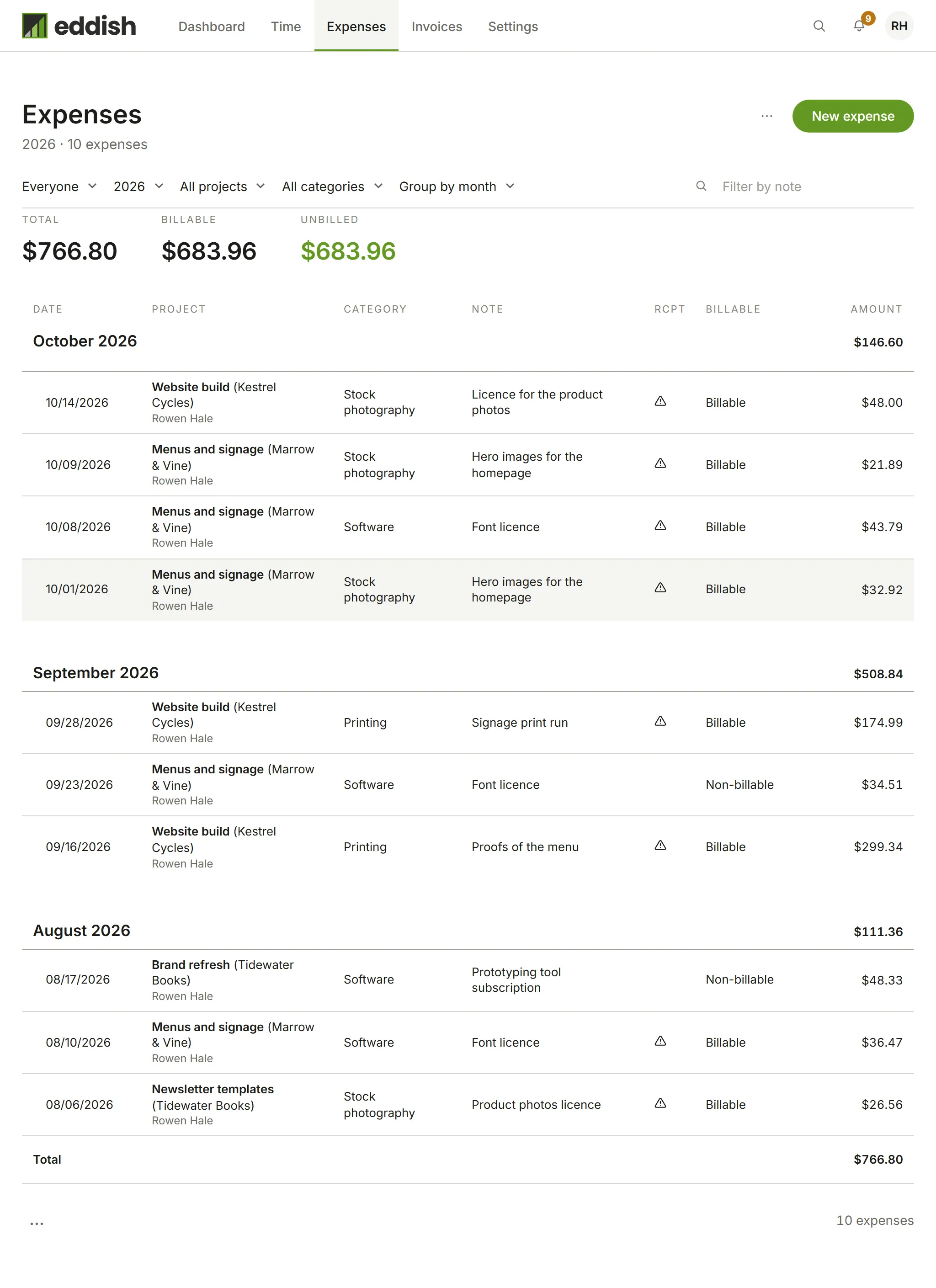
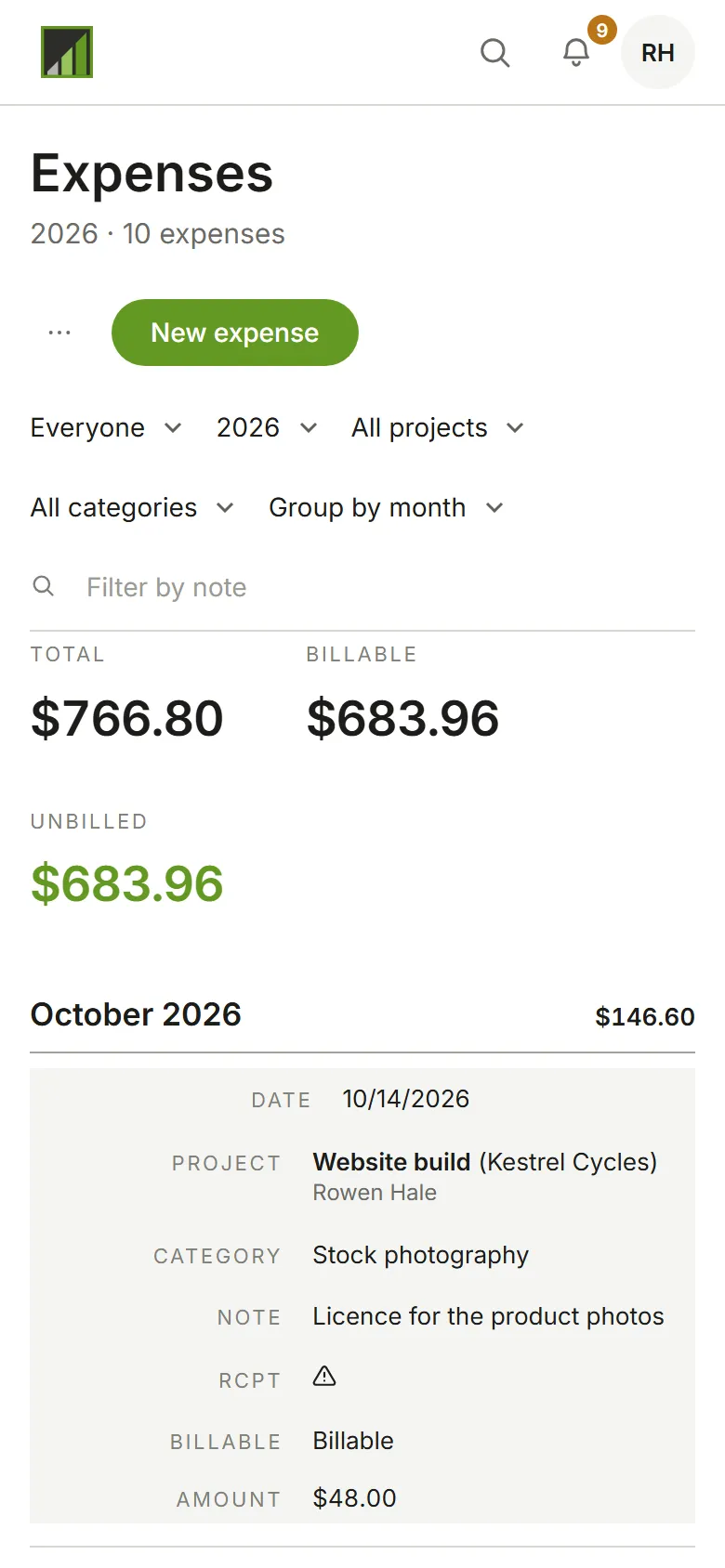
Open Expenses to see what’s been recorded this year. Filter by project or category, group by month or project, or search the notes. Total, Billable and Unbilled add up what’s shown.
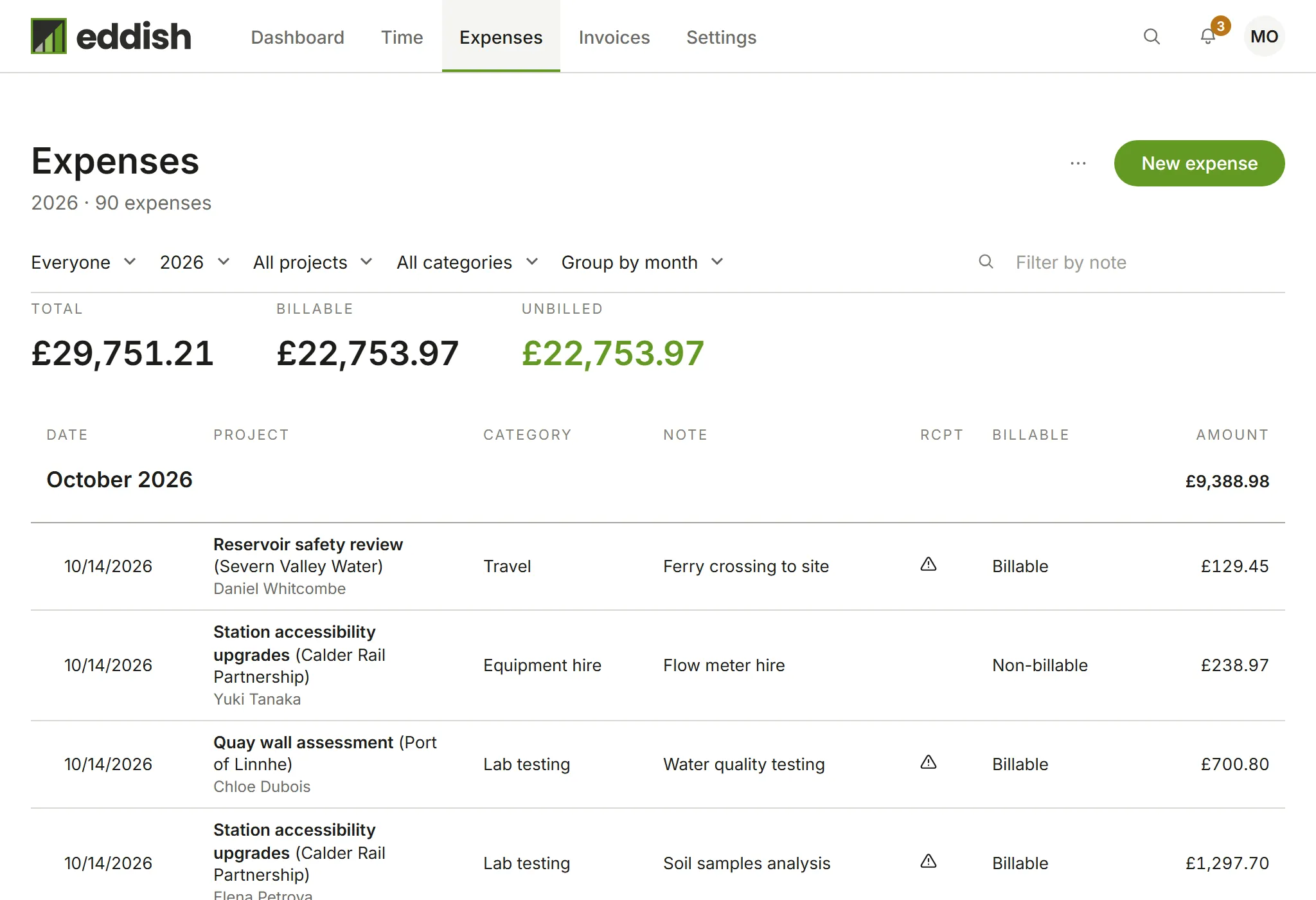
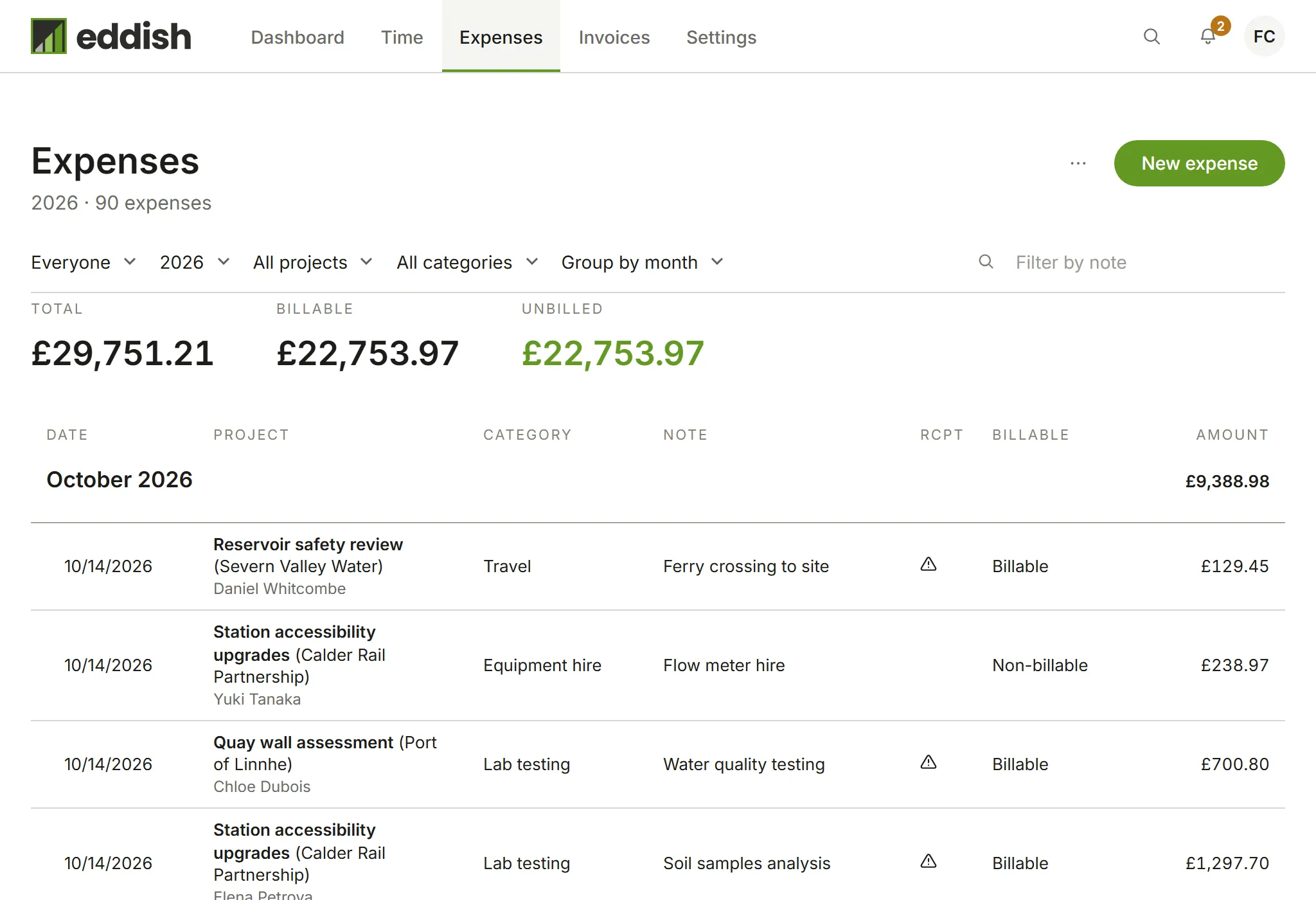
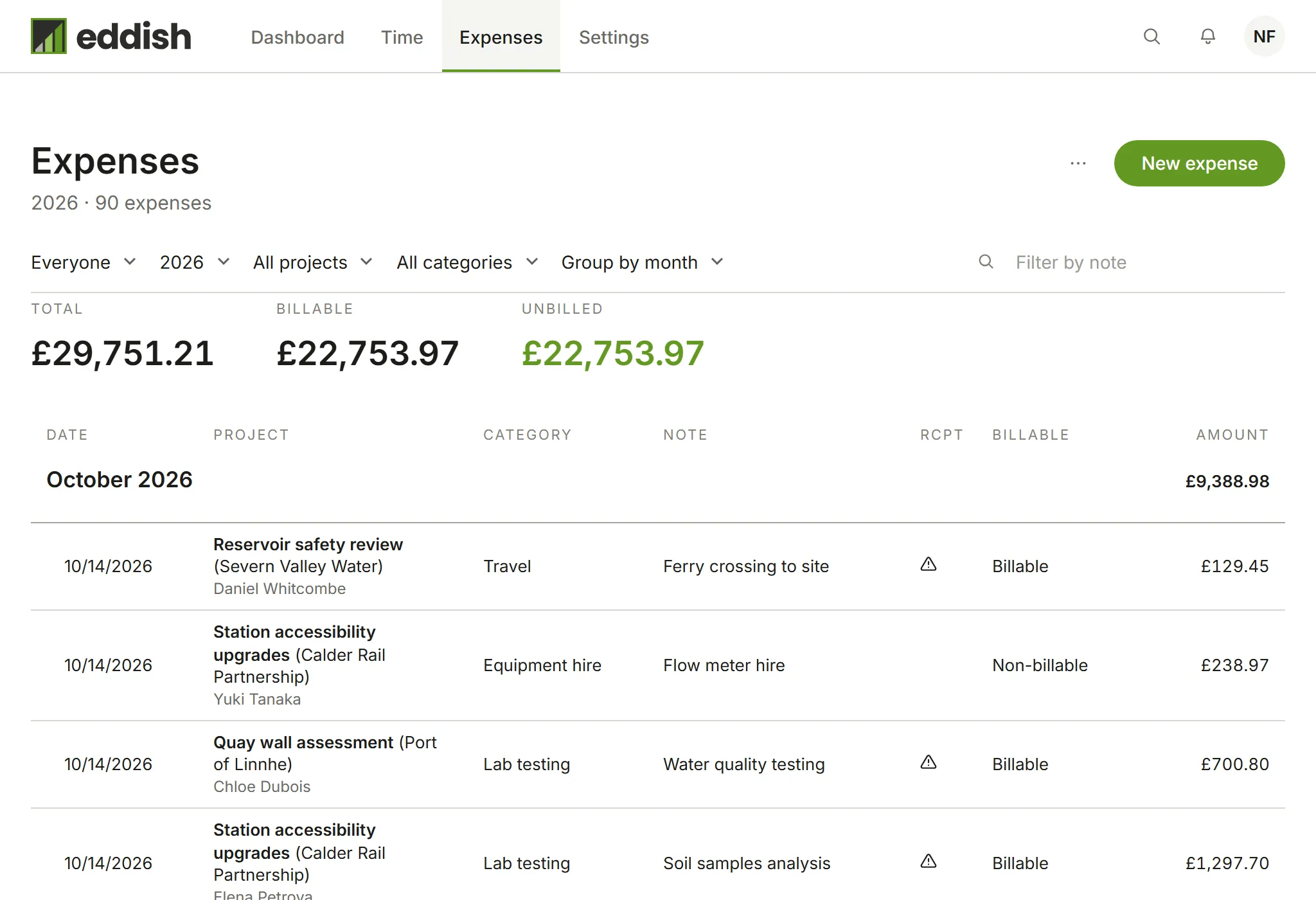
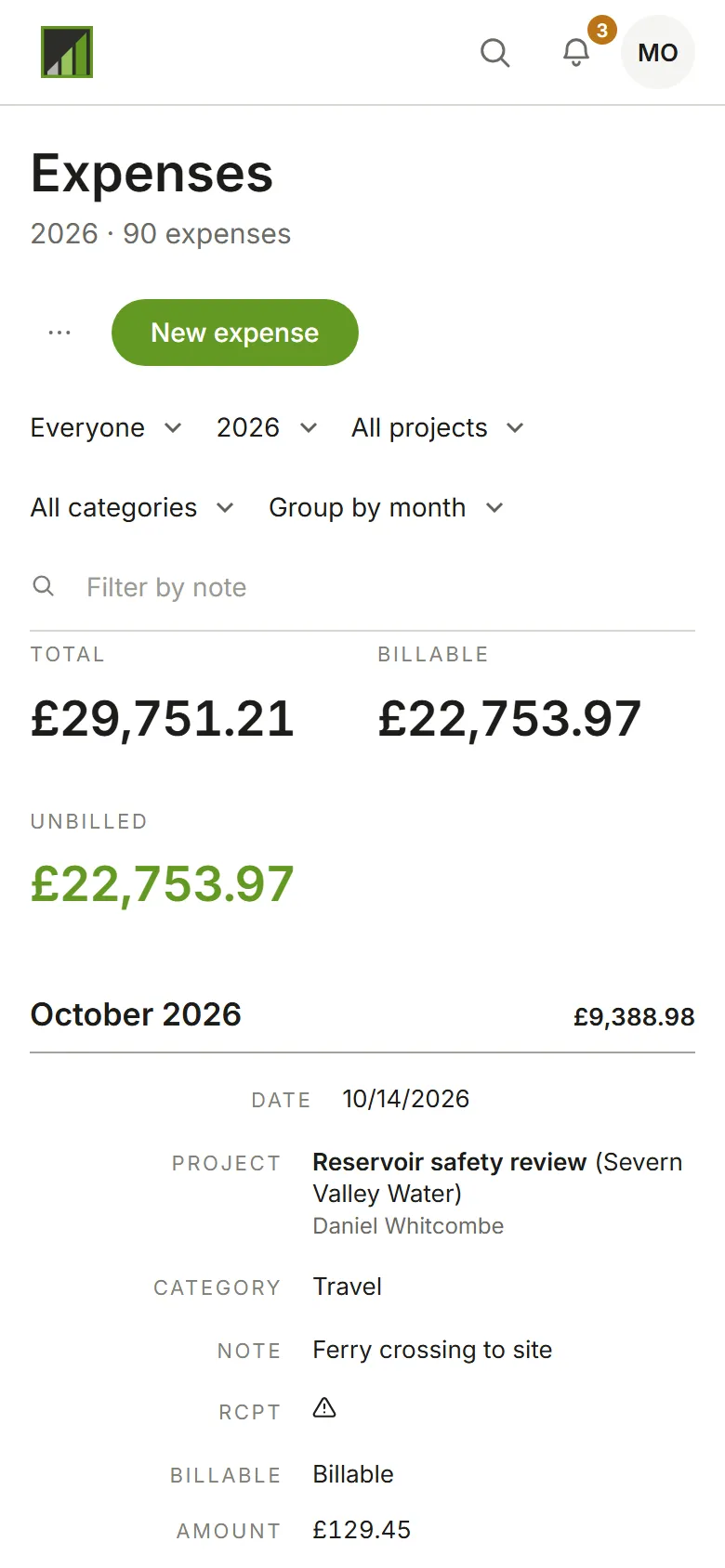
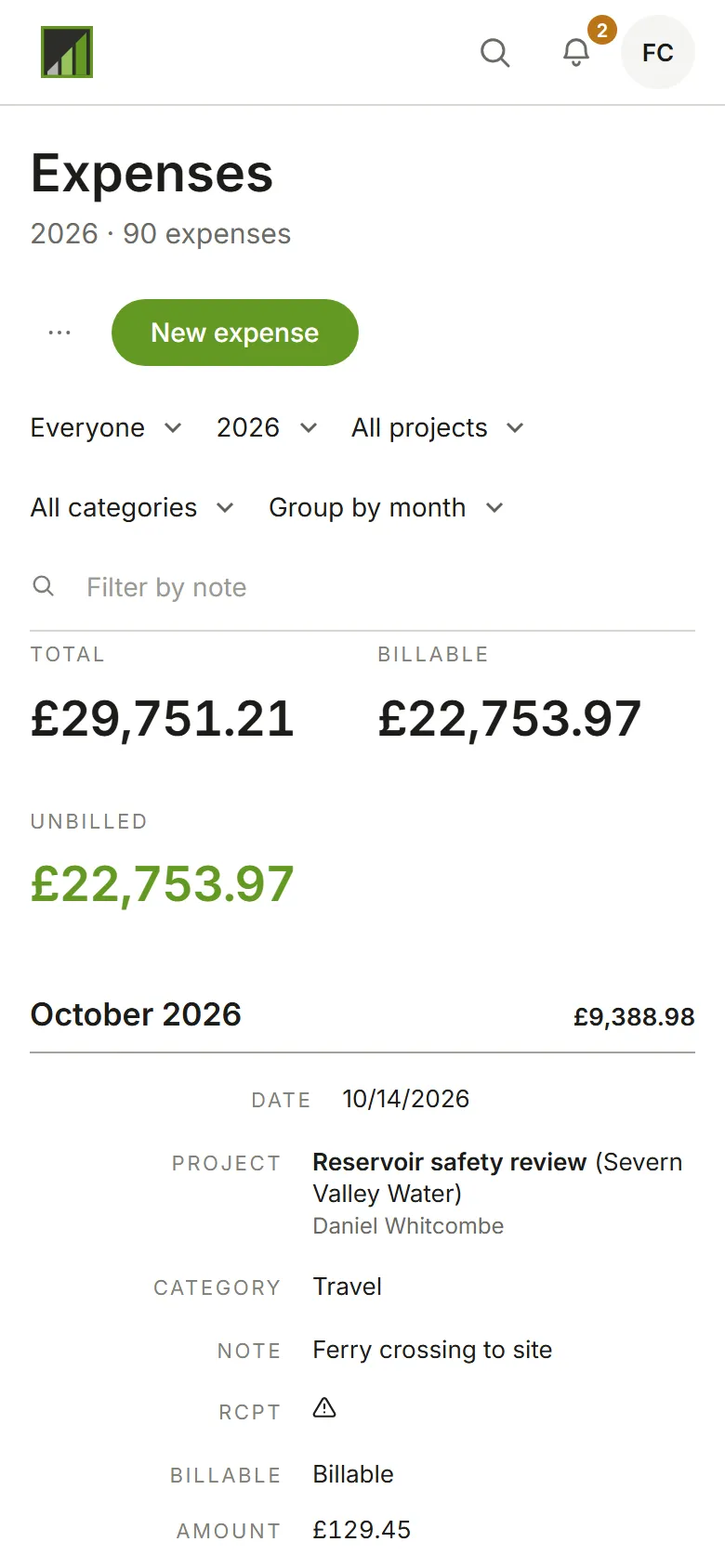
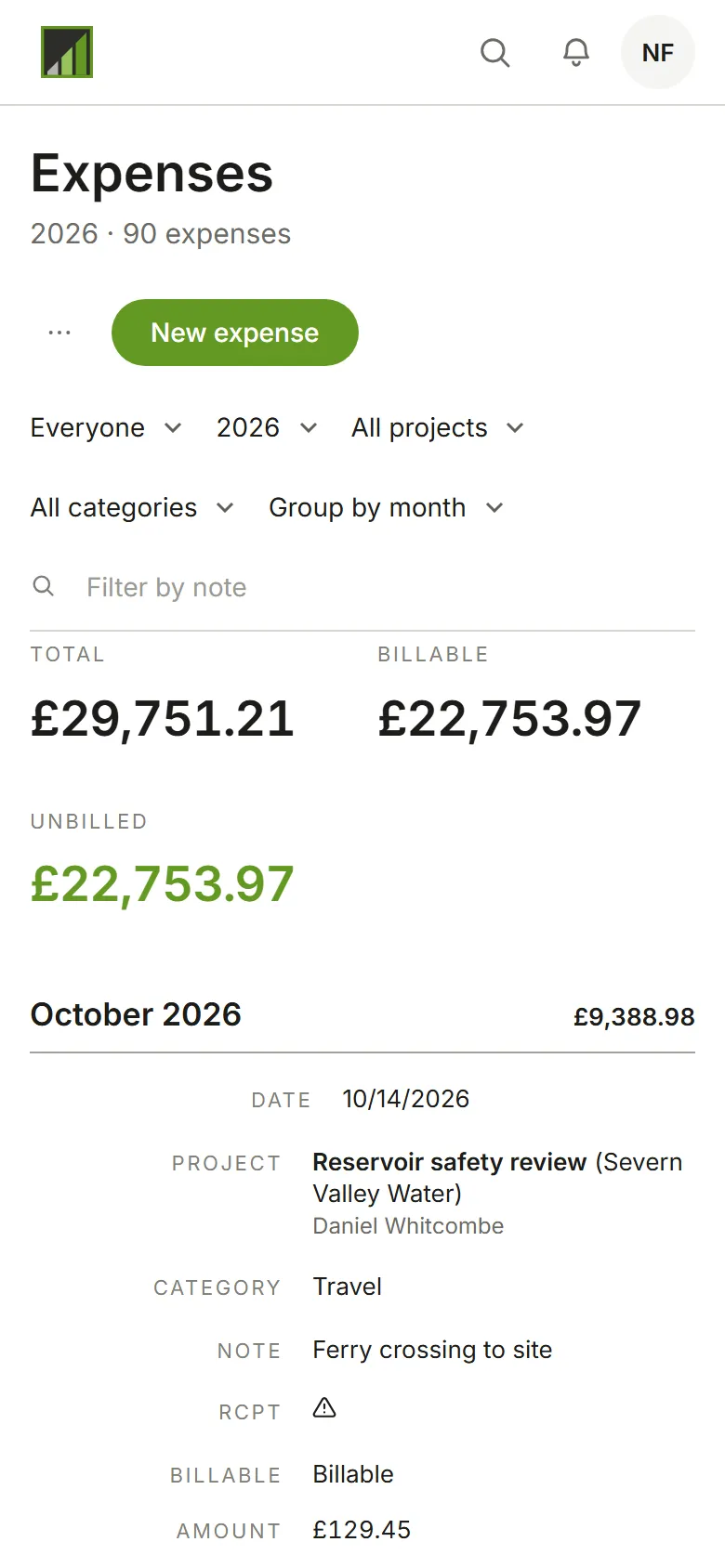
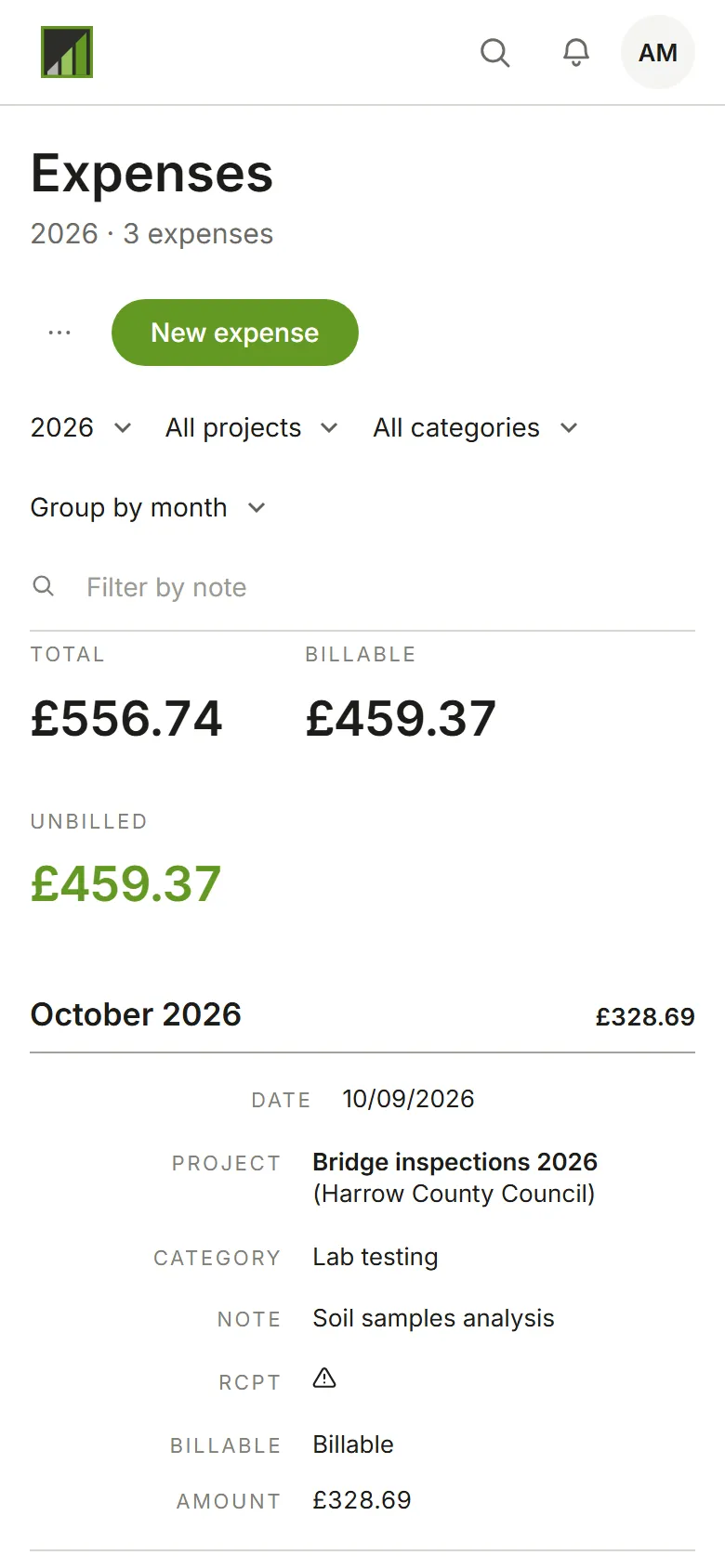
Person chooses whose expenses you see; while it shows everyone’s, each row names its person under the project. As an Admin you can change anyone’s. Other people’s open read only; only Admins change them.
You see your own expenses.
If your account approves expenses, a State column and filter show where each one stands, and each is submitted for approval on its own; see Approve time and expenses.
-
Choose New expense.
-
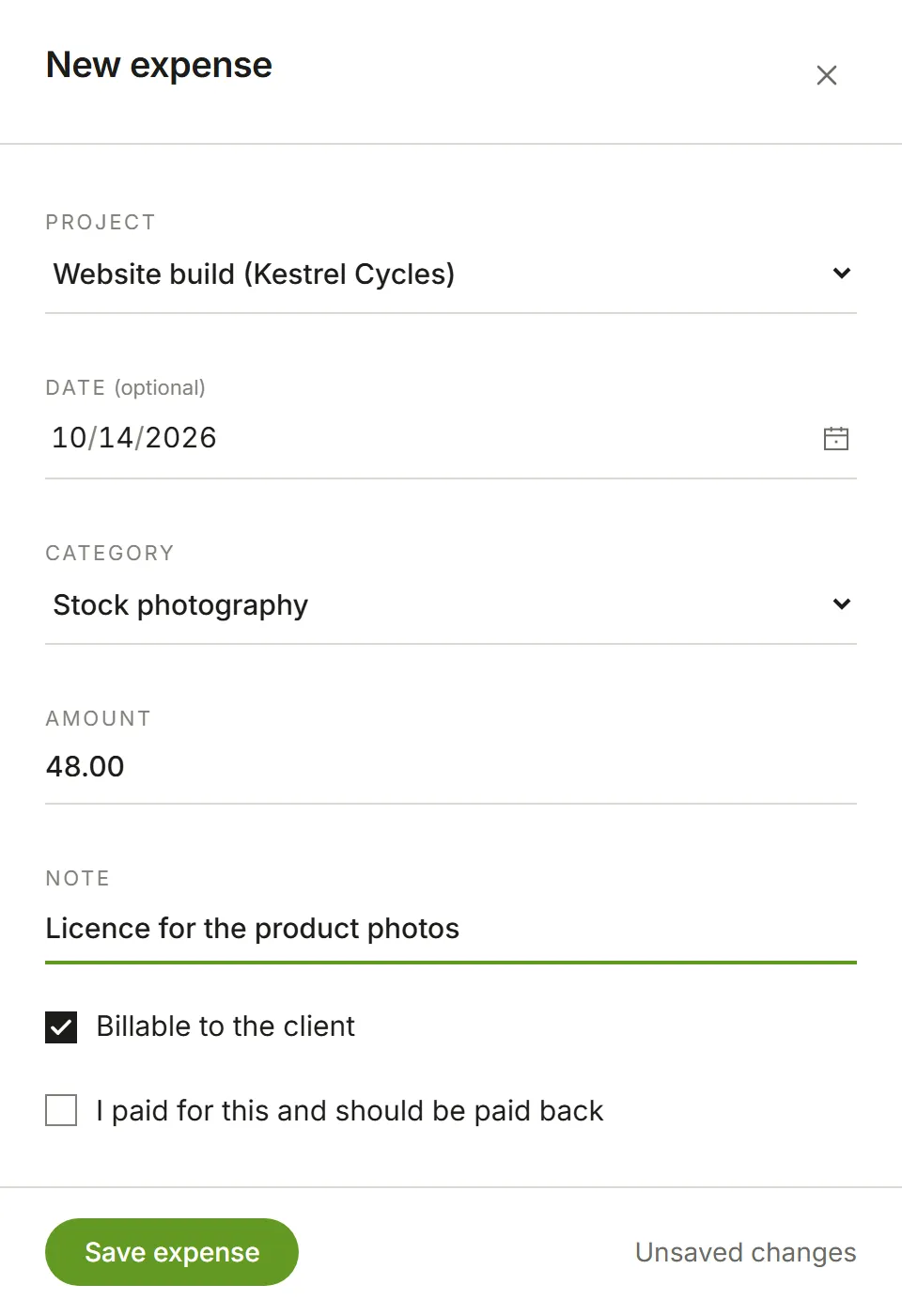
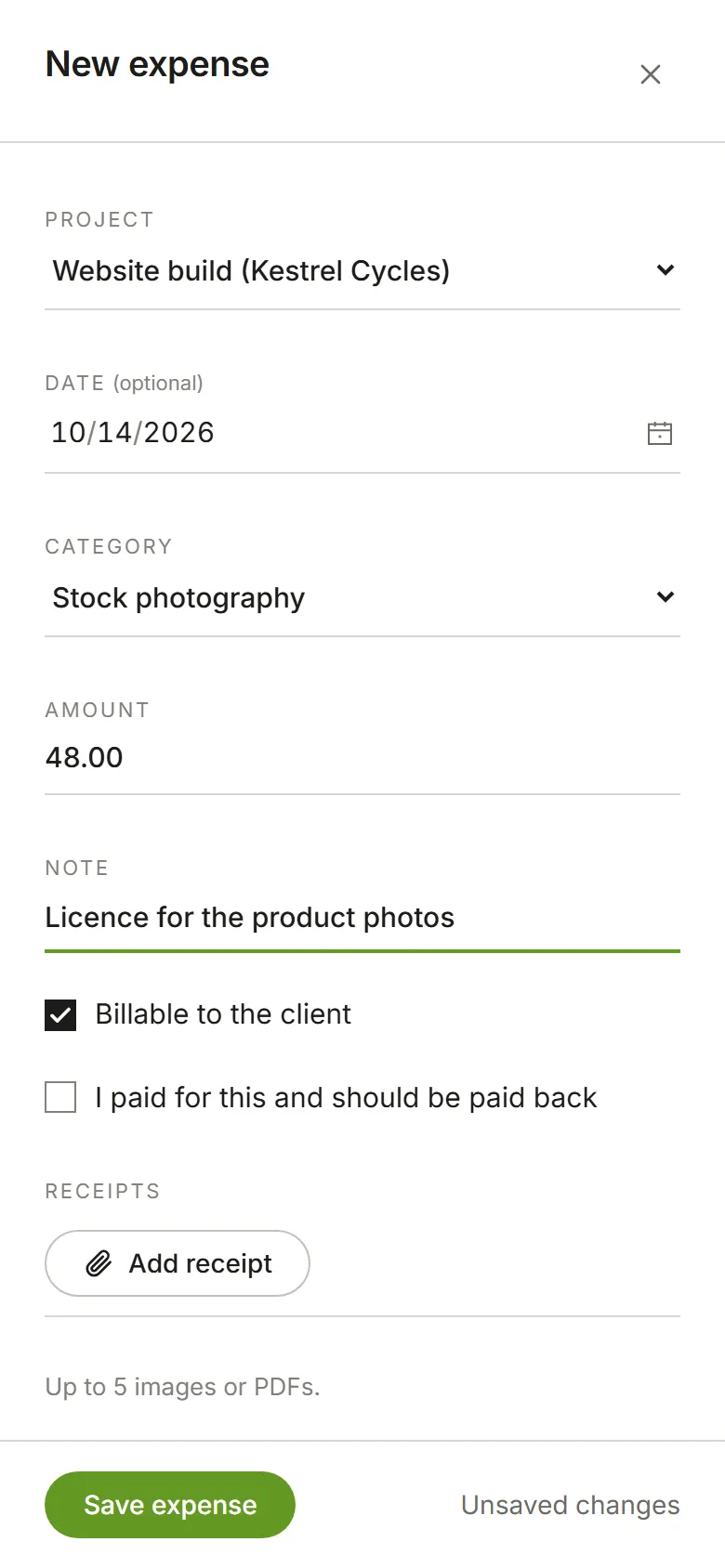
Pick the project and category, enter the amount and a note saying what it was for. The date is today unless you change it. Choose Add receipt to attach up to five images or PDFs. Tick I paid for this and should be paid back if you’re owed the money.
-
Choose Save expense. The panel closes and the expense appears in the list.
Some categories are counted in units, such as mileage: you enter how many, and the amount is worked out for you. Categories are set up in Expense categories.