

Create an invoice
Invoices are for Admins and Finance: there’s no Invoices in your navigation. The time and expenses you track are what goes on them.
An invoice is built from tracked time and expenses. You choose a client and a period, and every billable hour in it becomes a line on the invoice, priced at the rate the project sets.
Open Invoices to see what’s open, and what’s been paid, outstanding and overdue this year.
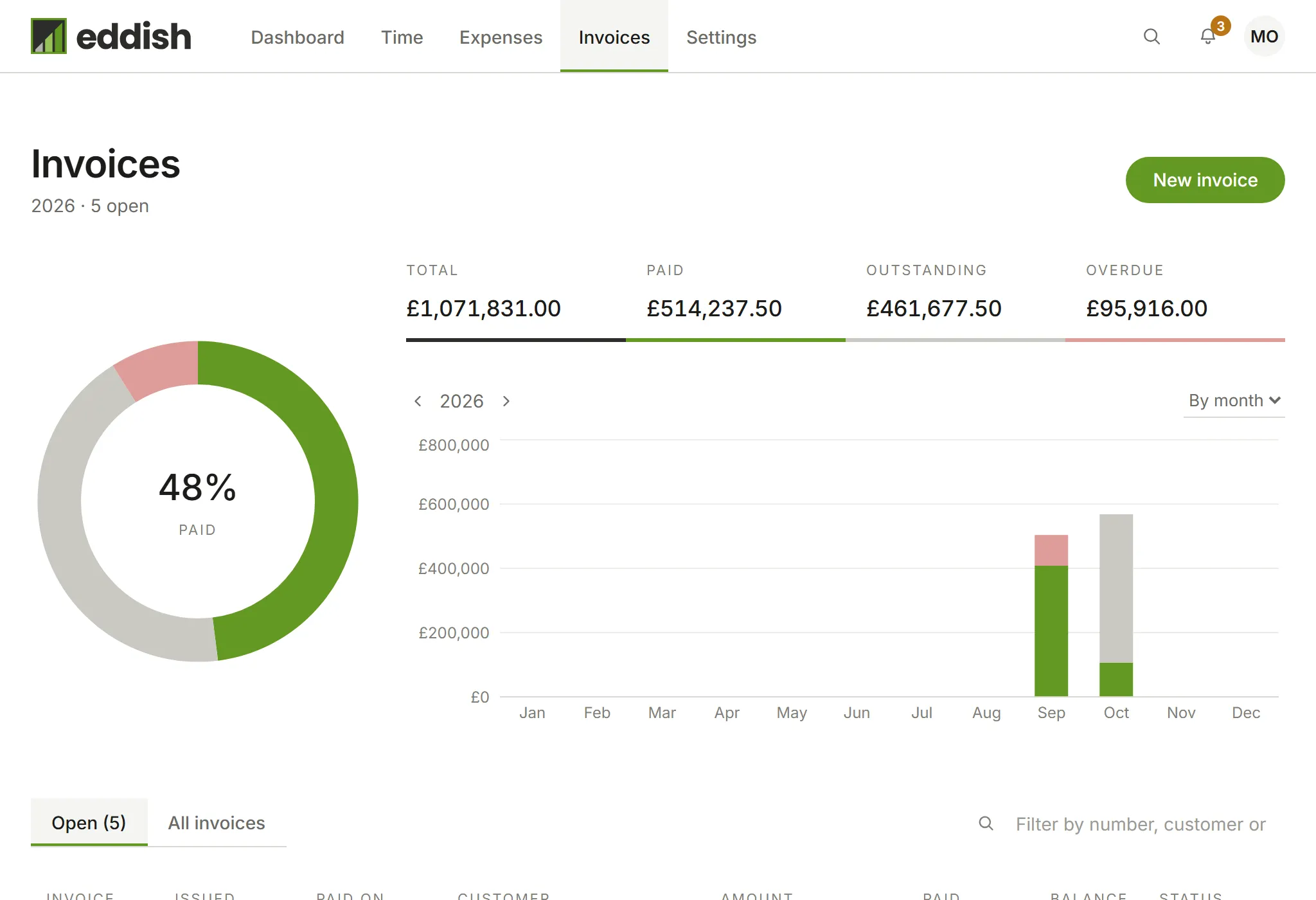
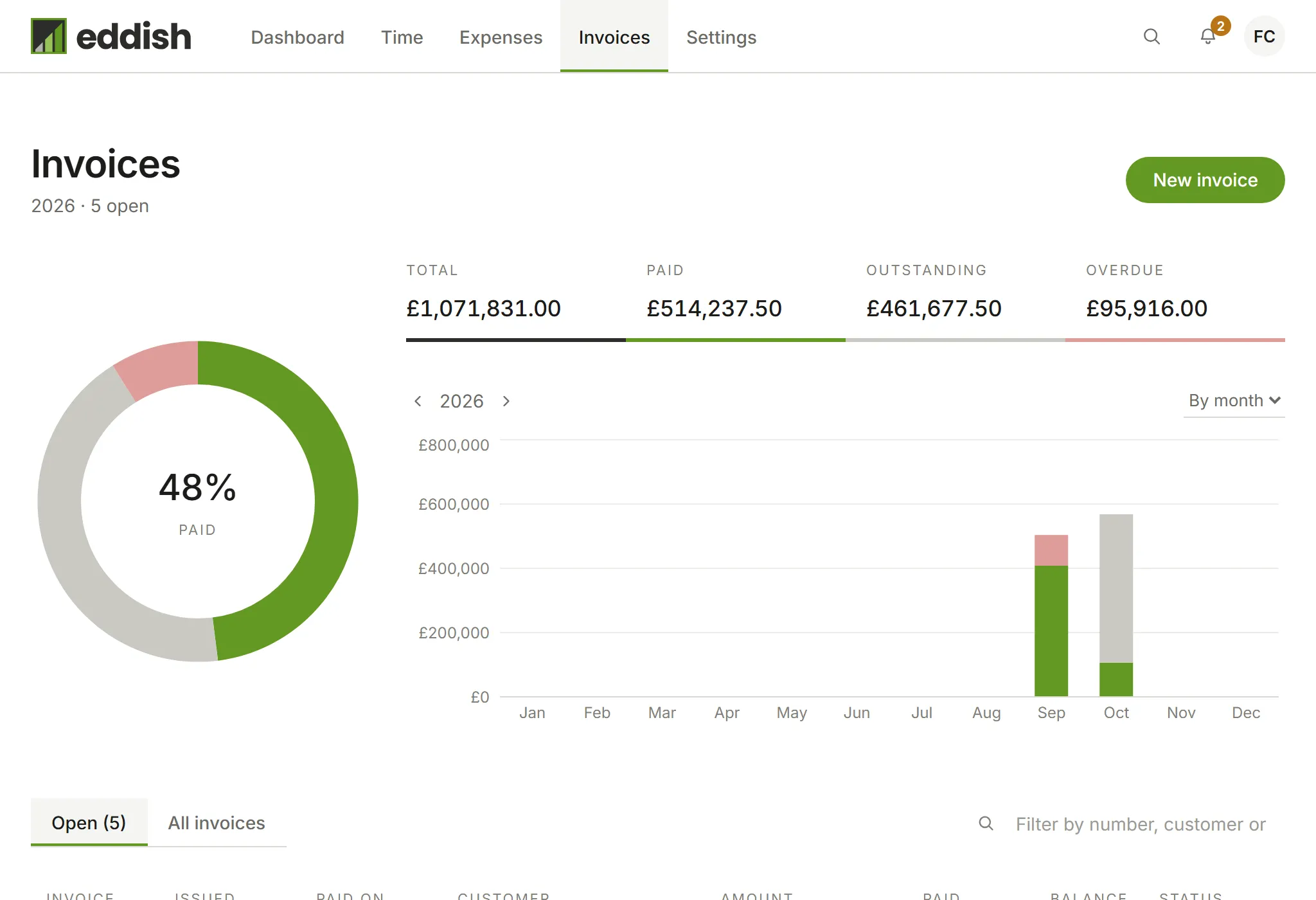
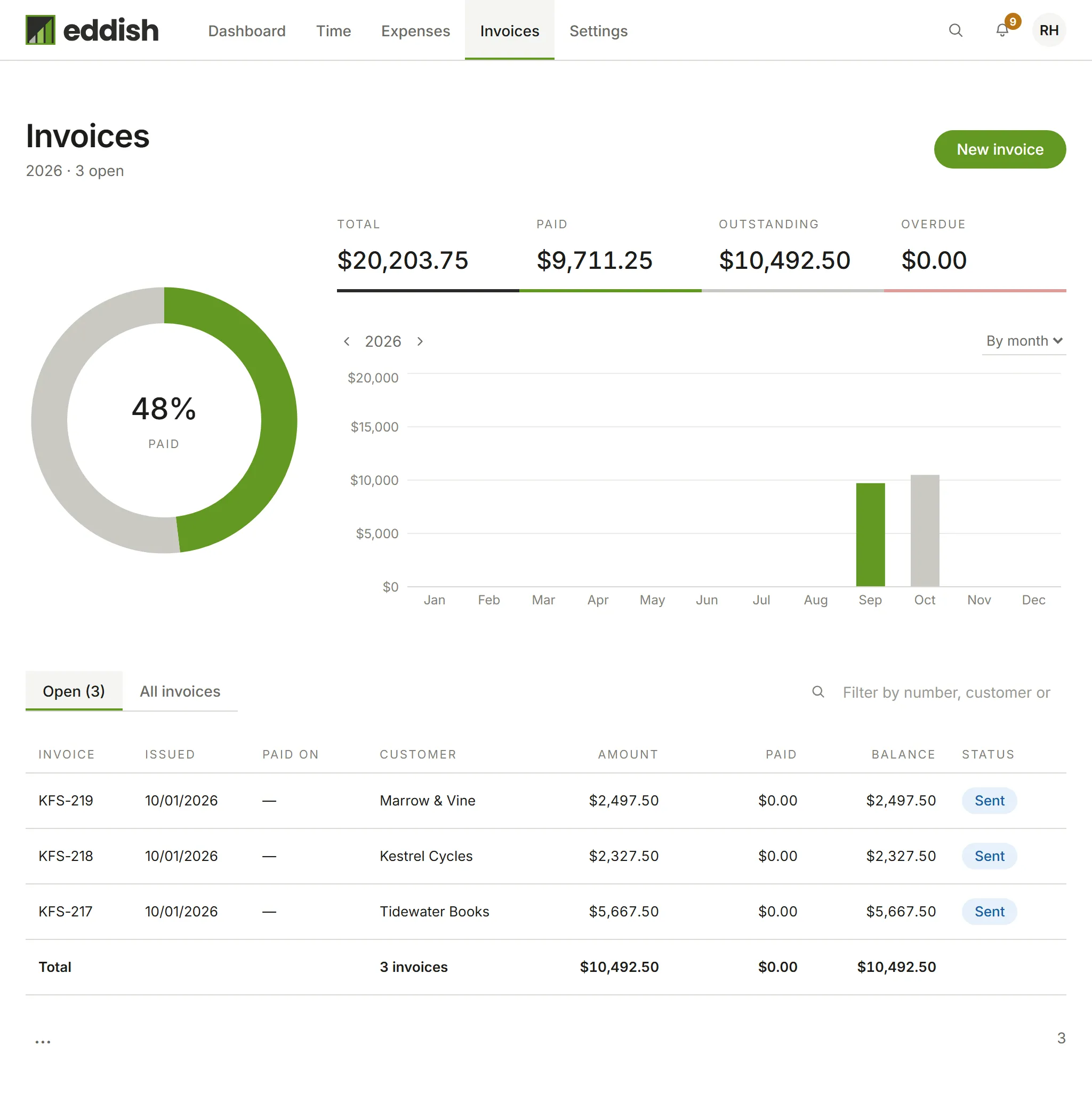
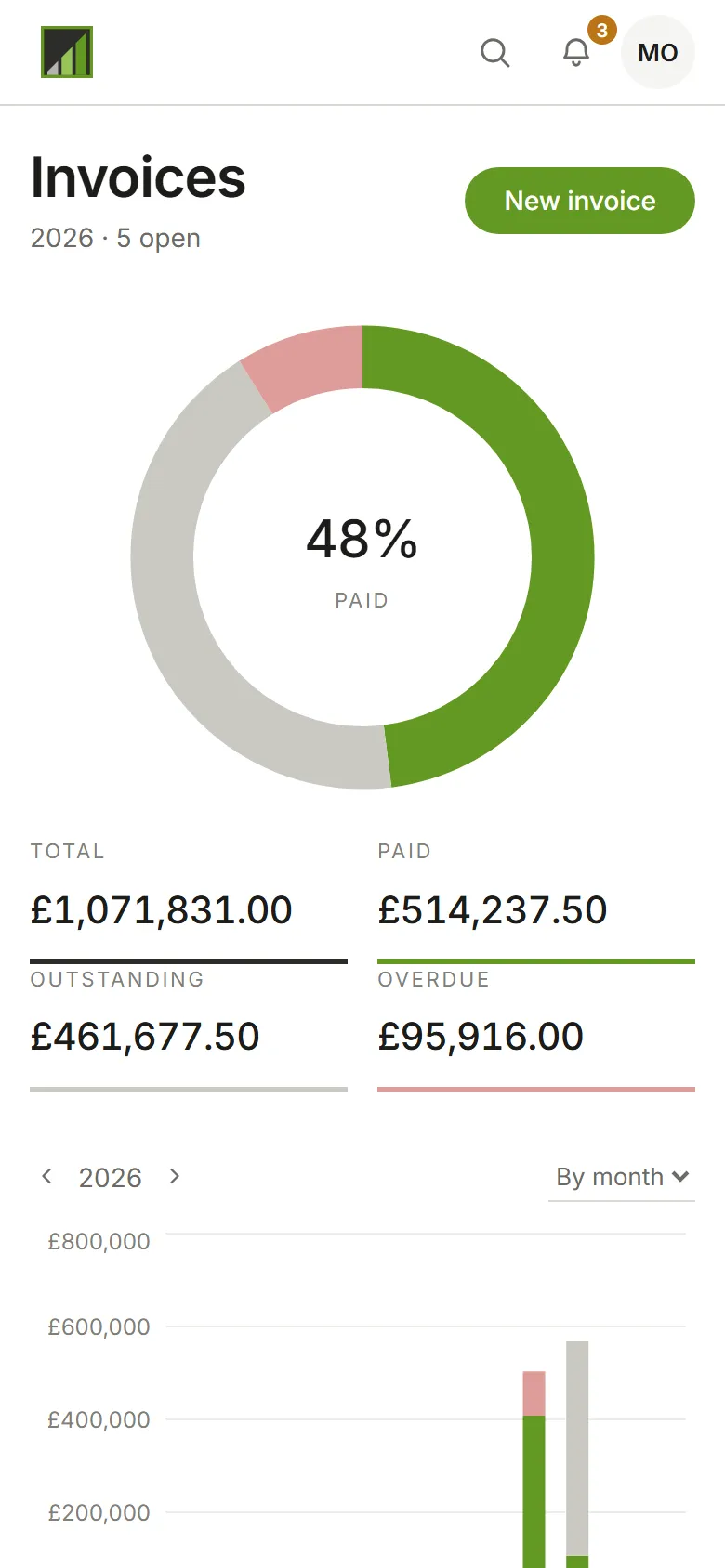
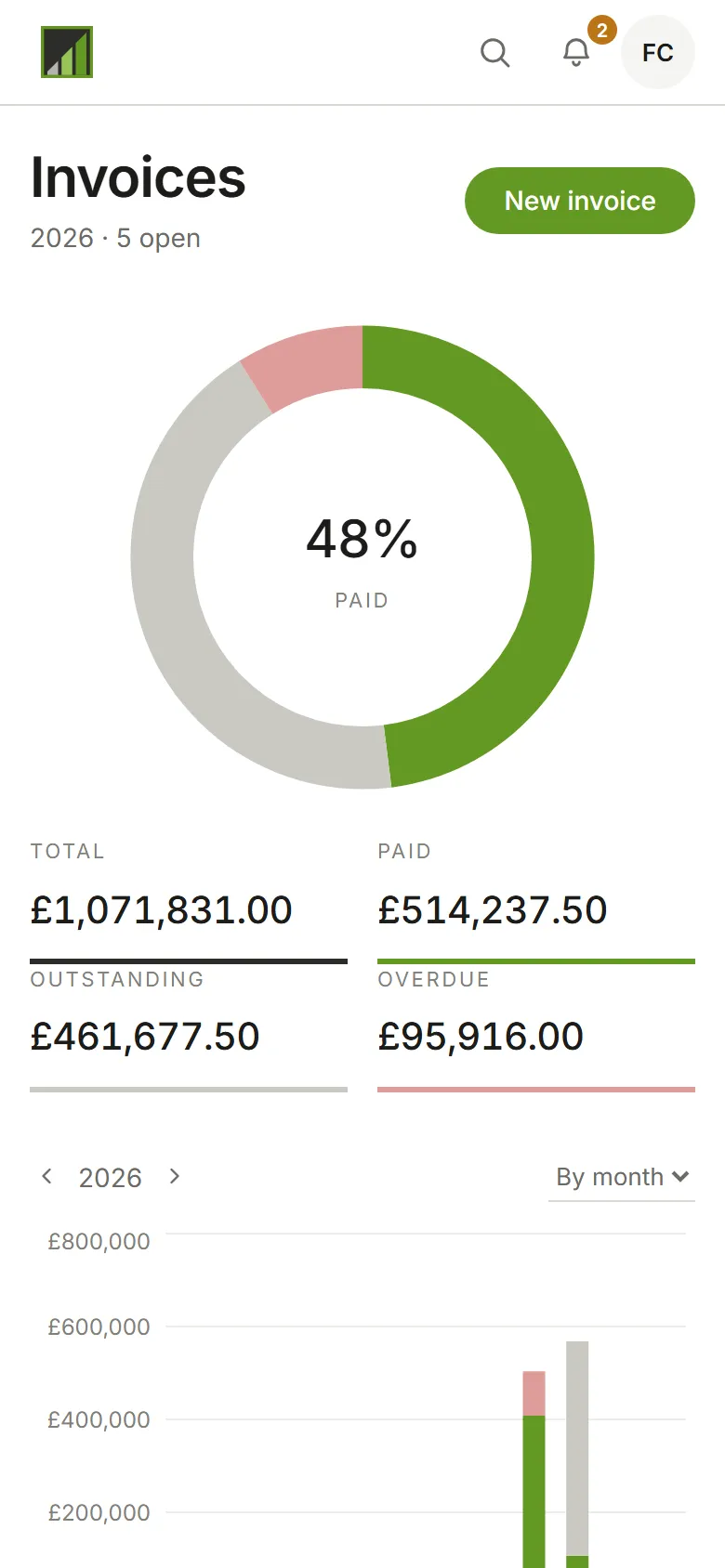
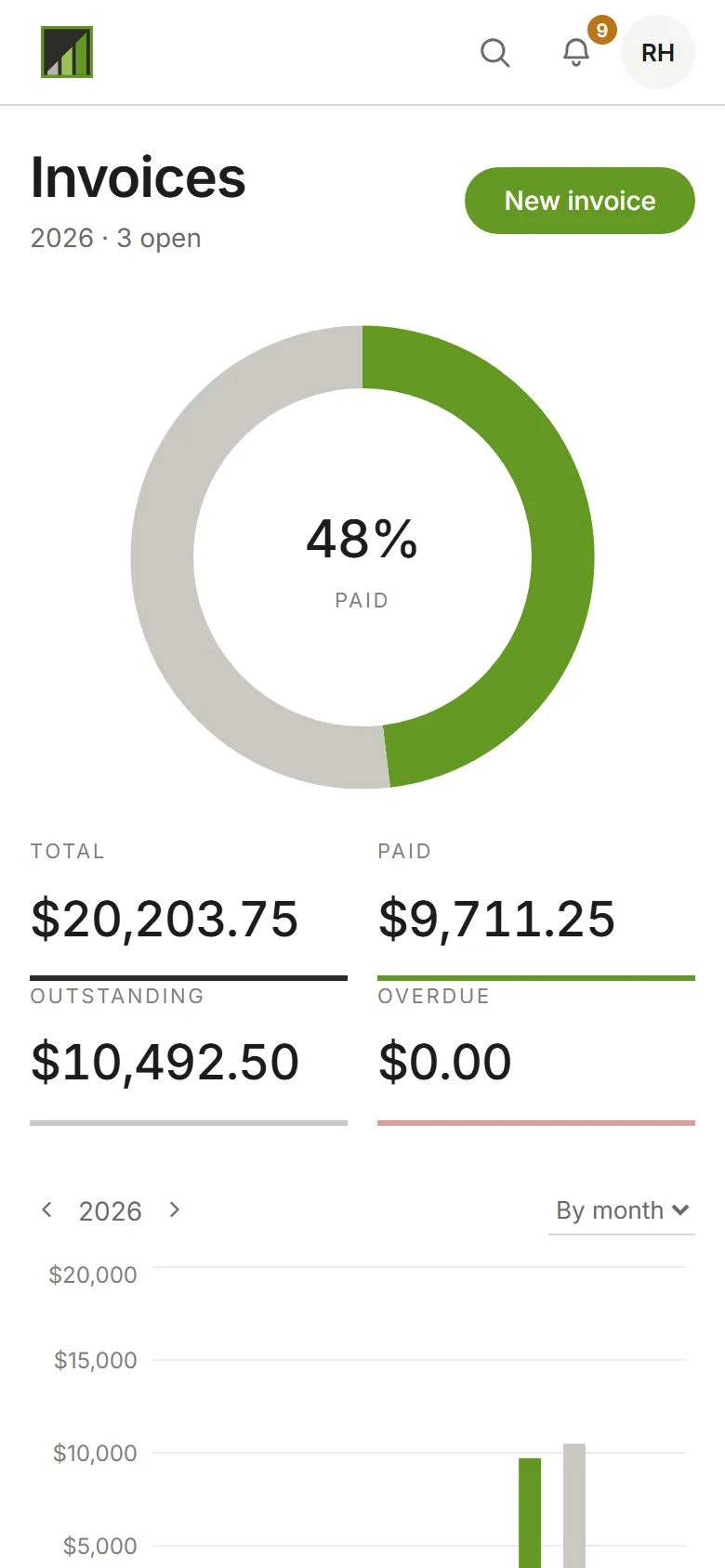
-
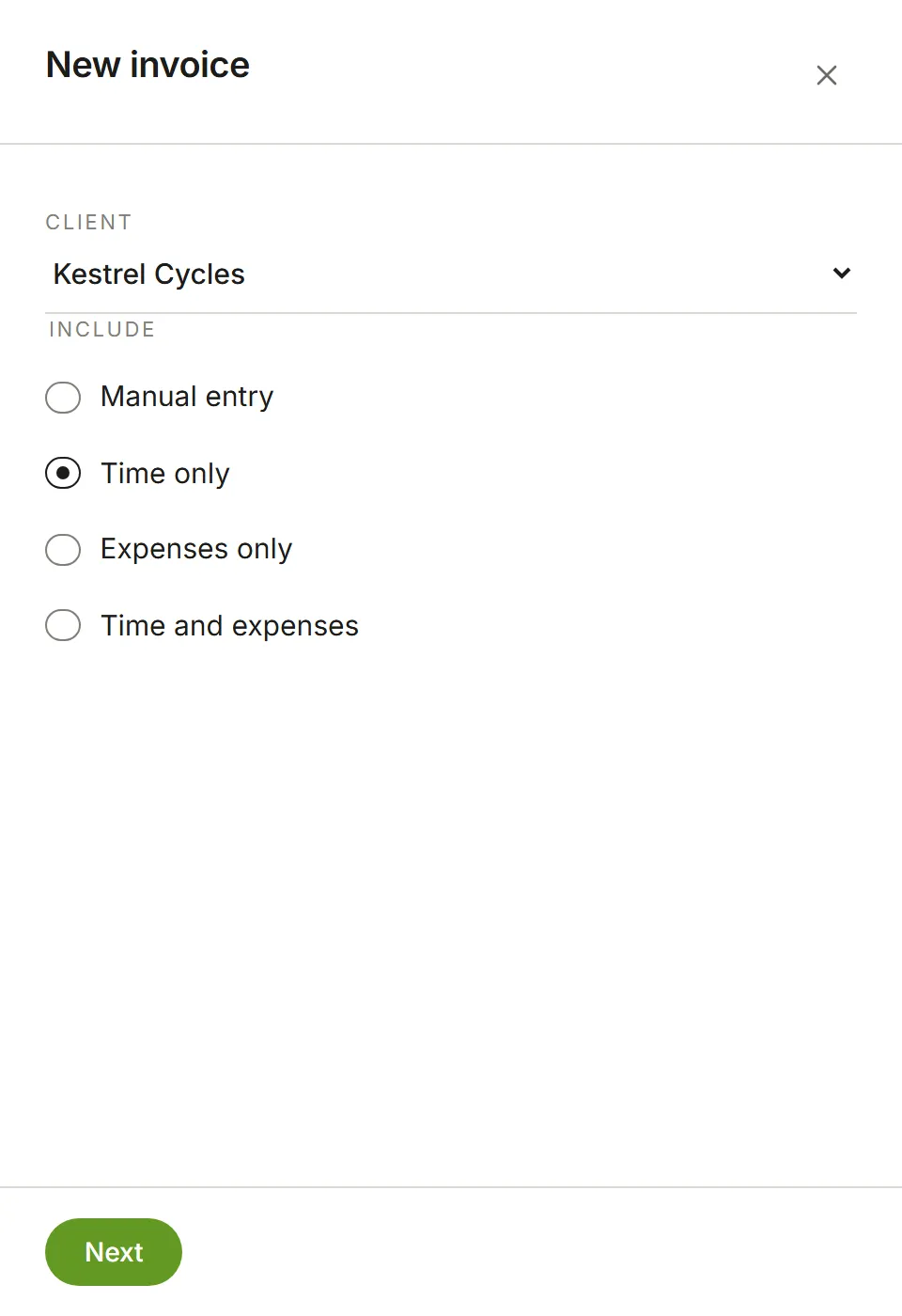
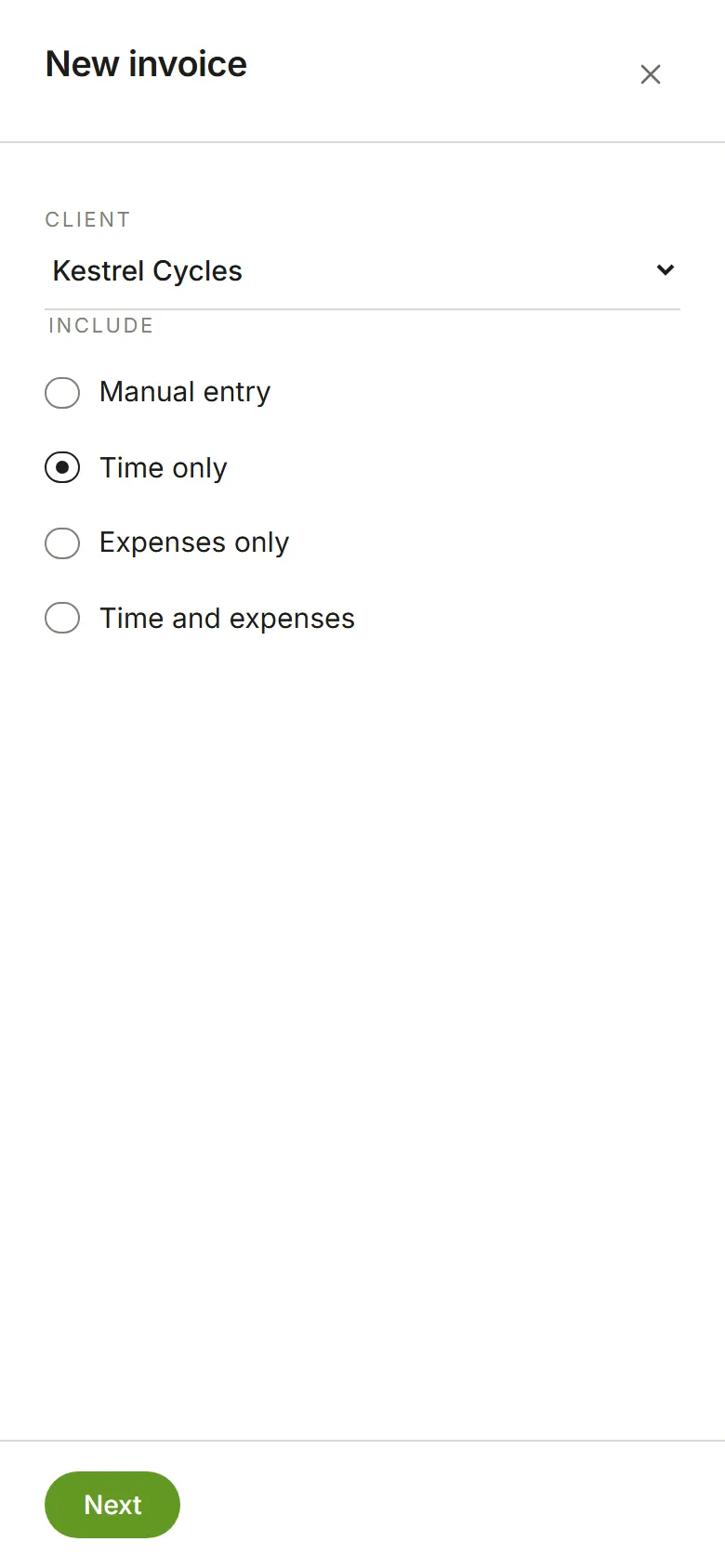
Choose New invoice. Choose the client, and under Include choose what to bill: Time only, Expenses only, Time and expenses, or Manual entry for an empty invoice you fill in yourself. Choose Next.
-
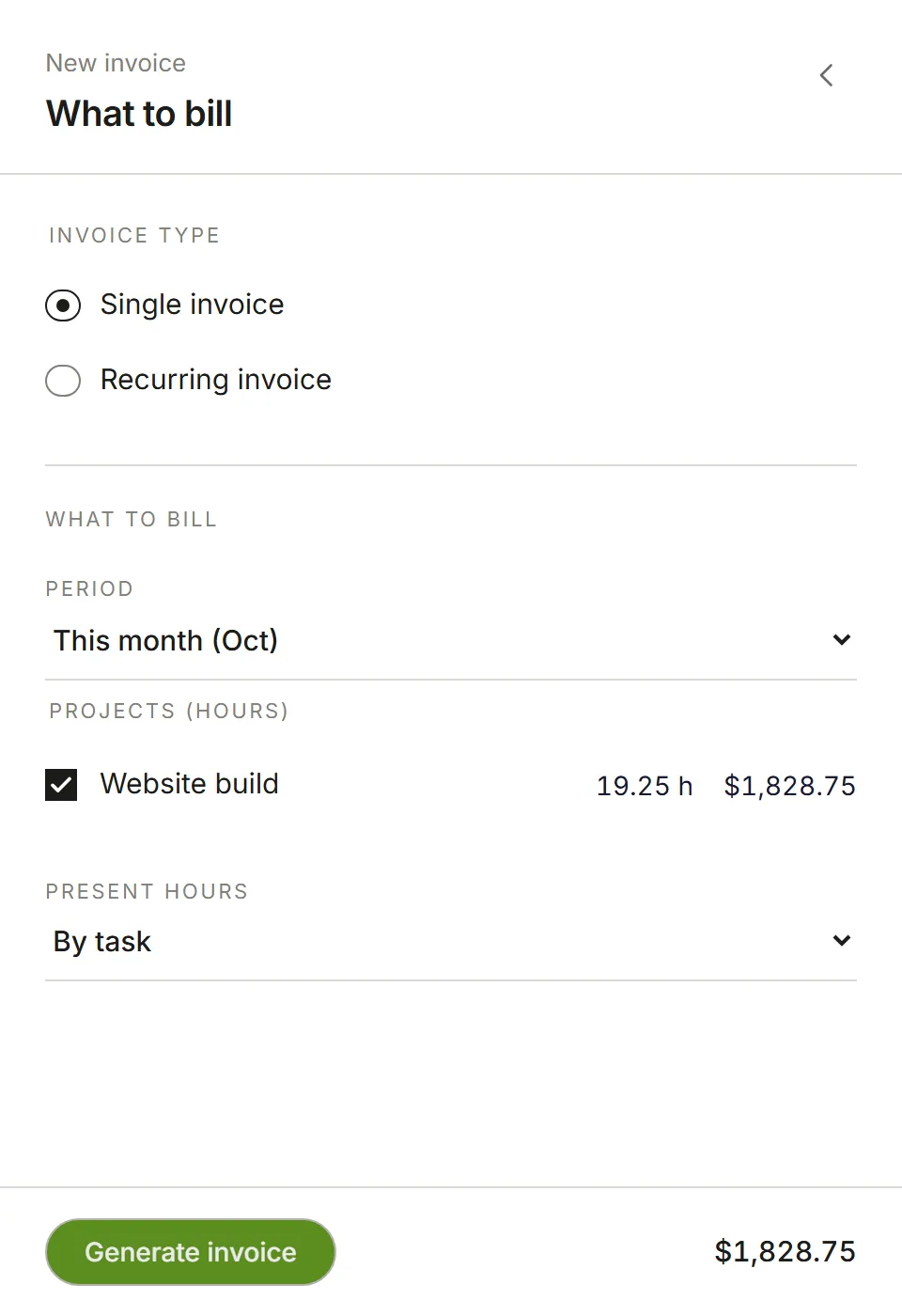
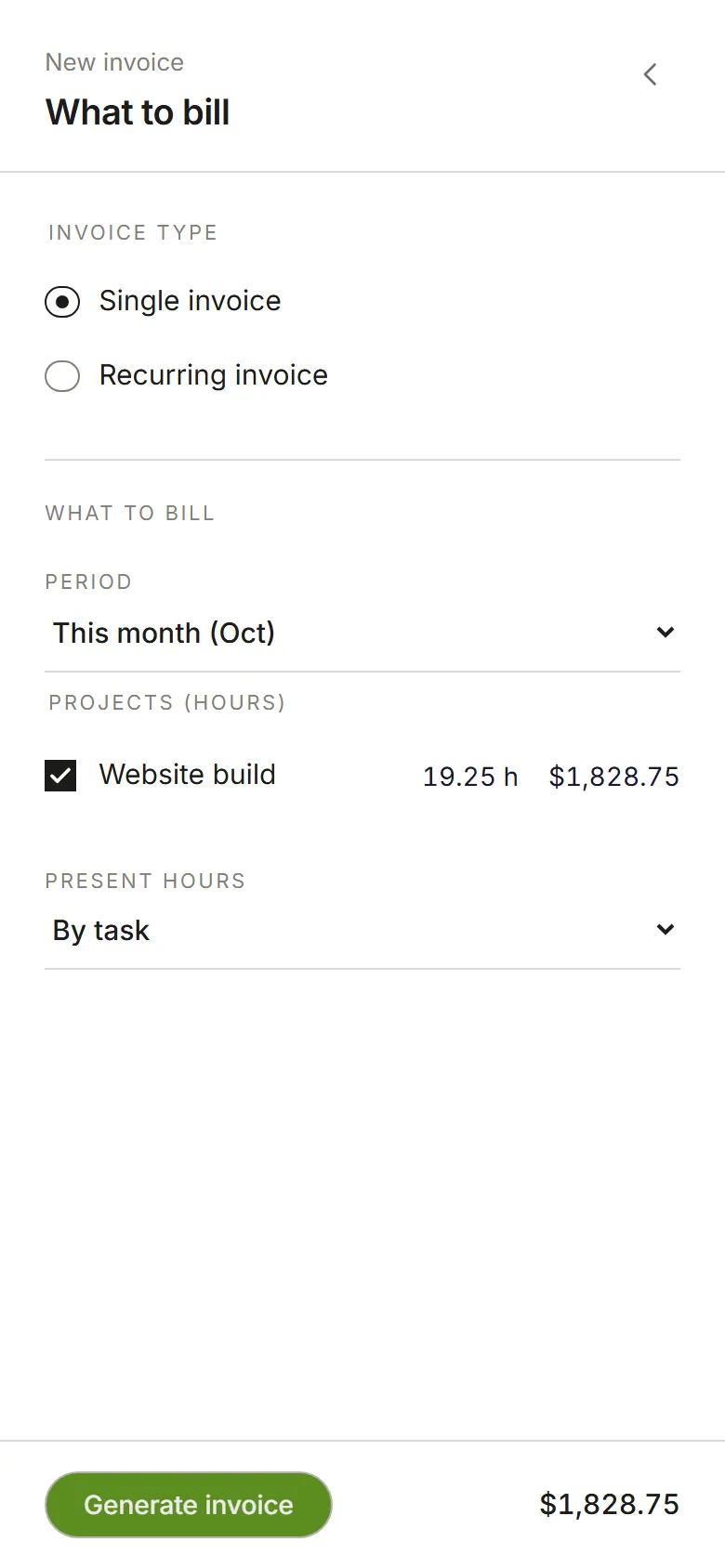
Choose the period to bill. Each of the client’s projects with unbilled hours in that period is listed with its hours and amount; untick any you want to leave off. Present hours decides how lines are grouped: by task, by person, by project, or one line per time entry. Choose Generate invoice.
-
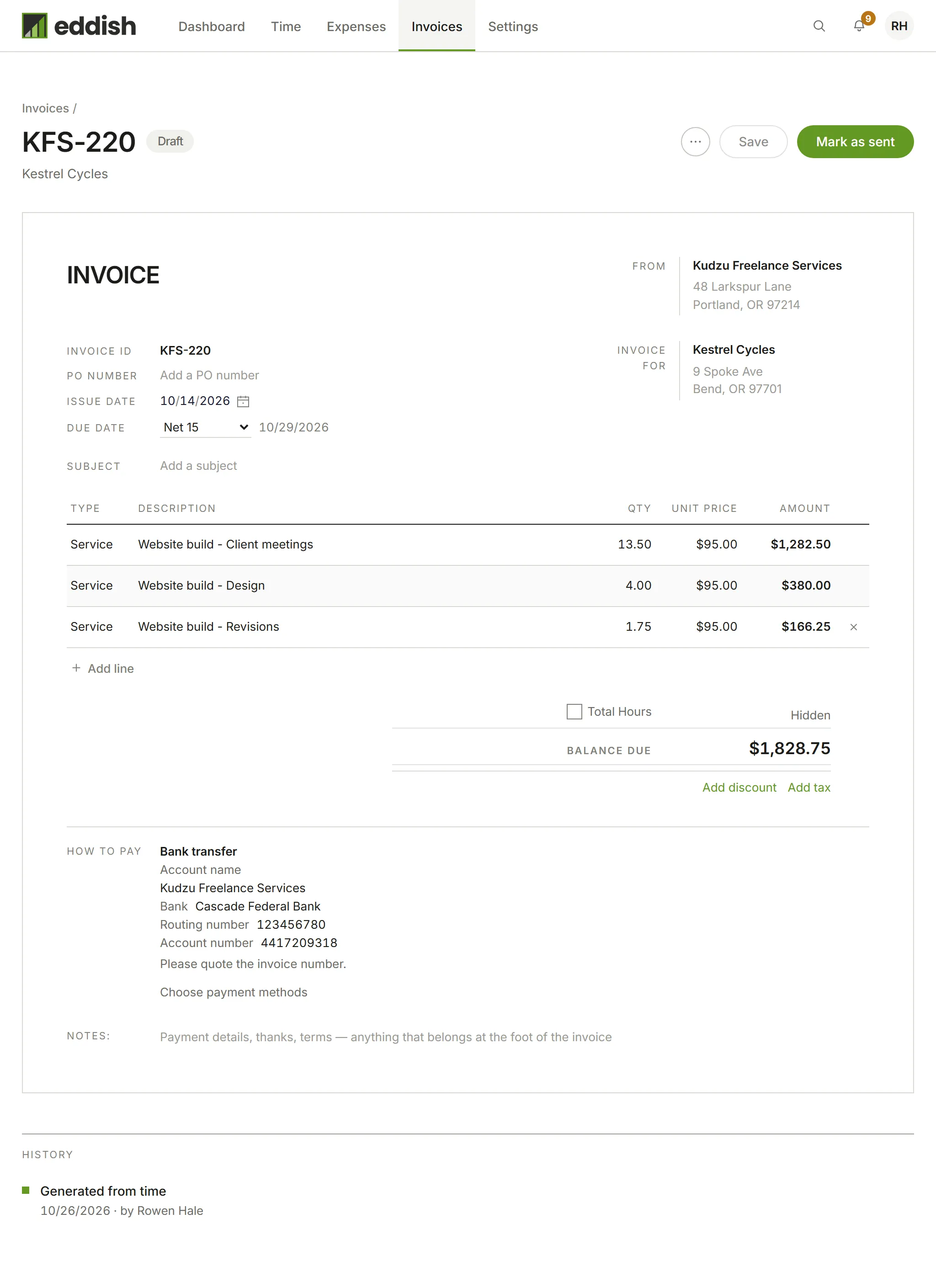
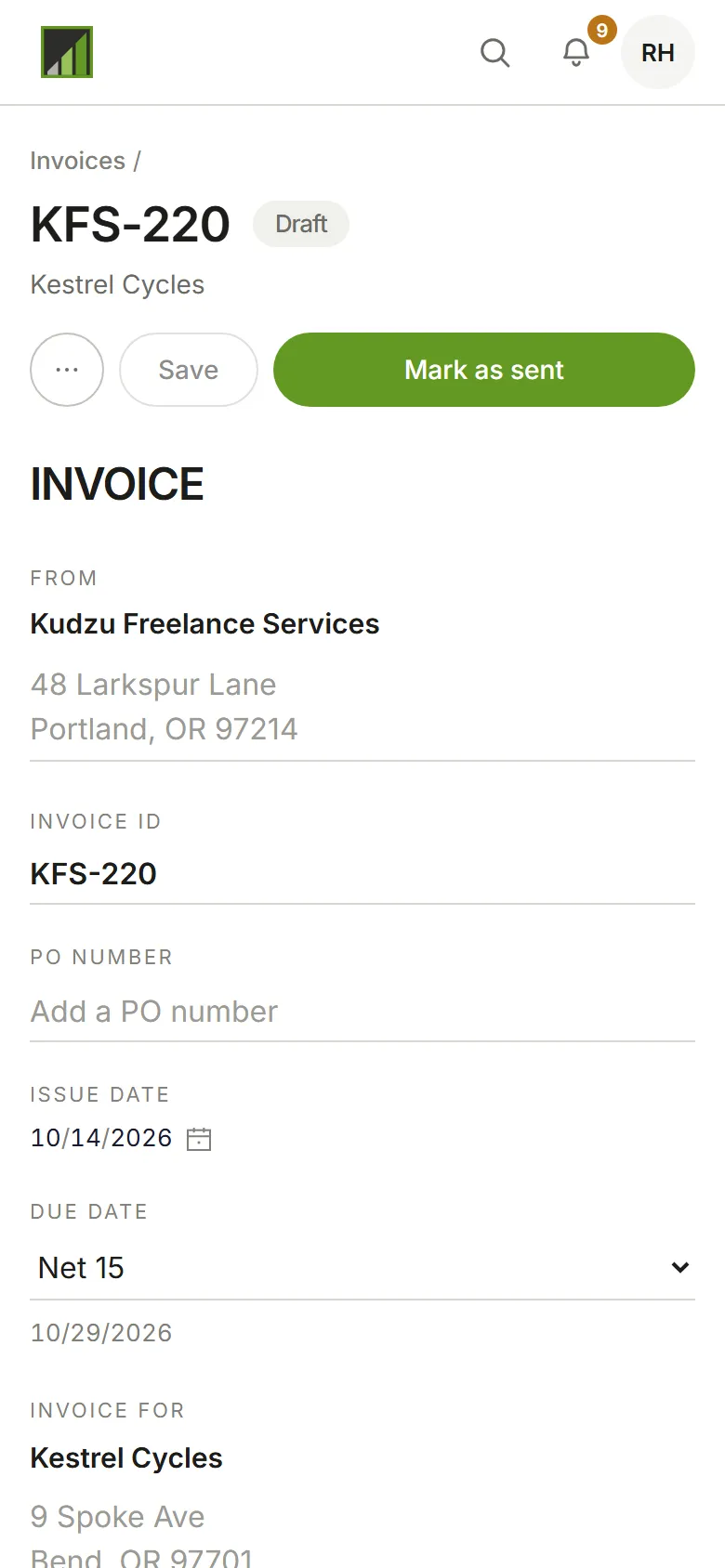
Check the draft. Its payment terms are the client’s, or your default from Settings → Invoicing if the client has none. Everything on it can still be changed: the dates, the payment terms, the subject and every line. Choose Save after changing anything.
Under the totals, How to pay shows your payment methods, the ones marked “On new invoices”. Choose Choose payment methods there to show different ones on this invoice.
Send it and get paid
Section titled “Send it and get paid”When the draft is right, choose Mark as sent. The time on it is then locked, so the figures your client has can’t change underneath them. Its payment details are kept as they were sent, too: changing a payment method later doesn’t change an invoice your client already has.
When the client pays, open the invoice and choose Record payment.
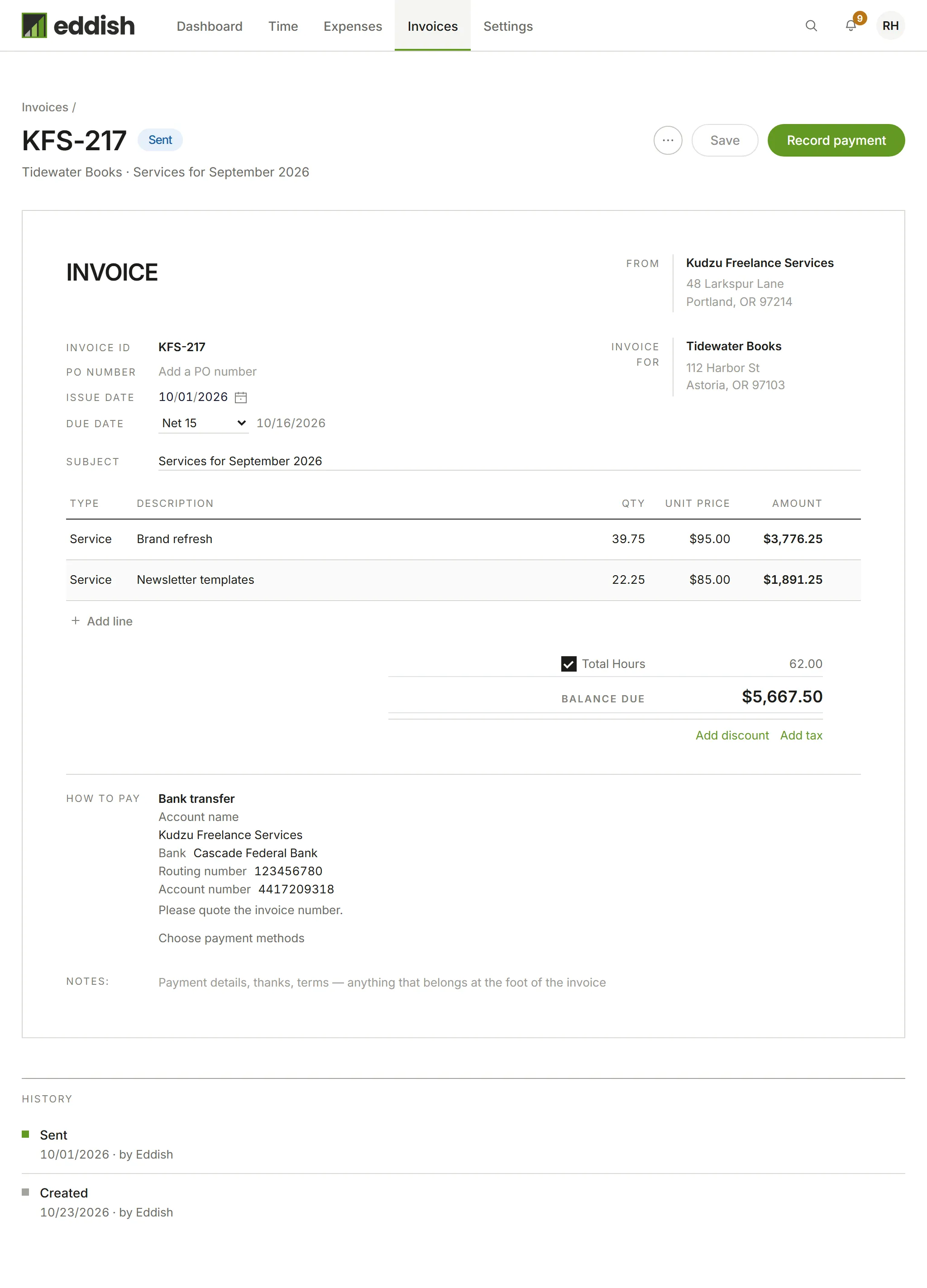
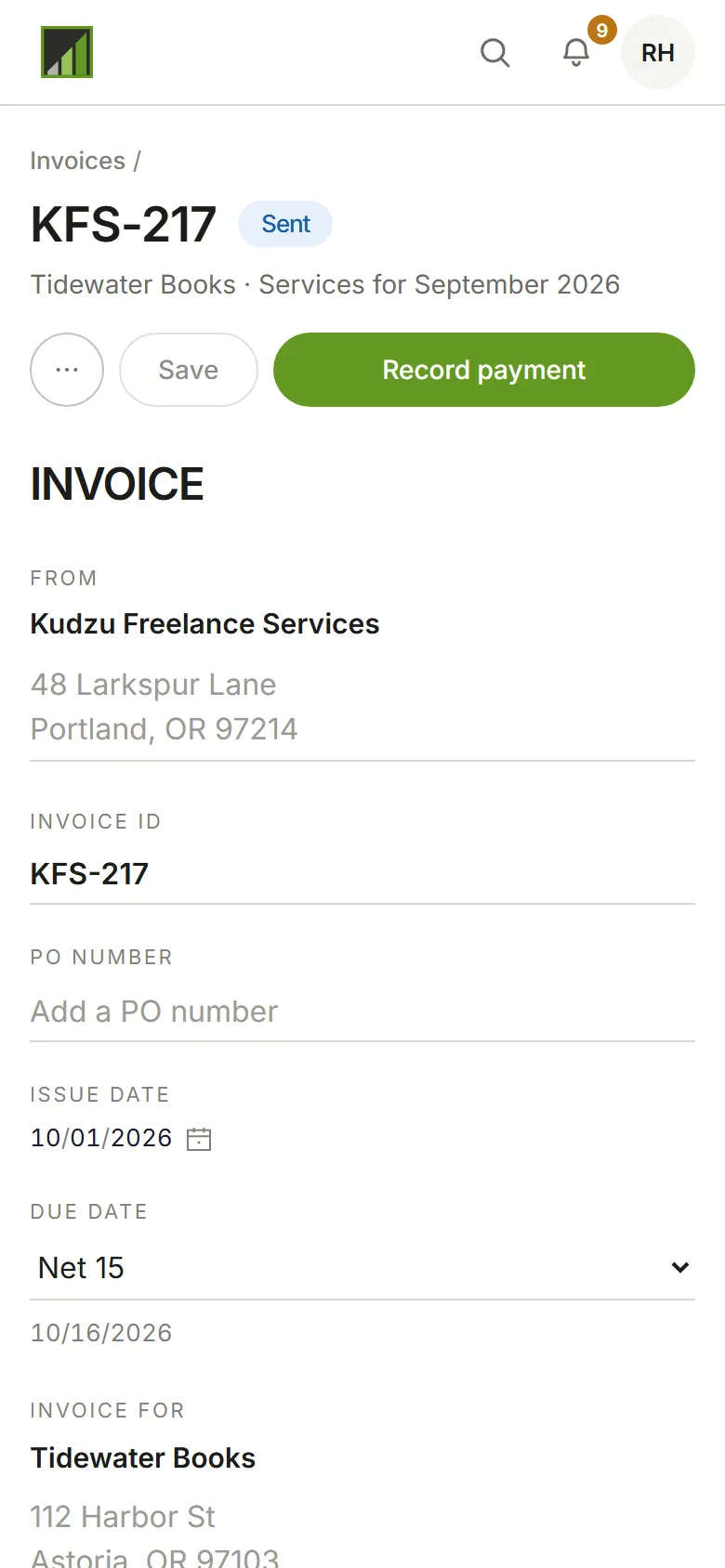
Mark as sent, Record payment, Move back to draft and Close invoice each take an optional note, such as how the client paid.
What your client sees
Section titled “What your client sees”The invoice on the page is the PDF your client gets. It’s written in your account’s language, with its currency, date format and number separators (Account preferences), whatever language you use Eddish in yourself. The buttons and panels around it stay in yours.
History
Section titled “History”Under the invoice, History lists everything that has happened to it, newest first: when it was created, sent, moved back to draft, paid or closed, with the date, who did it and any note. It’s for you and your team; it isn’t on the PDF. Invoices from before History was kept show what could be recovered: when each was created, sent and paid.