

Create your account
Signing up takes a few minutes. You’ll confirm your email address, tell us your name, create an account for your business, and choose a plan. When you’re done you land in the app, ready to work. From the account step on, a bar across the top of the screen shows where you are in the five steps (Email, Name, Account, App and Plan), with a count such as 3 of 5.
-
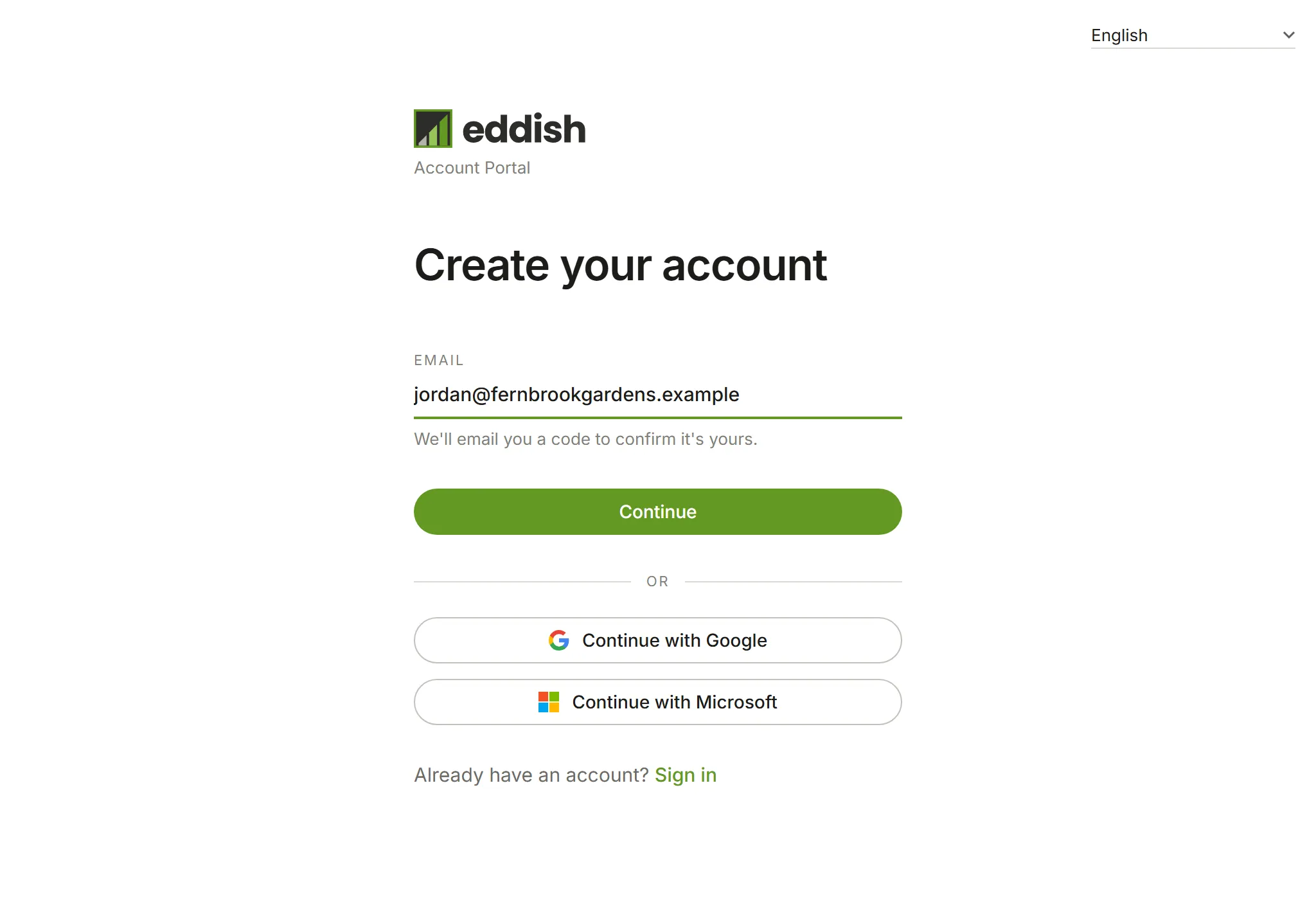
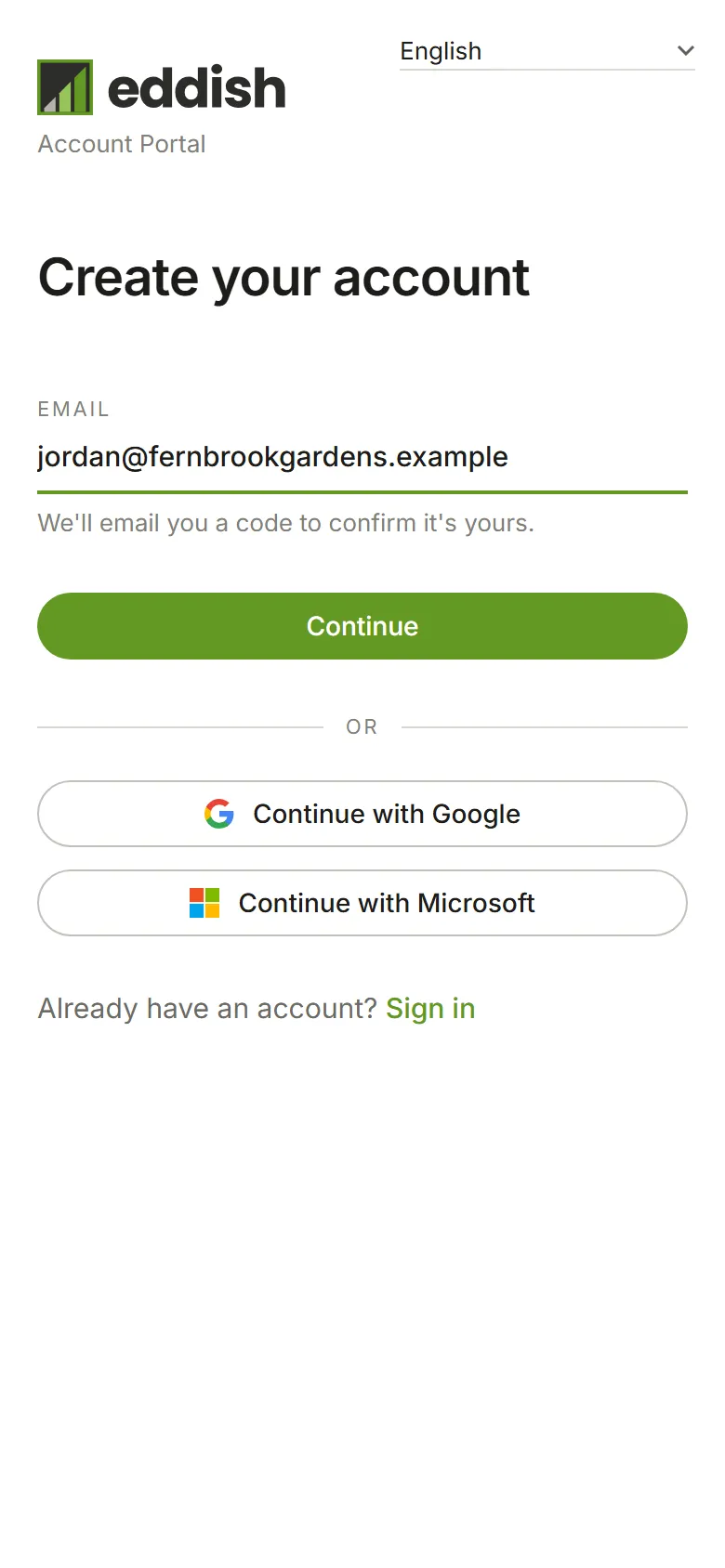
Enter your email address. Go to eddish.app/signup, type your work email and choose Continue. To sign up in French or Spanish, choose it from the language list in the page’s top corner first: the rest of signup, its emails and your new account follow it.
-
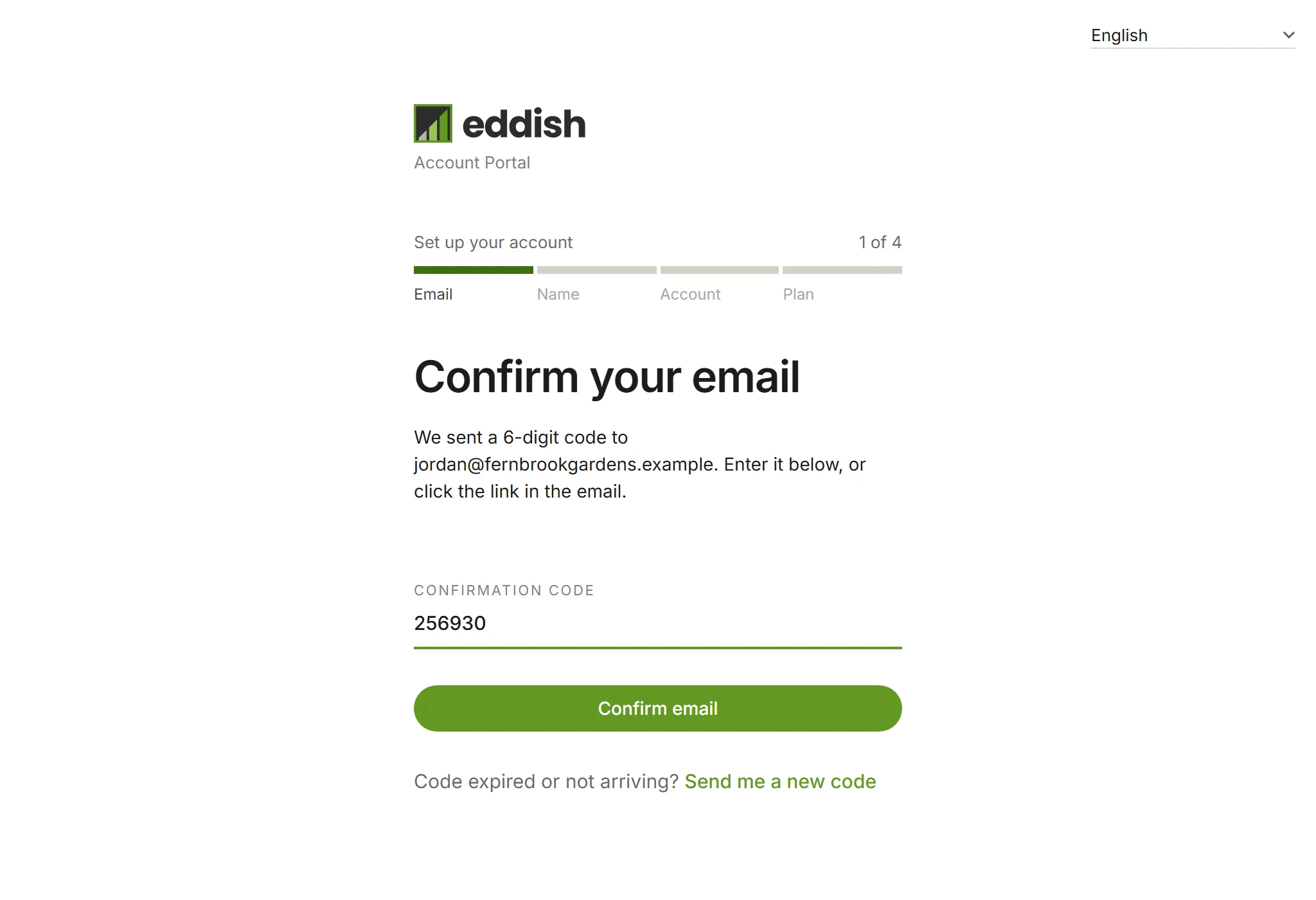
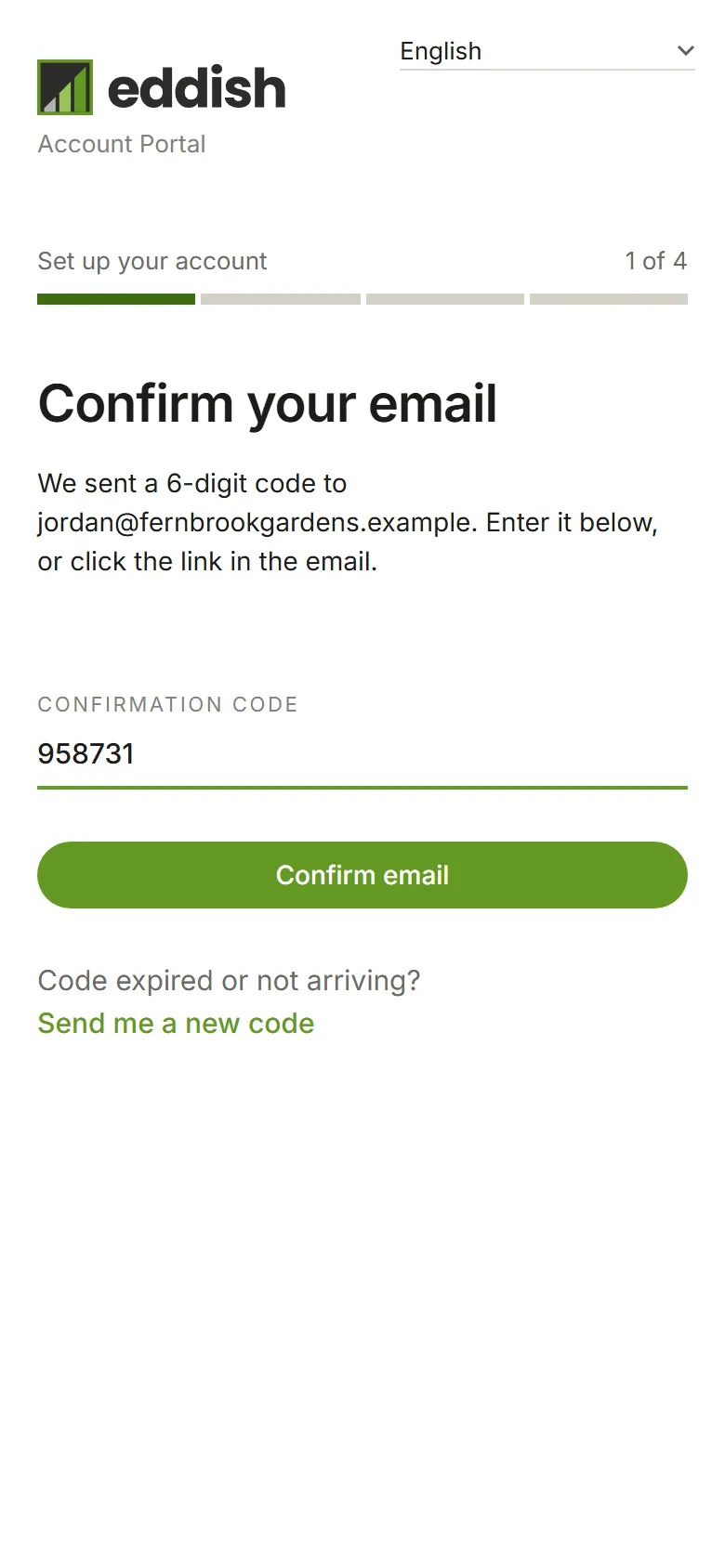
Confirm your email. We send a six-digit code to the address you entered. Type it in and choose Confirm email. If it hasn’t arrived after a minute, check your spam folder, or ask for a new code from this screen.
-
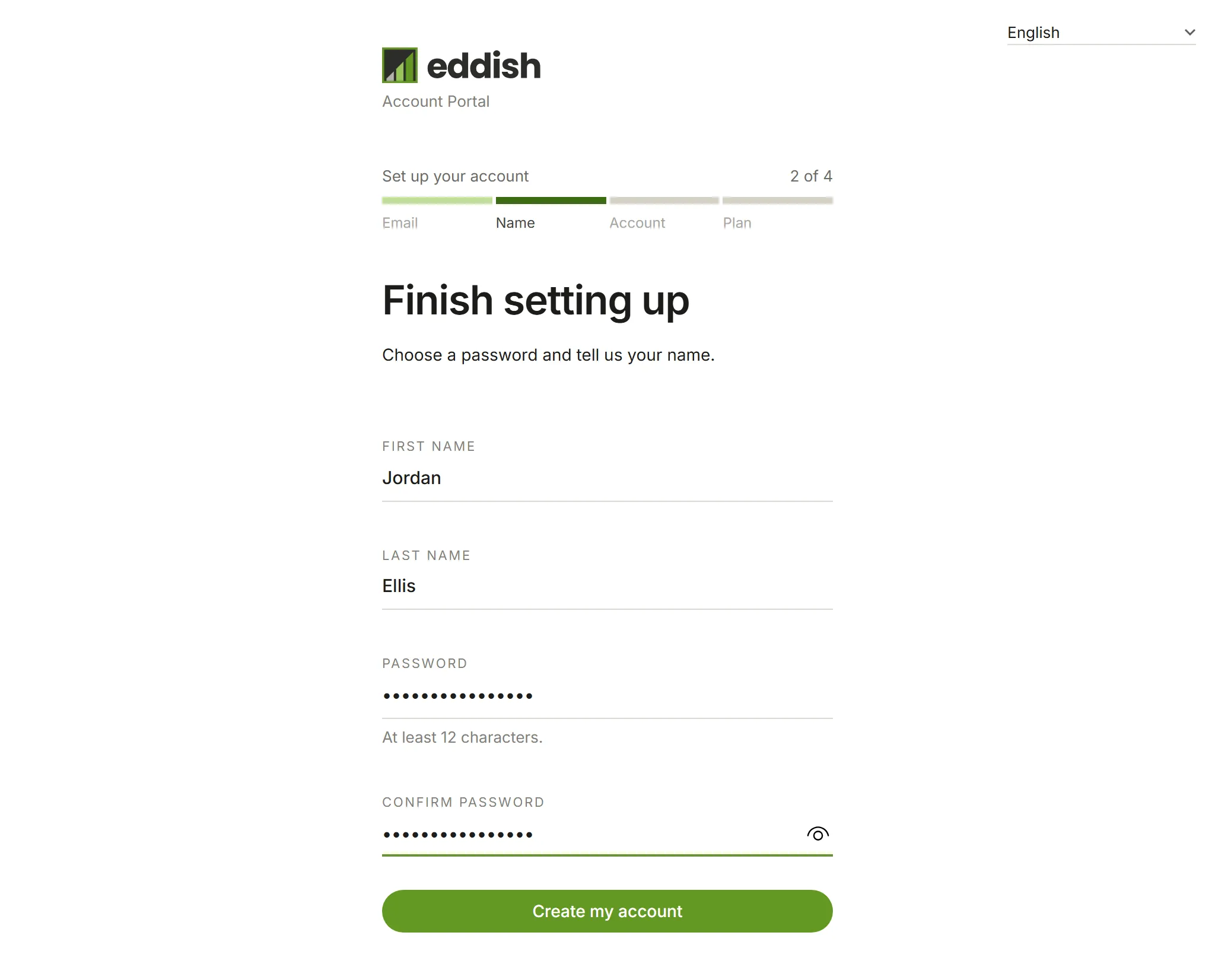
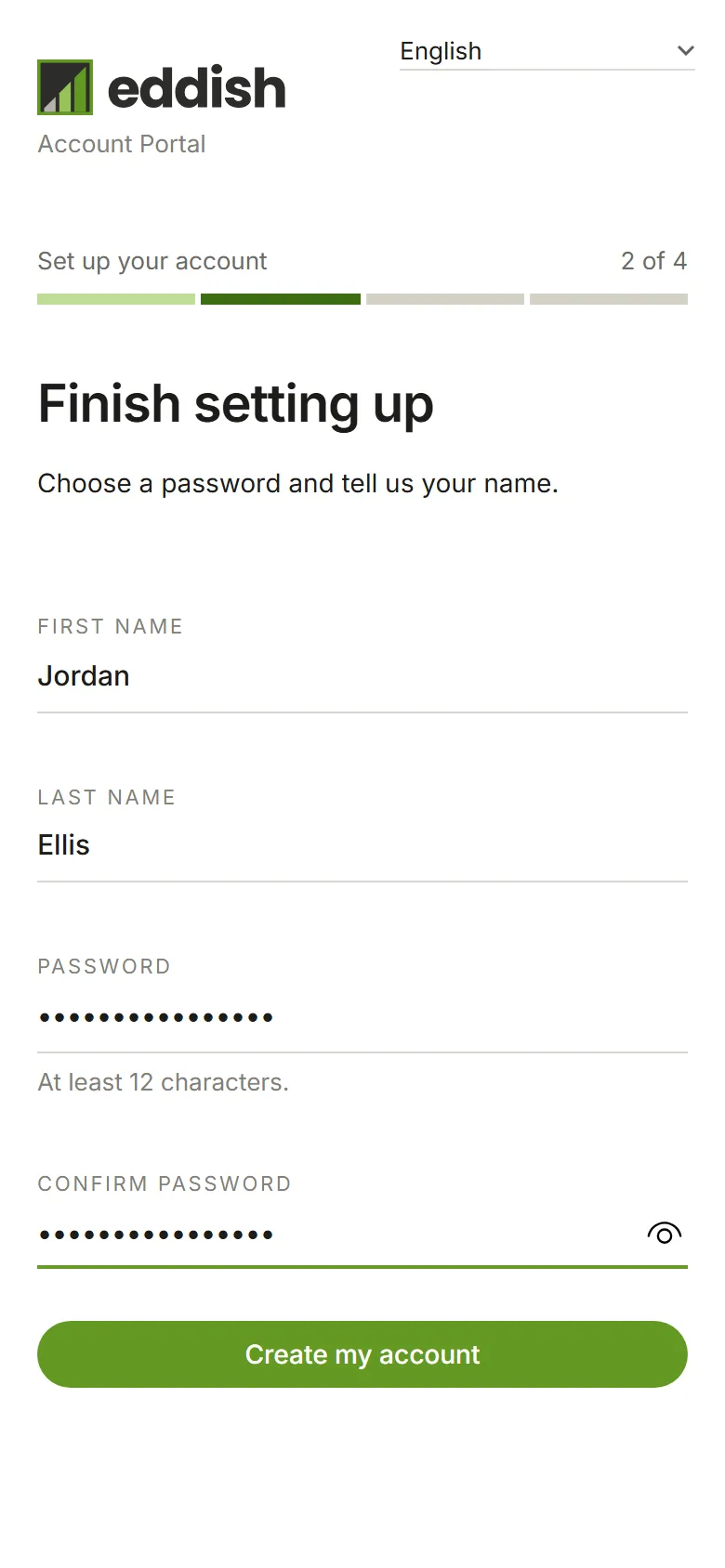
Add your name and a password. Enter your first and last name, then choose a password and type it again to confirm. Choose Create my account.
-
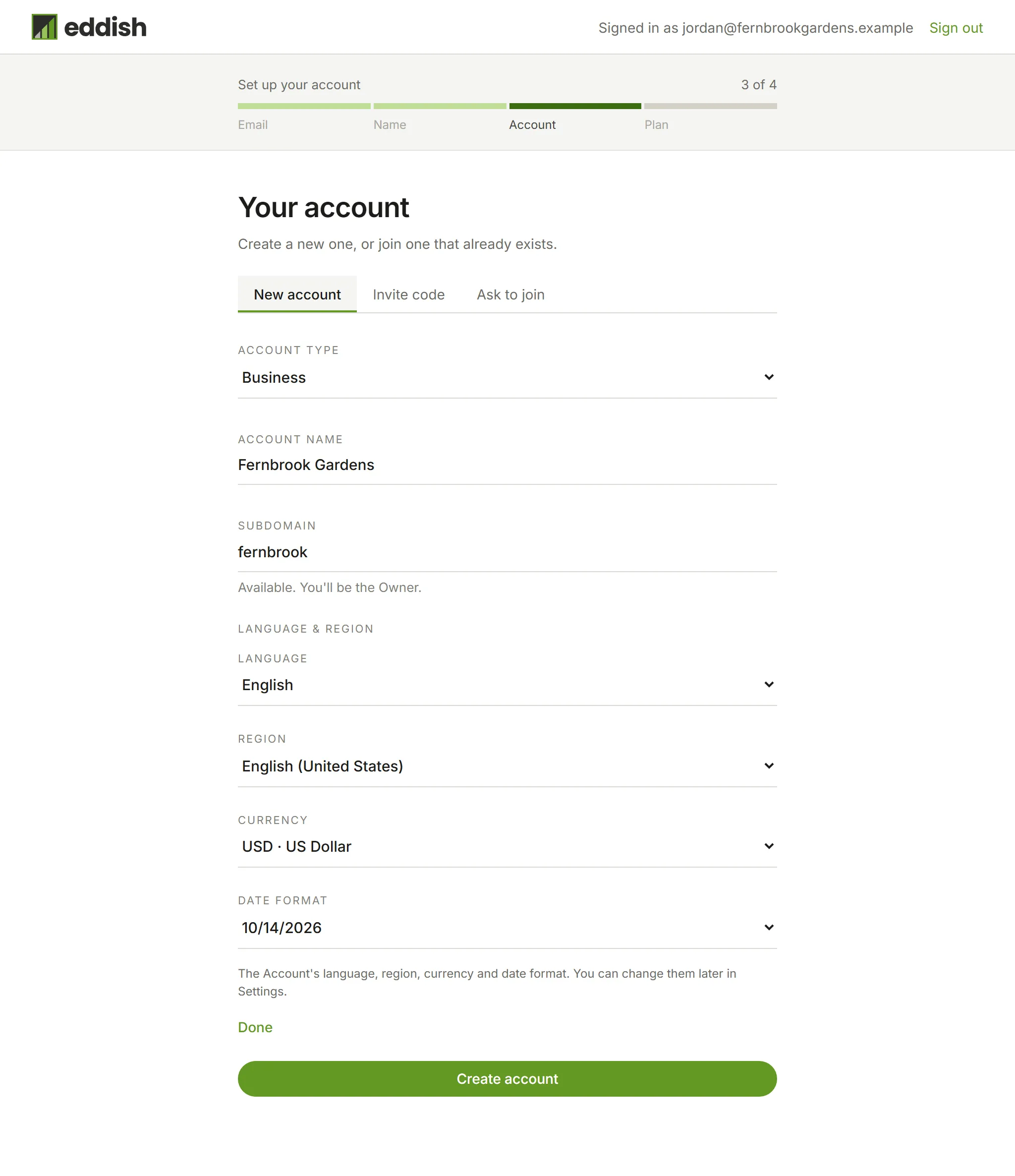
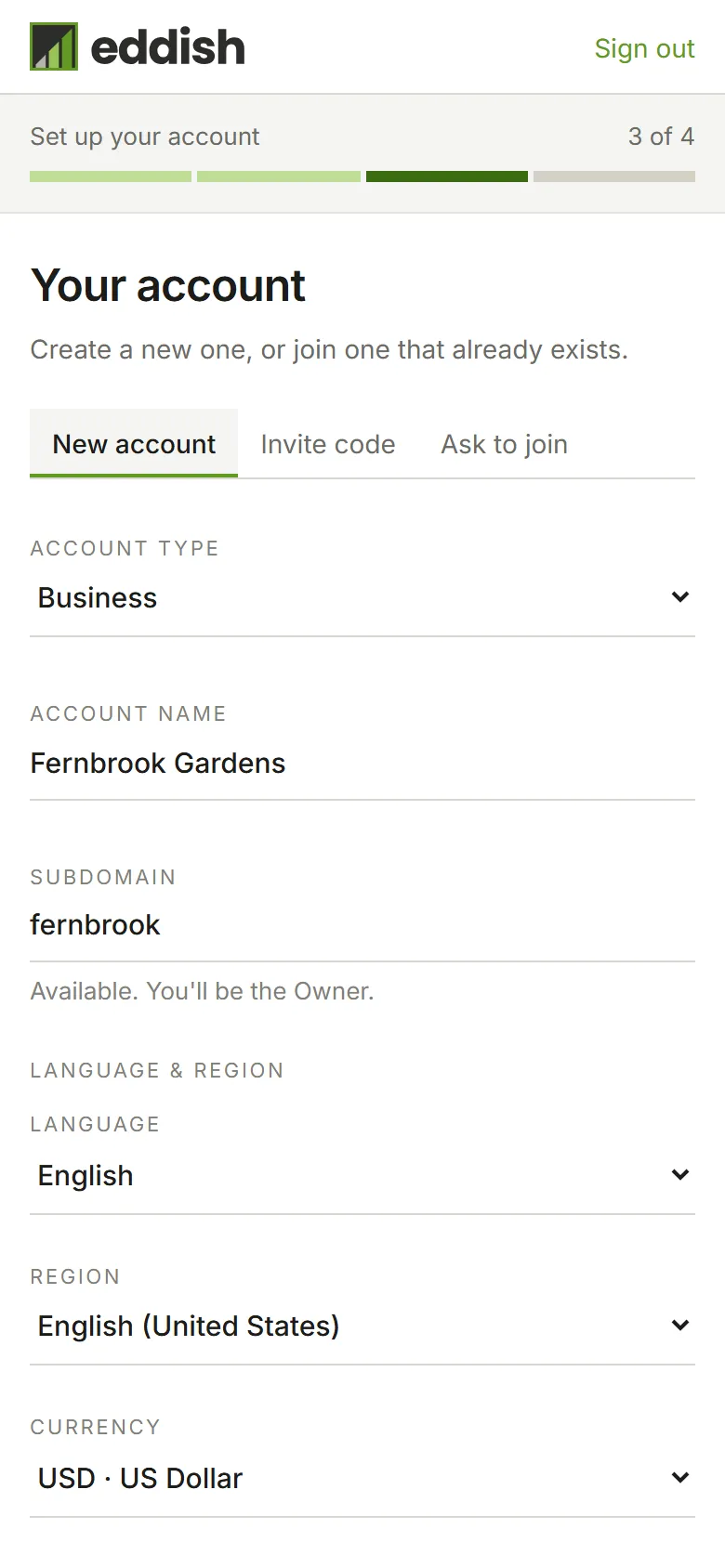
Create your account. On the Your account screen, create a new account or join one that already exists. An account is your business in Eddish: its clients, its work and the people who can see them. Choose the Account type (Individual, Business, Non-profit, Government or Education, or Other), give it a name, and pick a subdomain, the short name in your account’s web address. We check it as you type and say Available. You’ll be the Owner. when it’s yours to take: you’re the account’s first member, with the Owner role. Choose Create account.
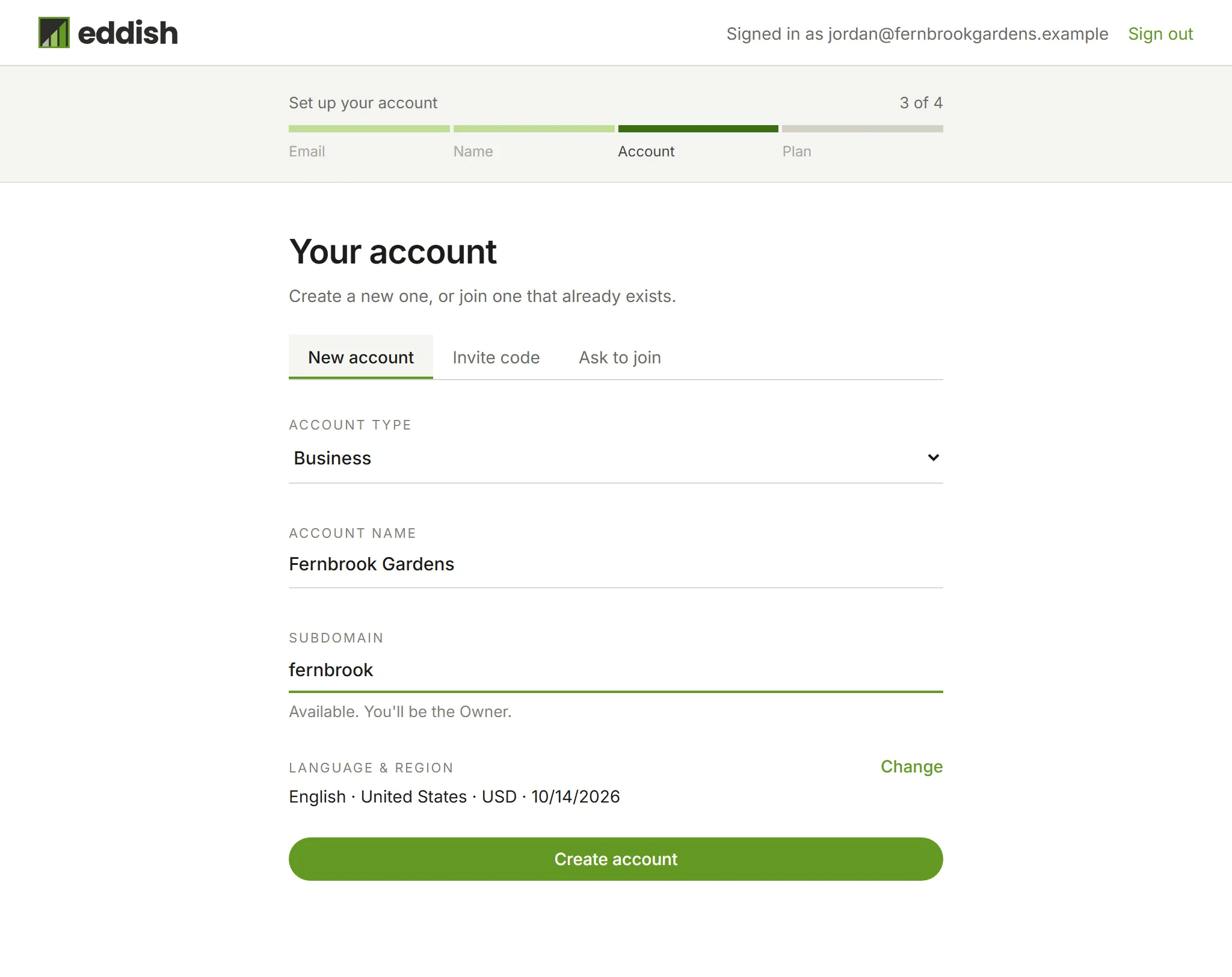
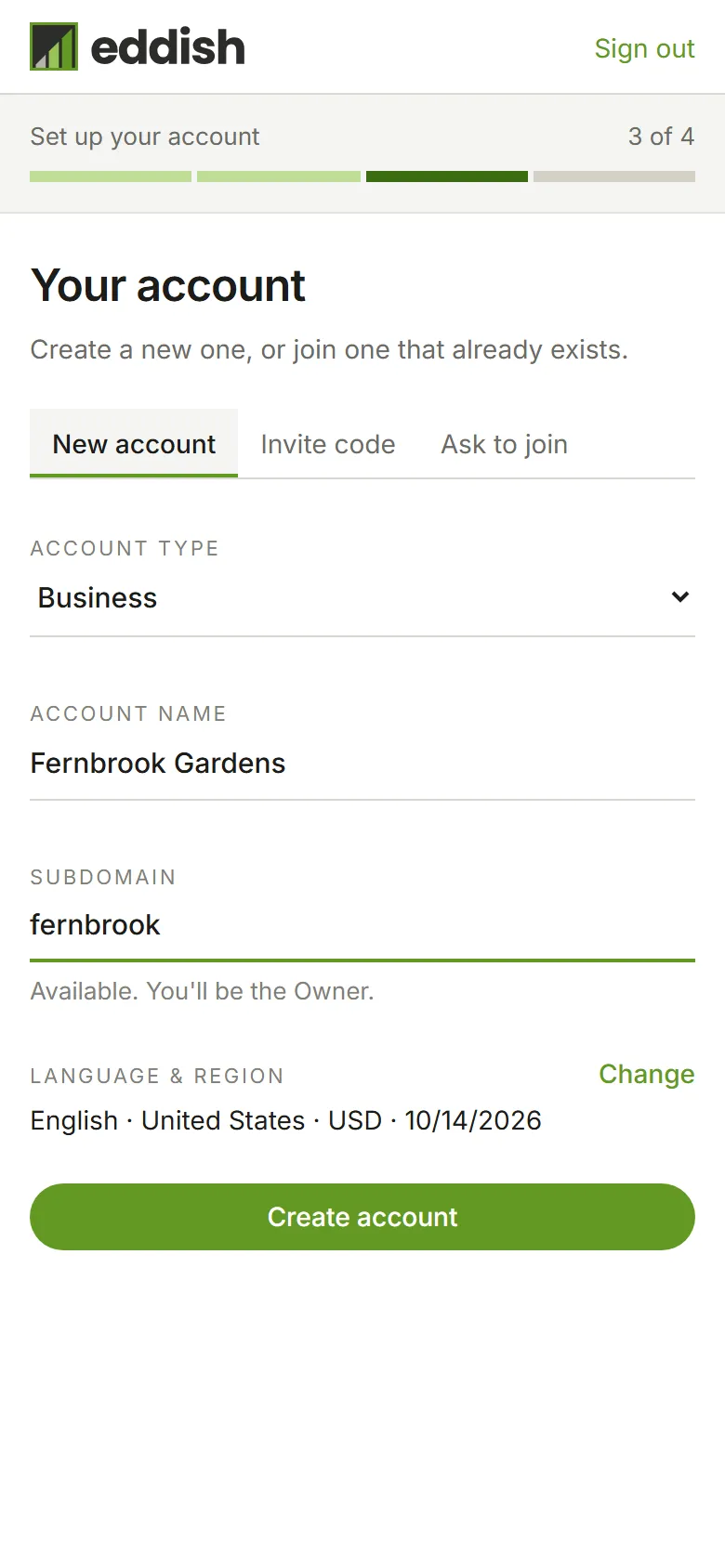
Under Language & region a line shows what the account will use, for example English · United States · USD · 10/23/2026: its language (the one you signed up in), its region, its currency and how it writes dates. They come from your sign-up language and your browser. To pick others, choose Change. The account’s Owner can change them later in Account preferences.
-
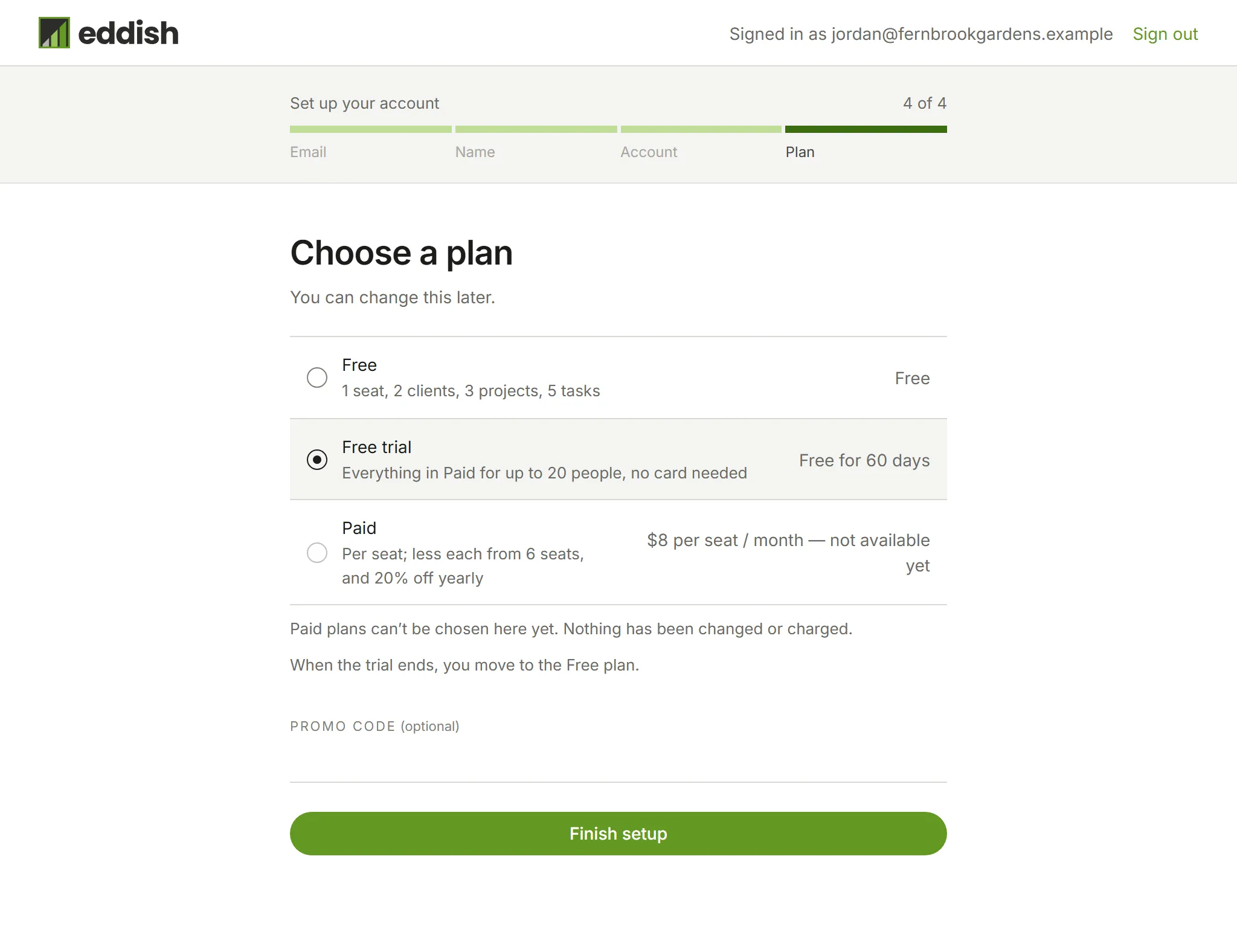
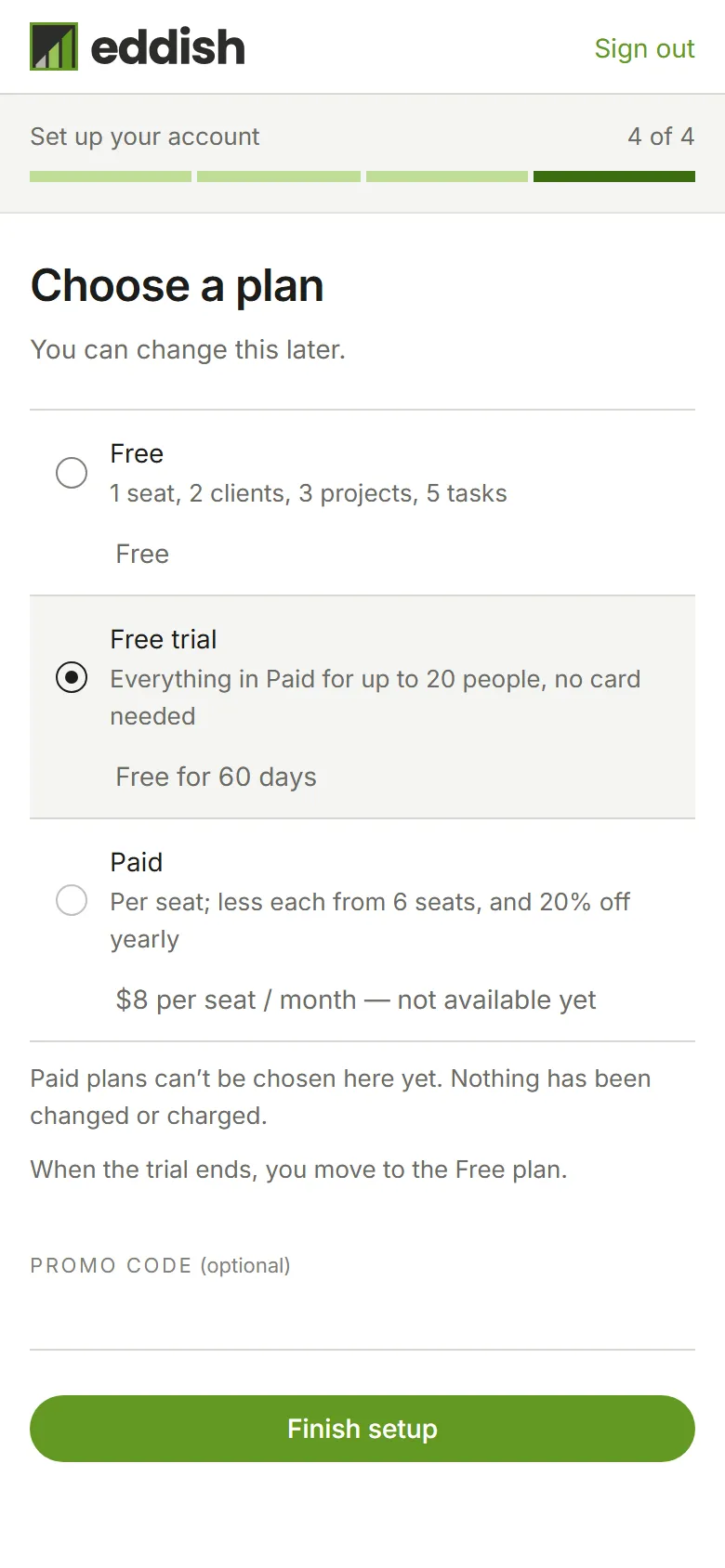
Choose a plan. If Eddish offers more than one app, you’re asked Which app are you signing up for? first: pick one and choose Continue. You can add more apps to your account later. With only one app there’s nothing to pick. Then choose the app’s plan; you can change it later. Each plan shows its price, and some a short note such as Two months free. Pick the plan you want; a free trial is selected for you if the app offers one. Choose Finish setup.
Invoicing’s Free plan includes 1 seat, 2 clients, 3 projects and 5 tasks: enough to try it on your own work. Anyone can join the account, but only one person can use Invoicing. Archived clients, projects and tasks don’t count. The 60-day free trial includes 20 seats and no other limits, and the paid plan is priced per seat (see Billing).
Choosing a paid plan. Your account starts on the Free plan while you pay. When you finish setup you’re taken to Billing with the plan you picked selected: choose Continue to payment, and pay on our payment processor’s secure checkout (Paddle). Your plan changes as soon as the payment is confirmed, usually within a few seconds. If you close the checkout without paying, nothing is charged and you stay on Free; you can pay any time from Billing. Where paid plans aren’t available yet, they’re shown but say not available yet and can’t be picked.
-
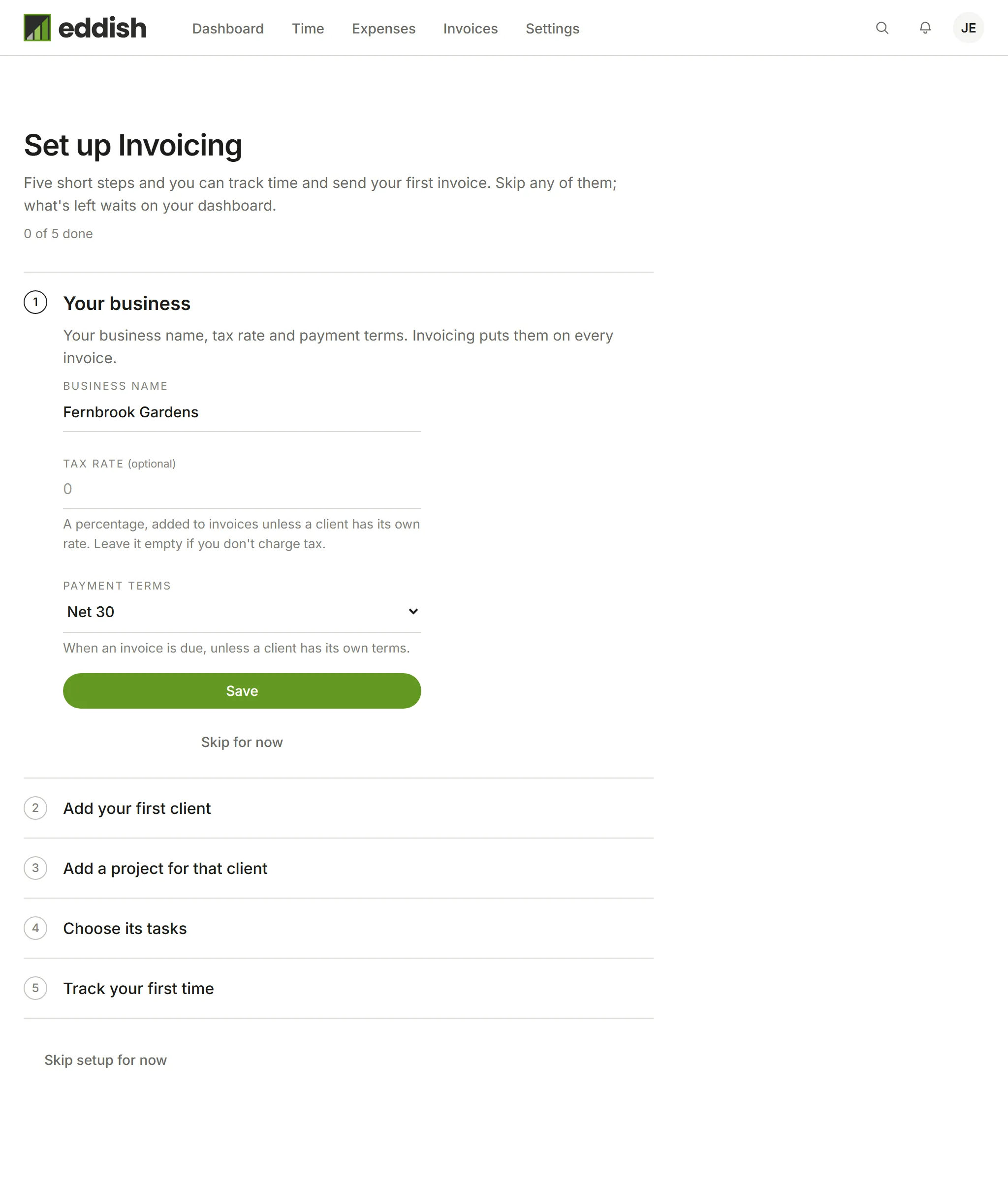
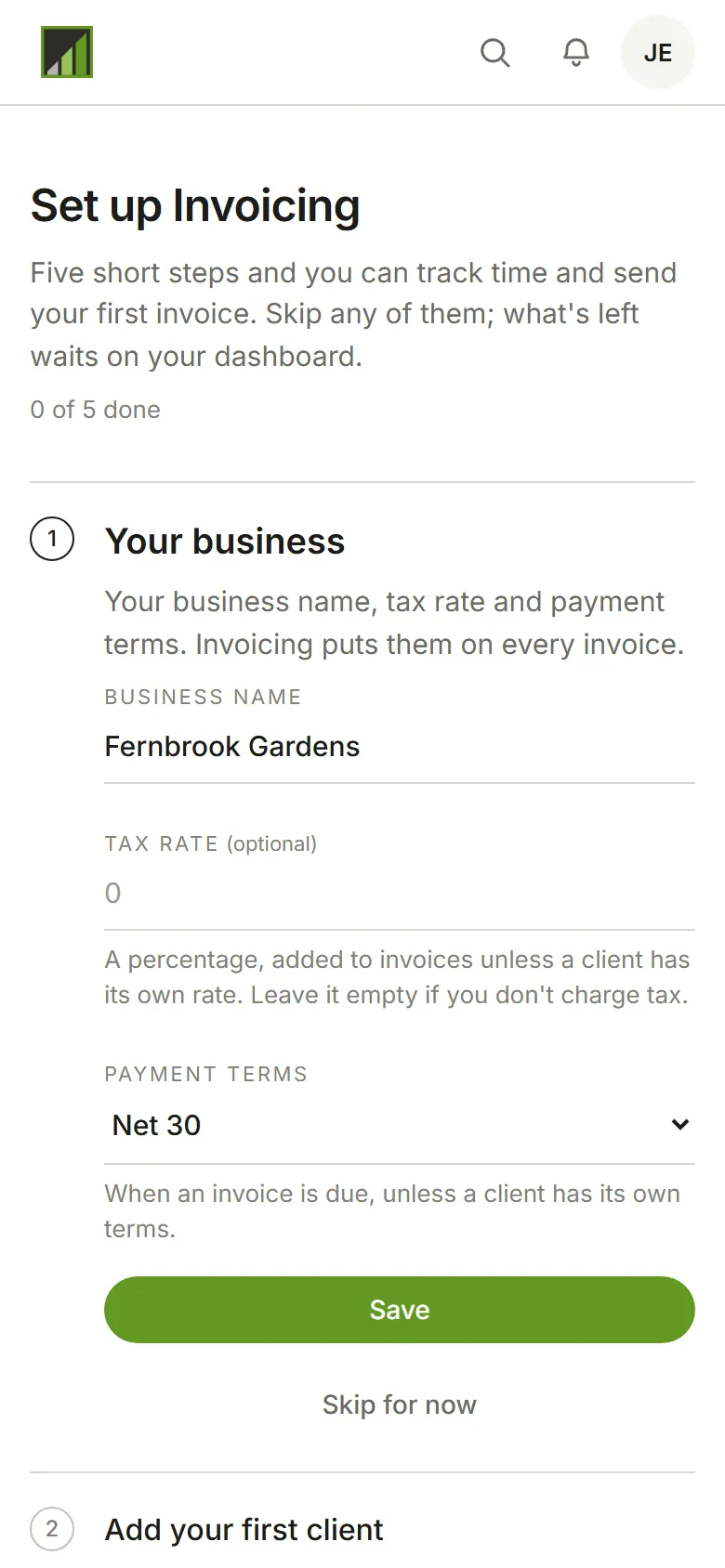
Go to the app. Choose Go to the app. The app opens on its own setup: Invoicing asks for your business basics first, then helps you add your first client, project and tasks (see Set up Invoicing).
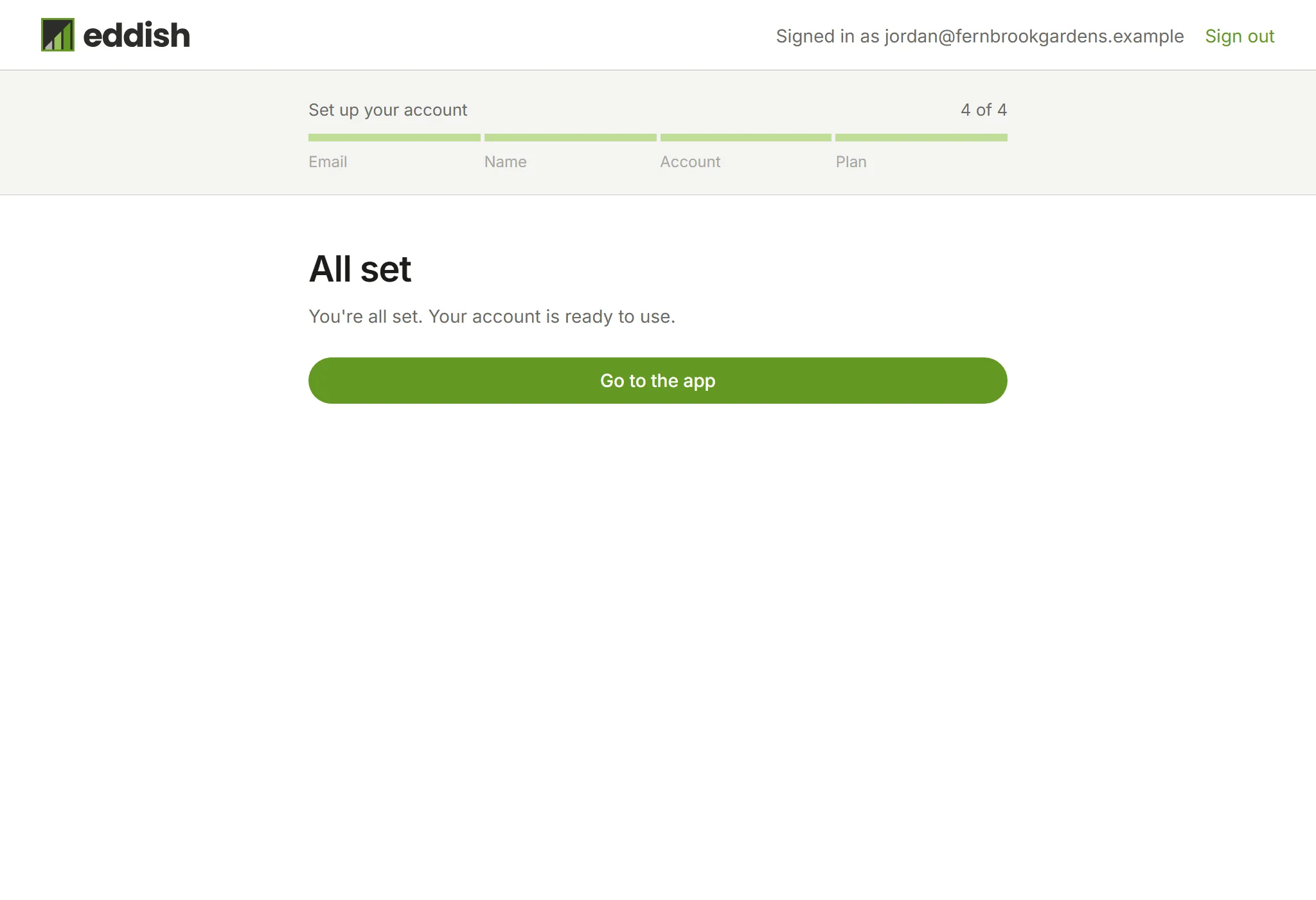
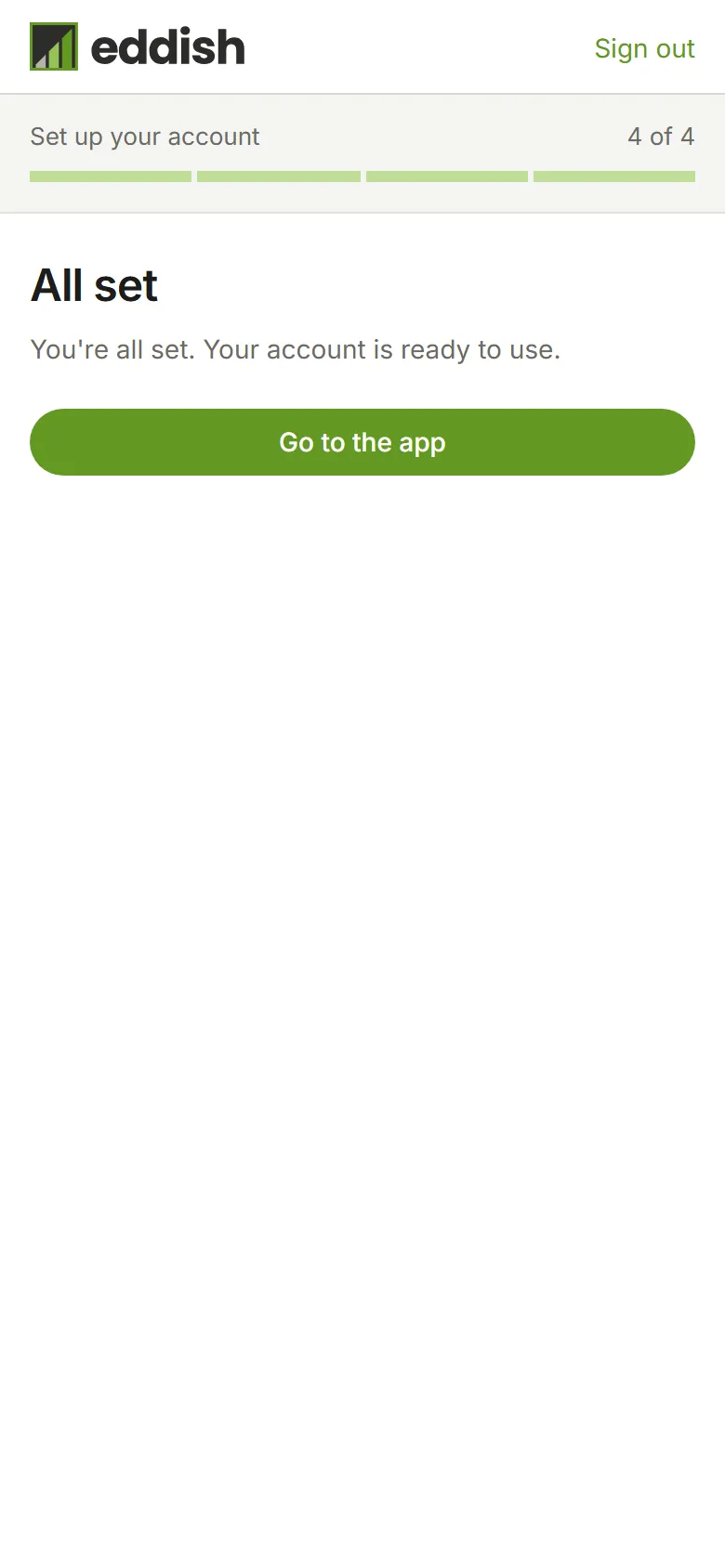
You’re in. A new account starts empty: no clients, projects or time yet. Invoicing opens a short guide to fix that: Set up Invoicing walks through it.
- Invite your team, if other people will track time with you.
- Track time, then create an invoice from it.