

API access
A personal access token lets a script, a spreadsheet, or an AI assistant such as Claude use an app as you. It can do what you can do in that app, and nothing more: the same role, the same clients and projects, the same limits on your plan. It belongs to you, in one account, for one app.
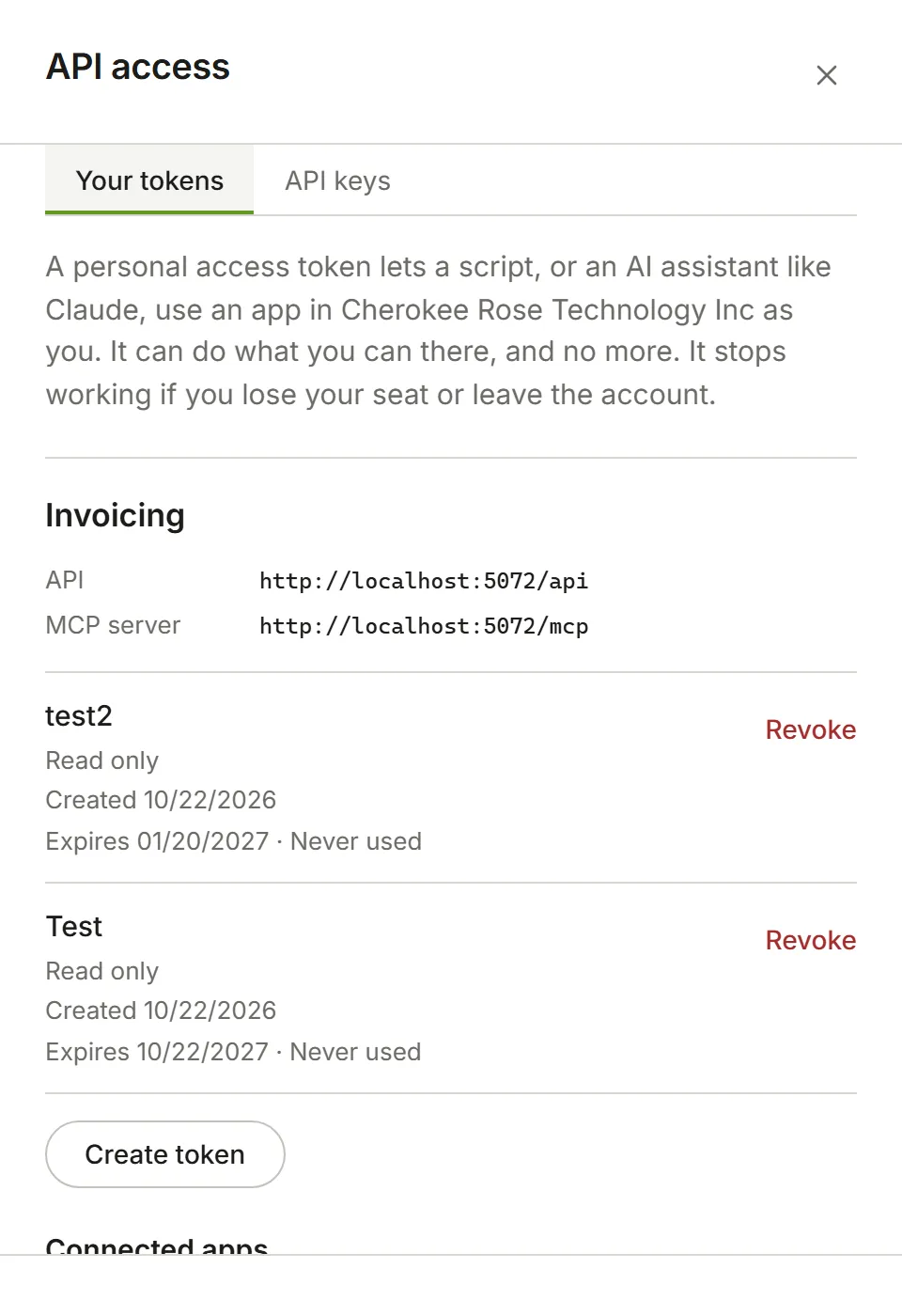
Choose Account Settings from your avatar menu, then API access, under Integrations. Anyone in the account can make their own tokens. Owners and Admins see two tabs: your tokens are under Your tokens, and the account’s API keys under API keys. In an app such as Invoicing, Settings then API access brings you to the same place.
When you can’t make a token
Section titled “When you can’t make a token”Each app is listed with your tokens for it. If you can’t make one, the screen says why:
- The app doesn’t offer an API yet. Nothing on your side changes this.
- Your account’s plan doesn’t include API access. An Owner can move to a plan that does in Billing.
- You don’t have a seat in the app. An Owner or Admin can give you one in Billing.
Making a token
Section titled “Making a token”- Under the app, choose Create token.
- Give it a name that says what will use it, such as Claude or Monthly report, so you know which token to revoke later.
- Choose what it can do:
- Read only: it can see what you can see, and change nothing. Choose this unless it needs to add or change things.
- Read and write: it can do anything you can do in the app.
- Choose when it expires: in 30 or 90 days, in a year, or on a date up to a year away. Every token expires; make a new one when it does.
- Choose Create token.
The token is shown once. Copy it now: you won’t see it again. Under it are the two ways to use it, with the token already filled in: a command that connects Claude Code, and an example request to the app’s API.
We email you when a token is made. If you get that email and didn’t make the token, revoke it and change your password.
Keep the token out of shared documents and code that others can read. Anyone who has it can act as you in the app.
What a token can and can’t do
Section titled “What a token can and can’t do”A token always acts as you, as you are now:
- It follows your role. If an Owner makes you an Admin or a Member, your tokens can do what your new role allows from the next request.
- It needs your seat. If your seat in the app is taken away, your tokens stop working until you have one again.
- It stops if you leave. If you’re removed from the account, your tokens there are revoked.
- It needs the plan. If the account’s plan stops including API access, your tokens stop working, and start again when it does.
- Changing your password doesn’t revoke tokens. Revoke any you no longer trust.
Things you do with a token are recorded as yours, and marked as done with that token.
Revoking a token
Section titled “Revoking a token”Choose Revoke beside the token, then Revoke again to confirm. It stops working straight away. A revoked token stays in the list, marked Revoked with the date, and who revoked it if it wasn’t you.
Owners and Admins can see everyone’s tokens in API keys, never the tokens themselves, and can revoke any of them.
Using a token
Section titled “Using a token”- With an AI assistant: see Connect an AI assistant.
- With a script: see the Invoicing API.
Connected apps
Section titled “Connected apps”An AI assistant that you connected by signing in through your browser, rather than with a token, is listed under Connected apps beside the app’s tokens: its name, whether it can read only or read and write, and when it was last used. Choose Disconnect to stop it at once. See Connect an AI assistant.
Owners and Admins see everyone’s connected apps in API keys, and can disconnect any of them.