

Two-factor authentication
With two-factor authentication on, signing in takes your password and a six-digit code from an authenticator app on your phone, so a stolen password isn’t enough. It applies to you in every account you belong to.
You need an authenticator app, such as Google Authenticator, Microsoft Authenticator or 1Password.
-
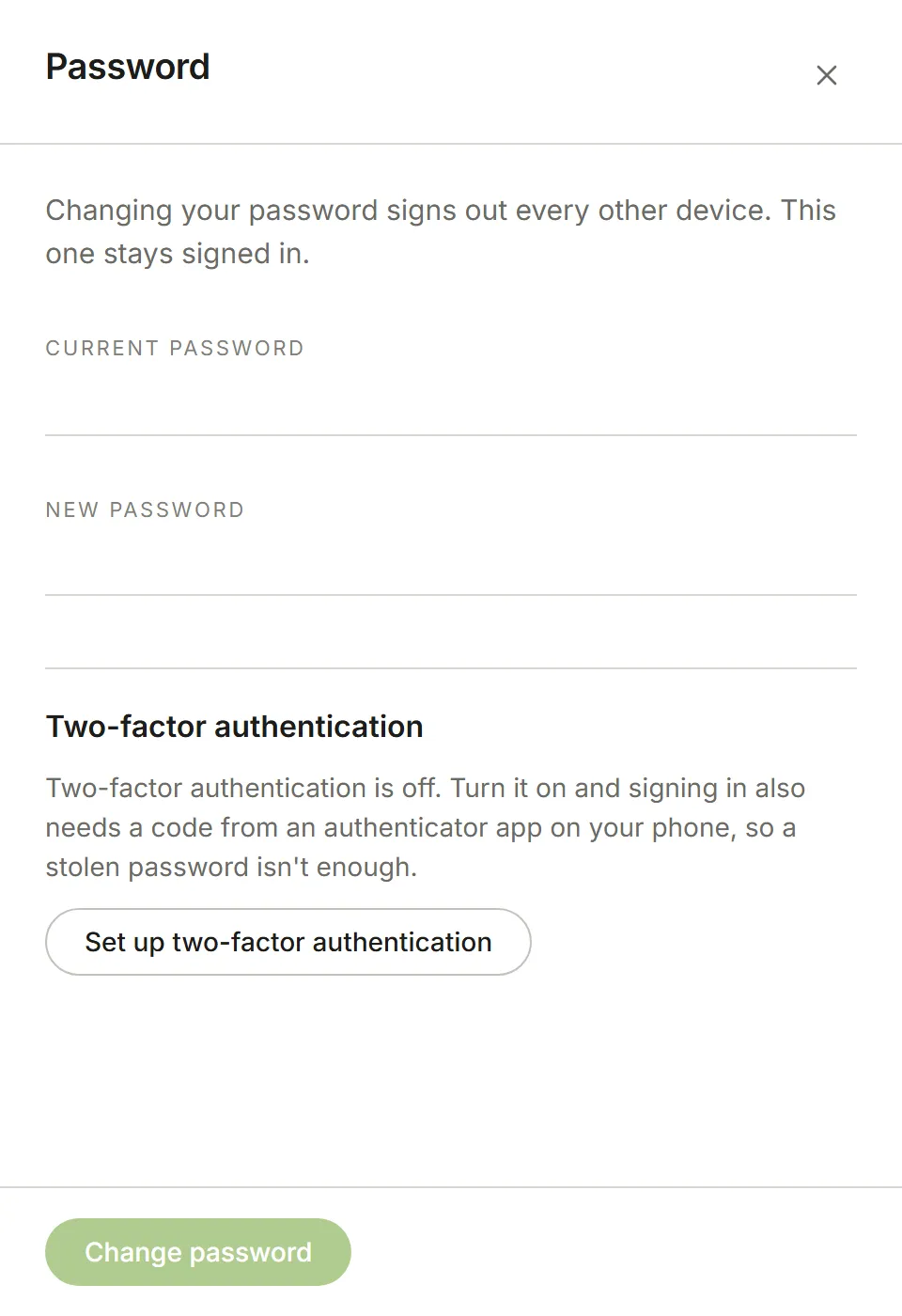
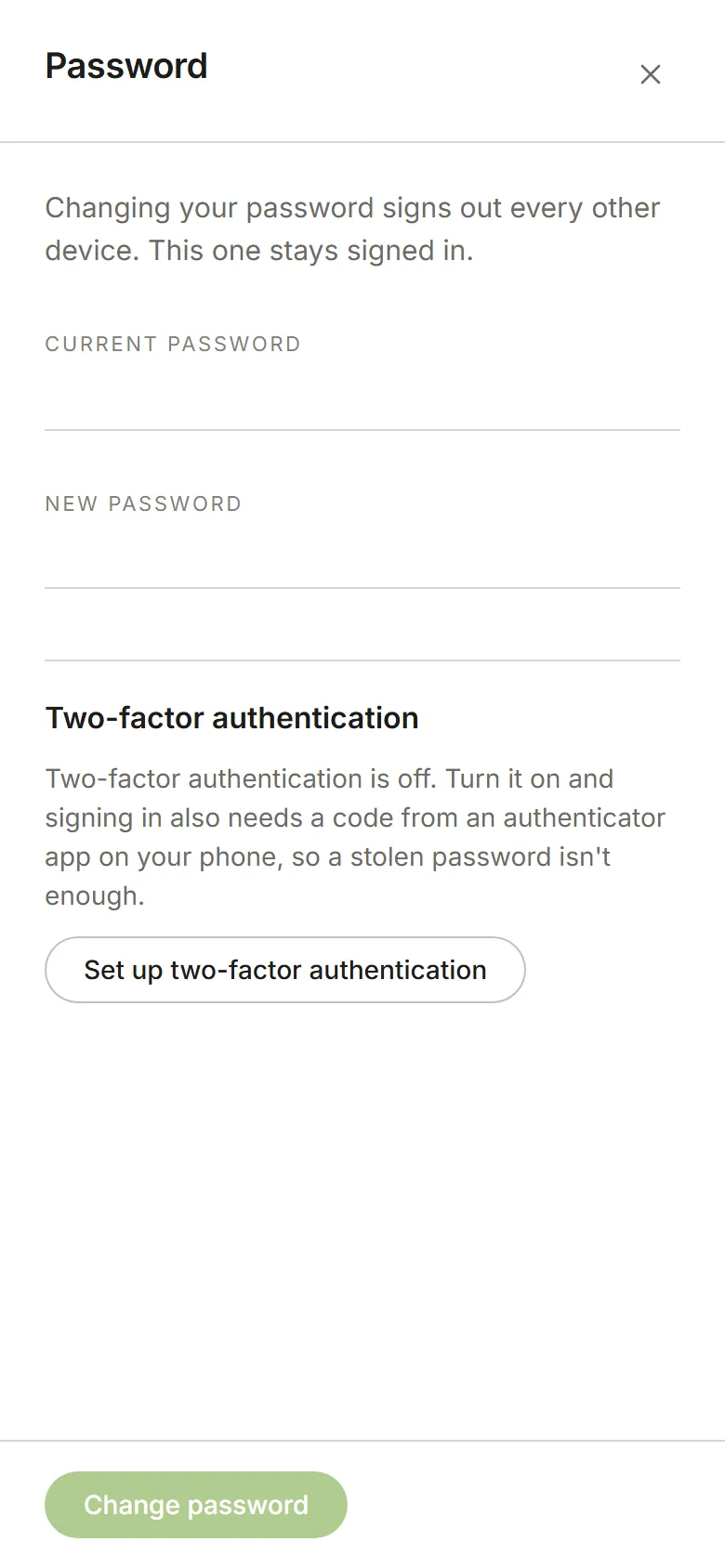
Choose Account Settings from your avatar menu, then Password. Under Two-factor authentication, choose Set up two-factor authentication.
-
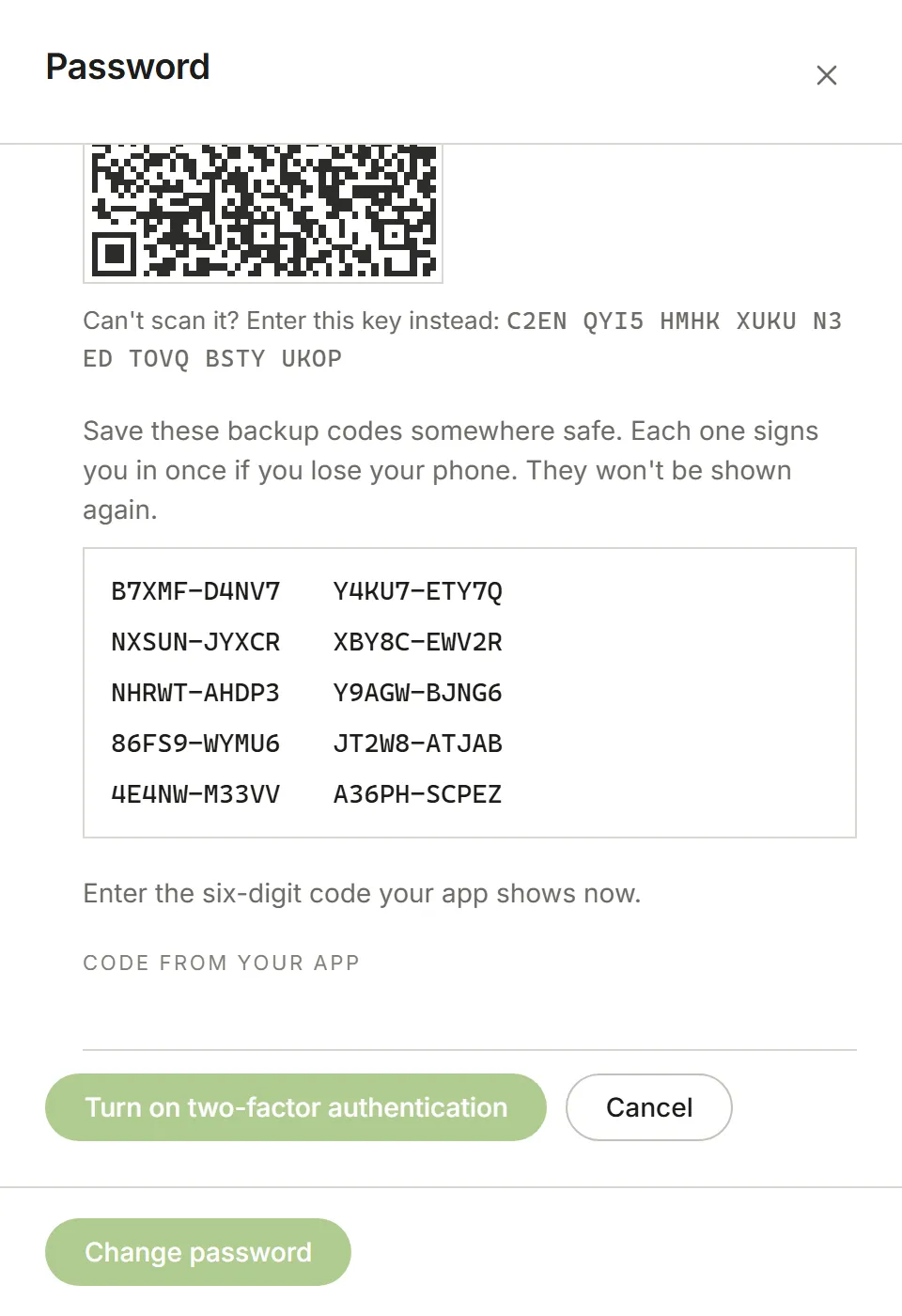
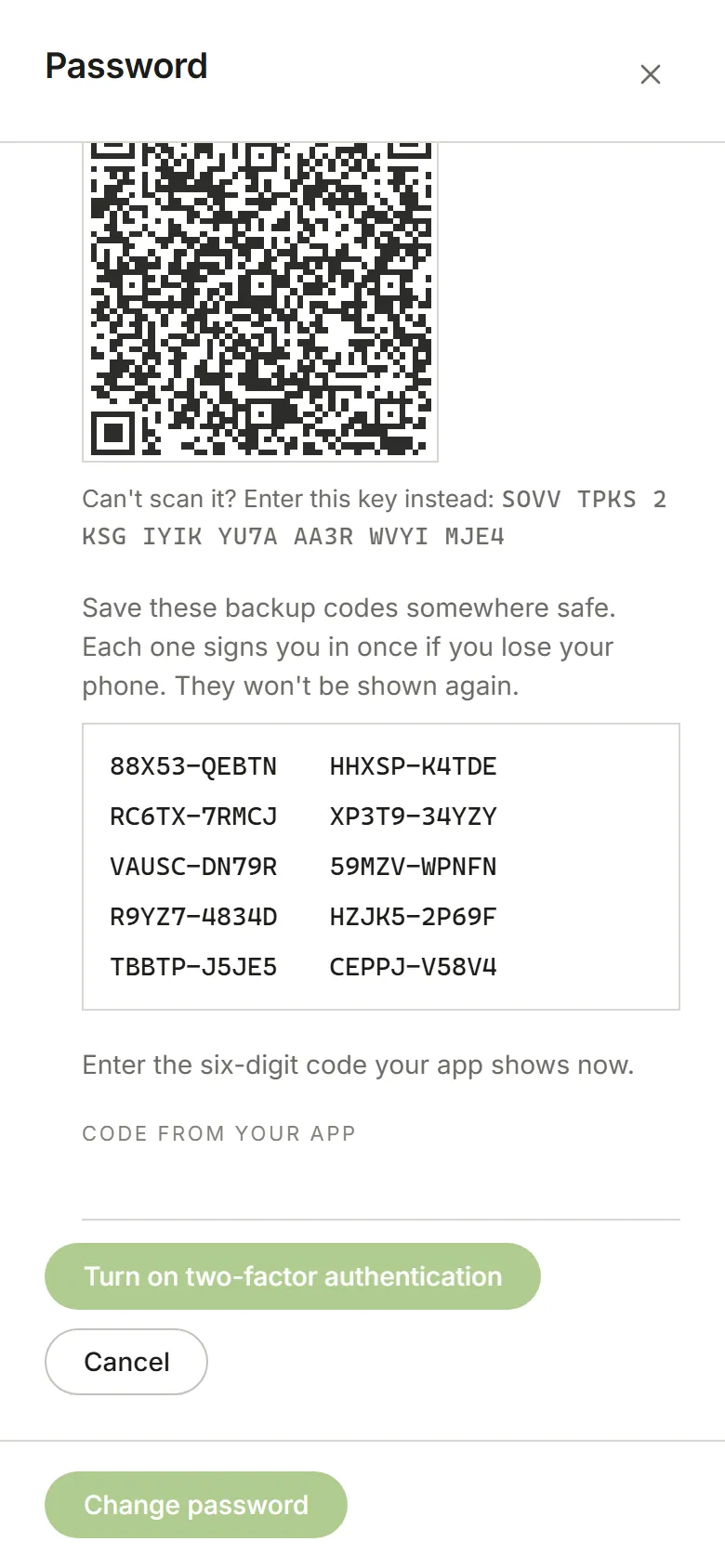
Scan the QR code with your authenticator app. If you can’t scan it, for example because you’re setting up on the phone itself, type the key shown under it into the app instead.
-
Save the backup codes somewhere safe, such as a password manager. Each one signs you in once if you lose your phone. They aren’t shown again.
-
Enter the six-digit code your app shows now, and choose Turn on two-factor authentication.
From then on, after your password, you’re asked for the current code from your app. Turning two-factor on also signs you out on every other device.
Turn it off, or move it to a new phone
Section titled “Turn it off, or move it to a new phone”In Password, choose Turn off two-factor authentication, enter the current code from your app, and confirm. Turning it off signs you out on every other device, and your old backup codes stop working.
Lost your phone? Sign in with one of your backup codes, then turn two-factor off the same way, entering another unused backup code instead of a code from the app. Then choose Set up two-factor authentication and set it up on your new phone, which gives you a fresh set of backup codes.
An account’s Owner can require two-factor for everyone in the account: see Account security.