

Set up Invoicing
Invoicing needs a few things before you can track time and send an invoice. Once you’ve created your account and chosen a plan, a short guide takes you through them the first time you open Invoicing.
Your business basics
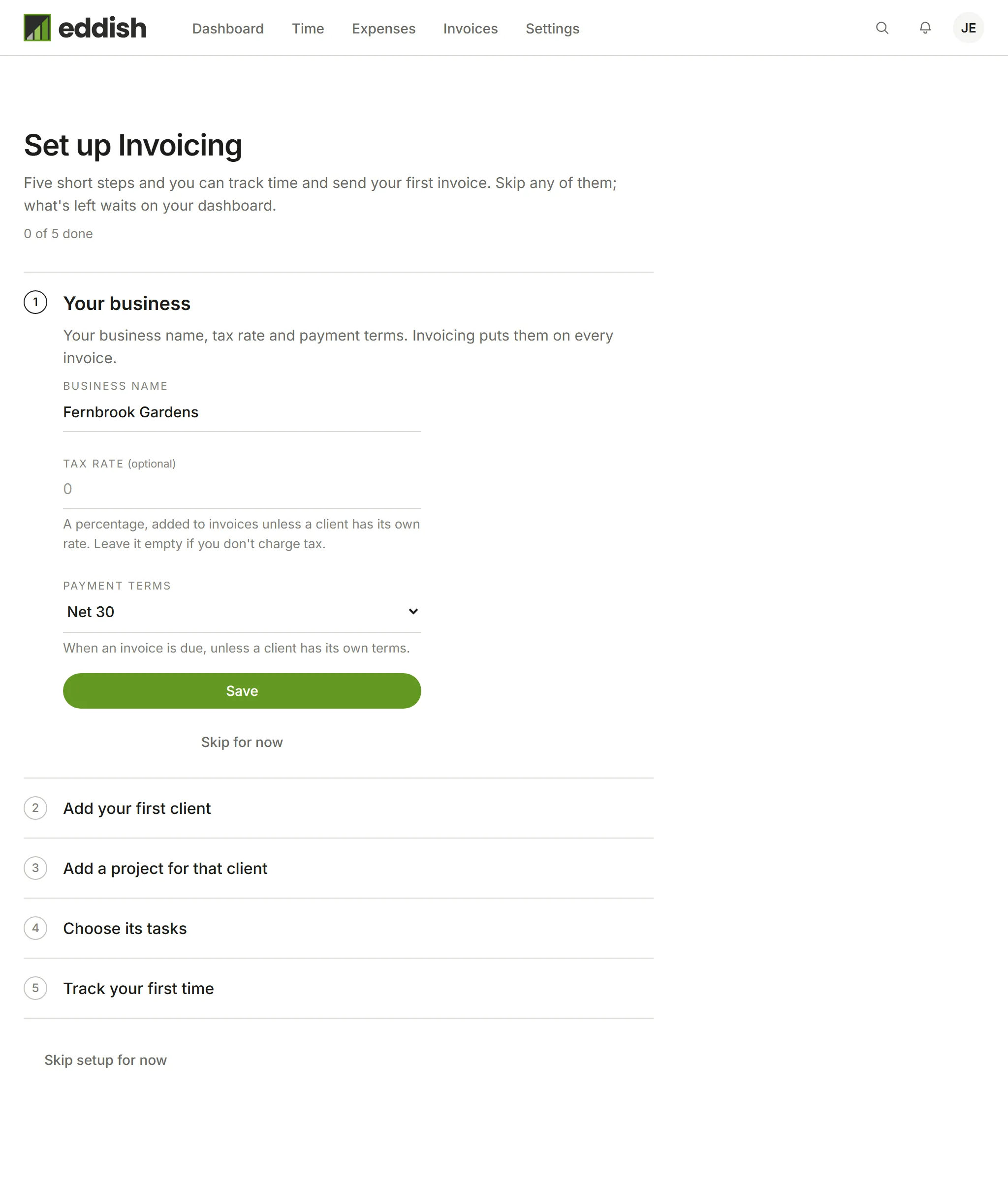
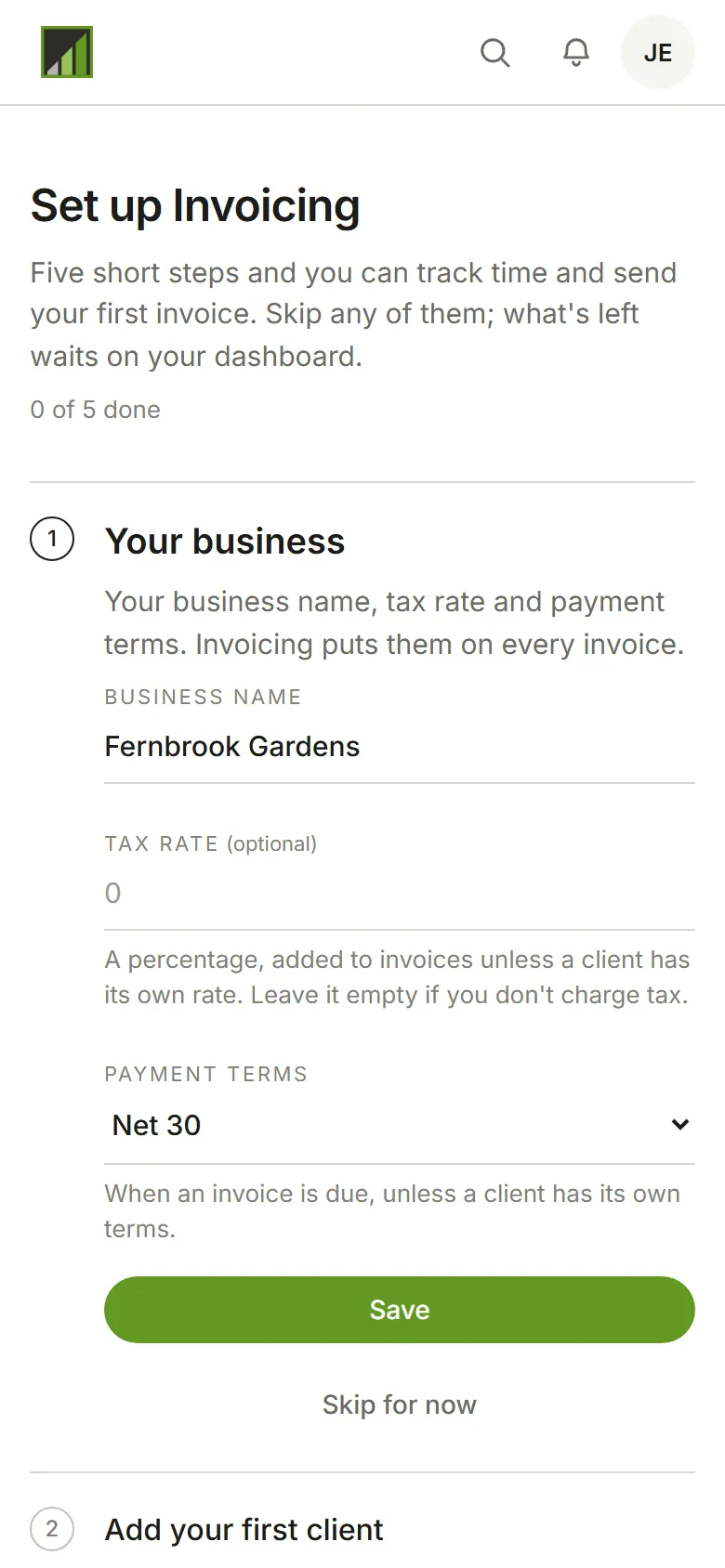
Section titled “Your business basics”The guide’s first step, Your business, asks for:
- Business name. Your account’s name to start with. It goes on every invoice.
- Tax rate. A percentage added to invoices, unless a client has its own rate. Leave it empty if you don’t charge tax.
- Payment terms. When an invoice is due, unless a client has its own terms. Net 30 is suggested.
The currency isn’t asked here: it’s the account’s, chosen with its language and region when you created the account, and the Owner can change it under Account preferences.
Choose Save. You can change all of these later in Settings → Business details and Settings → Invoicing. Only the account’s Owner can set them; an Admin sees the step as the Owner’s.
The rest of the guide
Section titled “The rest of the guide”When you finish signing up, Invoicing opens Set up Invoicing: five steps, one open at a time, the business basics above first. Each step uses the same form you’d find in Settings.
-
Your business. The basics above.
-
Add your first client. Choose Add a client, give the client a name (the rest is optional) and choose Create client. See Clients.
-
Add a project for that client. Choose Add a project. The client you just added is already selected. Name the project, pick how it’s billed, and choose Create project. See Projects.
-
Choose its tasks. Common tasks are ticked for you: Design, Development, Meetings and Project management, plus any tasks your account already has. Untick any you don’t want, or choose Add your own to create another. Then choose Add tasks. The tasks are added to the project, and new ones are marked as common tasks so they’re ready for your next project too. See Tasks.
-
Track your first time. Choose Go to Time, then Track time. Pick the project and task, and start the timer or enter the hours you’ve worked. See Track time.
A step is ticked as soon as the thing it asks for exists, however you made it: a client you add from Settings ticks that step too.
Skip now, finish later
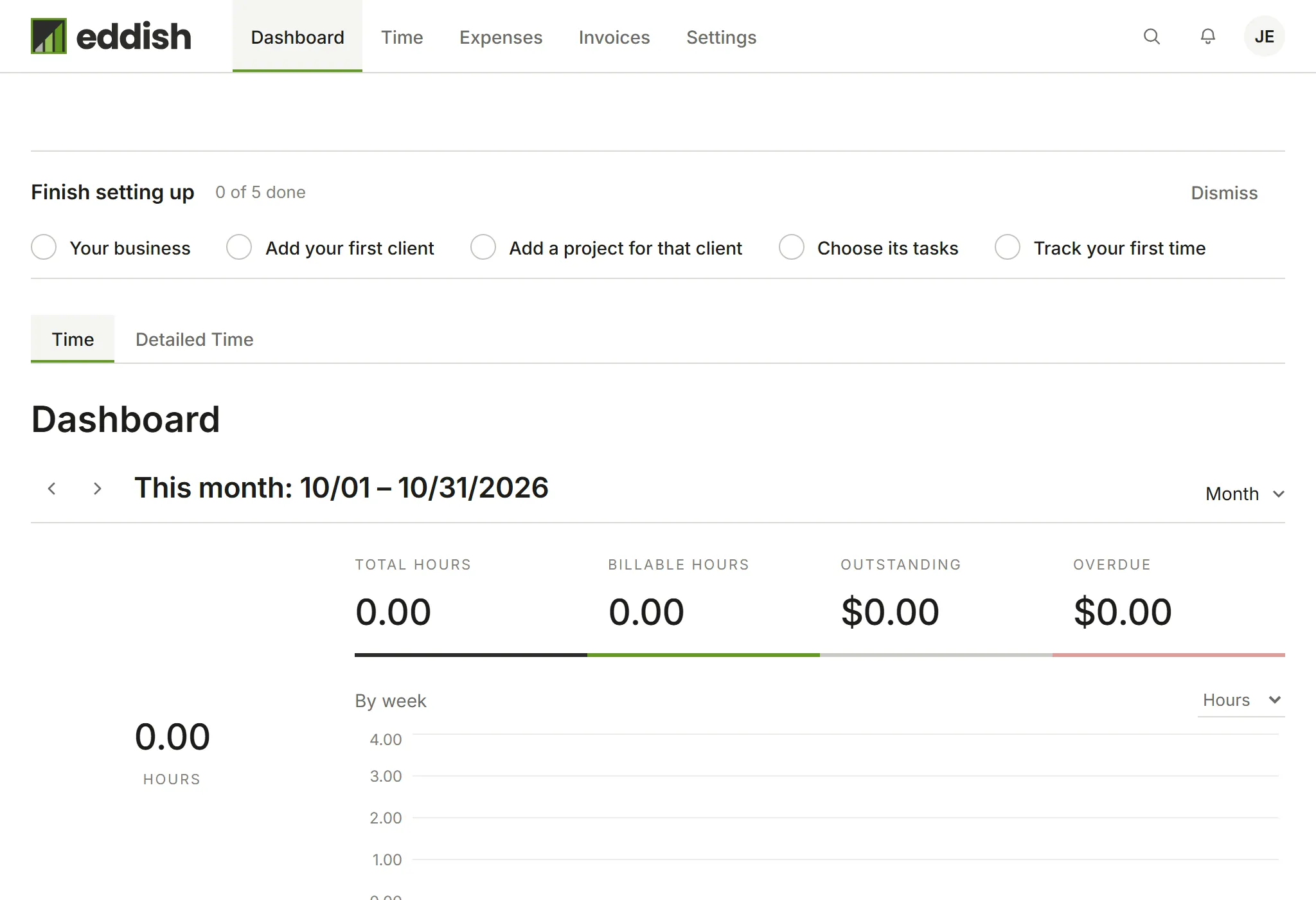
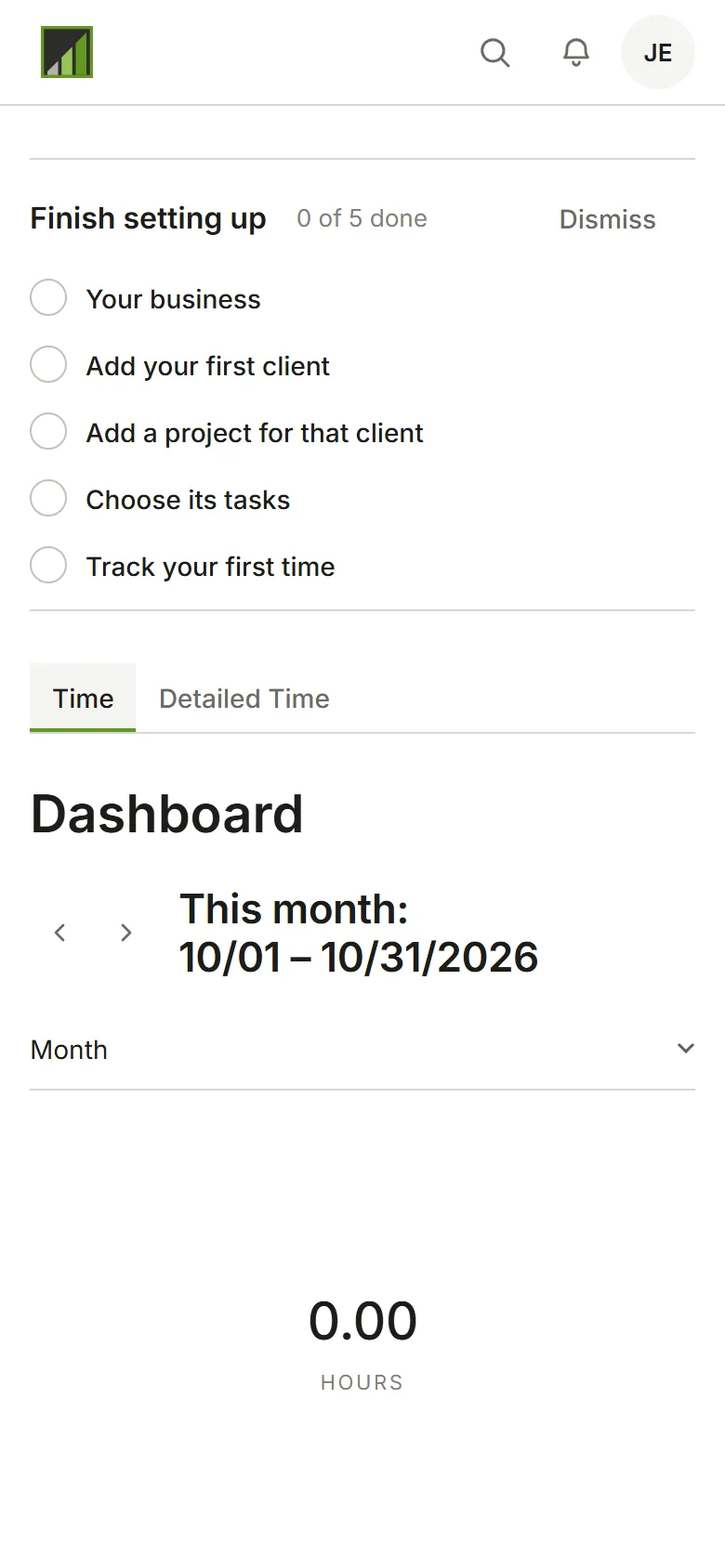
Section titled “Skip now, finish later”Choose Skip for now to move past a step, or Skip setup for now to leave the guide. Until every step is done, your dashboard shows Finish setting up with what’s left: choose a step to go back to the guide at that step. If you’d rather not see it, choose Dismiss. It’s hidden for everyone in your account, and everything it points to is still in Settings.
Who sees it
Section titled “Who sees it”The guide and the checklist are for the account’s Owners and Admins, who set the account up. Someone who joins an existing account as a Member doesn’t see either.